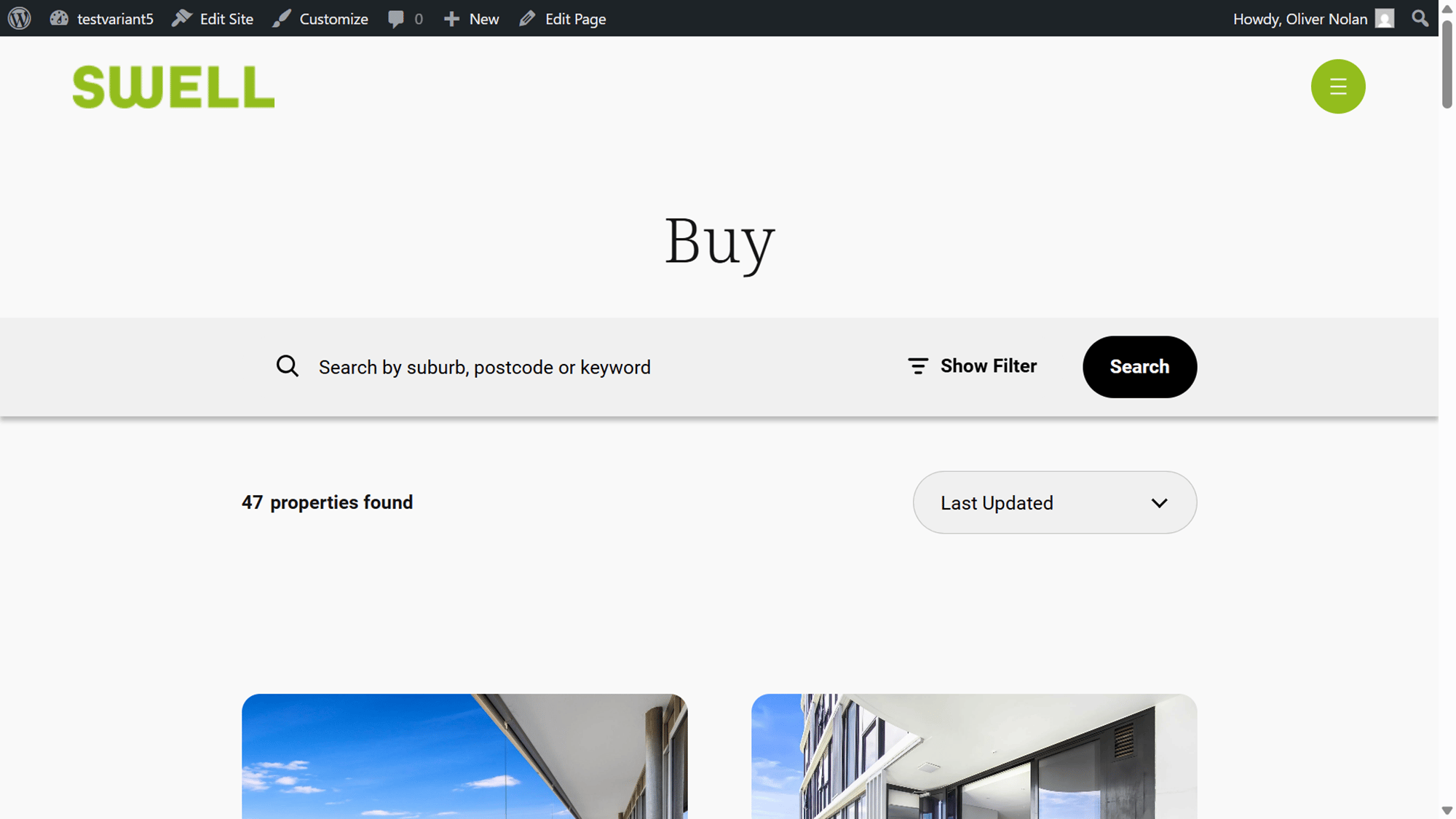
Managing Pages
This article will show you how to manage a page in Reapit Websites
Within your All Pages menu, you can:
- Add a new page.
- Filter and Search for existing page.
- View Title, Author, Category, Tag, Comments and Date of the page.
- Edit, Quick Edit, Delete and Preview your previously created page on your website.
The processes in this article include:
- Edit a Page
- Quick Edit a Page
- Deleting a Page
- View a Page
- Retrieving a Page
Edit a Page
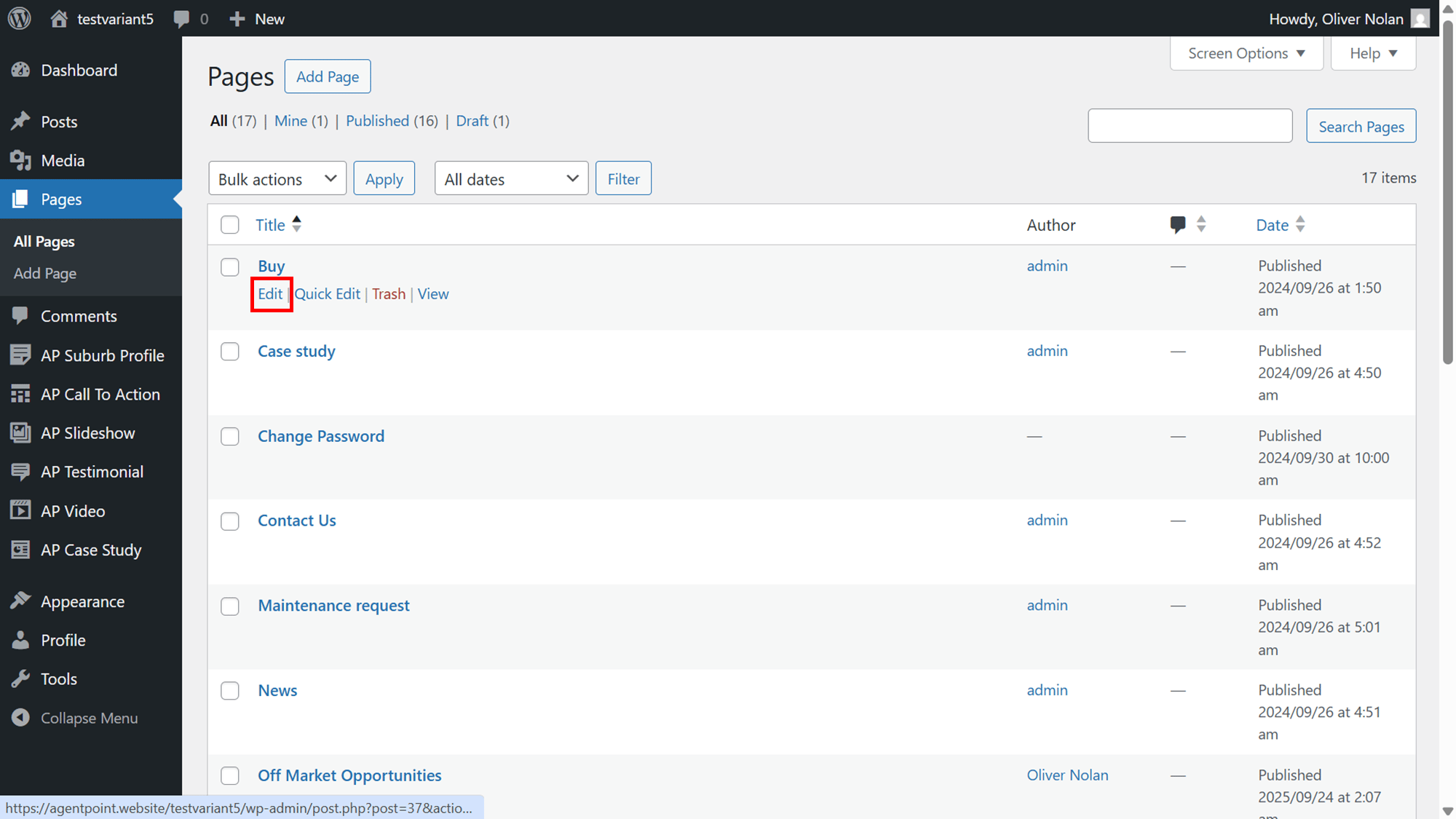
- Navigate to the page you wish to update, hover the cursor and click on Edit.
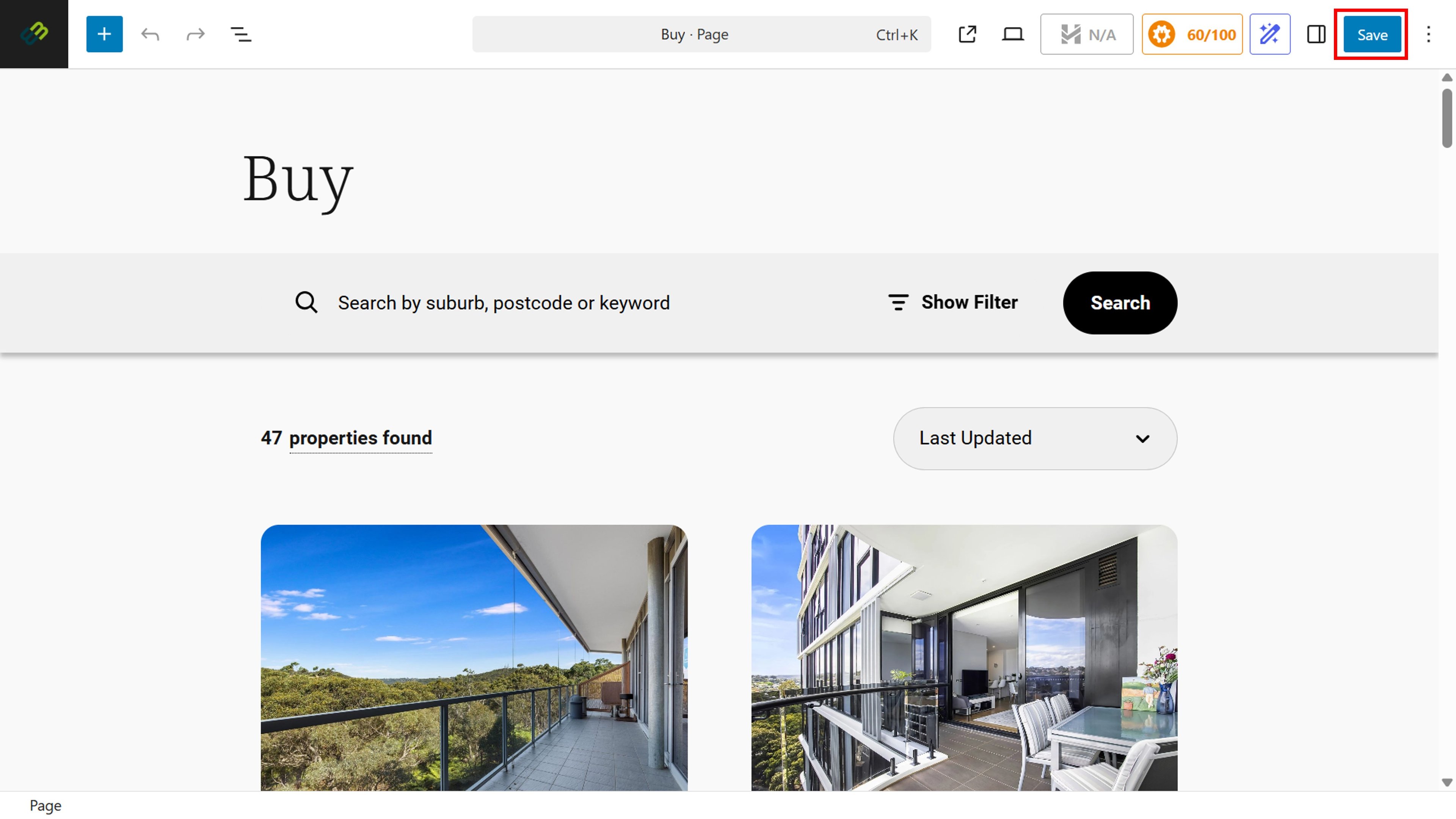
- Edit the page as required.
- Click Save to keep the changes made.
Quick Edit a Page
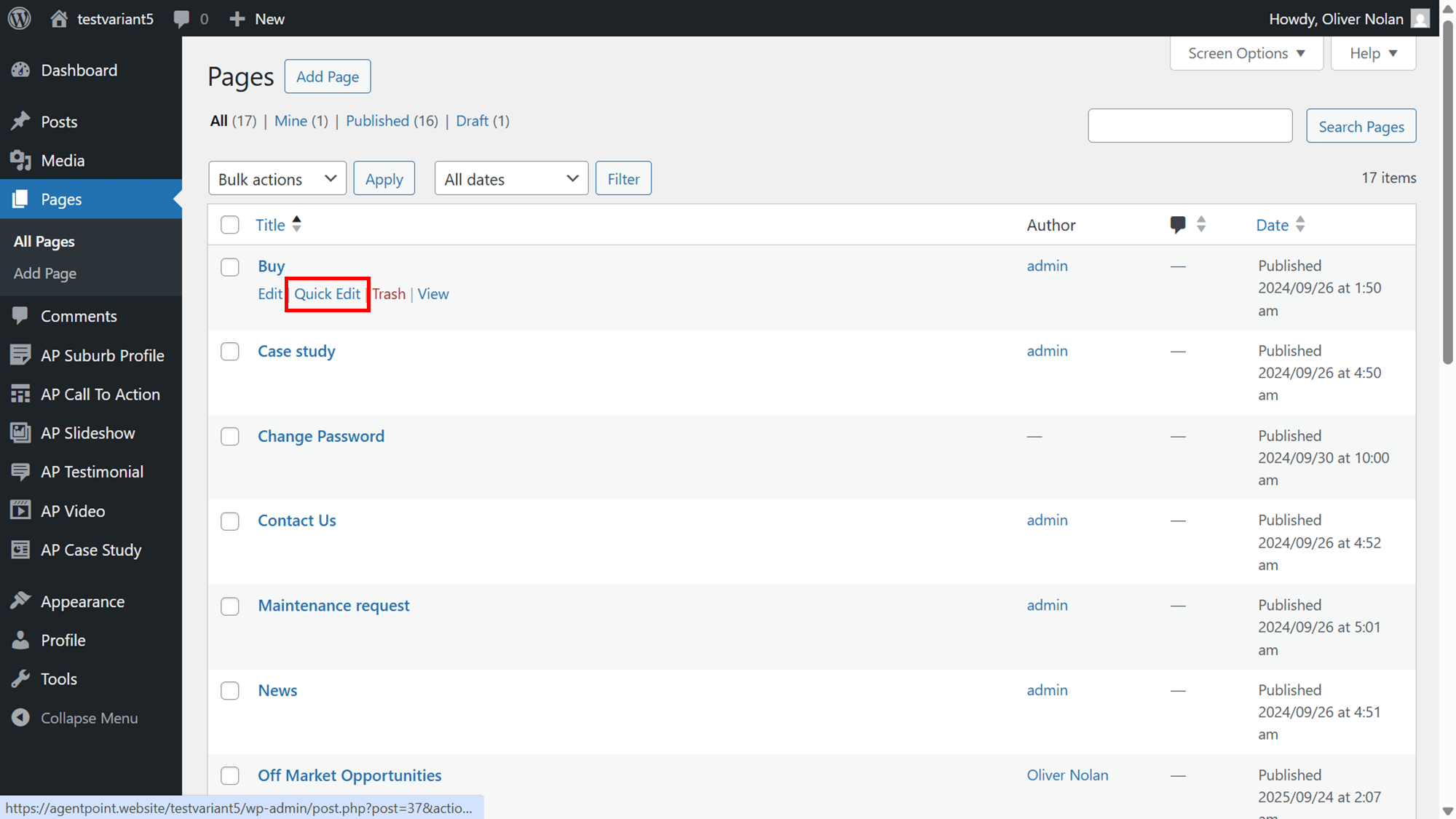
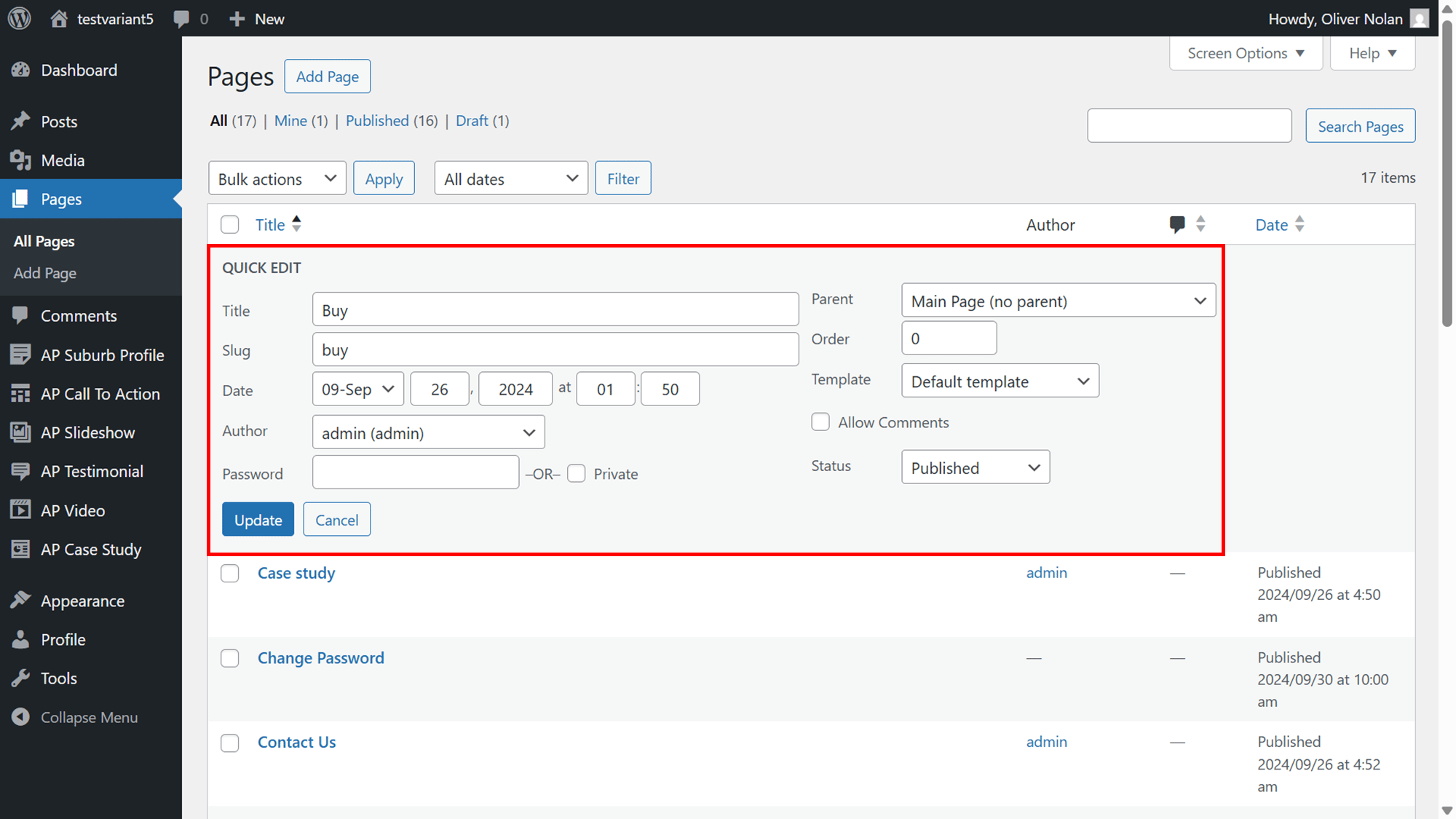
- To quickly edit your page, click Quick Edit.
- In the Quick Edit section, you can edit the title, slug, date and author. You can also add categories, tags and change the status.
- Click on Update.
Deleting a Page
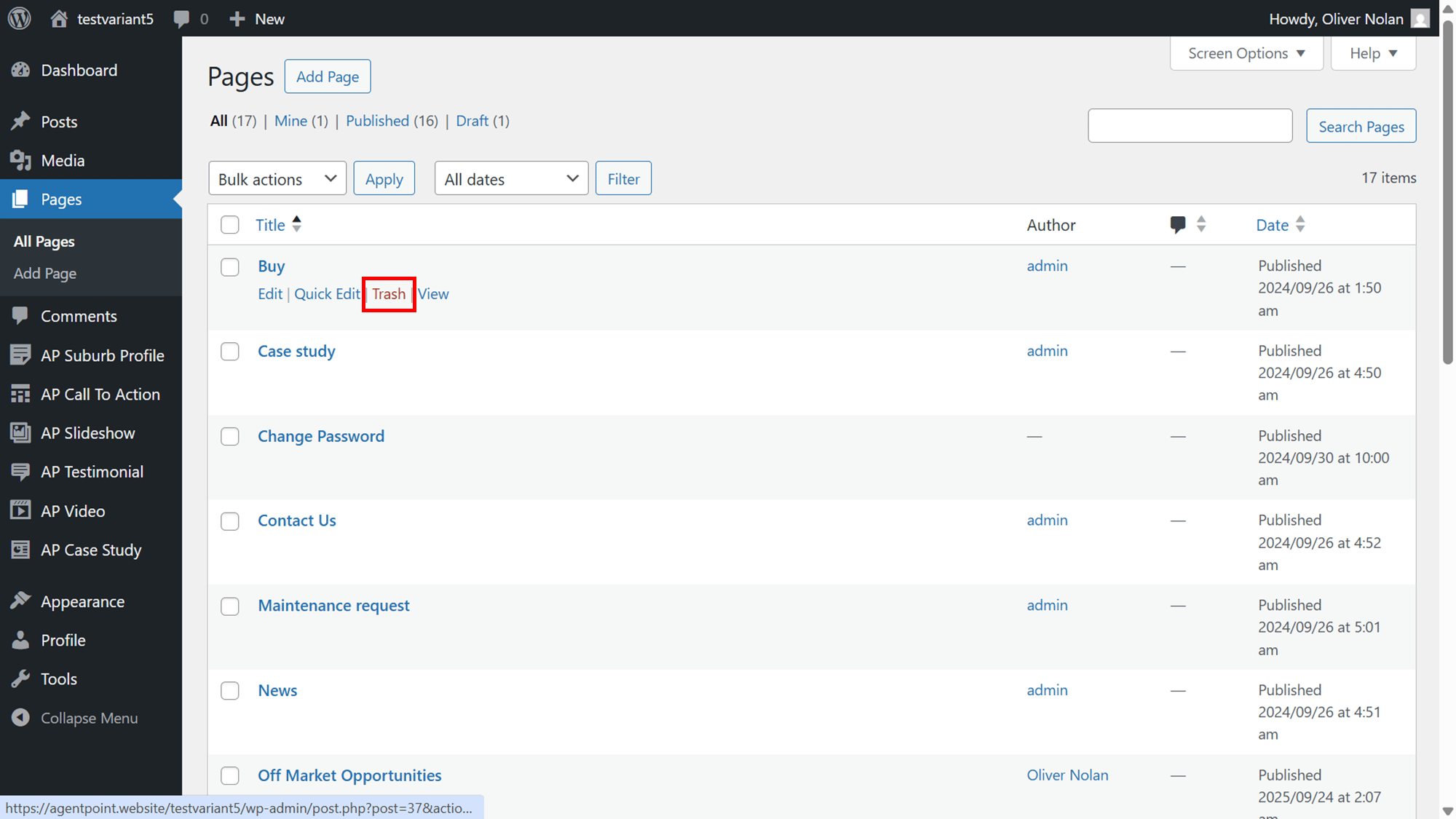
- To delete a page, click on Trash. The page will then be deleted.
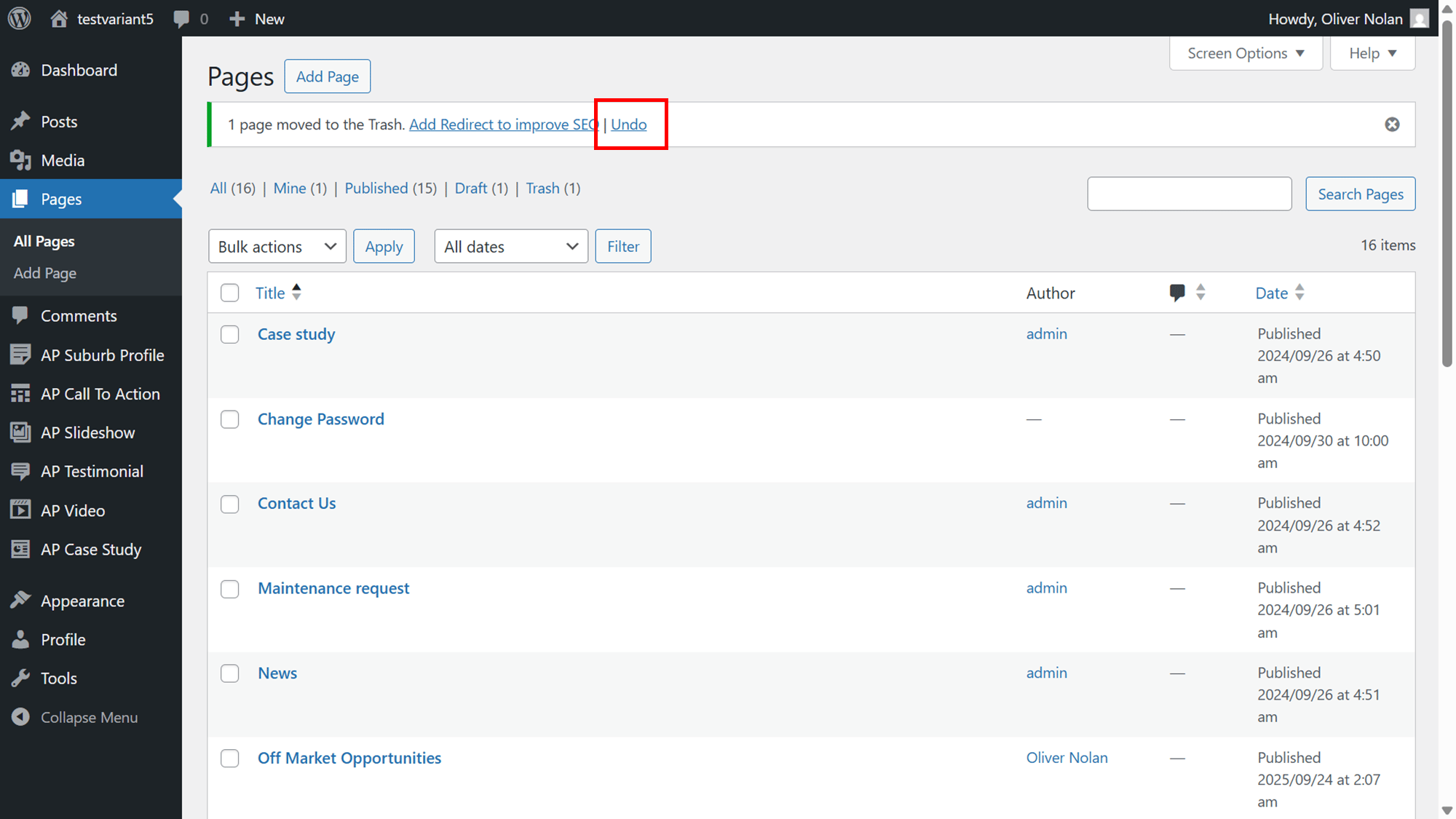
- To retrieve the page, click Undo.
Restoring a Deleted Page
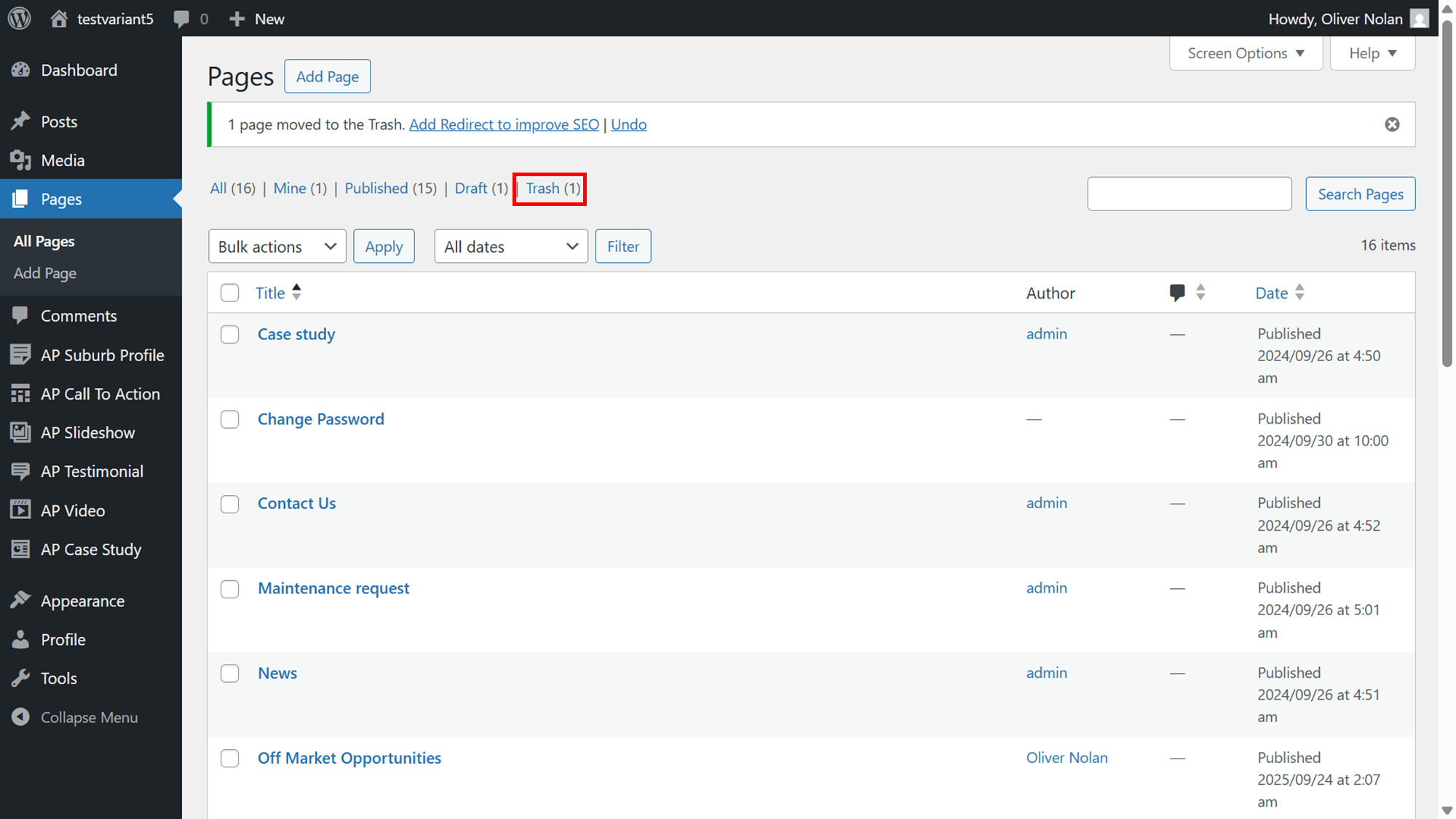
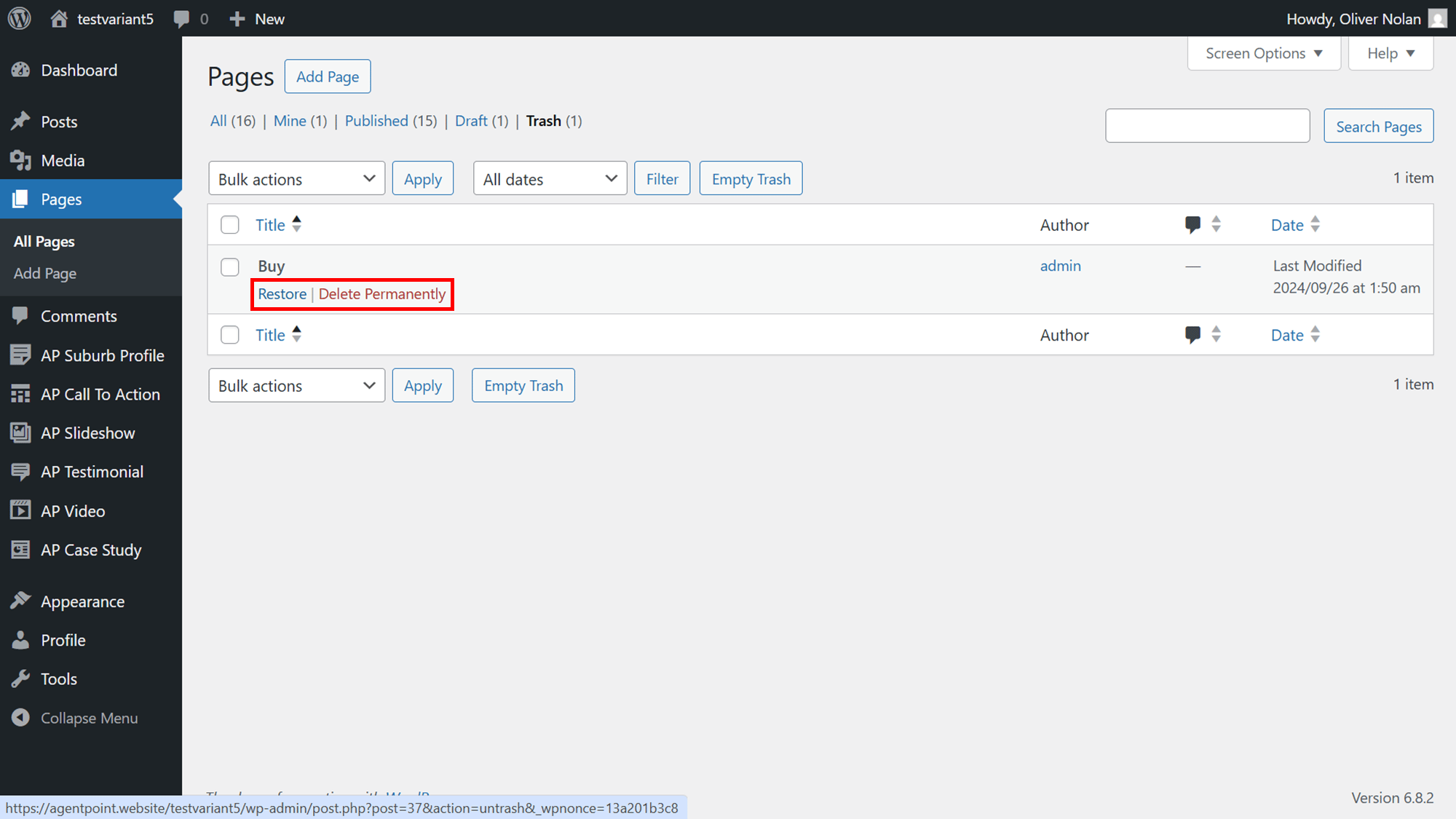
- To retrieve a page, click Trash.
- Navigate to the desired page and click Restore.
- You also have the option to permanently delete a page from this section.
View a Page
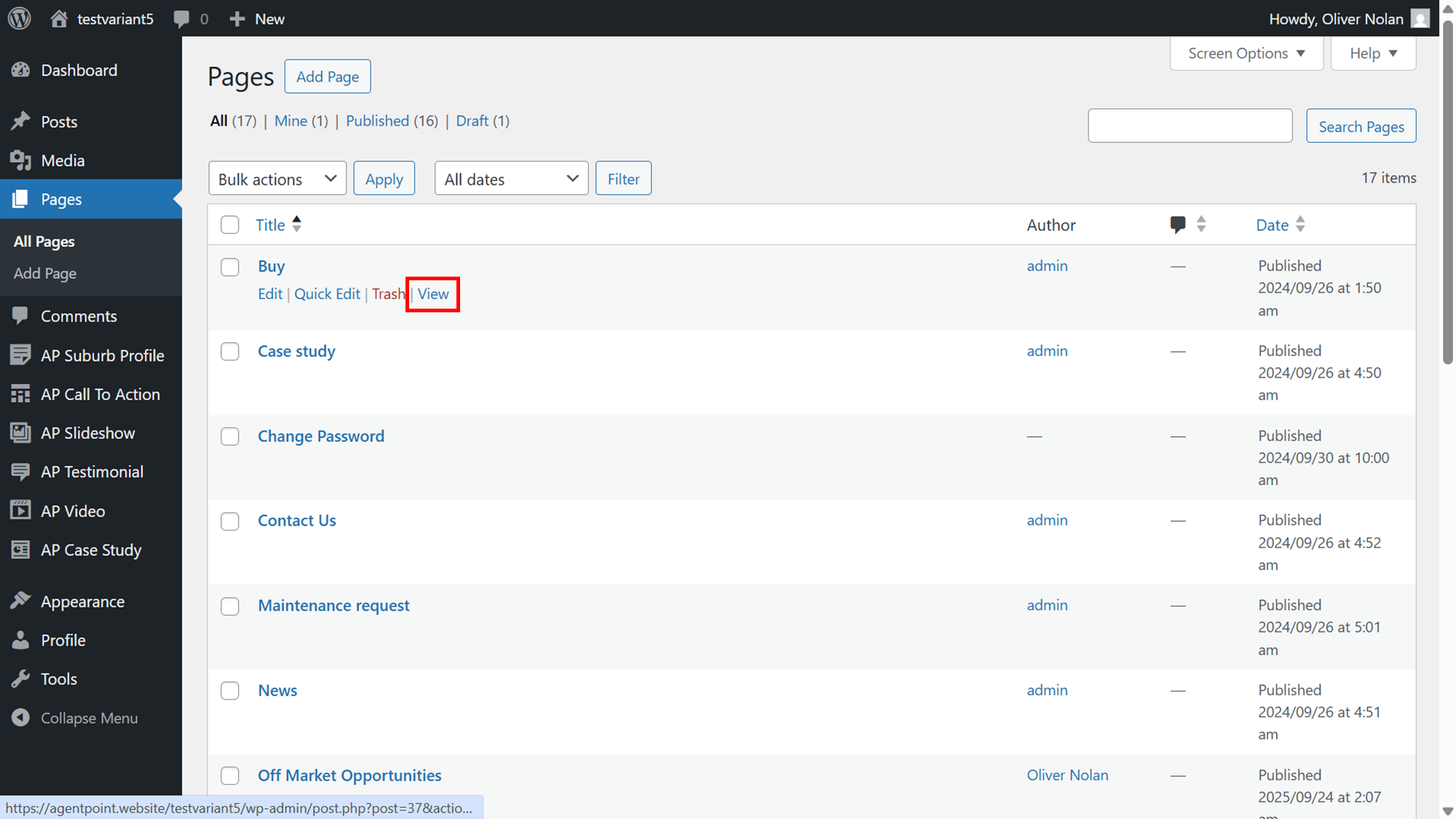
- To view a page, click View.
- View your page as necessary.