Adding and Understanding AP Call to Action Categories
This article will show you how to add and add AP Call to Action Categories
Adding and Understanding AP Call to Action Categories
AP Call to Action categories provide a helpful way to group relevant action items displayed on the website. You can create categories for different topics you cover in your call to actions.
The process in this article include:
- Adding a Category
- Editing a Category
- Quick Edit a Category
- Delete a Category
- View a Category
An example of a Call to Action on a website would be 'Contact Us'
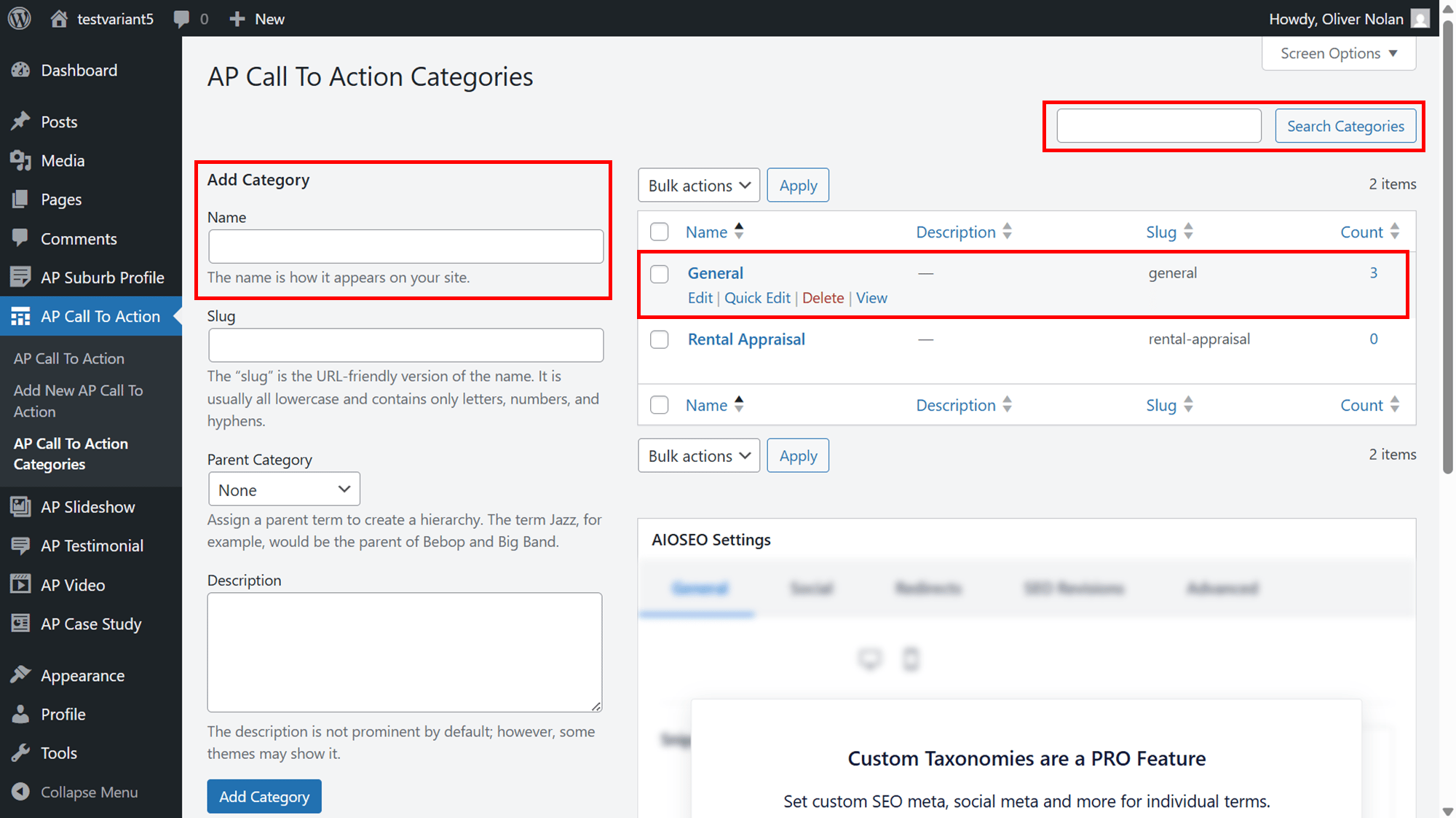
Within your AP Call to Action menu, you can:
- Add a new category.
- Search for an existing category.
- View category name, description, slug and count.
- Edit, Quick Edit, Delete and View.
Adding a Category
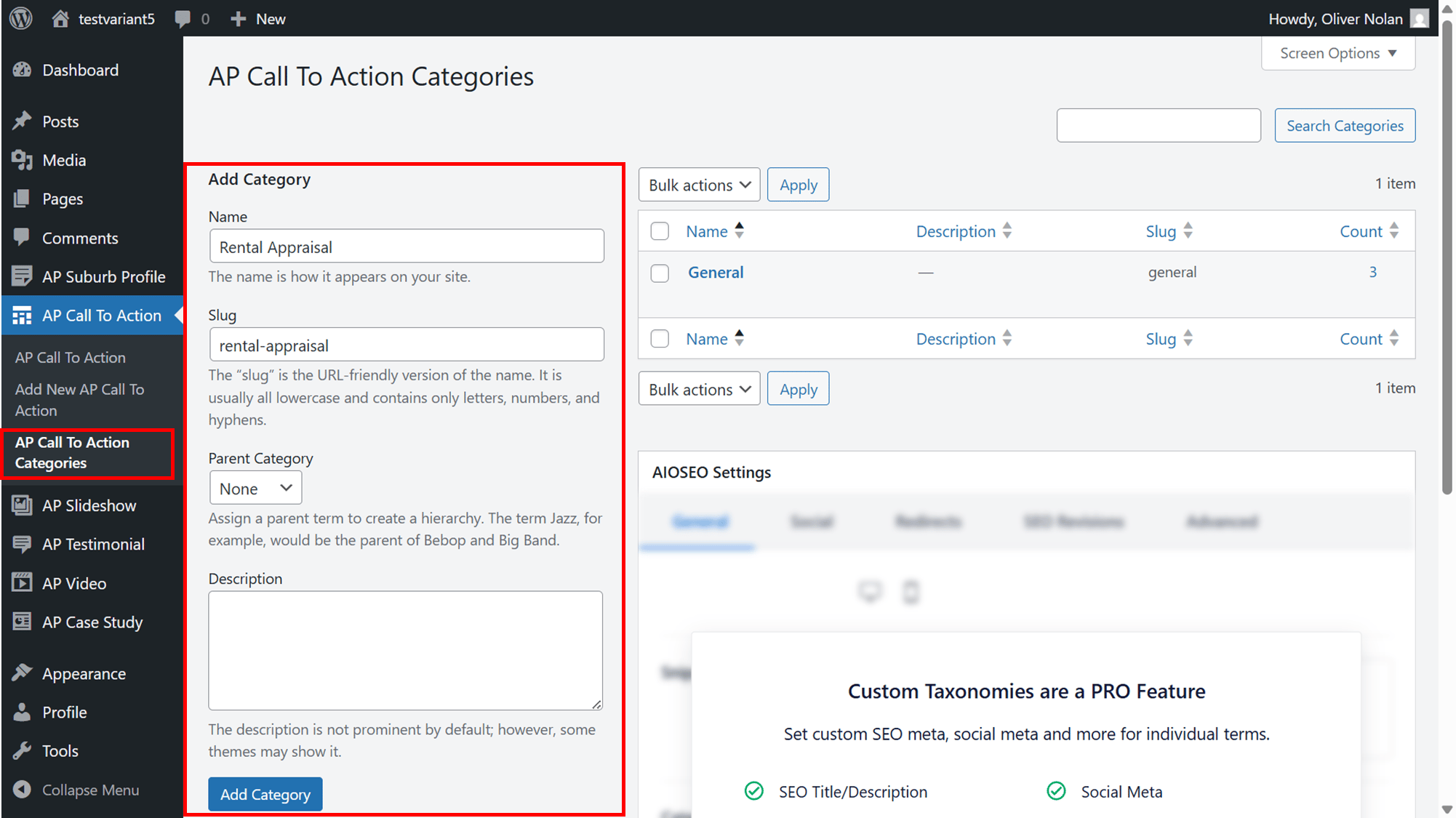
- Navigate to AP Call to Action on the left-hand panel and click AP Call to Action Categories.
- Enter in a name, slug (if desired), parent category if applicable and a description. When you are satisfied, click Add New Category.
Editing a Category
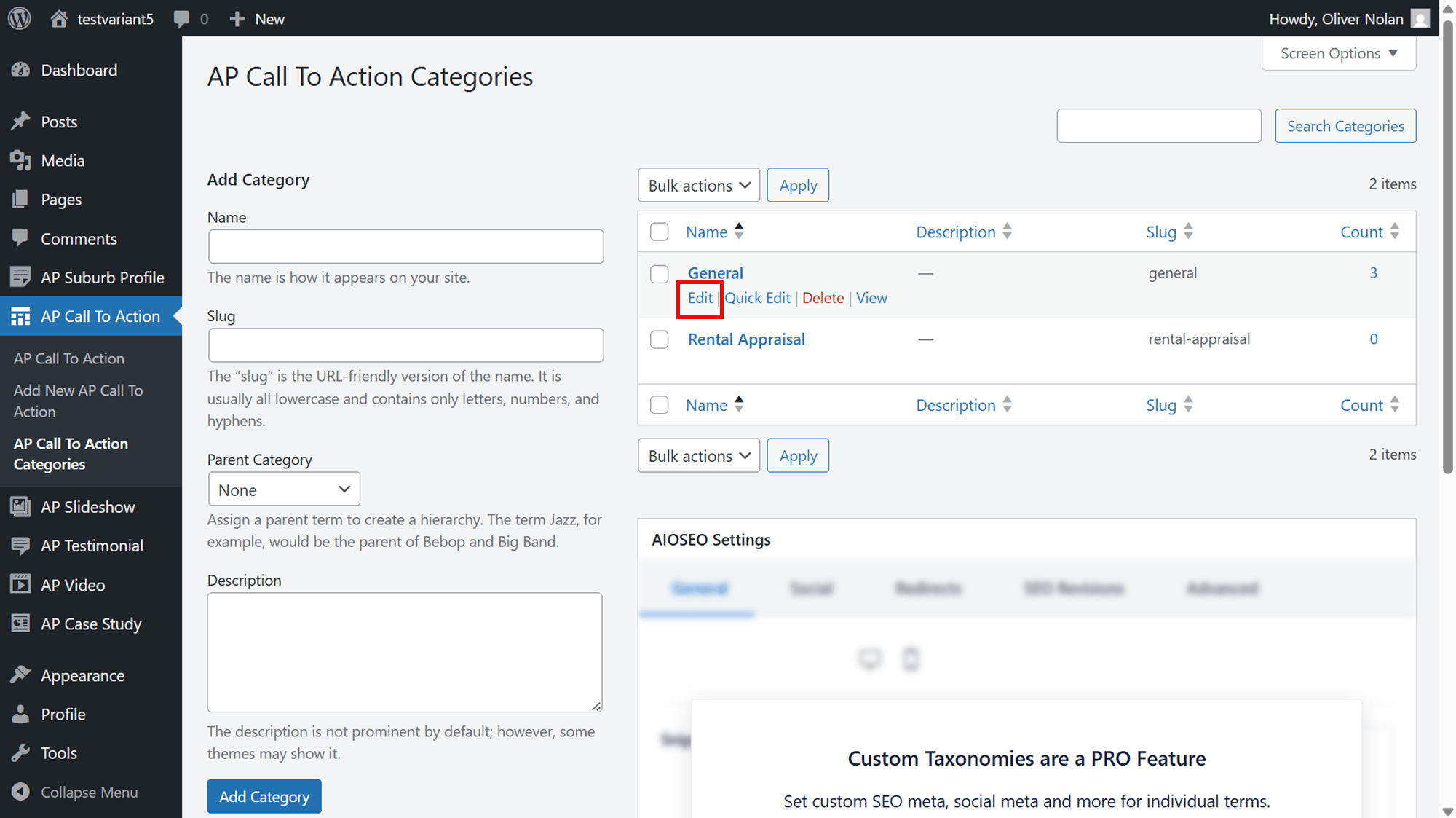
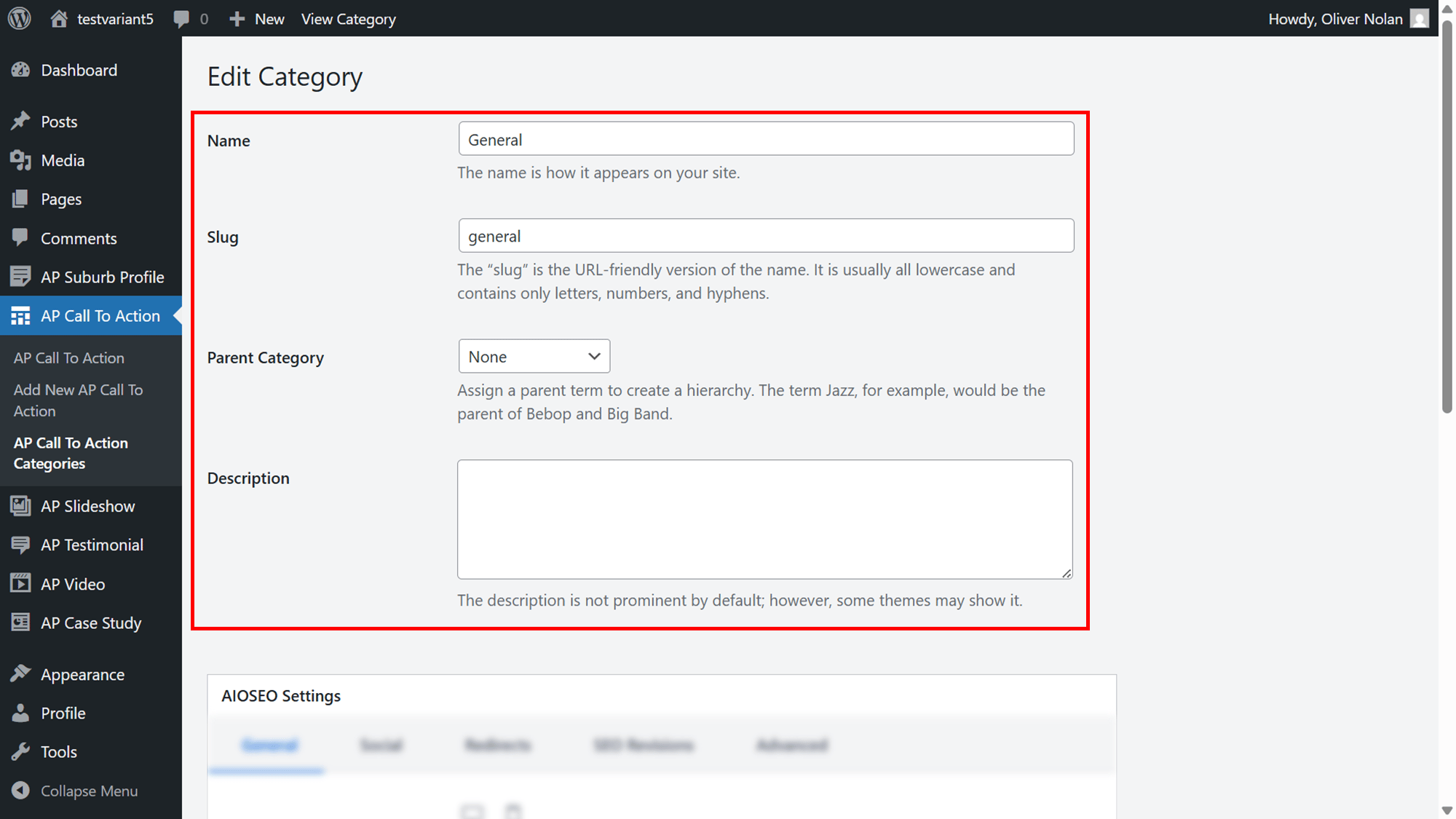
- To Edit a Category, click on Edit.
- Edit name, slug, parent category and description and click Update.
Quick Edit a Category
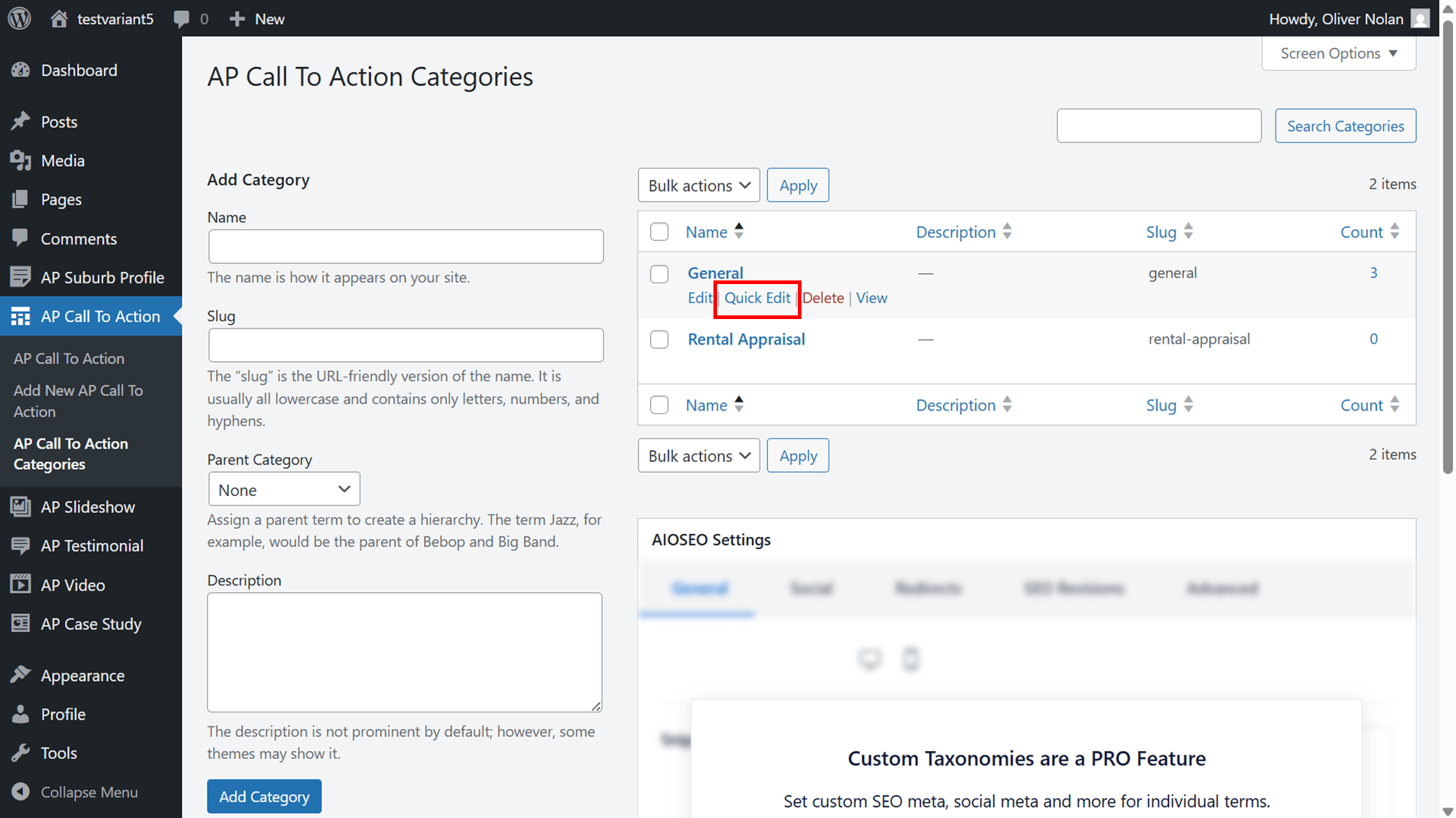
- To quickly edit a category, click Quick Edit.
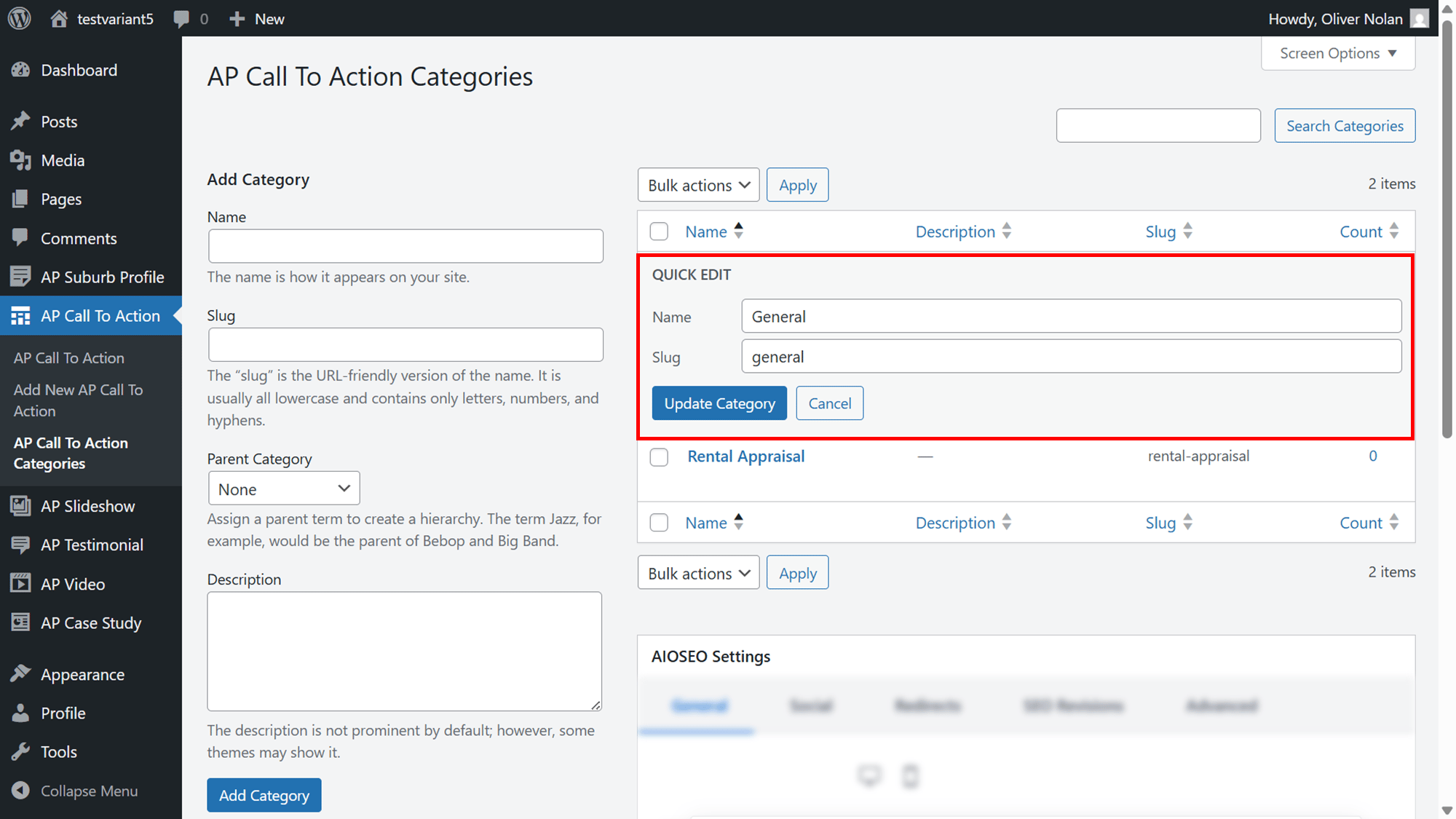
- Edit the name and slug and click Update Category.
Delete a Category
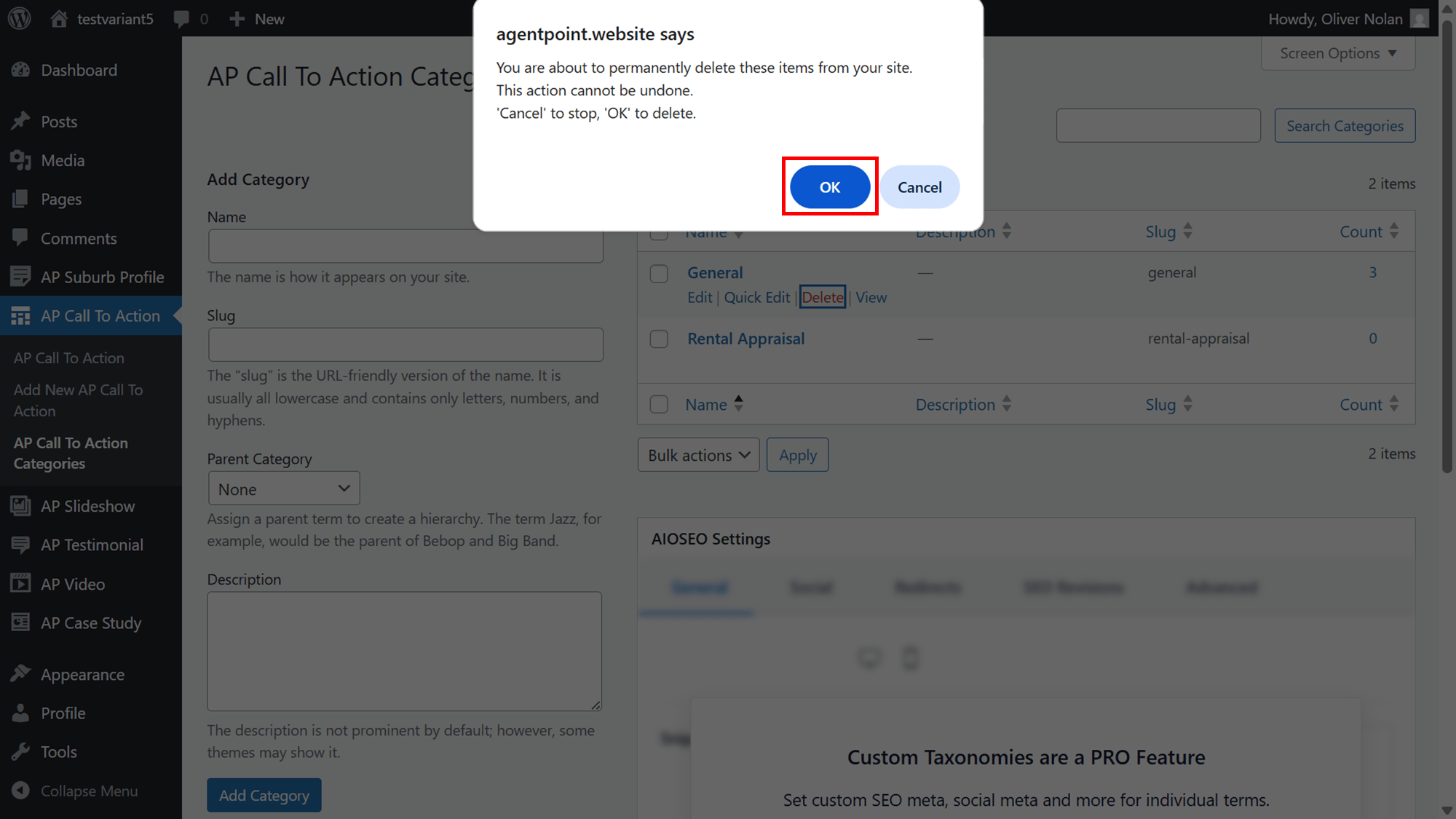
- To delete a category, click Delete.
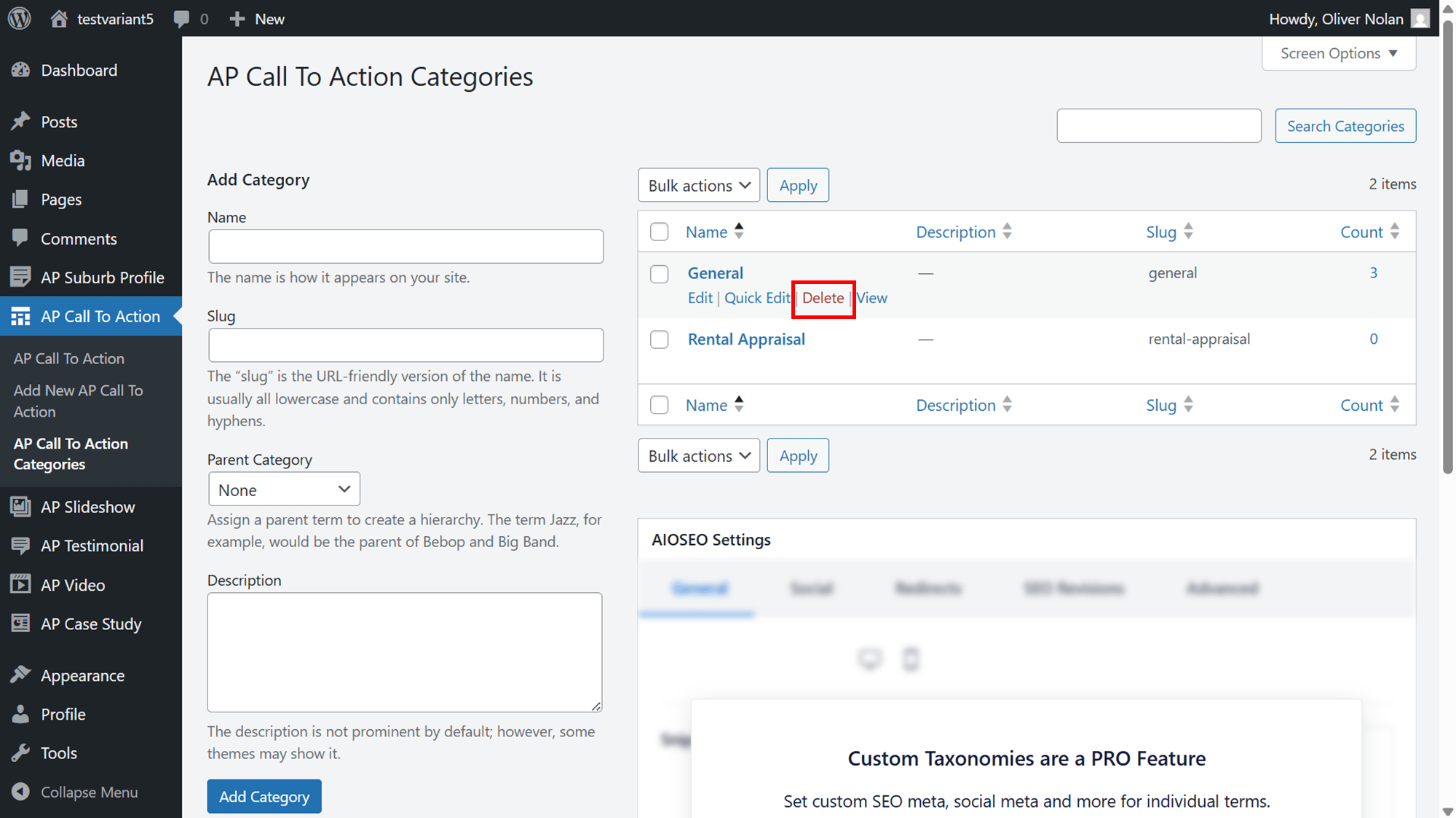
- Click Ok. *Note: This will be permanently deleted from your site and cannot be undone.
View a Category
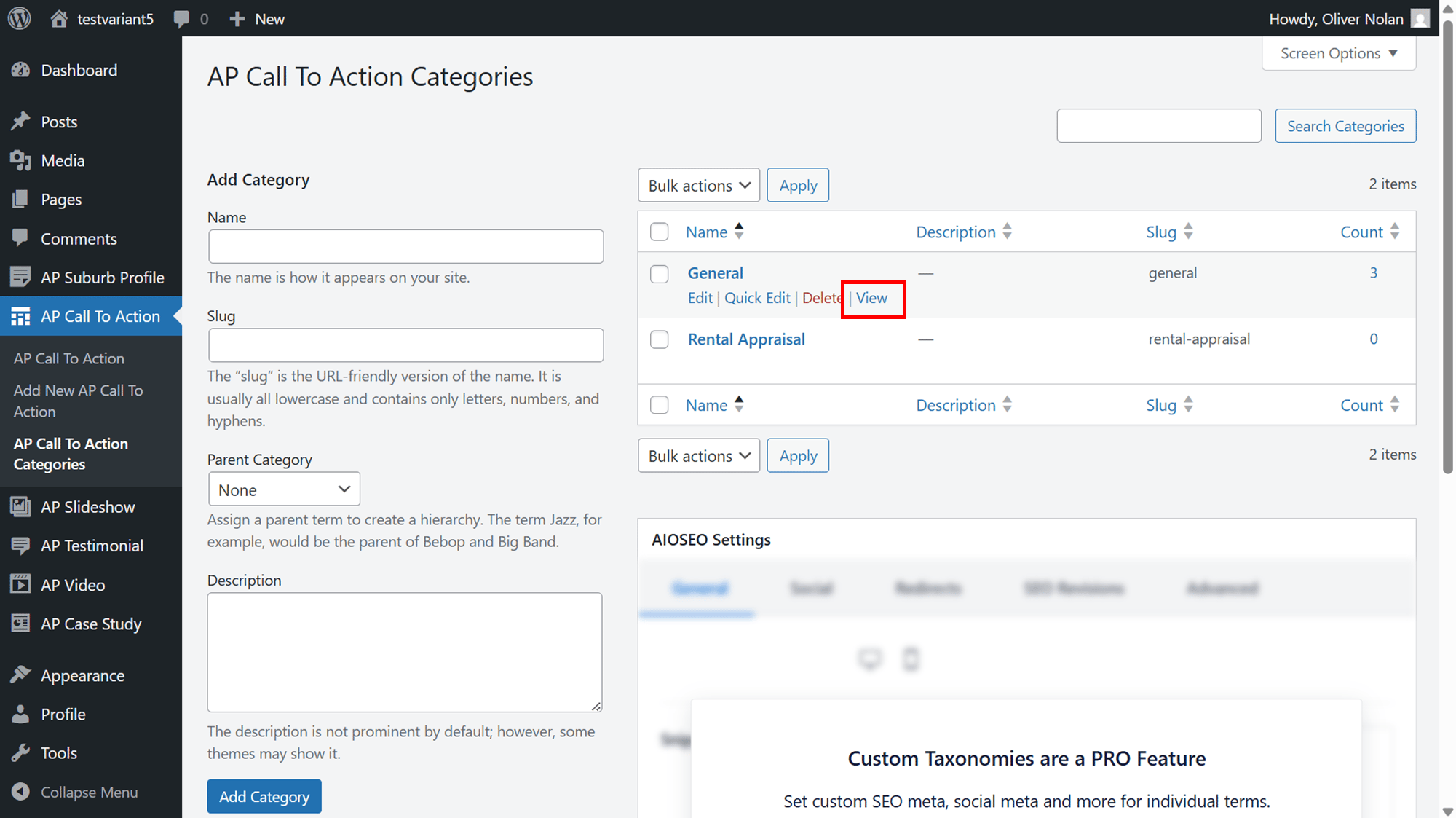
- To view a category, click View.
- This will redirect you to the category on the website.