Managing Cover Pages in PDF Proposals
This article will show you how to manage the cover pages in your proposal
To enhance readability and efficiency, the default setting for 'Set as Cover' in PDF proposals has been turned off. Previously, all headings were automatically designated as cover pages, which made proposals unnecessarily long. You now have greater control over which headings appear as cover pages, allowing for a more streamlined and customisable document structure.
The processes in this article include:
- Setting a Heading as a Cover Page
- Reverting a Cover Page to a Standard Header
Setting a Heading as a Cover Page
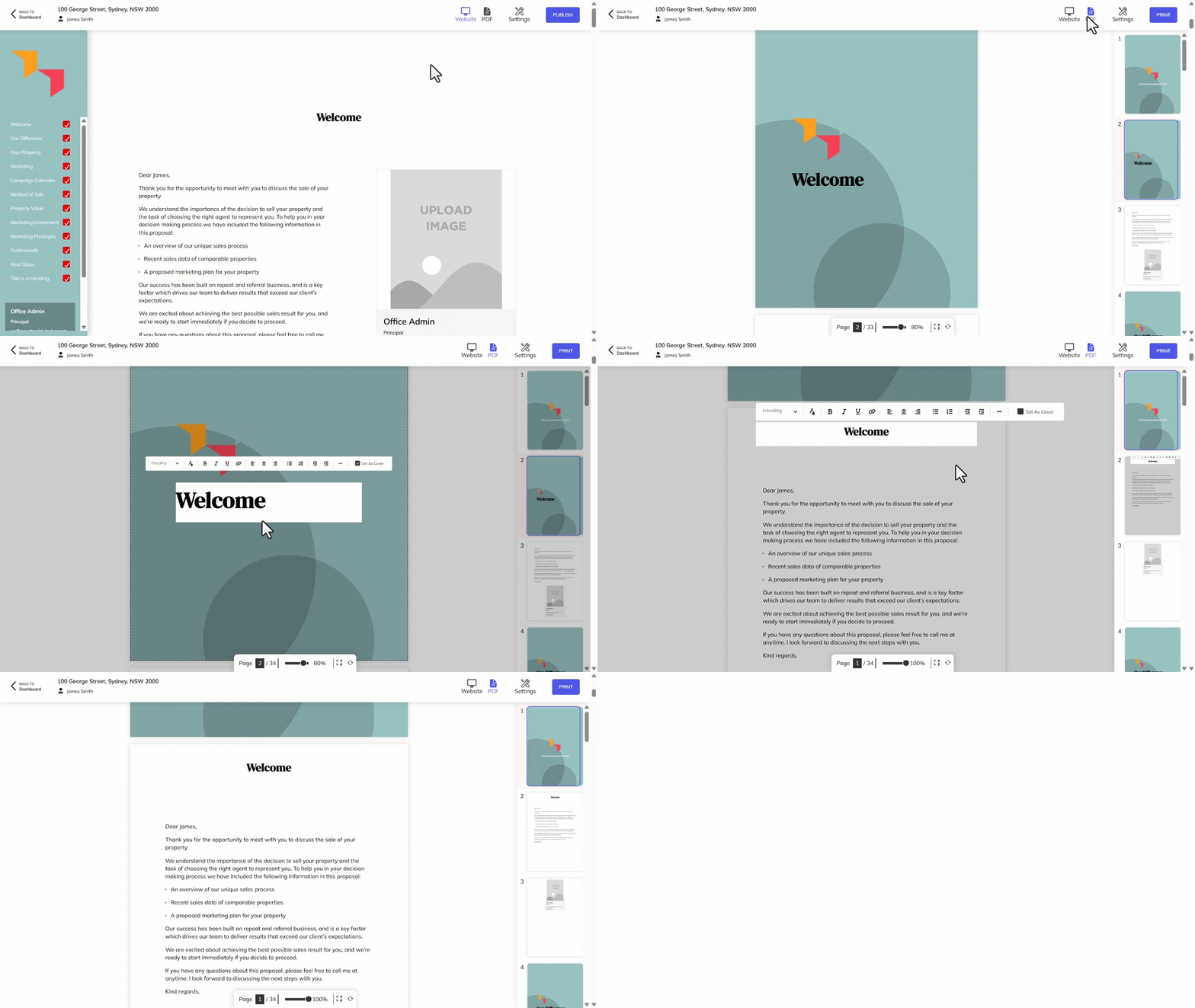
- Click on PDF in the proposal editor.
- Navigate to and click on the heading you wish to set as a cover page.
- Tick Set as Cover.
- Click Print.
Reverting a Cover Page to a Standard Header
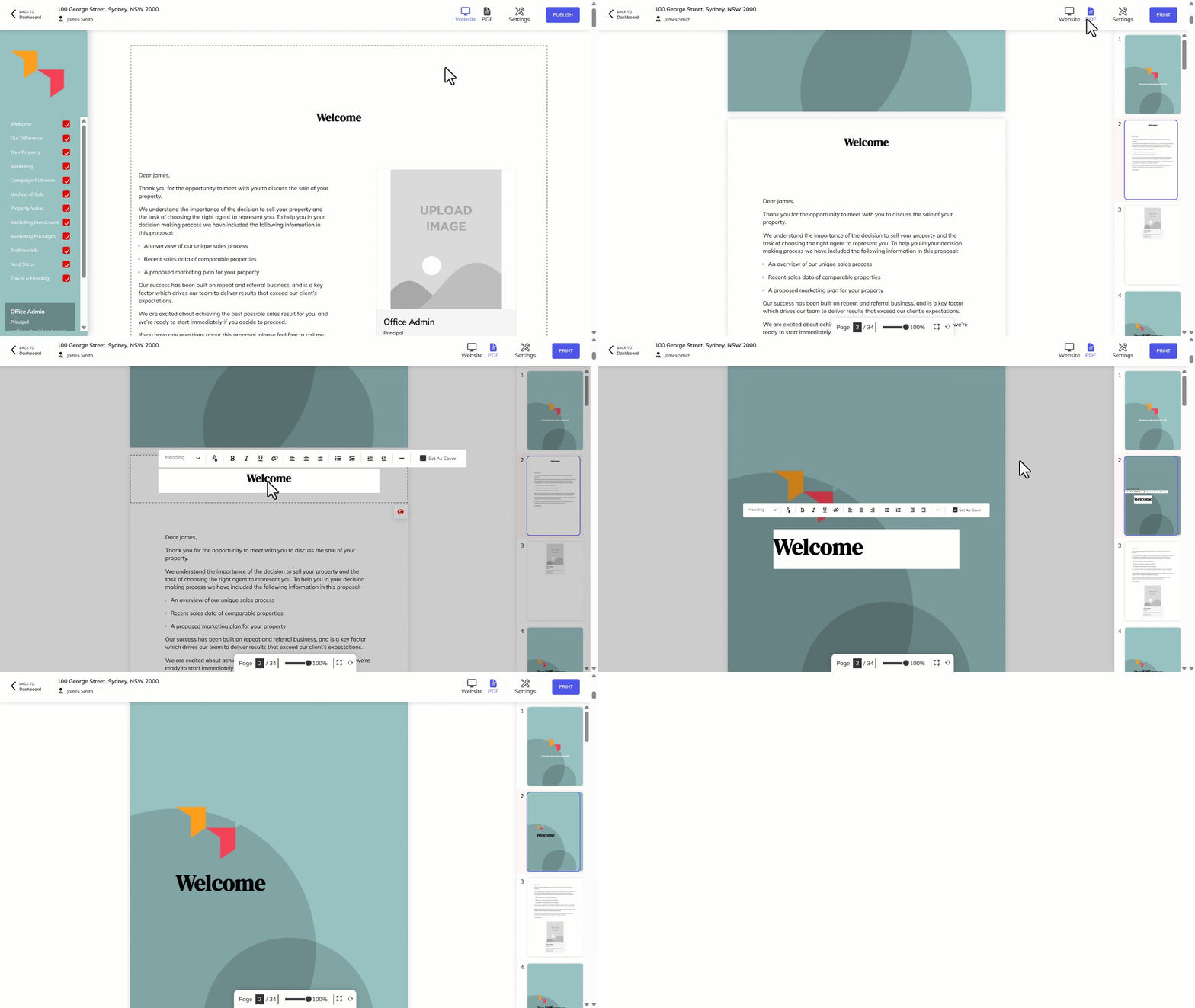
- Click on PDF in the proposal editor.
- Navigate to and click on the cover page heading.
- Un-tick Set as Cover.