Proposal Templates
This article will show you how to create and update templates for Reapit Proposals.
Admin users have the ability to create and update templates within Proposals. Creating templates allows you to create multiple instances or variations of a template for different scenarios.
The processes in this article include:
- Creating a Template
- Editing a Template
Creating a Template
Within Reapit Proposals, there are 7 base Templates:
- General Proposal
- Price Update
- Lease Renewal
- Property Management Pre List
- Pre Listing Kit
- Sales Proposal
- Property Management Proposal
In the new template that you have created, you will not be able to delete any module from the base templates; you will only be able to delete modules from the templates you are creating.
Note: Master users can activate and deactivate proposal templates. Templates that are showing as Activated will appear in the template drop-down list when creating a proposal.
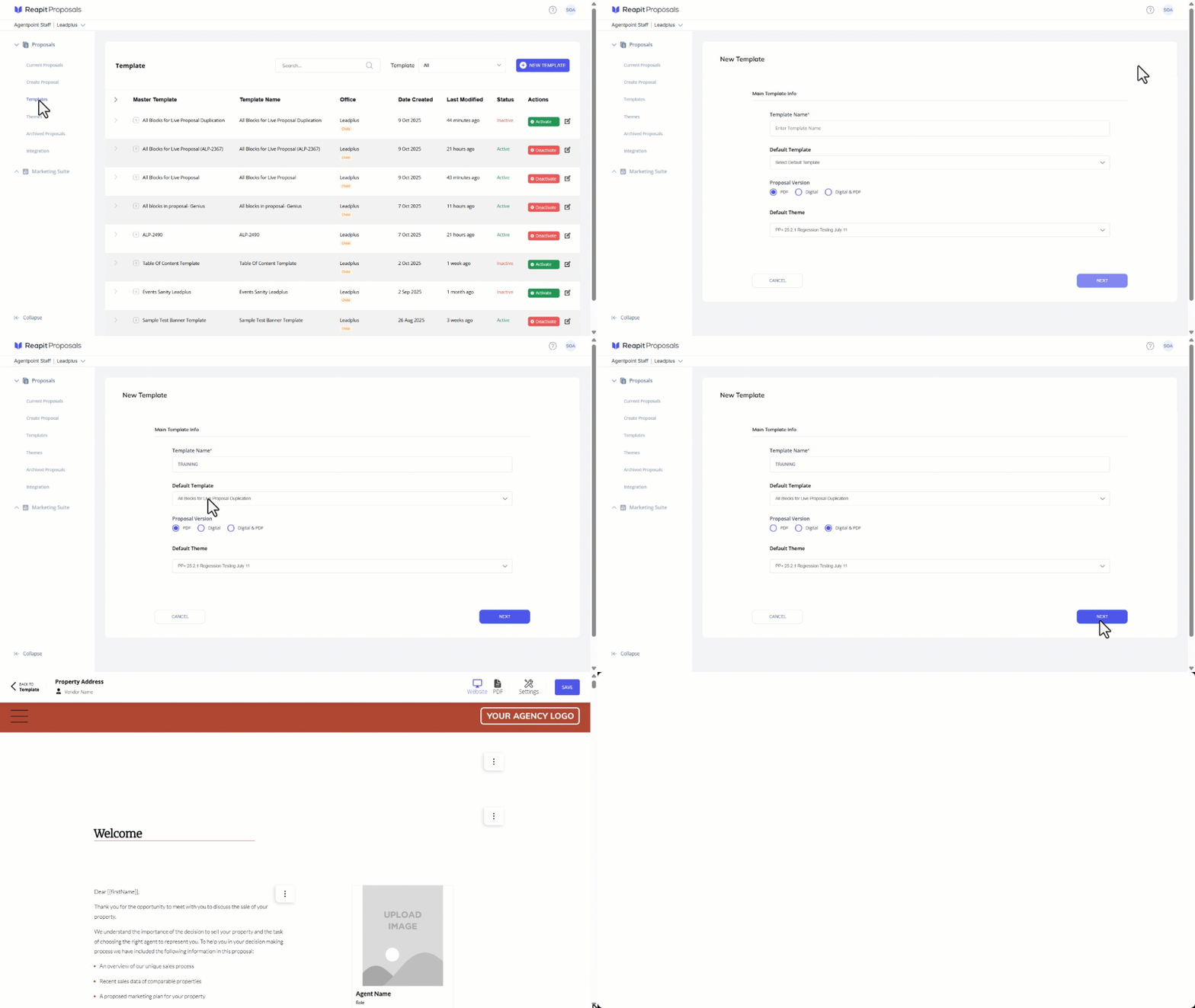
- Click on Templates.
- Click on New Template.
- Enter a template name, select a default theme, proposal version and choose an existing template.
- Default template : This field will have the existing default templates so that you can choose which base template you want to select for creating your own templates.
- Default theme : This field will have the existing default themes so that you can select which theme you want to apply for creating your own templates.
- Click Next. After clicking next, you will go into the template editor page with default content of the selected base template i.e., Sales proposal, Property management.
- Click on any section to commence editing. Follow Editing a Template to setup the templates sections and blocks.
Editing a Template
When editing a template there are a number of block types available to configure or add to your template.
These include:
- CTA Button
- Heading
- Image
- Rich Text
- Text and Images Tab
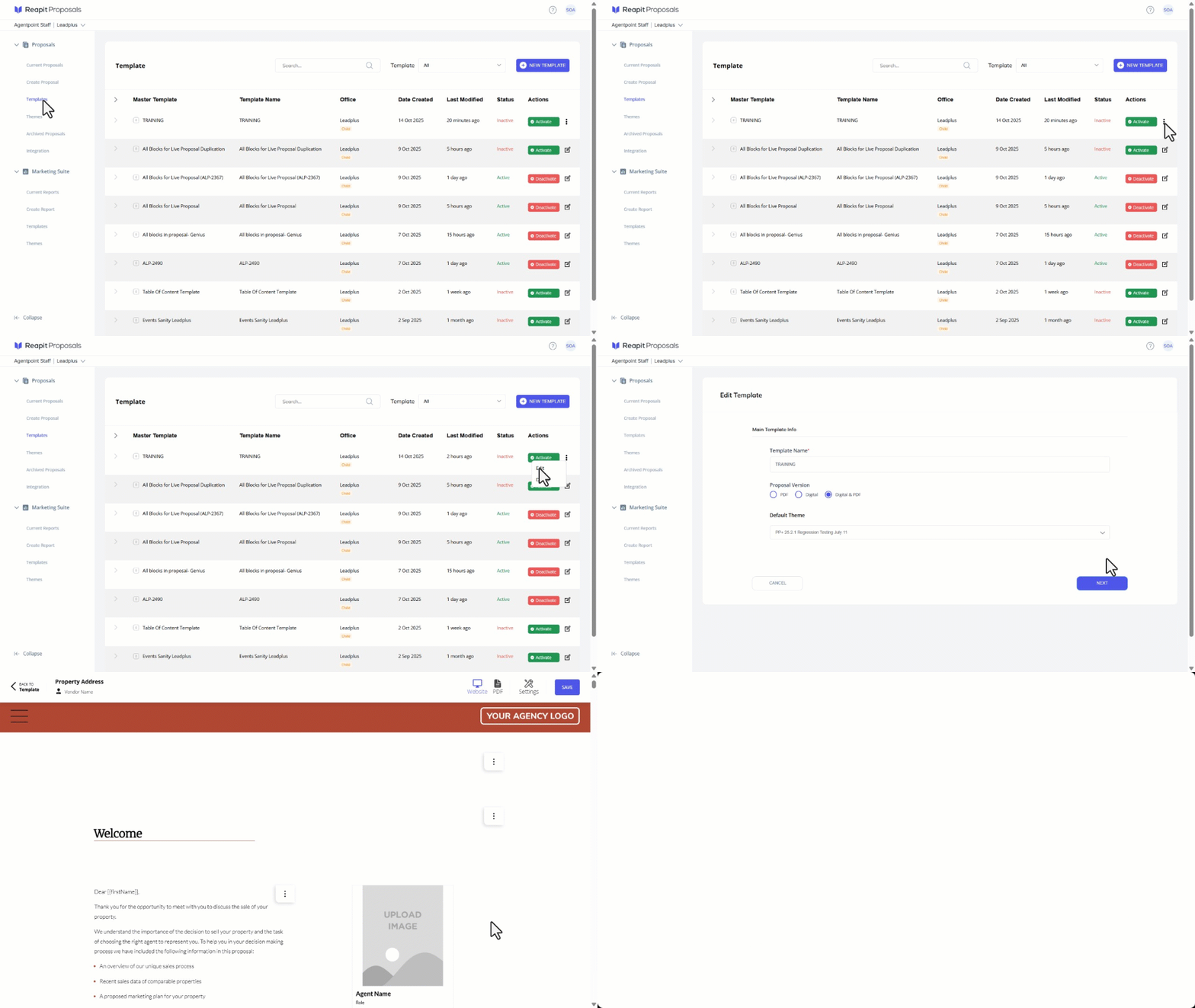
- Click on Proposals.
- Navigate to the Template to be updated. Select the Edit Icon then click on Edit.
- Review and update the Main Template Info as required.
- Click on Next.
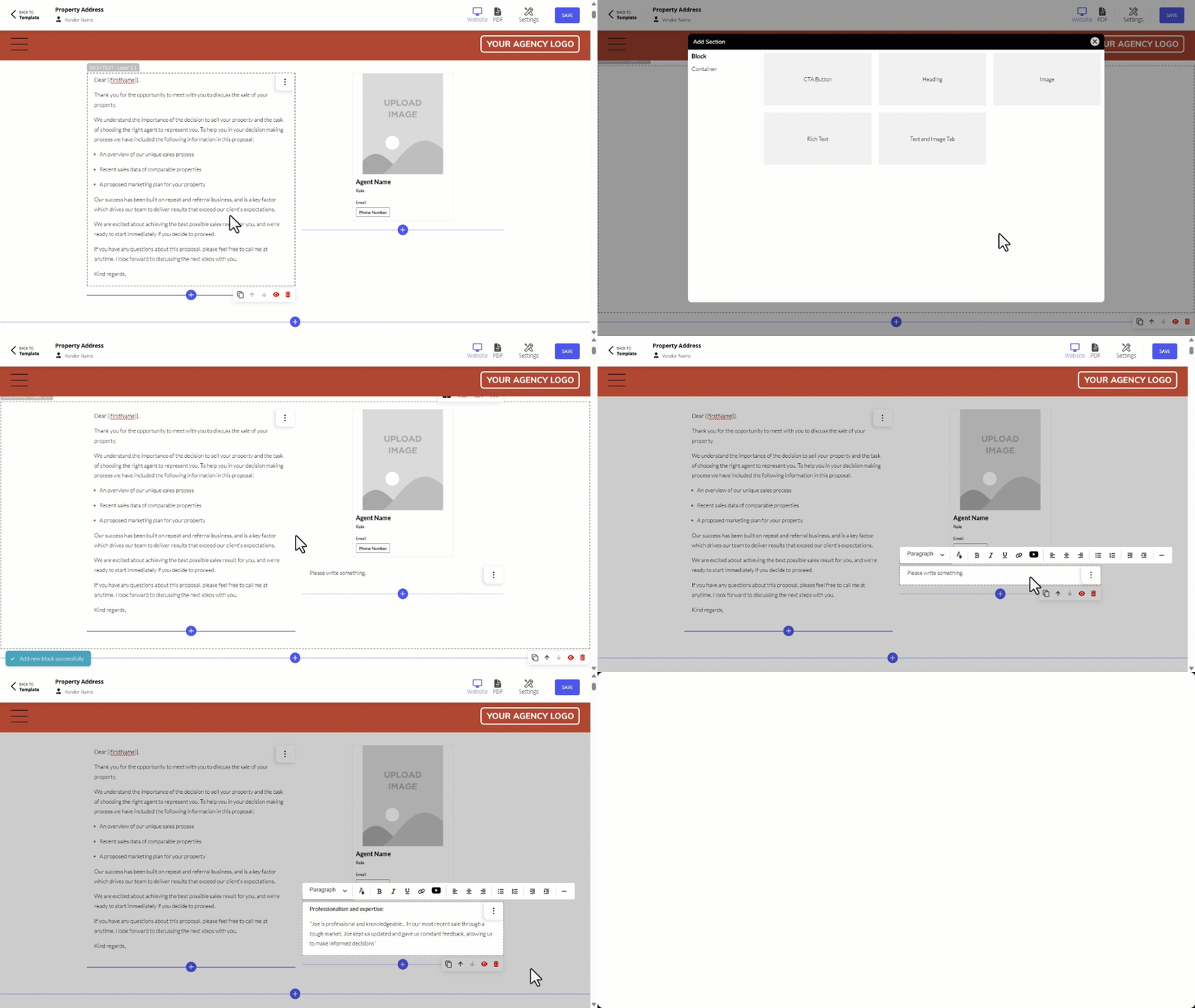
- Click on the + icon to add a block.
- Select the desired block type.
- Click on the new block to edit as required.
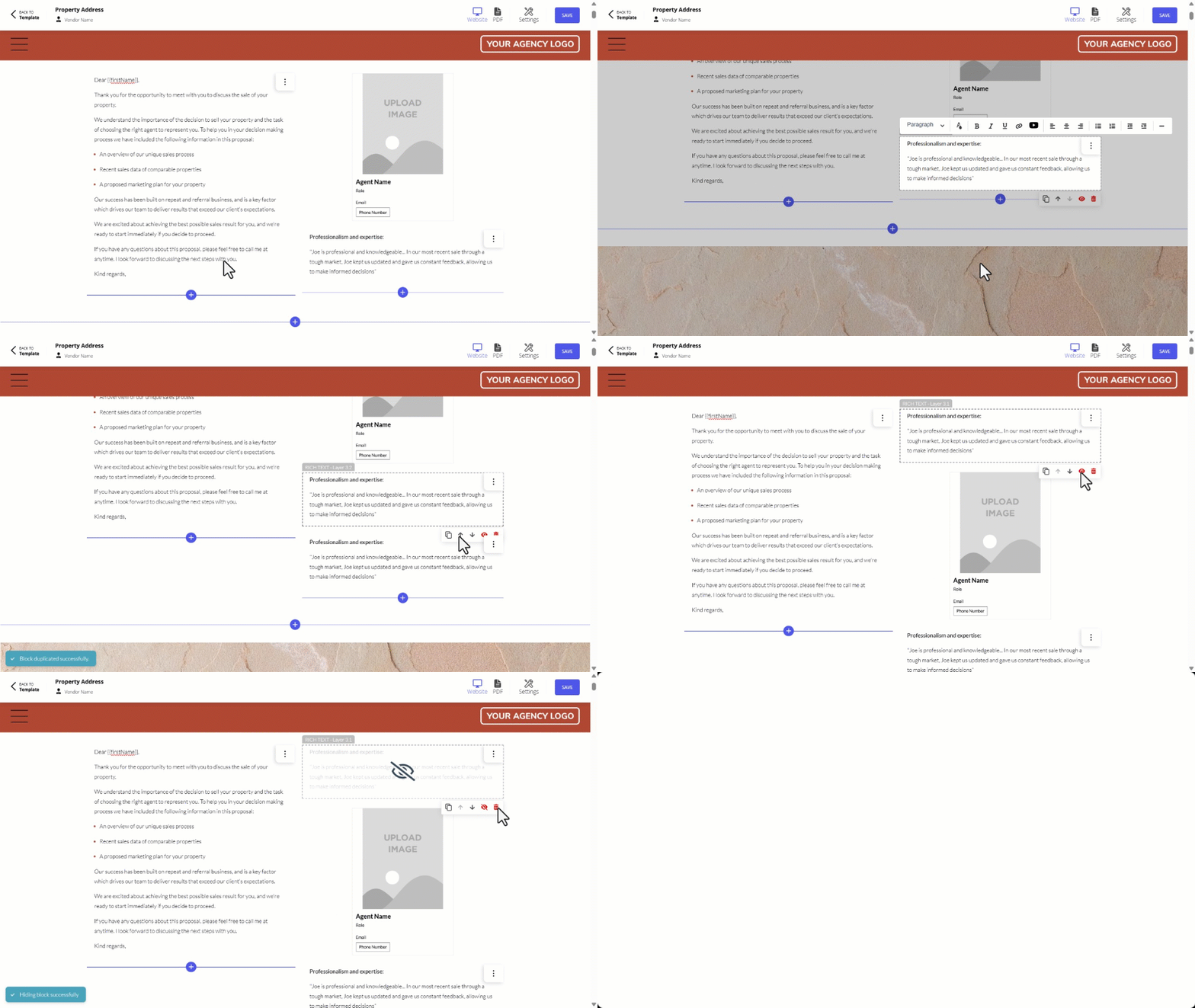
- Click the Duplicate icon (two overlapping squares) to duplicate the block.
- Click on the Arrow icons to move the block up or down in the template.
- Click on the Eye icon to hide the block.
- Click on the Trash Can icon to delete the block, then click Delete.
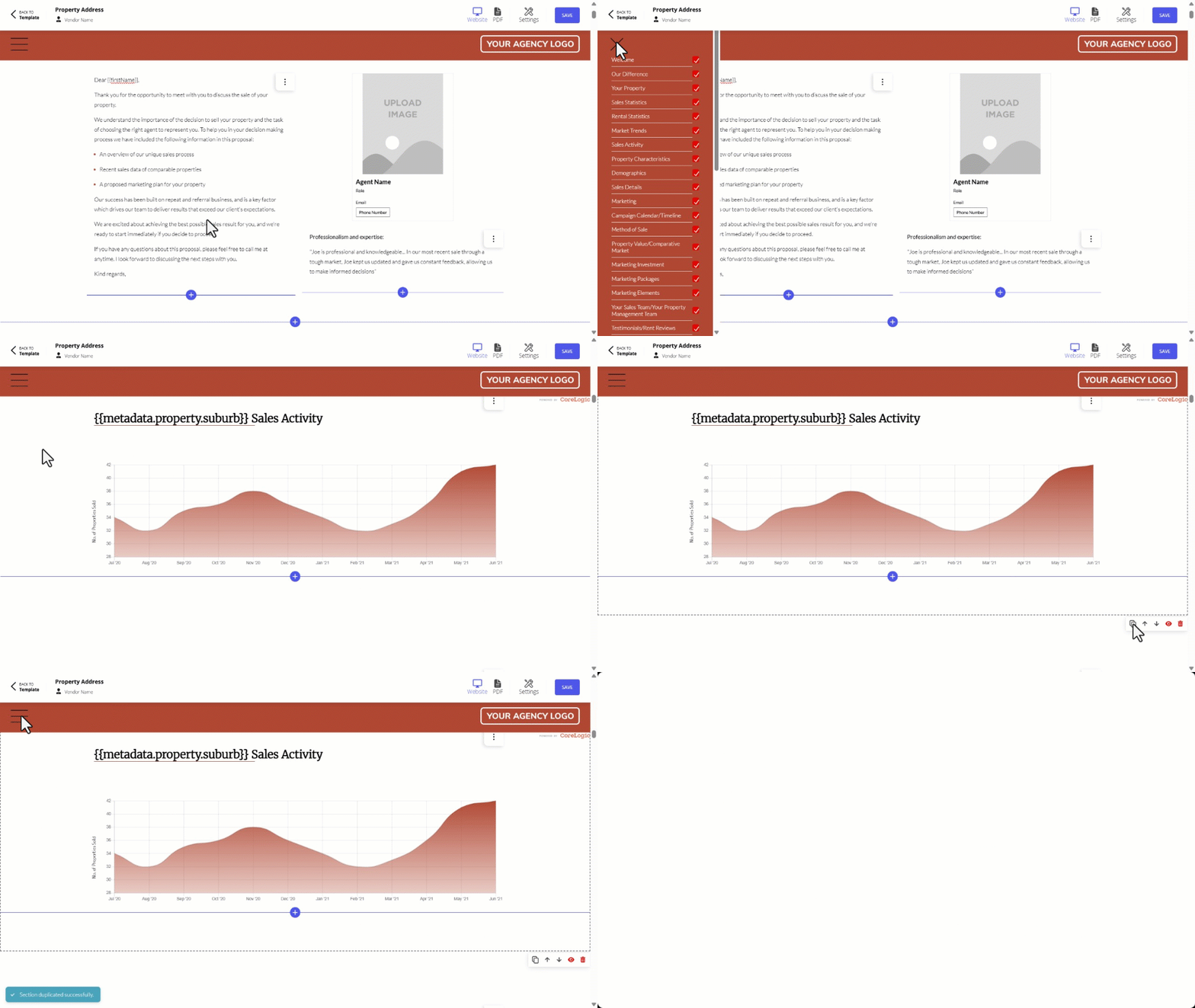
- Navigate to the section you wish to duplicate via the side menu.
- Select the section.
- Click the Duplication icon (two overlapping squares) to duplicate the section.
- Once done setting up your template, click Save. Your template will then update and can be accessed via the Templates tab.