Proposal Editing Basics
This article covers how you can edit and update a proposal, including editing blocks, removing blocks and key steps to follow when an address has been manually entered during the Proposal creation
The processes in this article include:
- General Proposal Editing
- Manually Entered Address - Additional Steps
General Proposal Editing
**Note:**If the proposal has been accepted, it can no longer be edited.
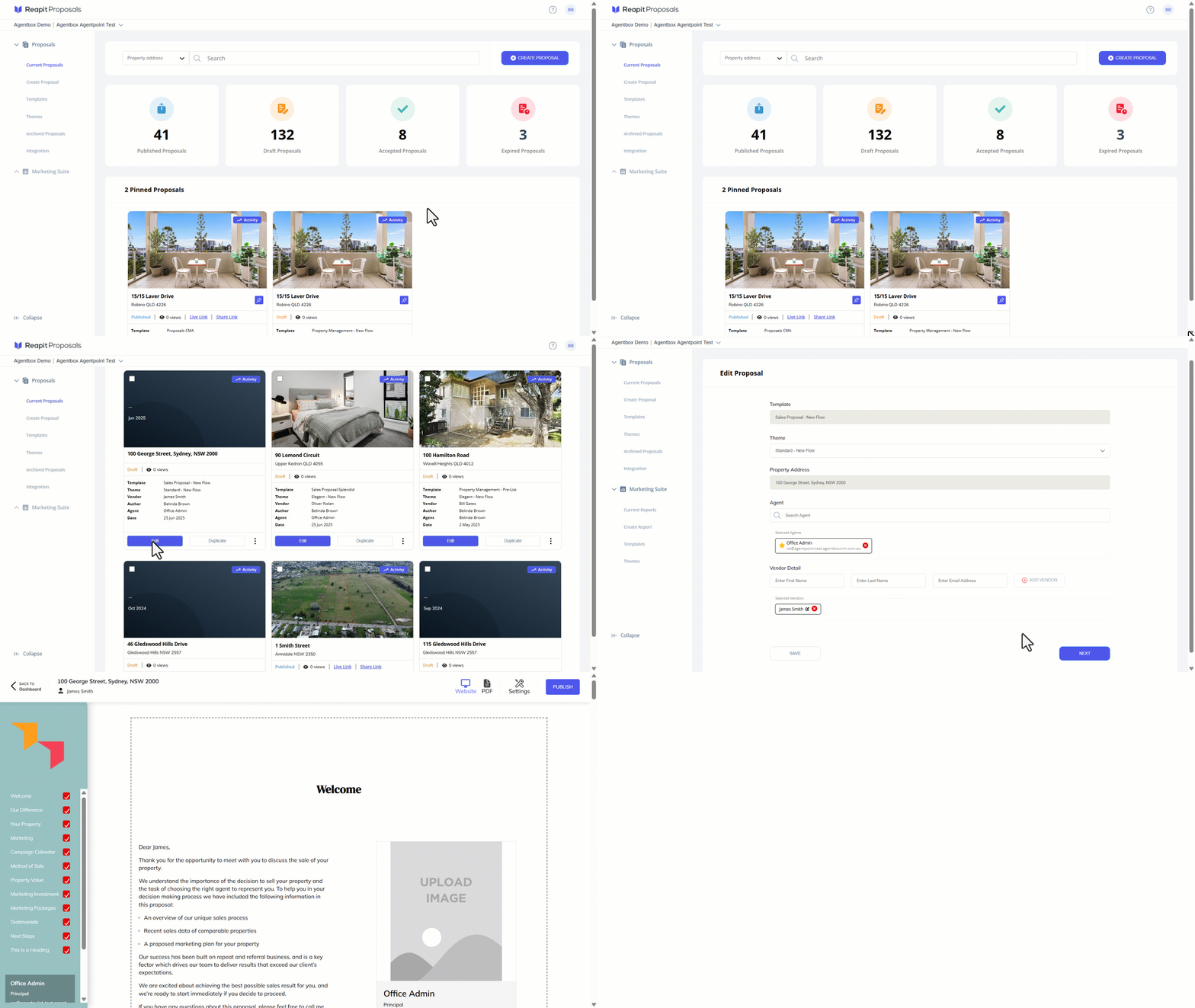
- Click on Current Proposals.
- Search or navigate to the desired proposal and click Edit.
- Click on Next.
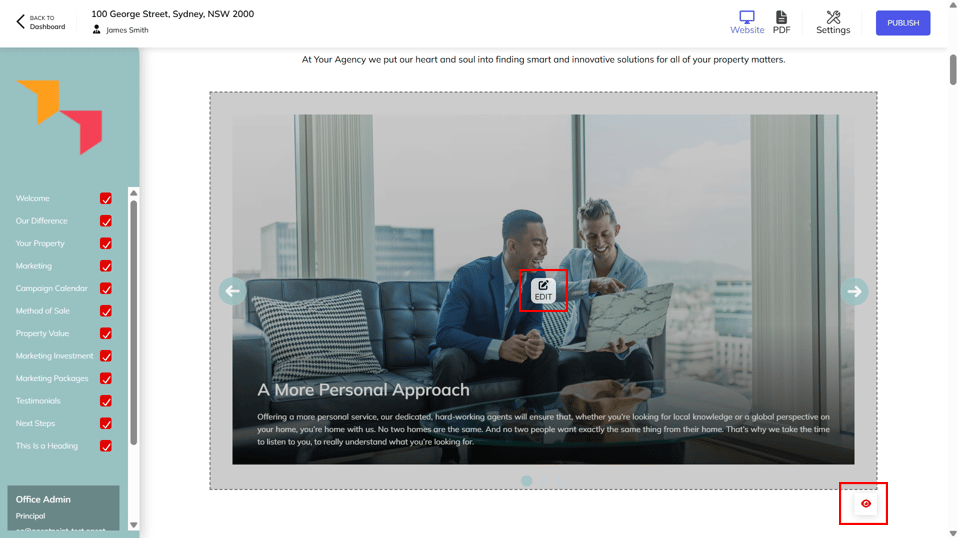
- Click on the section you wish to edit and adjust as necessary.
- If you wish to hide a section of your proposal, click on the Eye Icon which will disable the section.
- To re-order your proposal sections click here
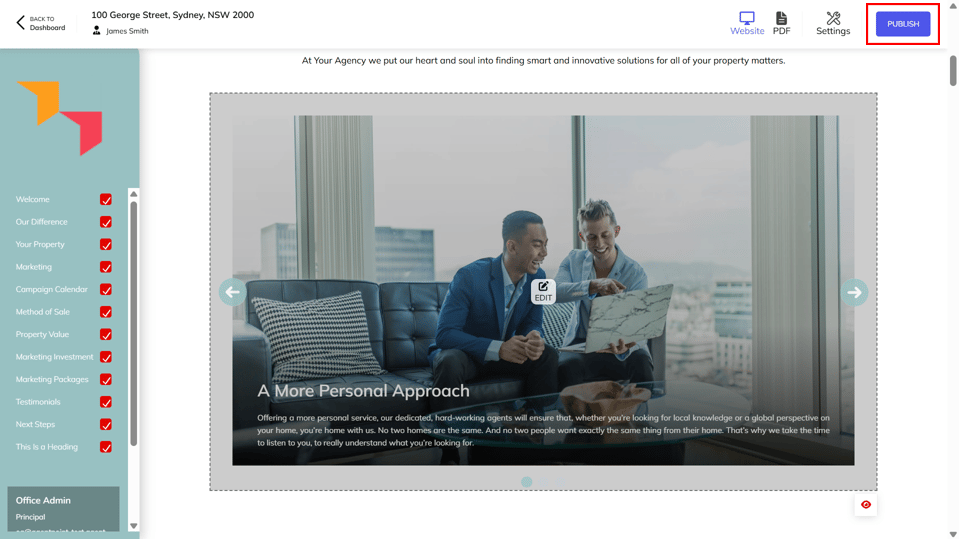
- Once you have completed editing the proposal, click Publish on the top right-hand side.
- To generate a proposal URL, Click Here
Manually Entered Address - Additional Steps
When an address is manually entered during the proposal creation, a number of sections will be blank by default and require editing to complete or removal if not required. These sections include:
- Main Property Image
- Property Details
- Property Image Grid
- Comparable Sections (Sales, Sold, Leased, Lease)
If an address is manually entered to create a proposal, the following features will not be available:
- Notes (Accepted, Published, Viewed) will not send to Reapit Sales CRM.
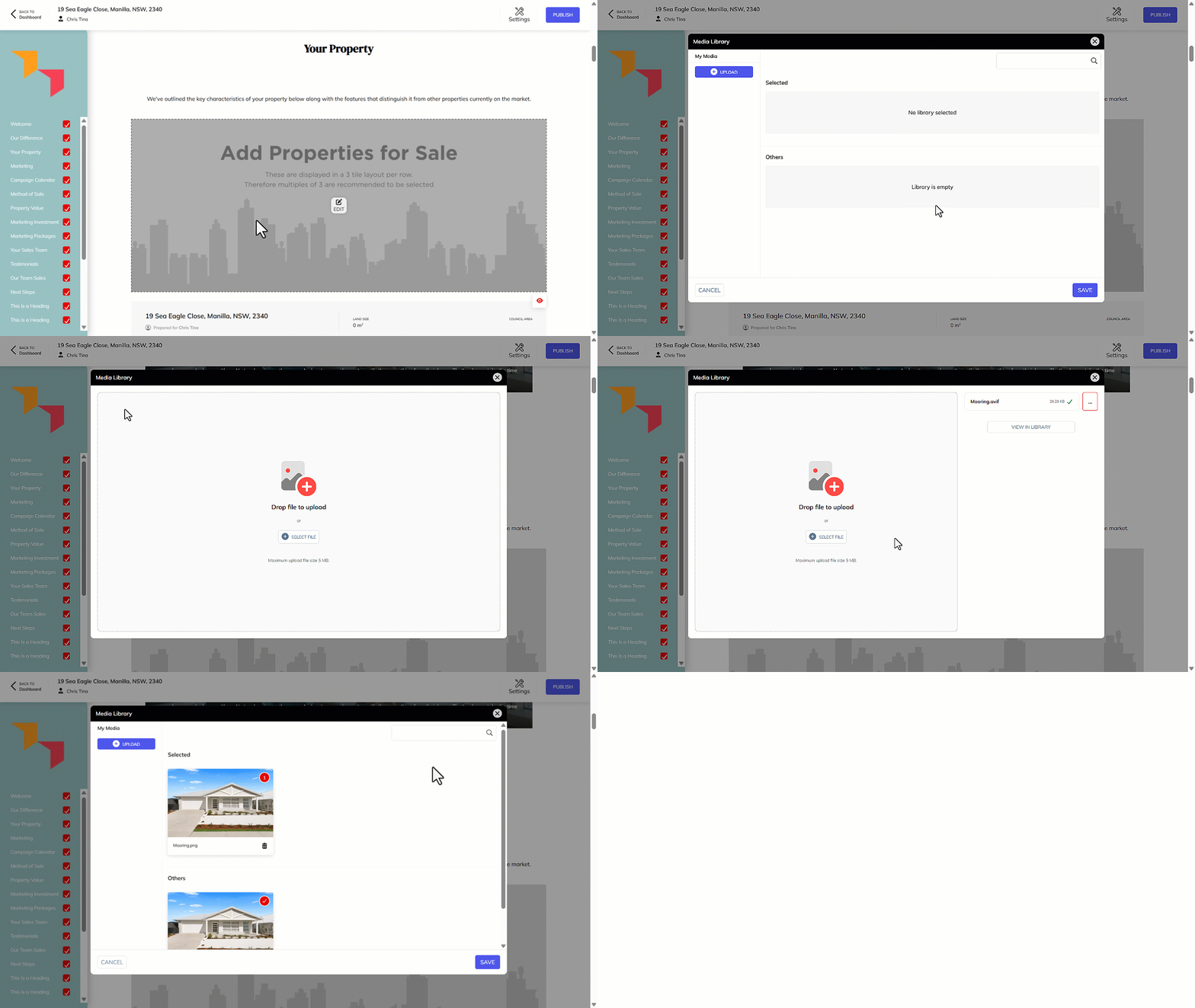
- From within the proposal, select the Add Properties for Sale section then click on Edit.
- Click on Upload.
- Choose to either drag and drop your image files or click on Select Files to browse your PC and upload. Once uploaded, click on View in Library.
- Select the image you wish to display as the main image, then click on Save.
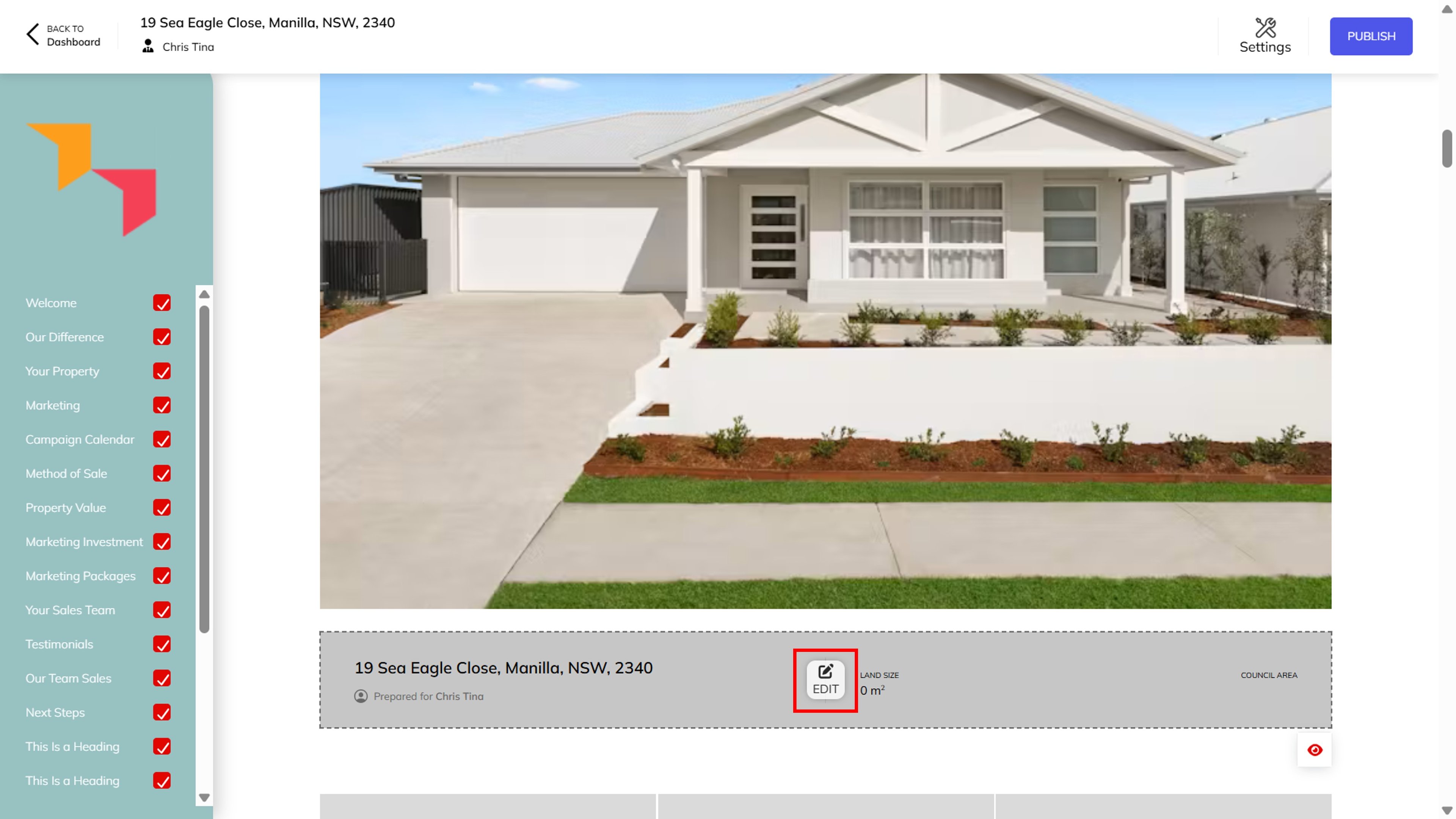
- Select the Property Details section, then click on Edit.
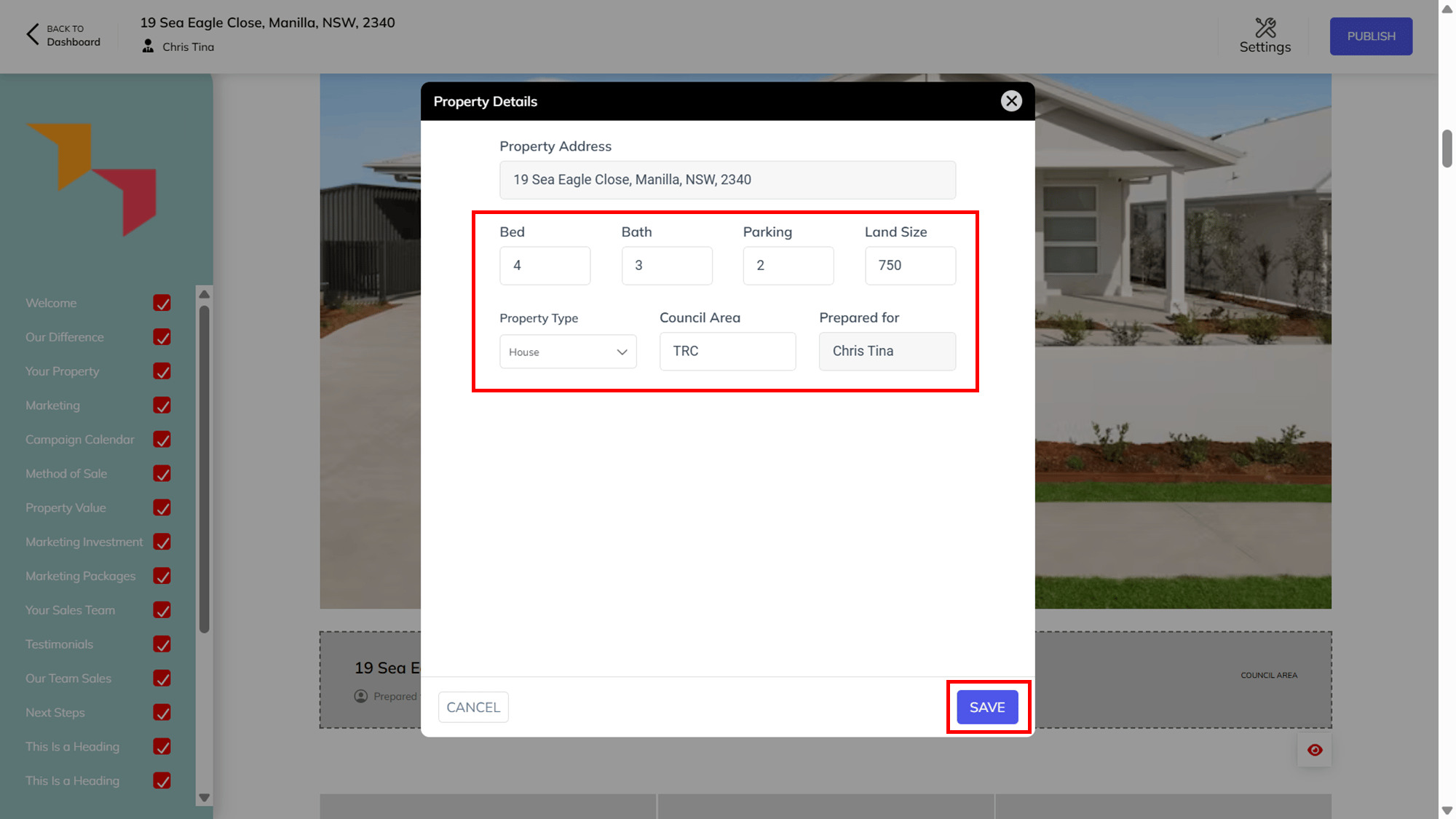
- The manually entered address will appear. Complete all other required information and click on Save.
- Select the Property Image Grid then click Edit.
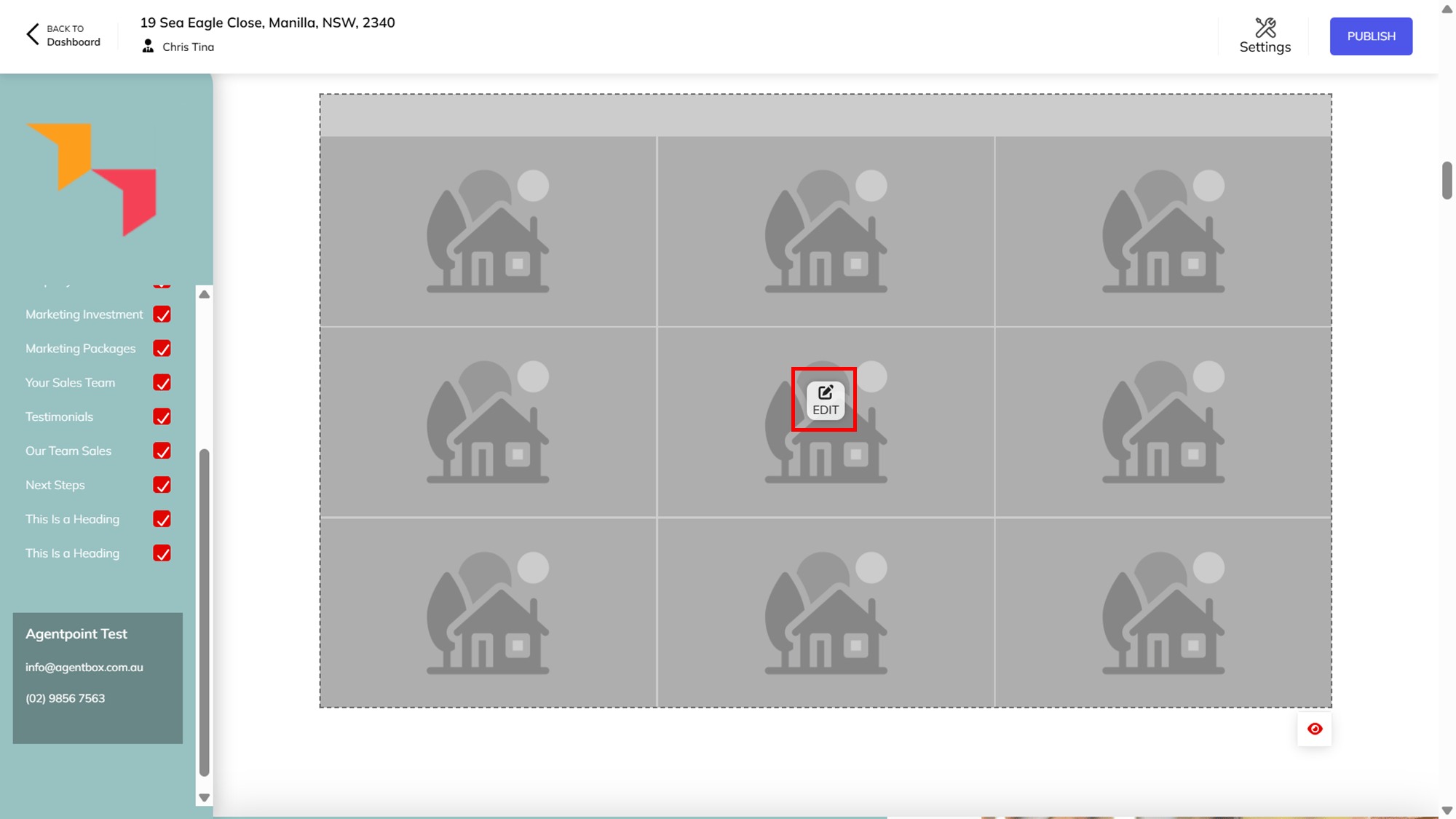
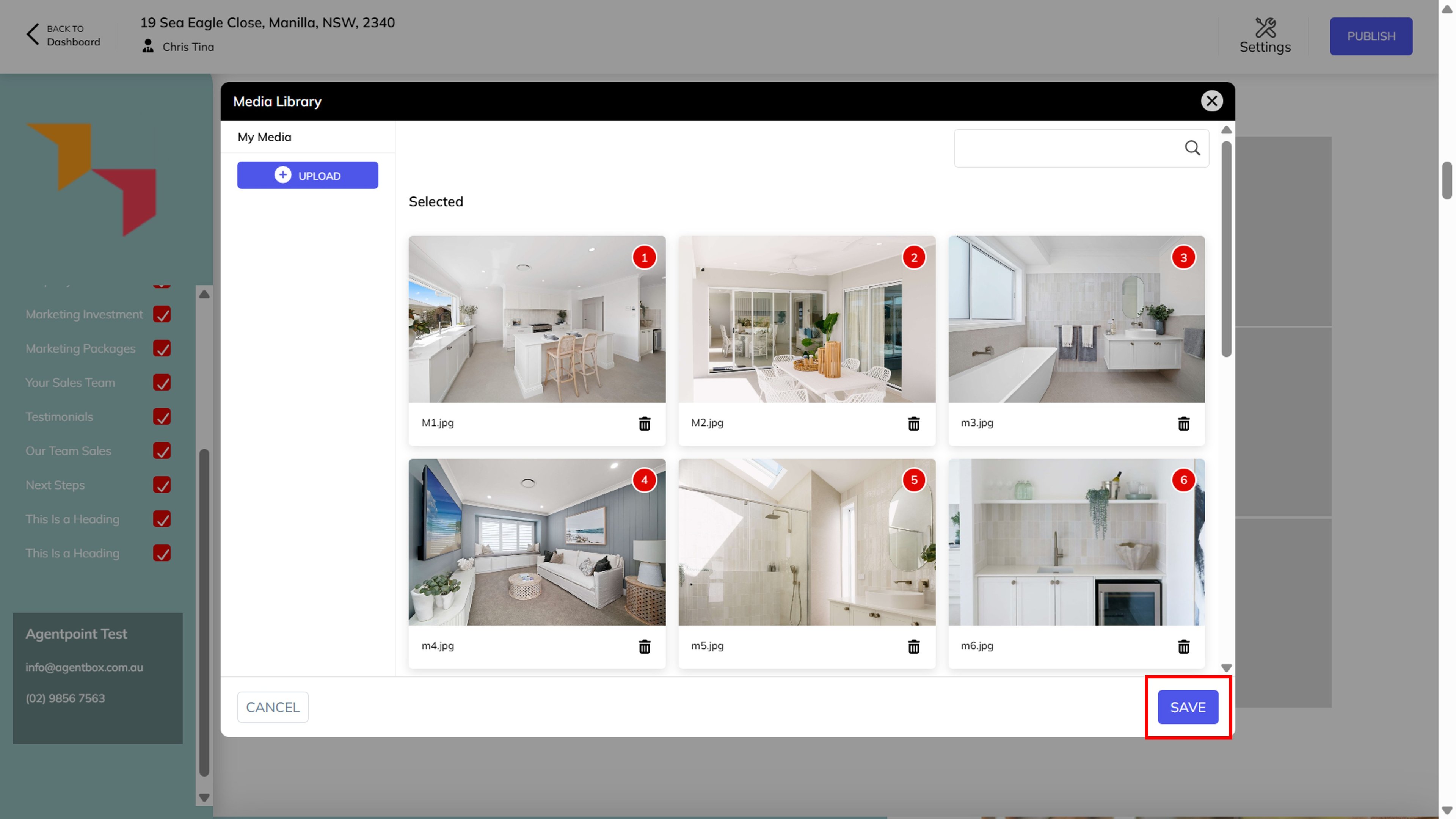
- Click on Upload to add more images to the library as required. Select the images from the library to use in the proposal, click and drag them into the position you would like them to appear on the grid, then click on Save.
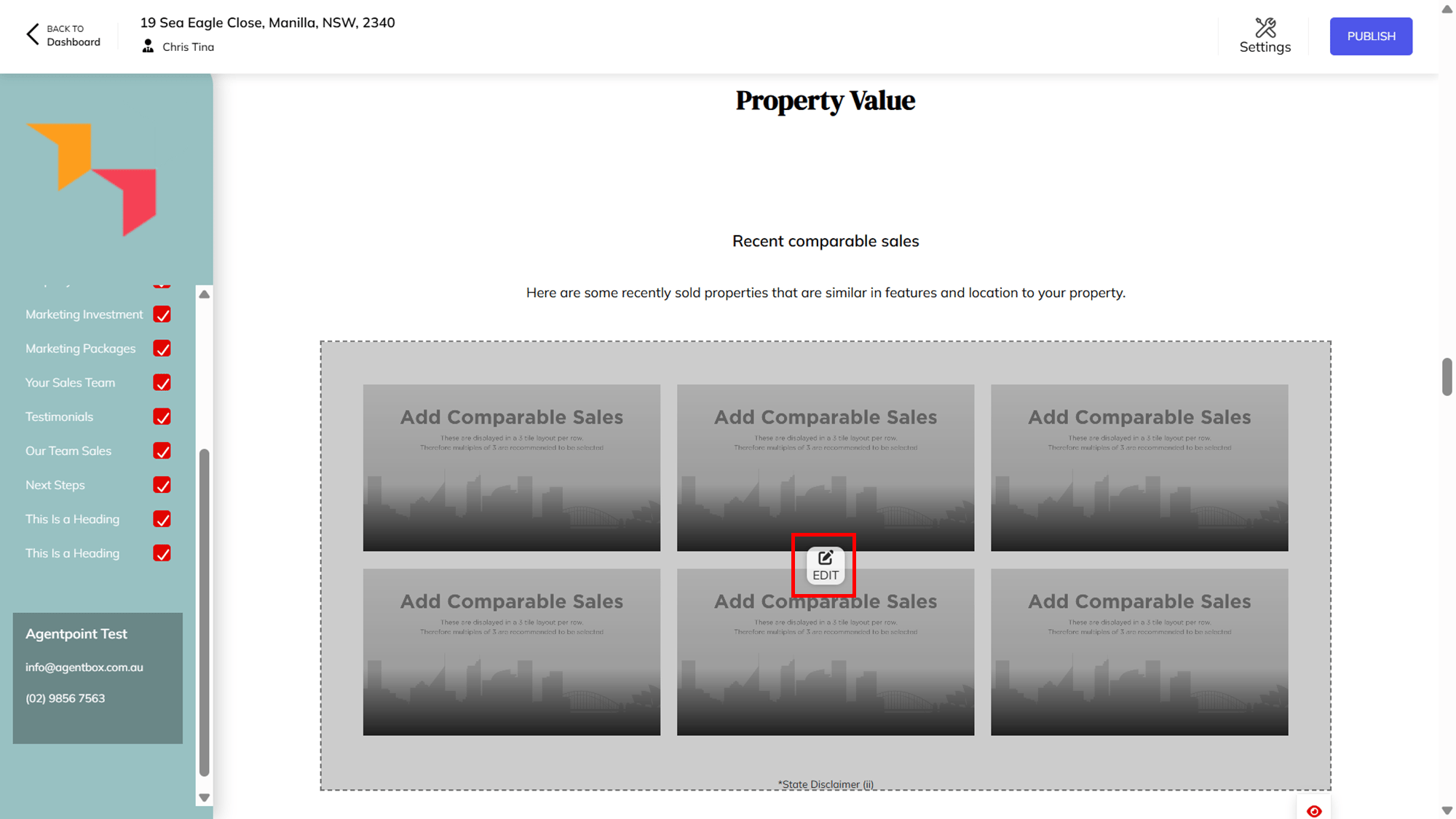
- To update the comparable sections, locate either Recent Comparable Sales or Current Properties for Sale sections, select the blank image grid, then click on Edit.
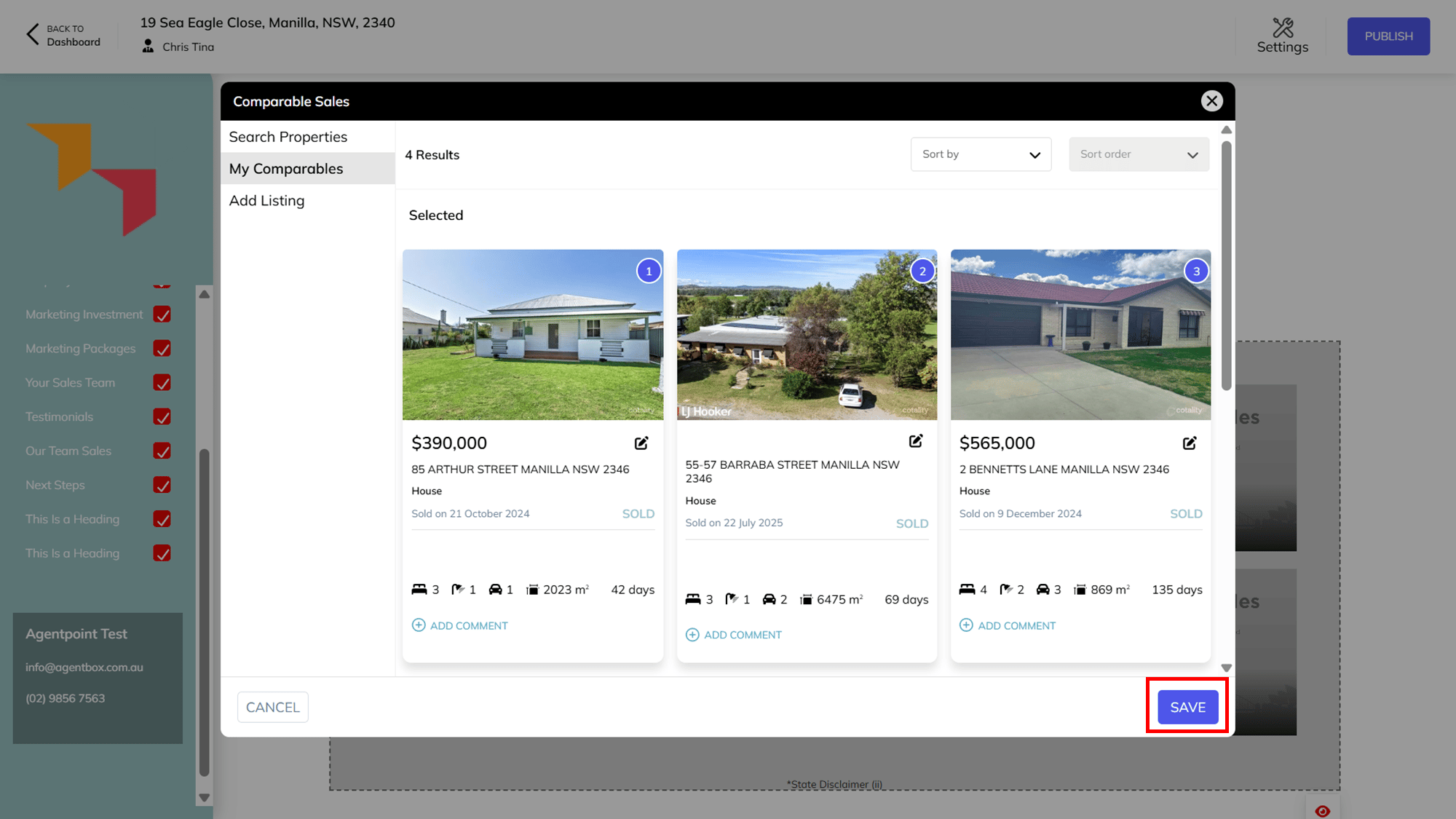
- Complete the search parameters and click on Search. Select those properties you would like to add as comparable and click Add Select Property.
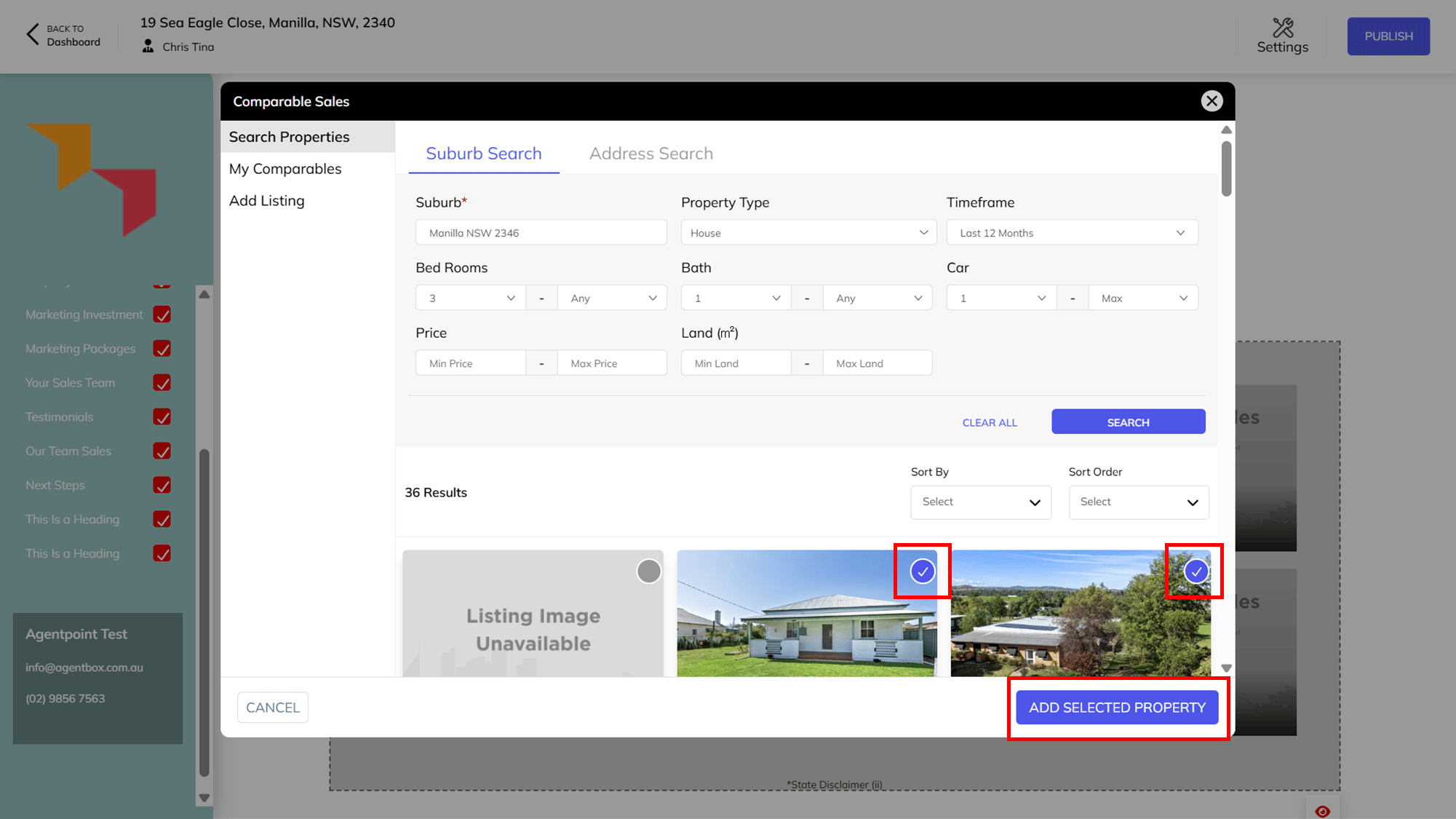
Note: When Radius Search is clicked, this message will appear: "You've entered the address manually, so we couldn't locate the address in the data source. Please use the suburb search or address search."
- Confirm the selected Comparable properties and click on Save.