Managing Your Data Provider
This article will guide you through the process of linking and unlinking a CoreLogic or Price Finder account from the Reapit Sales interface and associating it with another user account.
This article will guide you through the process of linking and unlinking a CoreLogic or Price Finder account from the Reapit Proposals interface and associating it with another user account. This simplifies managing data source connections, making the process more efficient. Users can only be connected to one data source at a time.
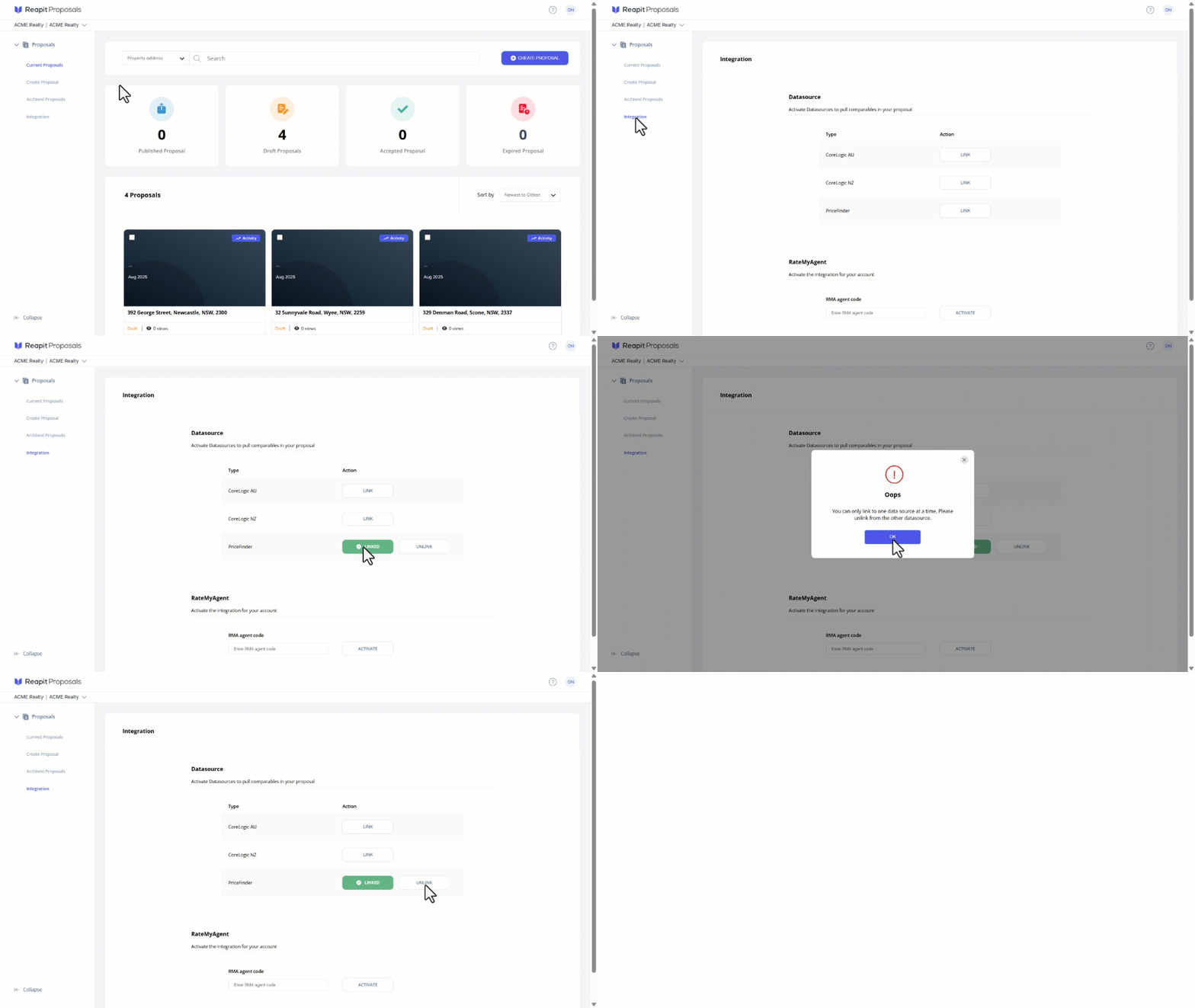
- Select the appropriate office from the dropdown menu.
- Click on Integrations.
- Navigate to the Datasource section, click LINK next to the account you wish to connect.
Note: You will be prompted to enter the datasource account credentials on a separate landing page following this action.
- Your data source will provide a visual indicator to confirm its connection status.
- When attempting to link multiple data source accounts simultaneously, a pop-up notification will inform you that only one data source can be linked at a time. Click OK close.
- Click UNLINK, to then add an alternative data source.
Note: In the event that another use from your office attempts to link the same CoreLogic account, an error notification will be displayed. The other user will need to unlink from the Core Logix account, allowing you the capability to link and use the account.