
Creating a Proposal
This article will show you how to create proposal from Reapit Sales and Digital Proposals
The processes in this article include:
- Creating a Proposal from Reapit Sales
- Creating a Proposal from Digital Proposals
Before creating a proposal,select your relevant office from the dropdown options as the default selection is set to the group level or "parent" account. Switching to the child account ensures you create the proposal under the correct office.
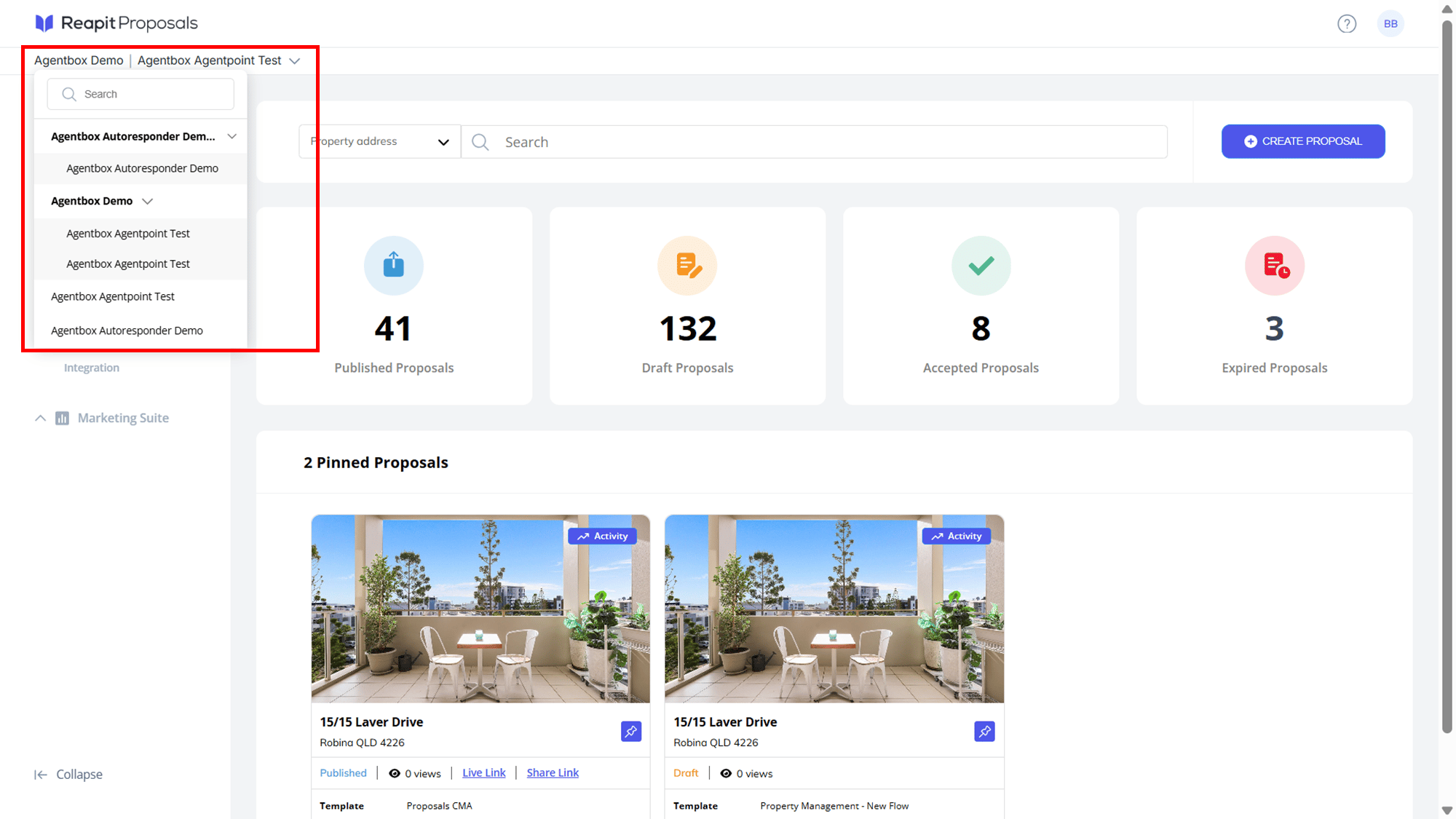
From Reapit Sales
Follow these steps to generate a Proposal directly from an Appraisal or Presentation within the Reapit Sales CRM
- Select either your Open Appraisal or Presentation. Navigate to the Appraisal Tab.
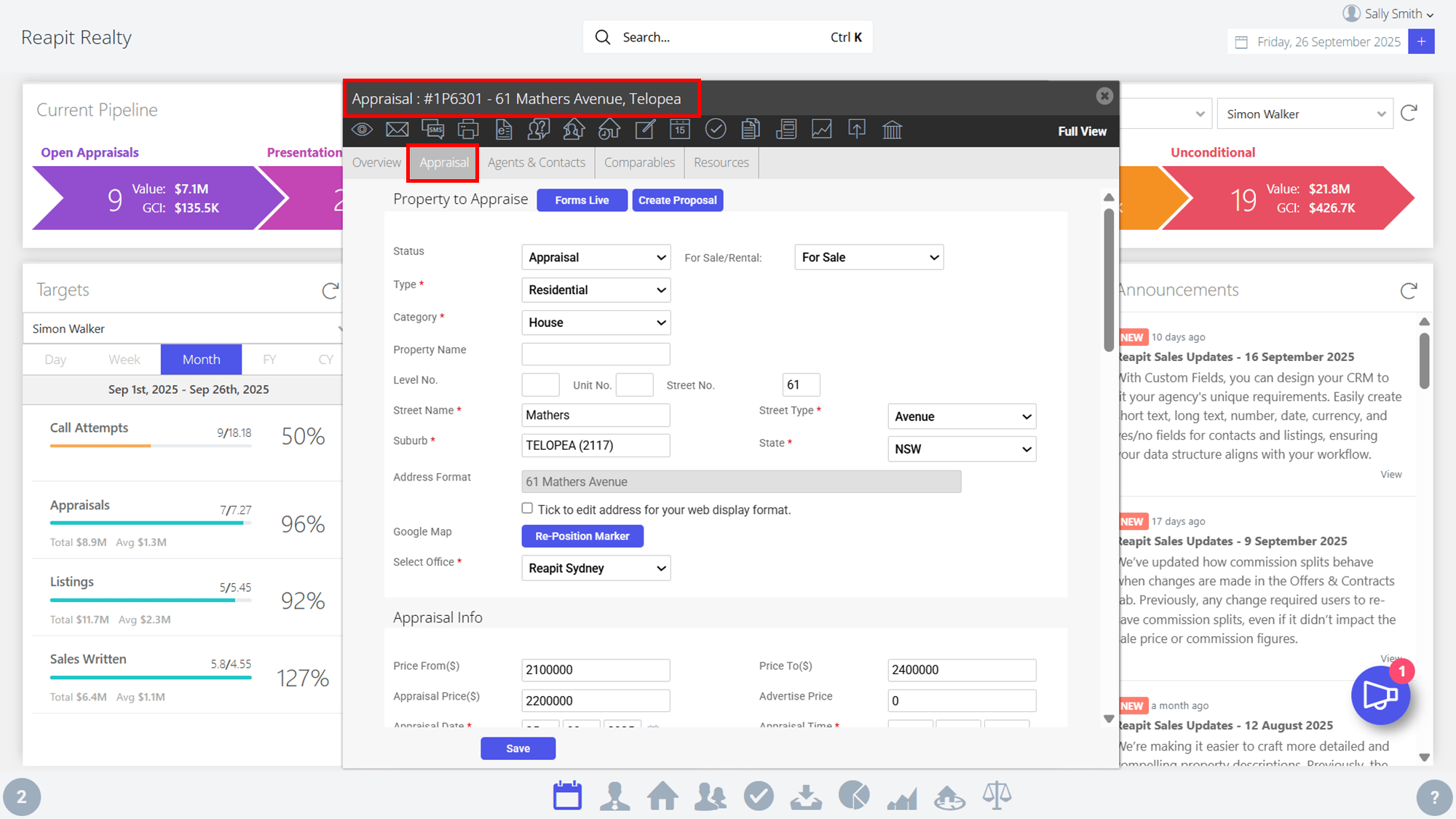
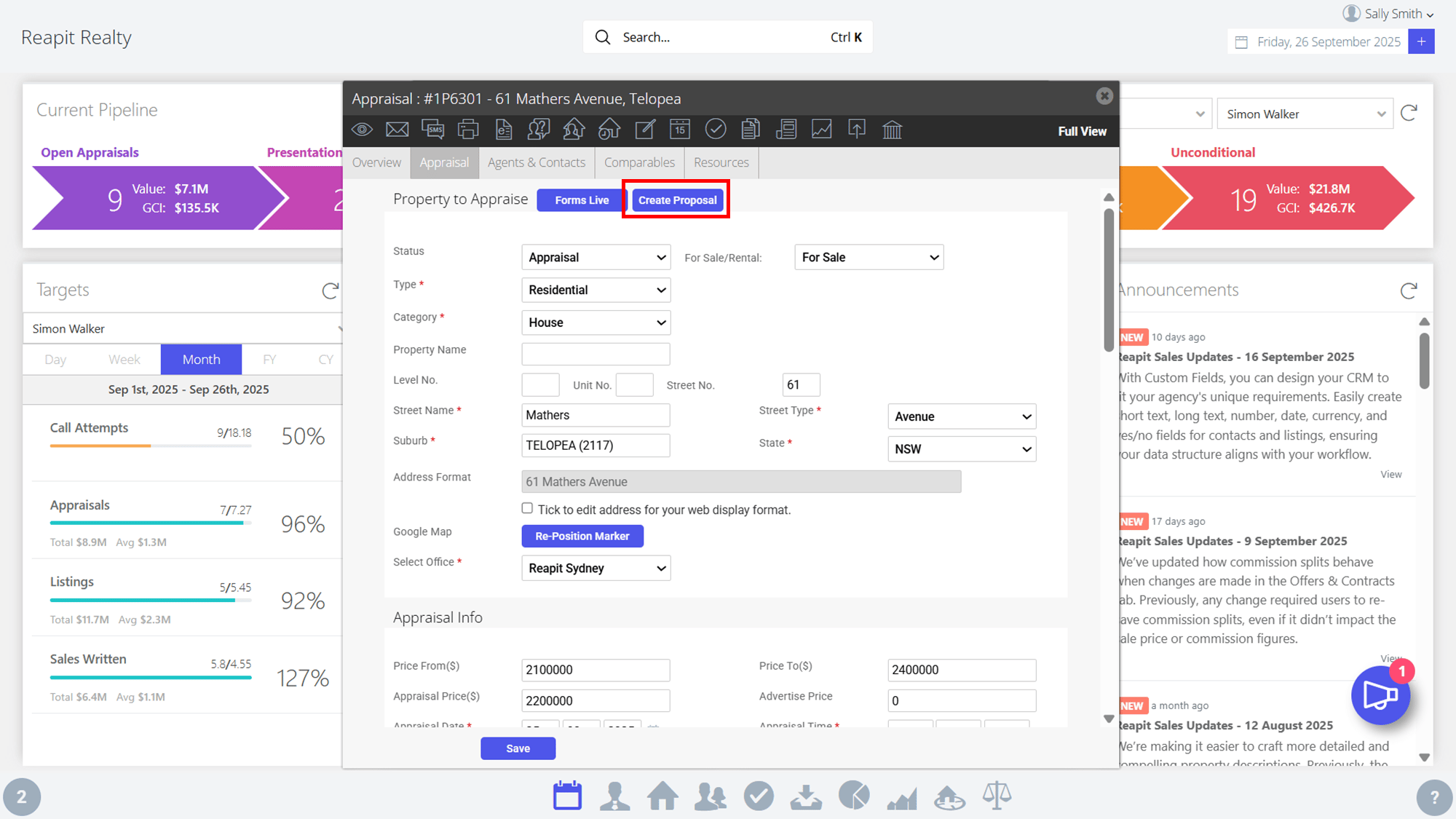
- Click Create Proposals. You will then be redirected to the Digital Proposals Platform.
From Digital Proposals
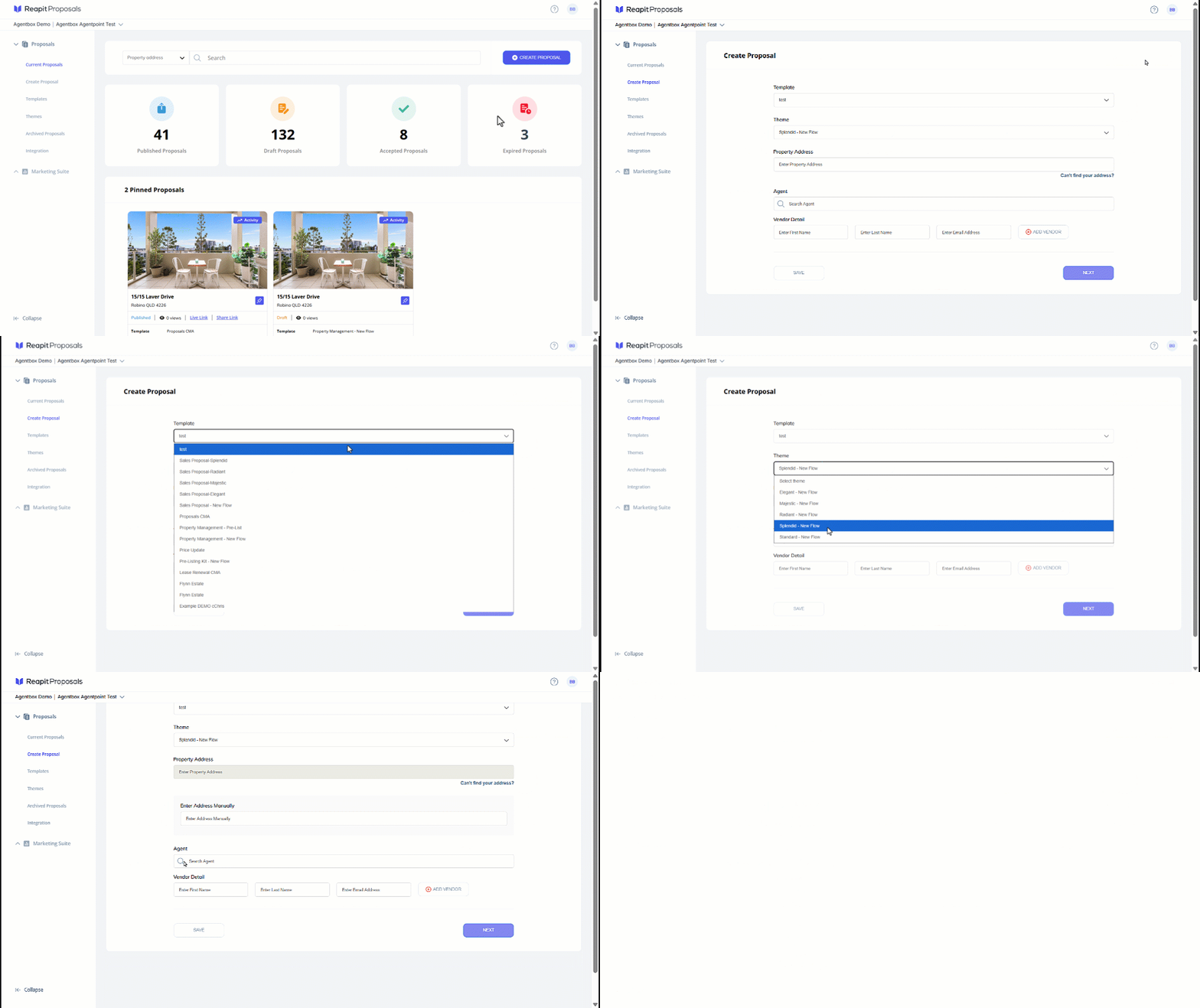
When creating the proposal via the Appraisal Card in the Reapit Sales, you will be taken directly to the Create Proposal screen. The address, primary agent and primary vendor information will pre-populate.
- Click on Create Proposal.
- Select a Template Type - E.g.Sales Proposal.
- Select a Theme.
- Search and select a property address from the dropdown options.
- If the property address cannot be found, Click on Can't find your address? and manually enter the required address into the Enter Address Manually field.
- Search and select an agent from the dropdown options. Note: You can select the primary agent by clicking on the star next to their name.
- Search and select vendors from the dropdown options
- Click on Next.
To find out how to edit and publish a proposal, if the address was found, please click here.