Setting Up Risk Assessments
This process explains how to configure the risk assessment questionnaire in Reapit Verify. Set up questions, answer options, and risk weighting so agents capture consistent information, and the system can calculate an appropriate case risk level. Questions can be created for and applied to Individual, Company and Trust party types and apply to both Vendor and Buyers.
Note: Multi-office users will need to manage questions through each individual office. To switch offices as a multi-office user, click the drop-down on the office name to select the desired office.
Accessing and Managing Questions
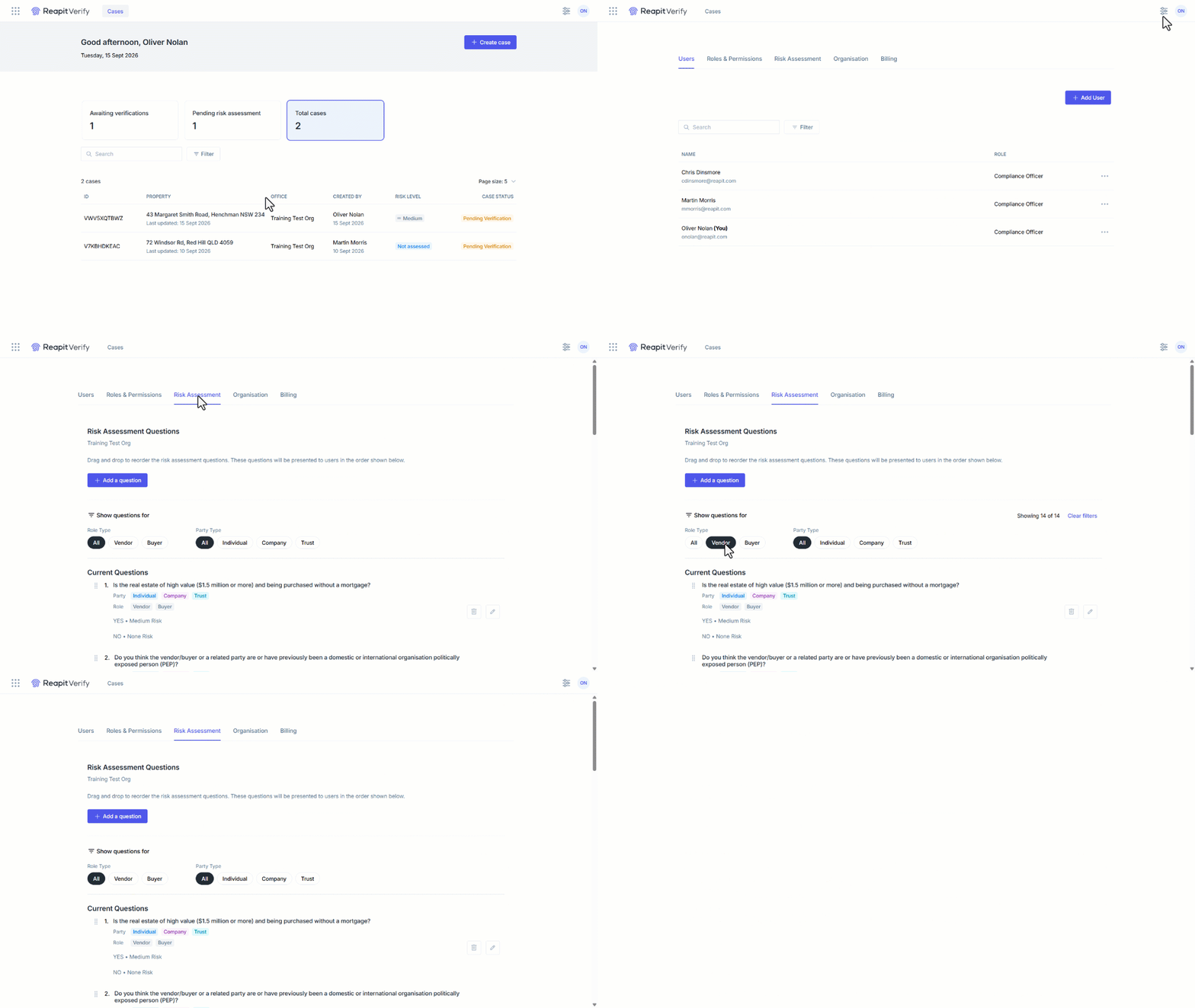
- In Reapit Verify, go to Settings.
- Select the Risk assessment tab.
- Review the existing risk assessment questions (these start as the default set aligned to the AUSTRAC starter kit).
- Use the Role Type and Party Type filters to view questions as required.
- To reset the view to All questions, click on Clear filters.
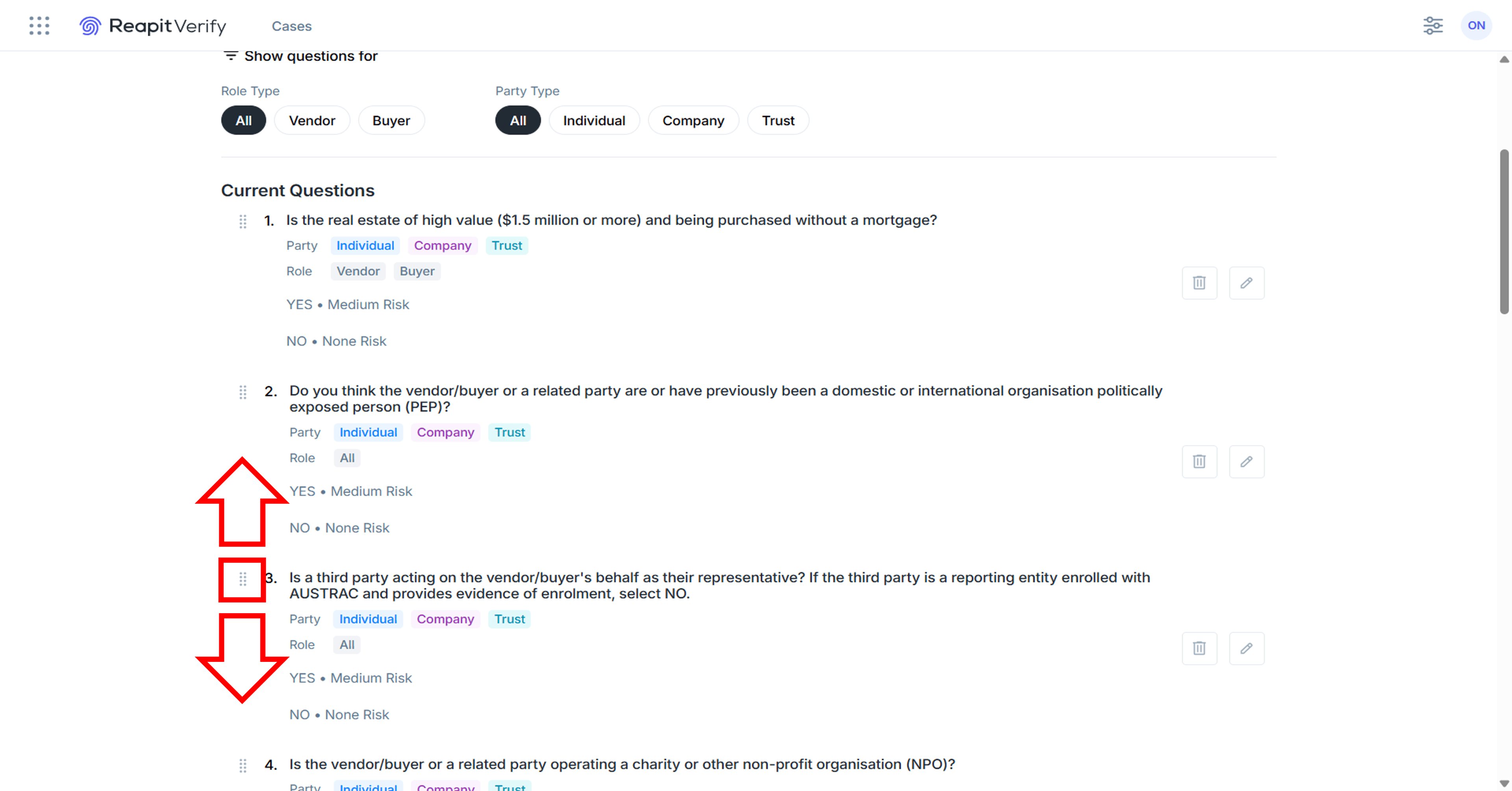
- To reorder questions, click, hold and drag the question into place by using the 8-dot icon to the left of the question.
Edit a Question
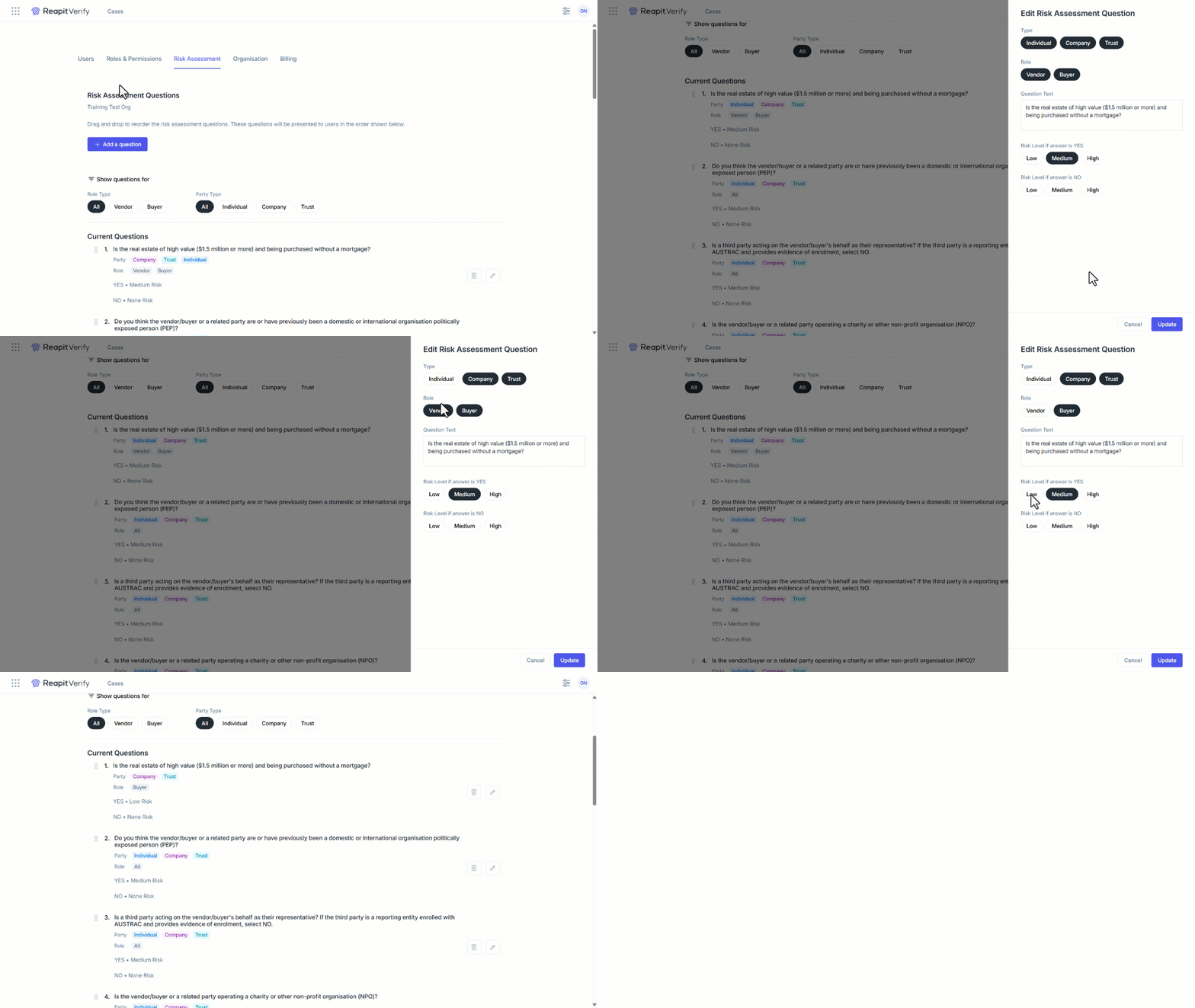
- Select the Pencil icon next to the question.
- Select the Type of risk assessment the question applies to.
- Individual
- Company
- Trust
- Select the Role the risk assessment question applies to.
- Vendor
- Buyer
- Update the Question Text.
- Update the risk level assigned to Yes and No an answer options.
- Select Save.
- To delete a question, select the Delete icon next to the question and confirm.
Add a New Question
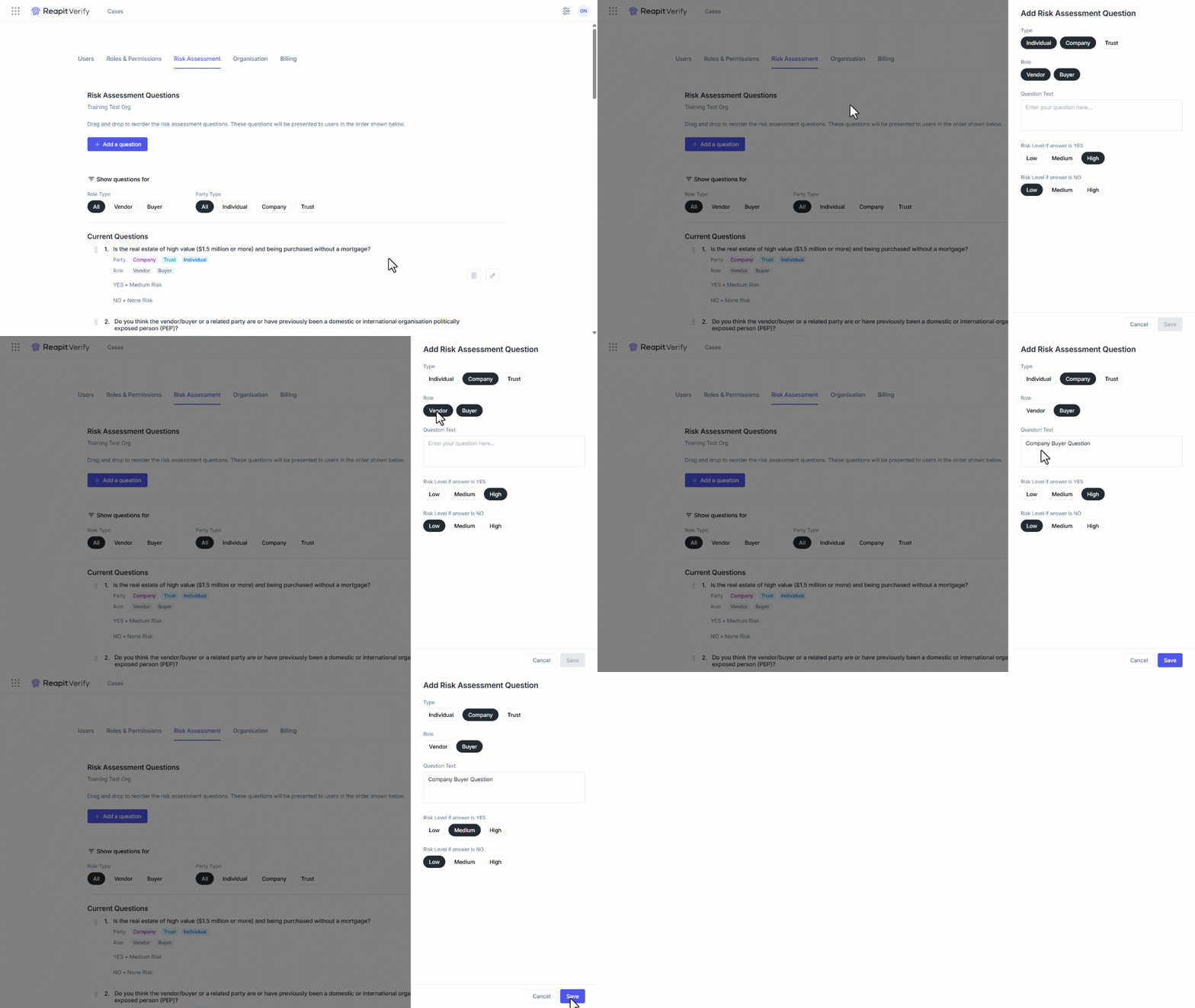
- Click on + Add Question.
- Select the Type of risk assessment the question applies to.
- Individual
- Company
- Trust
- Select the Role the risk assessment question applies to.
- Vendor
- Buyer
- Enter the Question in the Question Textfield.
- Set the risk level assigned to Yes and No an answer options as required.
- Select Save.
Note: the new question will be added at the bottom of the Current Questions list. Click, hold and drag the question into place by using the 8-dot icon to the left of the question to change the position.