Reapit Verify - Trusts
This article will cover case creation and reviewing trust verifications in Reapit Verify.
The processes in this article include:
- Creating the Case
- Reviewing the Trust
Reapit Verify allows you to easily establish trust structures to help you will completing Verify checks on those individuals that are required to under the legislation. By uploading a copy of the trust documentation, Verify will analyse and provide you with the identity of the individuals or companies that need to be checked.
Creating the Case
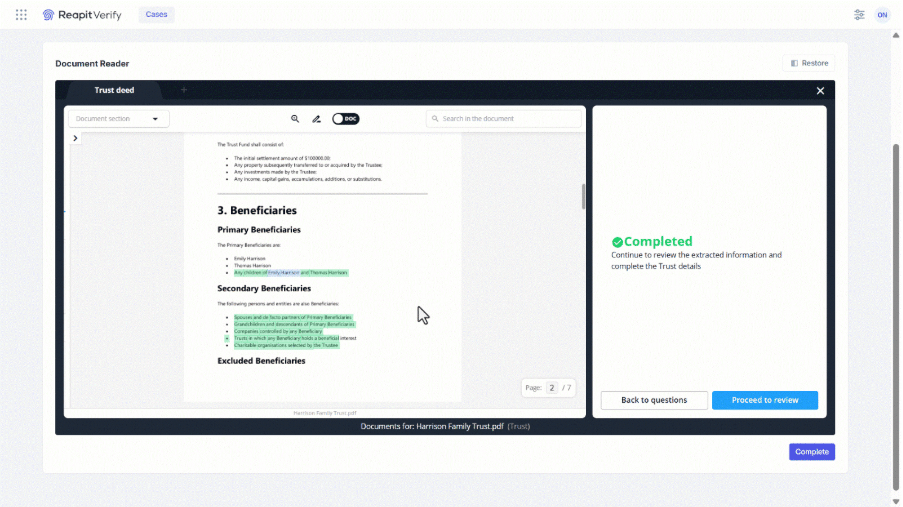
Click on Create case.
Search and select the Property Address.
Note: If the address does not appear, click on Enter Manually to complete the details.
For multi-site offices, select the required Office.
Select the Listing Agent.
Note: If the agent does not appear, click on Enter Manually to complete the details.Click on + Add new verification.
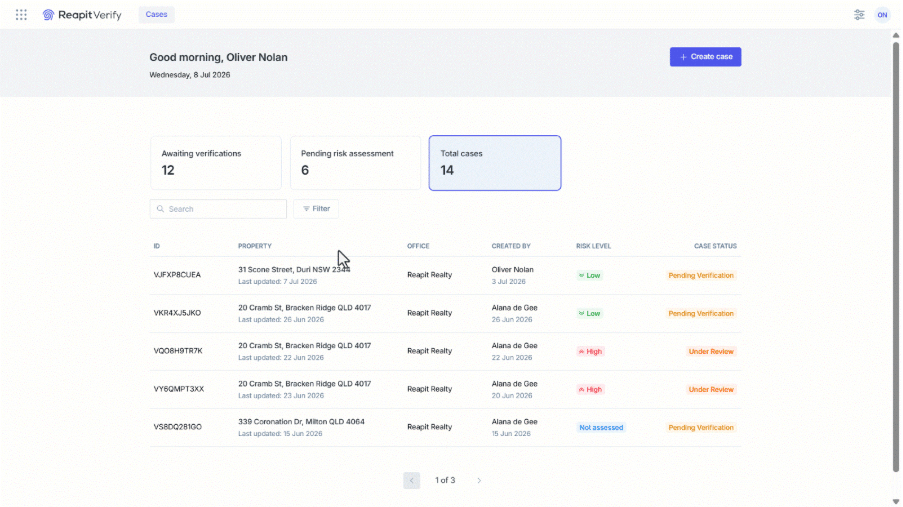
Set the Contact Type to Trust
Enter Trust Details.
Legal Trust Name
Country of Establishment
Document Type
Upload Trust Document
- Enter the Point of Contact details:
First name
Last Name
Email
Phone number
Note: This may not be the person who the checks will be completed on, but may be the person who will be able to provide contact details of the UBOs to be verified.
Click on Add Verification.
If other verifications are required, click on +Add another verification.
Click on Create Case.
Reviewing the Trust
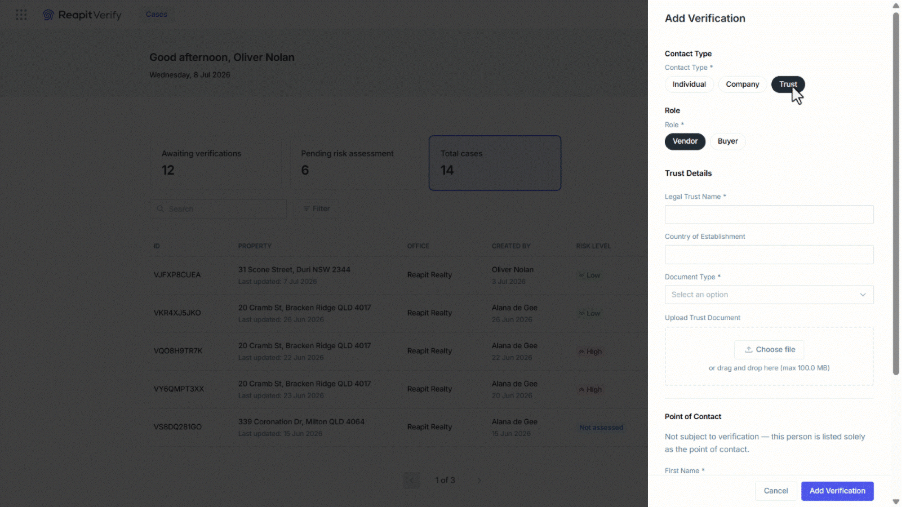
Select the Verification to expand then click on View details.
Once the screen loads, an Unread documents found pop-up will appear on the screen. Click on Read Document.
Note: Depending on the document quality, the reading process may take a while to process.
- Click on Proceed when the document is ready.
Note: You may need to click on Maximise to view the entire window
Confirm the Type of Trust and the Type of Distribution before clicking on Continue.
The system will then ask you to review that key information pulled from the Trust document is correct. Make changes by drop-down menus or adjusting the text. Click on Yes to progress through each question.
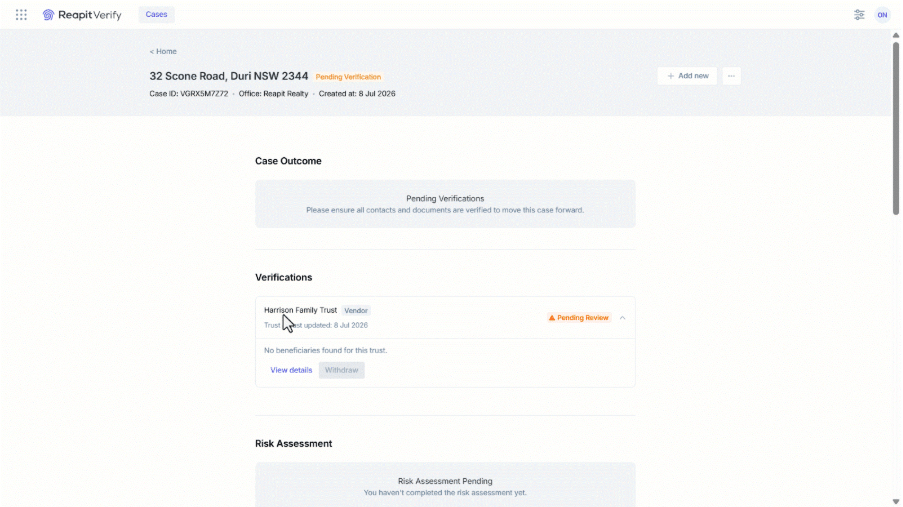
Once all information has been reviewed, the Completed screen will show. Click on Proceed to Review.
On the Trust Details Overview screen, click on View Report and Complete.
Select the verify tick box for the Trust. Click on Save & Close.
The document reader will then build out the structure of the Trust and display in on the screen.
Click on Save & Close.
The Adverse Media checks will be completed. Once the green ticks appear, click on Complete. You will then be able to complete the Verify UBO checks.
Note: If there is a company as part of the Trust, you will be able to complete a KYB check as well. Simply click on the node and complete the company check.