Reapit Verify - Case Creation
This article covers how to initiate, manage and trigger know your customer checks for a contact by creating a case in Reapit Verify. This is used when you need to verify a vendor, buyer, or other related party against your AML/CTF requirements. The process in this article includes: Creating a Case
This article covers how to initiate, manage and trigger know your customer checks for a contact by creating a case in Reapit Verify. This is used when you need to verify a vendor, buyer, or other related party against your AML/CTF requirements.
The process in this article includes:
- Creating a Case
Creating a Case
This process outlines how to create a new case in Reapit Verify. https://verify.reapit.com.au/
- Select Create case.
- Search and select the Property Address.
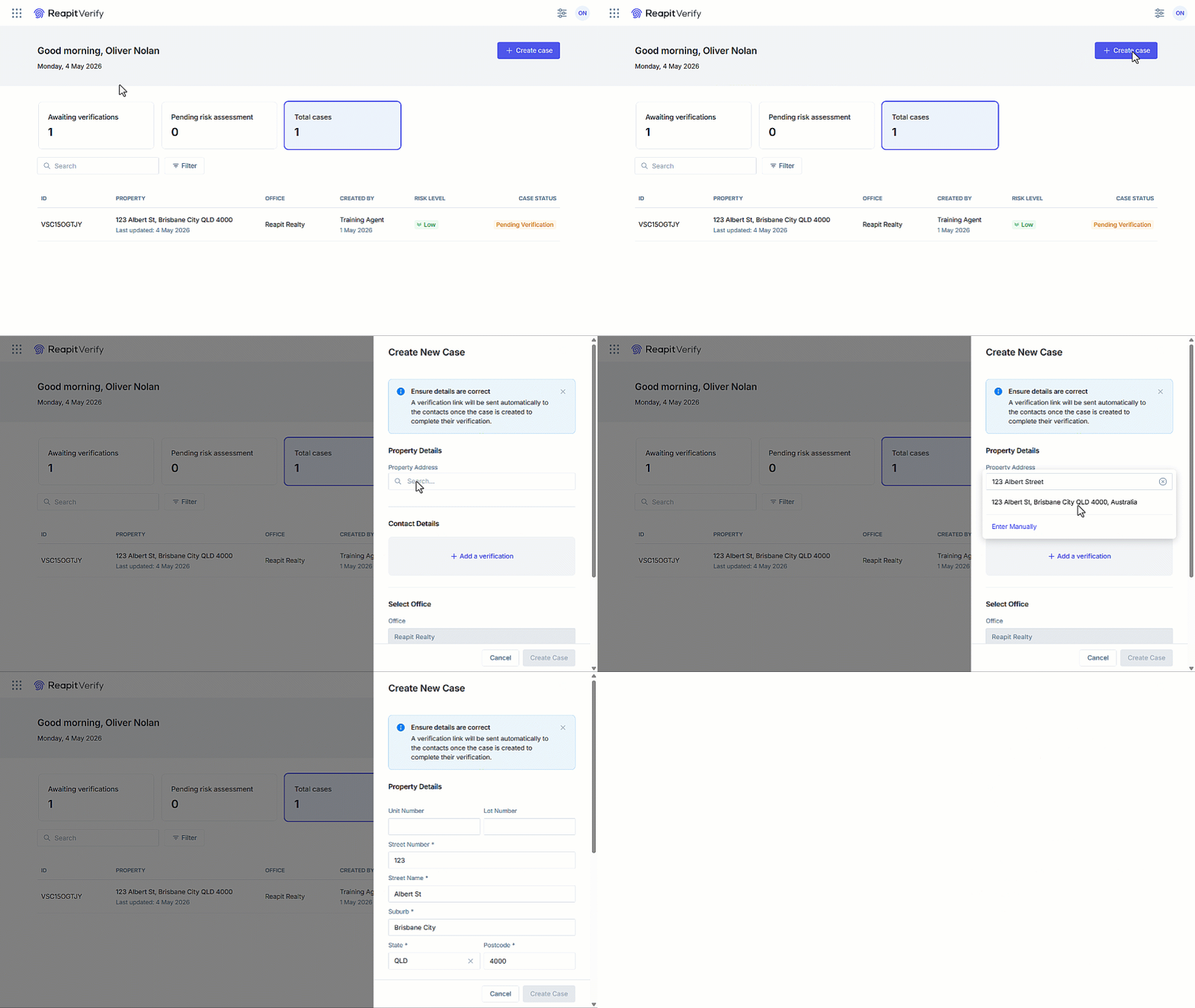
Note: If the address does not appear, click on Enter Manually to complete the details.
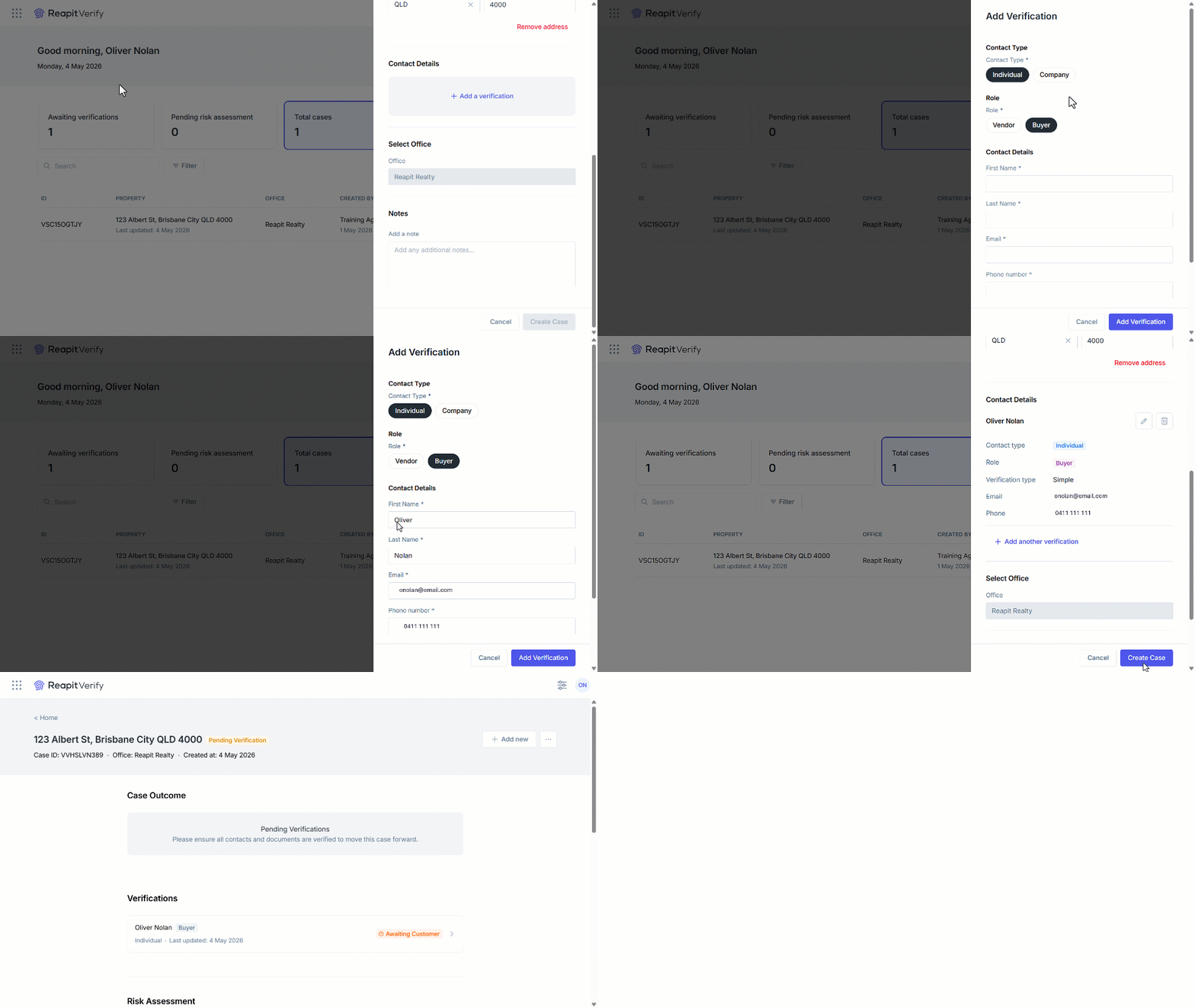
- Select + Add a Verification. For multi-site offices, select the required office.
- Select the Contact type and Role. Select the Listing Agent.
Note: If the agent does not appear, click on Enter Manually to complete the details. - Enter first name, last name, email address, and mobile number.
- Choose the Verification type:
- Simple verification: Basic ID Checks.
- Advanced check: Biometric Face-Match and ID verification.
- Select Add verification.
- Options:
- To add more people, select Add another verification and repeat the previous steps.
- Add notes to the case.
- Select Create case.
- A SMS is sent automatically to each person added for verification.
- Once the contact completes the checks, the status updates to show completion.