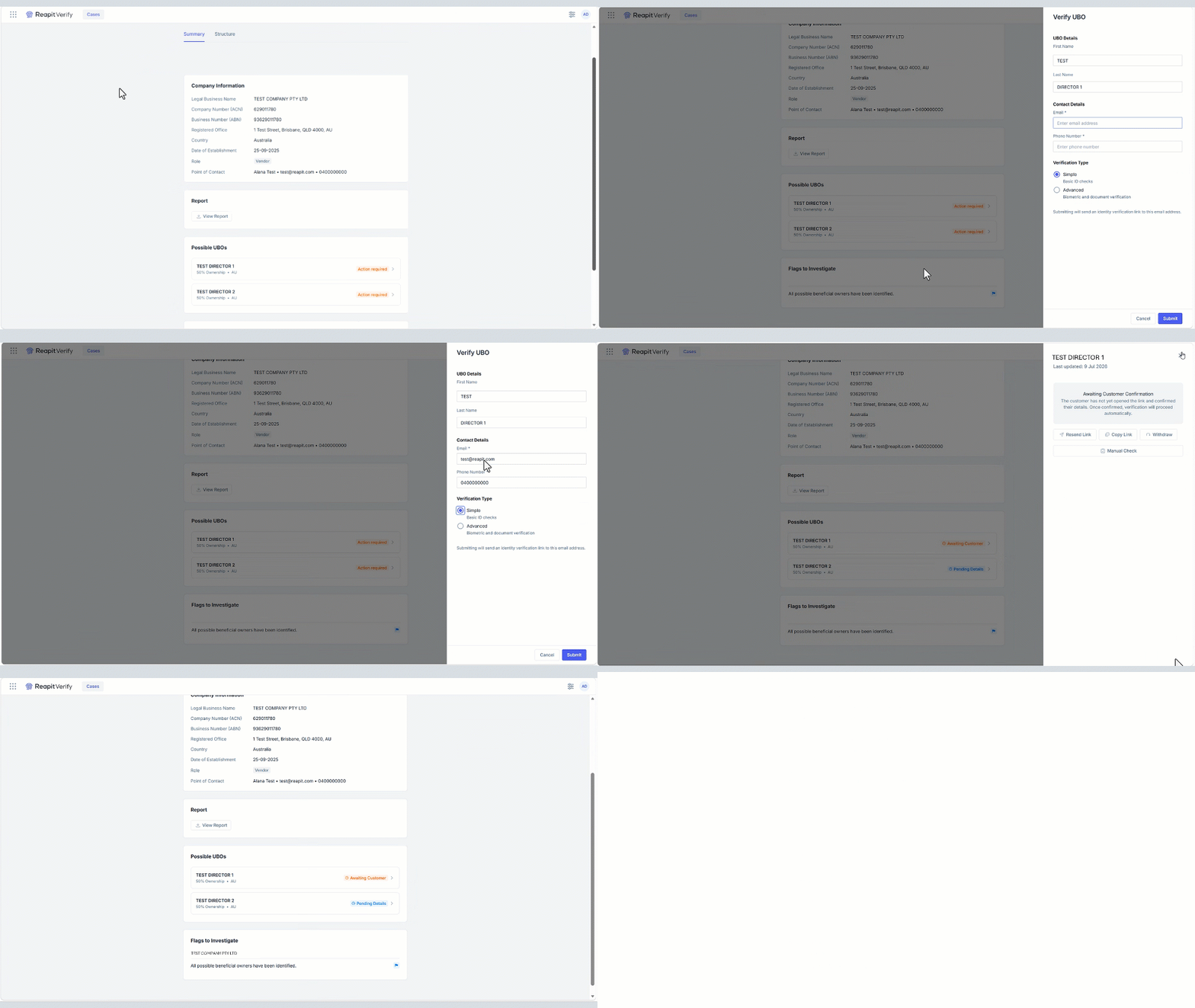
Reapit Verify - Know Your Business Checks (KYB)
You are required to complete a Know Your Business (KYB) check when the purchaser or vendor as a companies, trusts, partnerships, self-managed superfunds (SMSF) and other complex entities. A KYB check will look at the following: Is this a real and legitimate entity. – ABN/ASIC Business Check Who actually owns or controls the entity Are the entity and the people that own/control it legitimate? Do the lookup on the business Figure out who owns it and who has significant control or influence (25%+) Following a completed KYB Check you will then run a KYC check on those identified individuals. These individuals are known as Ultimate Beneficial Owners or UBOs The processes in this article include: Creating a Vendor KYB Check from Reapit Sales Creating a Buyer KYB Check from Reapit Sales Creating a KYB Case in Reapit Verify Adding a Verification to a KYB Case in Reapit Verify Reviewing the Business Structure in Reapit Verify
You are required to complete a Know Your Business (KYB) check when the purchaser or vendor as a companies, trusts, partnerships, self-managed superfunds (SMSF) and other complex entities.
A KYB check will look at the following:
- Is this a real and legitimate entity. – ABN/ASIC Business Check
- Who actually owns or controls the entity
- Are the entity and the people that own/control it legitimate?
- Do the lookup on the business
- Figure out who owns it and who has significant control or influence (25%+)
Following a completed KYB Check you will then run a KYC check on those identified individuals. These individuals are known as Ultimate Beneficial Owners or UBOs
The processes in this article include:
- Creating a Vendor KYB Check from Reapit Sales
- Creating a Buyer KYB Check from Reapit Sales
- Creating a KYB Case in Reapit Verify
- Adding a Verification to a KYB Case in Reapit Verify
- Reviewing the Business Structure in Reapit Verify
Creating a Vendor KYB Check from Reapit Sales
This process outlines how to create a new Reapit Verify case from within Reapit Sales.
Prior to commencing this process, ensure the business contact has a First Name, Last Name, Mobile Number and Email Address included as well as the ABN or ACN. Refer to the Add a Business Contact article.
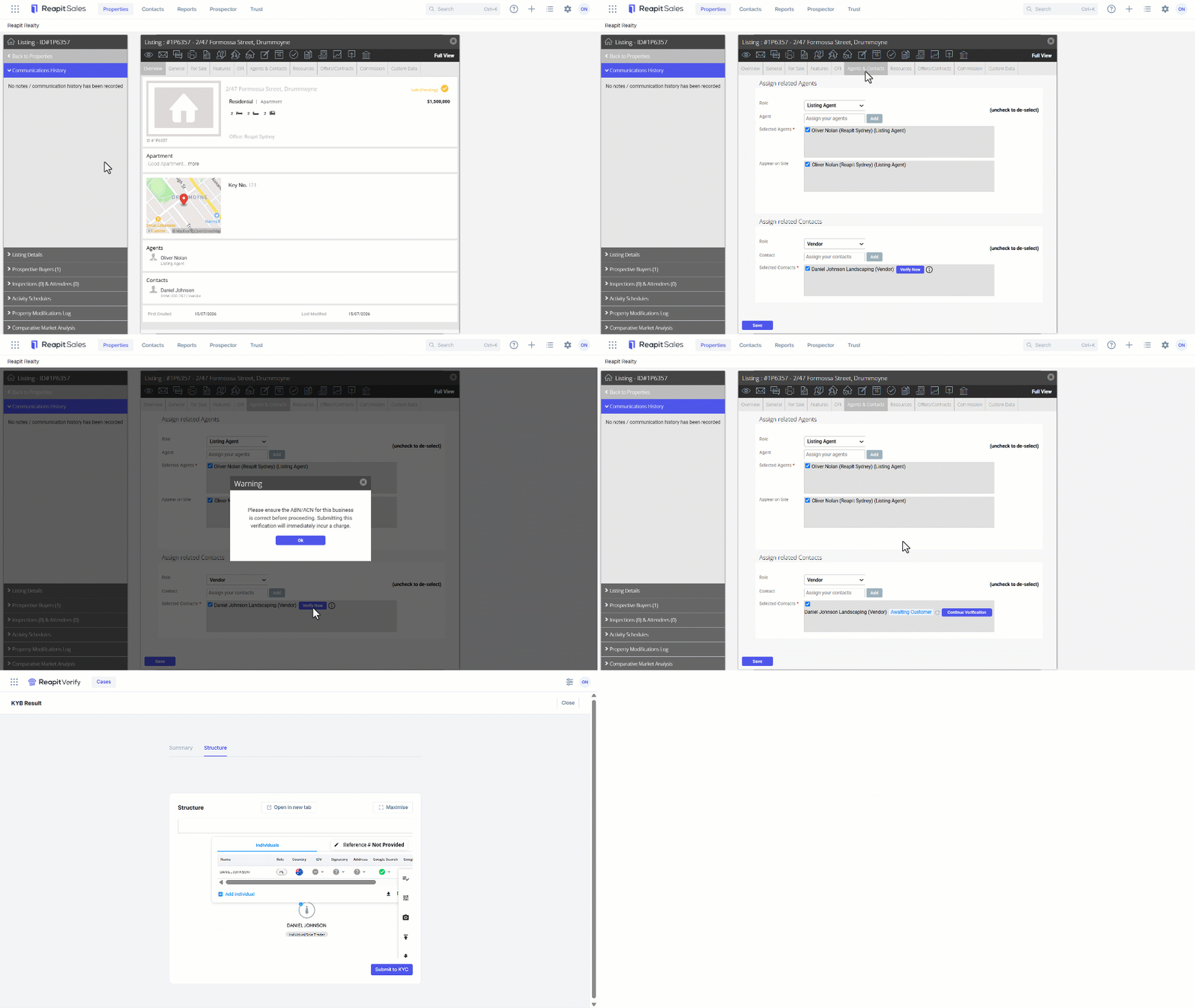
- Search for and open the property you want to verify in Reapit Sales.
- Select the Agents and Contacts tab.
- Navigate to Related Contacts.
- Find the relevant contact (for example, the vendor) and select Verify now.
- You will be asked to ensure there is an ABN/ACN attached with the contact. Click on Ok.
- The case will be added to Reapit Verify.
- Click on Continue Verification to open Reapit Verify and continue the KYB verification.
- Navigate to the Reviewing the Business Structure section below in this article to complete the process.
Note:
When the Vendor verification process is initiated and there are no ABN or ACN listing against the contact, the following message will display.
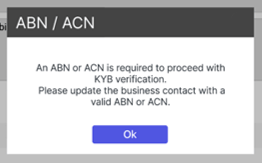
You should then:
- Close the warning popup
- Navigate back and update the business contact details
- Attempt to raise the verification again
Creating a Buyer KYB Check from Reapit Sales
This process outlines how to verify buyers at the Offers / Contractors stage of a listing once a buyer offer has been saved within the listing.
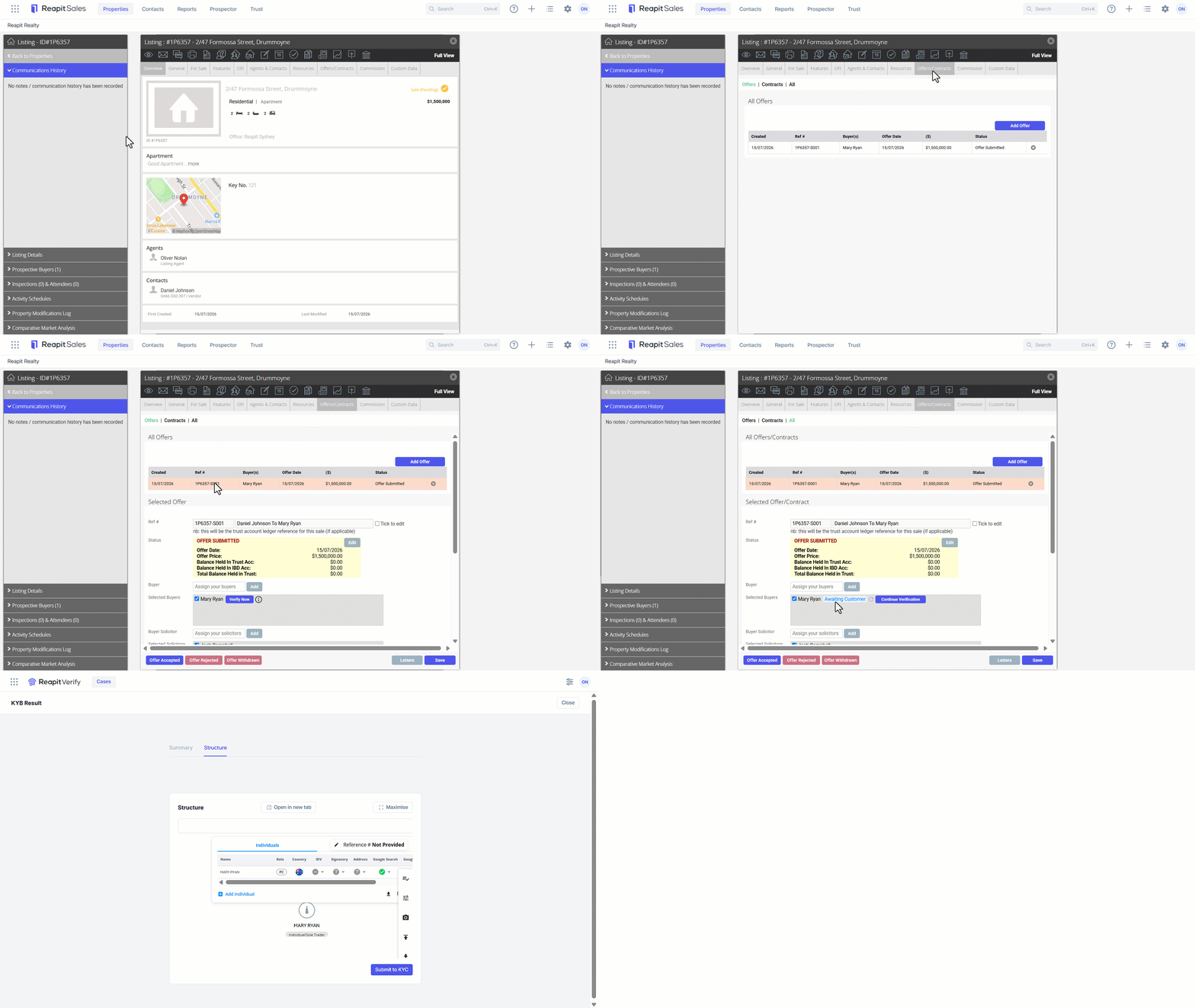
- From within the property listing, Select the Offers/Contracts tab.
- Select the offer.
- Navigate to the Selected Buyers section.
- Click on Verify Now.
Note: You will be asked to ensure there is an ABN/ACN attached with the contact. Refer to this article should you need to add ABN/ACN details.
- Click on Continue.
- The case will be added to Reapit Verify.
- Click on Continue Verification to open Reapit Verify and continue the KYB verification.
- Navigate to the Reviewing the Business Structure section below in this article to complete the process.
Note:
When the Vendor verification process is initiated and there are no ABN or ACN listing against the contact, the following message will display.
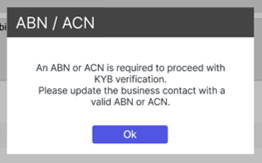
You should then:
- Close the warning popup
- Navigate back and update the business contact details
- Attempt to raise the verification again
Creating a KYB Case in Reapit Verify
Warning: This process should not be used to when a case is required to be linked to a Buyer or Vendor transaction in Reapit Sales as the status will not link.
Refer to the following to create a case from Reapit Sales:
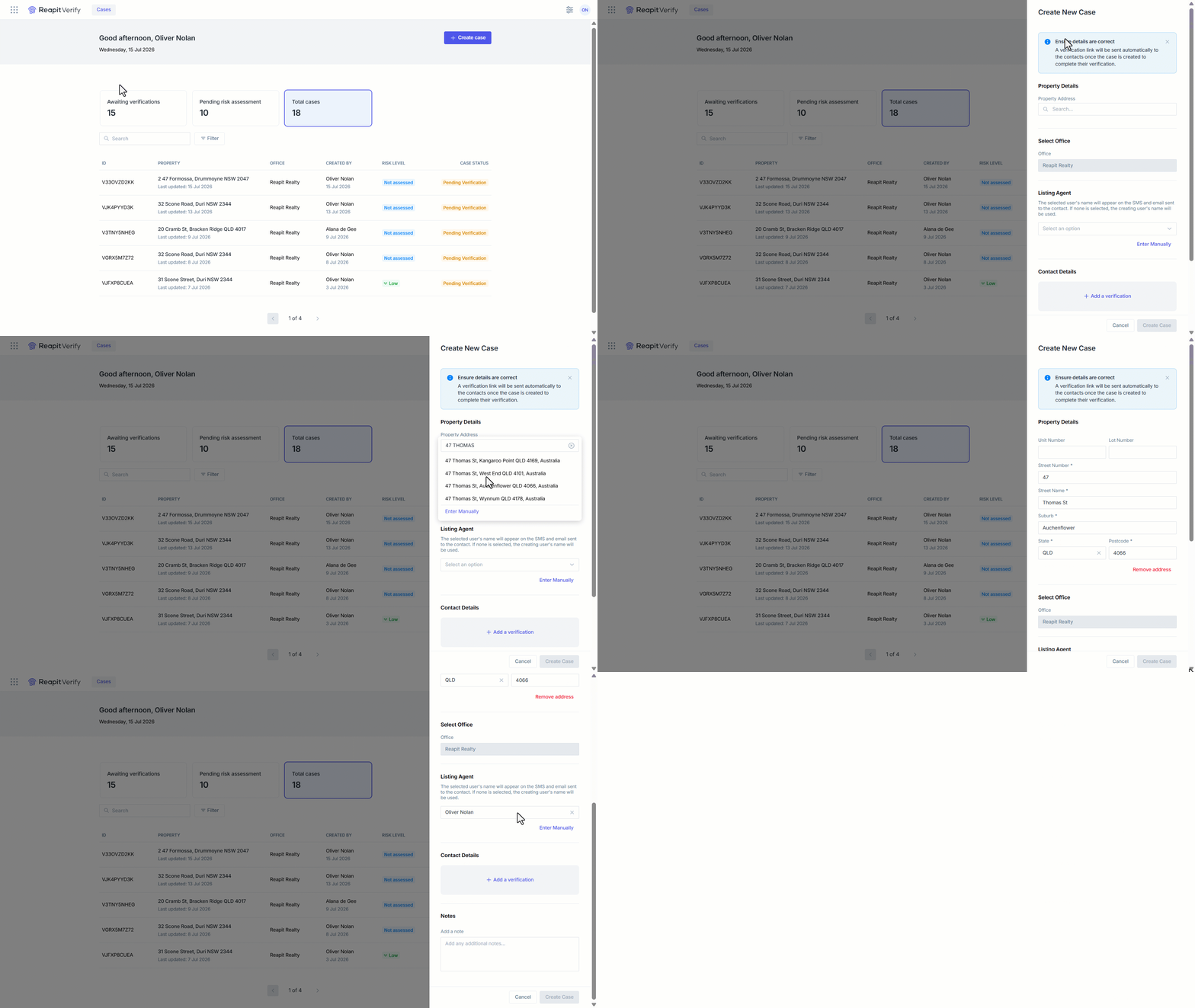
- Select Create case.
- Search and select the Property Address.
Note: If the address does not appear, click on Enter Manually to complete the details.
- For multi-site offices, select the required office.
- Select the Listing Agent.
- Select + Add a Verification.
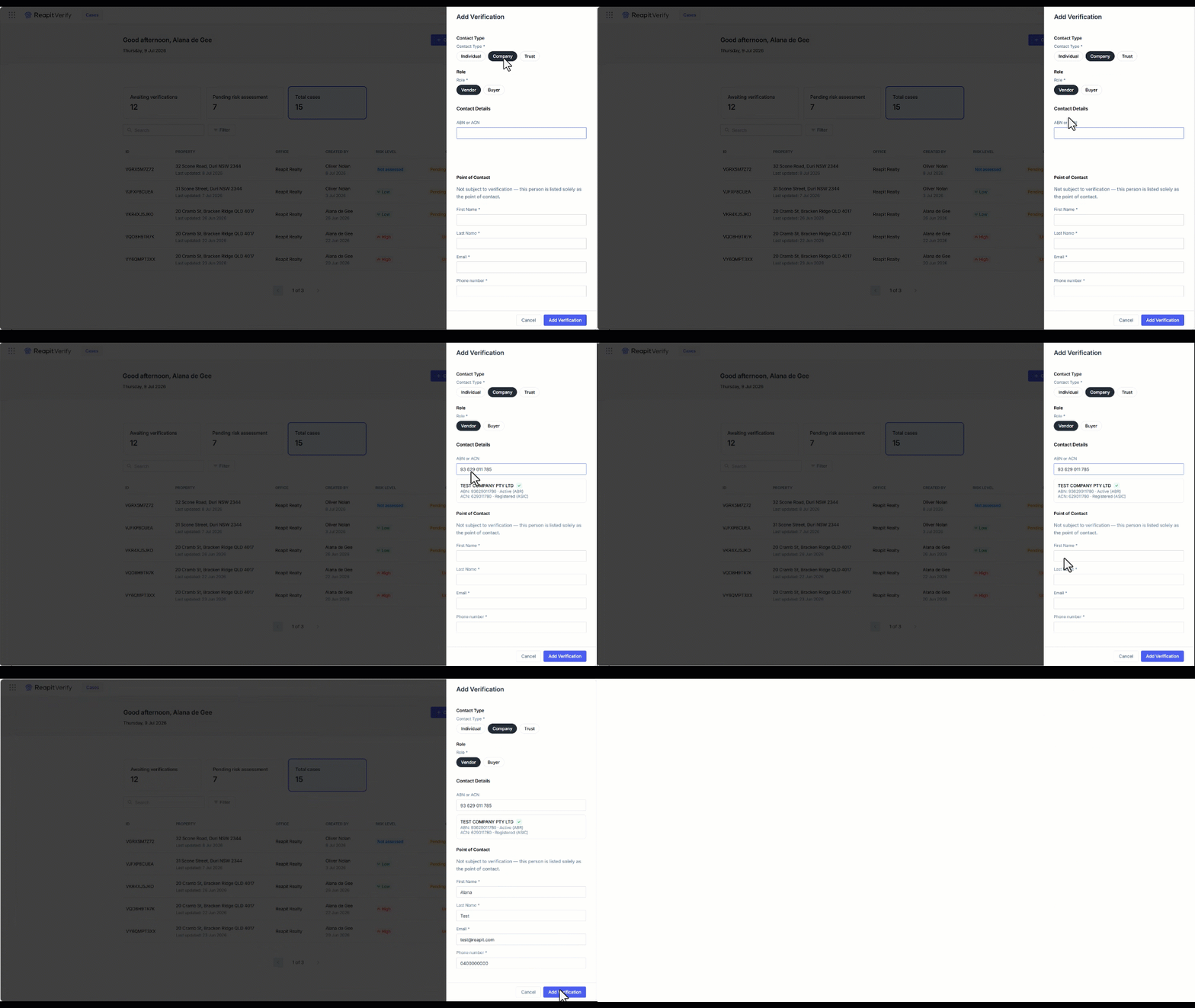
Adding a Verification to a KYB Case in Reapit Verify
- Set the Contact Type to Company.
- Set the Role to Vendor or Buyer as required.
- Add ABN or ACN.
- Reapit Verify will do an initial search to confirm the ABN or ACN entered is valid. Review the company details presented and click on the company details to confirm.
- Enter the point of contact. This is the person that you are dealing with and who may need to provide you contact details for the identified UBOs. Note – this may not be someone you will need to do a check on.
- Click on Add Verification.
- Click on Create Case.
Reviewing the Business Structure in Reapit Verify
- Select the Verification to expand then click on View details.
- The Summary tab displays the information that builds the Tree Structure.
- Click on the Structure Tab.
- In the background, the system will be performing adverse media checks, and once green ticks appear, 2 per individual. you can complete the KYC checks by clicking on the Submit to KYC button.
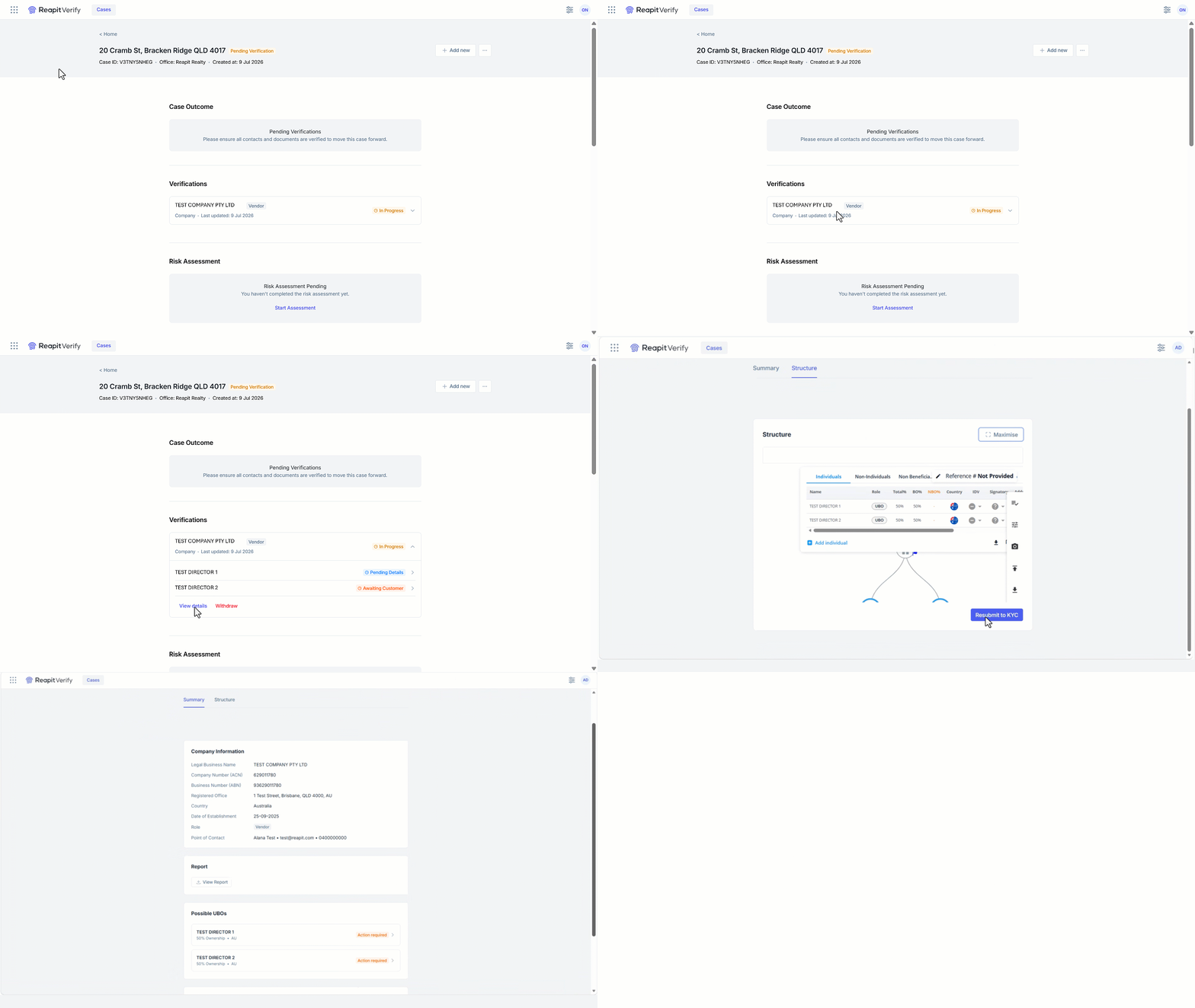
- This will bring this info into the summary.
- Navigate to Possible UBOs.
- Each UBO will show pending details. Click to add Email Address and Phone Number.
Note: you may need to use the Point of Contact previously entered to get this information.
- Click on Submit.