
How to Print and Sign Tenancy Agreements
This article will cover printing and signing tenancy agreements in Reapit Forms.
Print for Signing allows agents to generate a tenancy agreement for manual (wet) signatures instead of sending it electronically for digital signing. The process is designed for situations where the tenant and agent both physically need to sign the agreement. Once signed, the completed document must be uploaded back into the system to finalise the agreement.
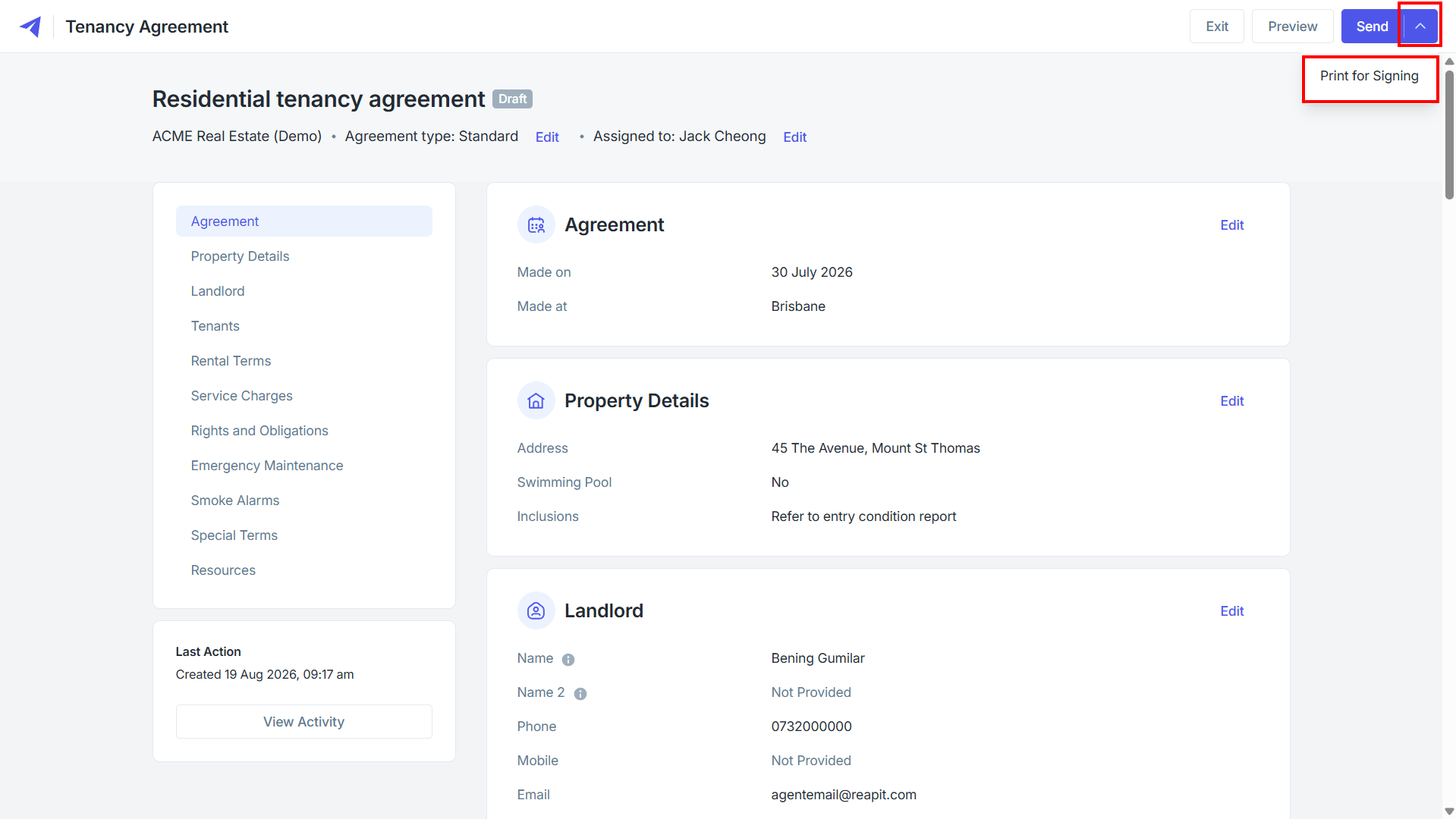
1. With the agreement in Draft status and ready to proceed, navigate to the down arrow next to Send.
2. Click Print for Signing.
3. A system message will appear to confirm that Print for Signing:
- Will have a PDF copy of this agreement emailed to you to print.
- No electronic signatures or signed dates will be added.
- The document must be signed by hand.
The agreement will need to be signed by both the agent and the tenant; it will then need to be uploaded against the agreement to complete it.
Click Print.
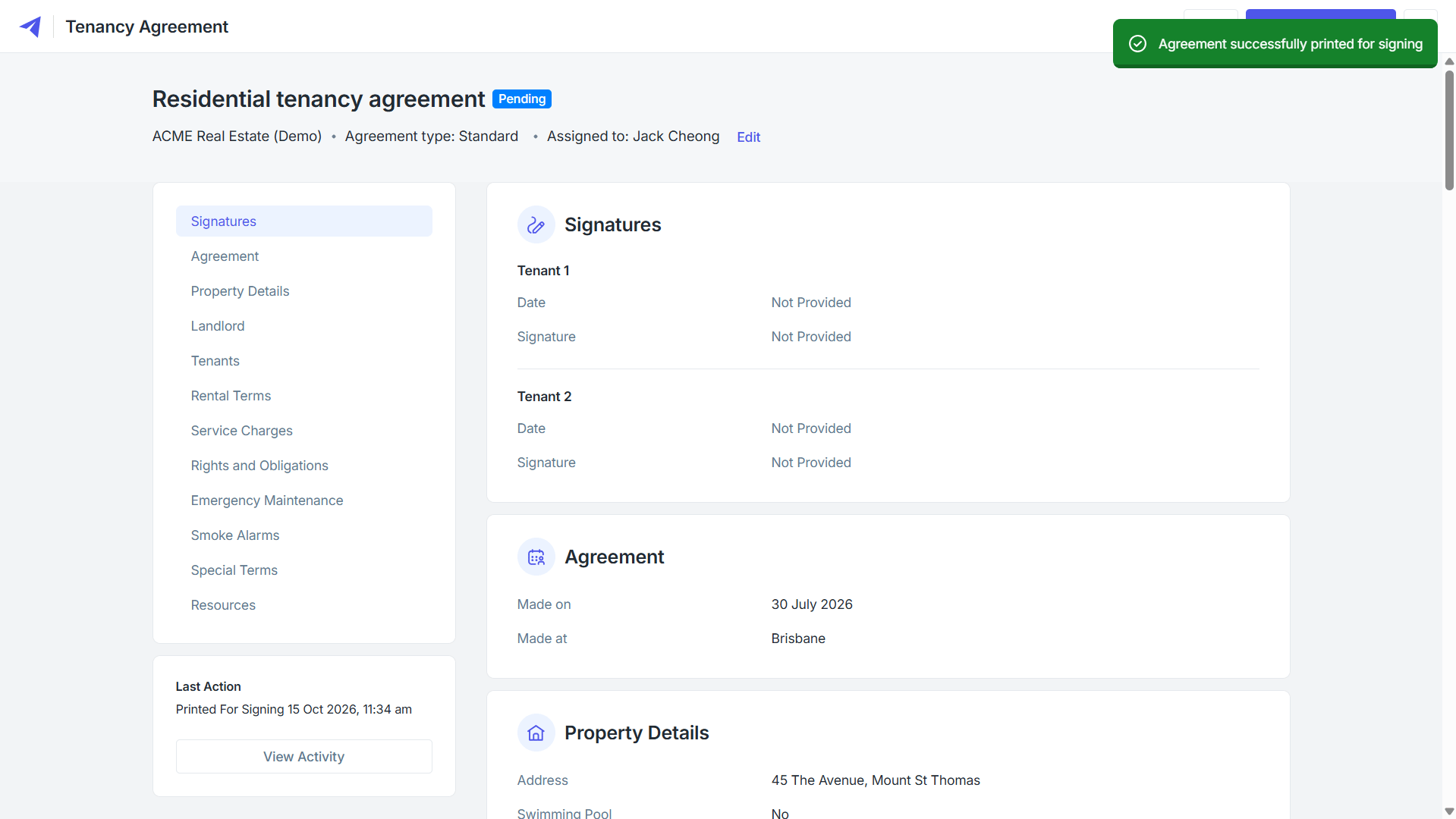
4. Confirmation will appear that the agreement has been successfully printed for signing. The user the agreement is assigned to will receive an email for printing, and the status of the agreement will now appear as Pending.
5. Once the agreement has been printed, signed by both parties, and uploaded again as a PDF, return to the agreement in the Pending status.
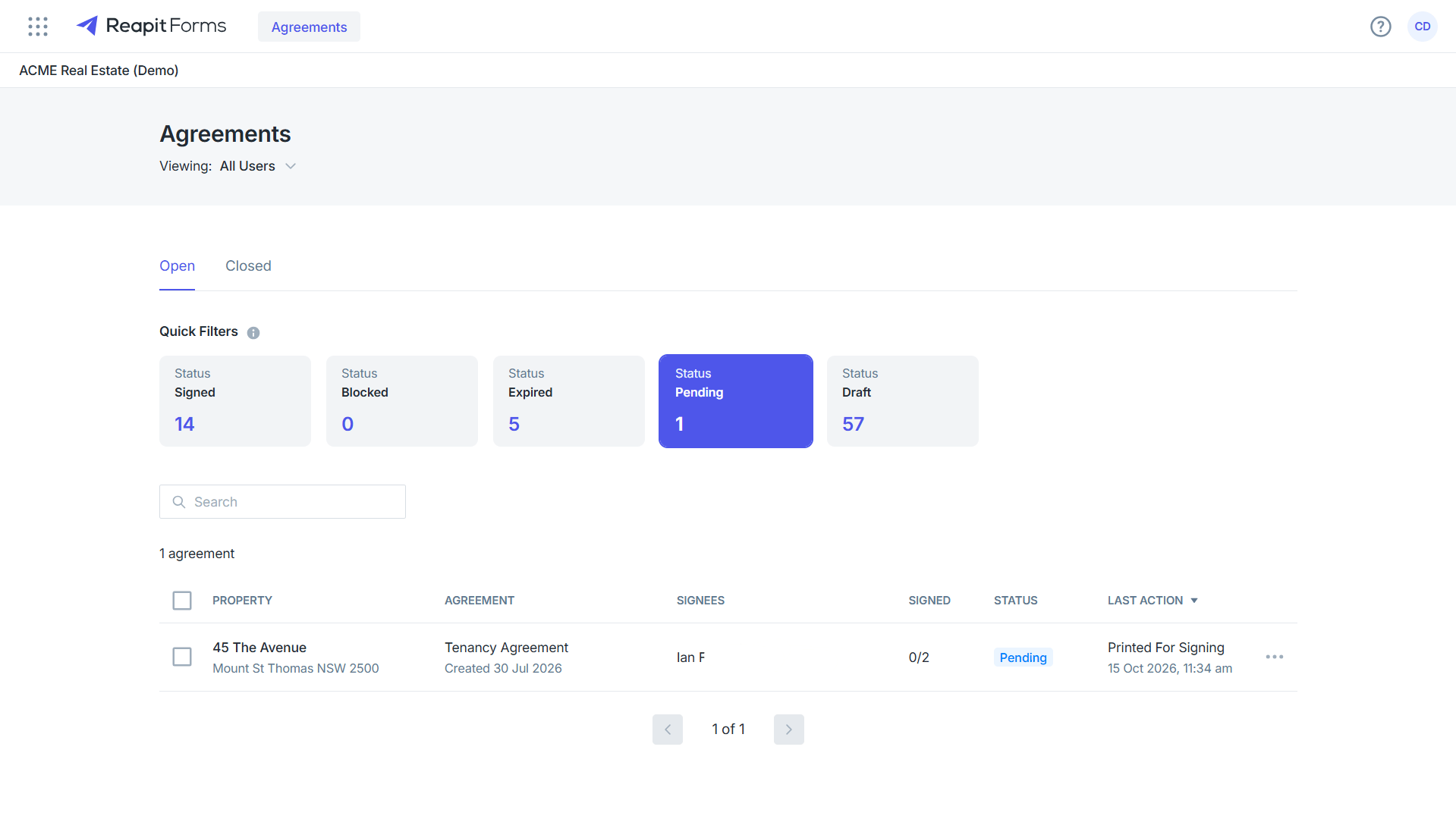
Note: While the agreement is in Pending status, you can click the three dots to withdraw the agreement. This will return the agreement to the Draft status, allowing you to send the agreement electronically if required.
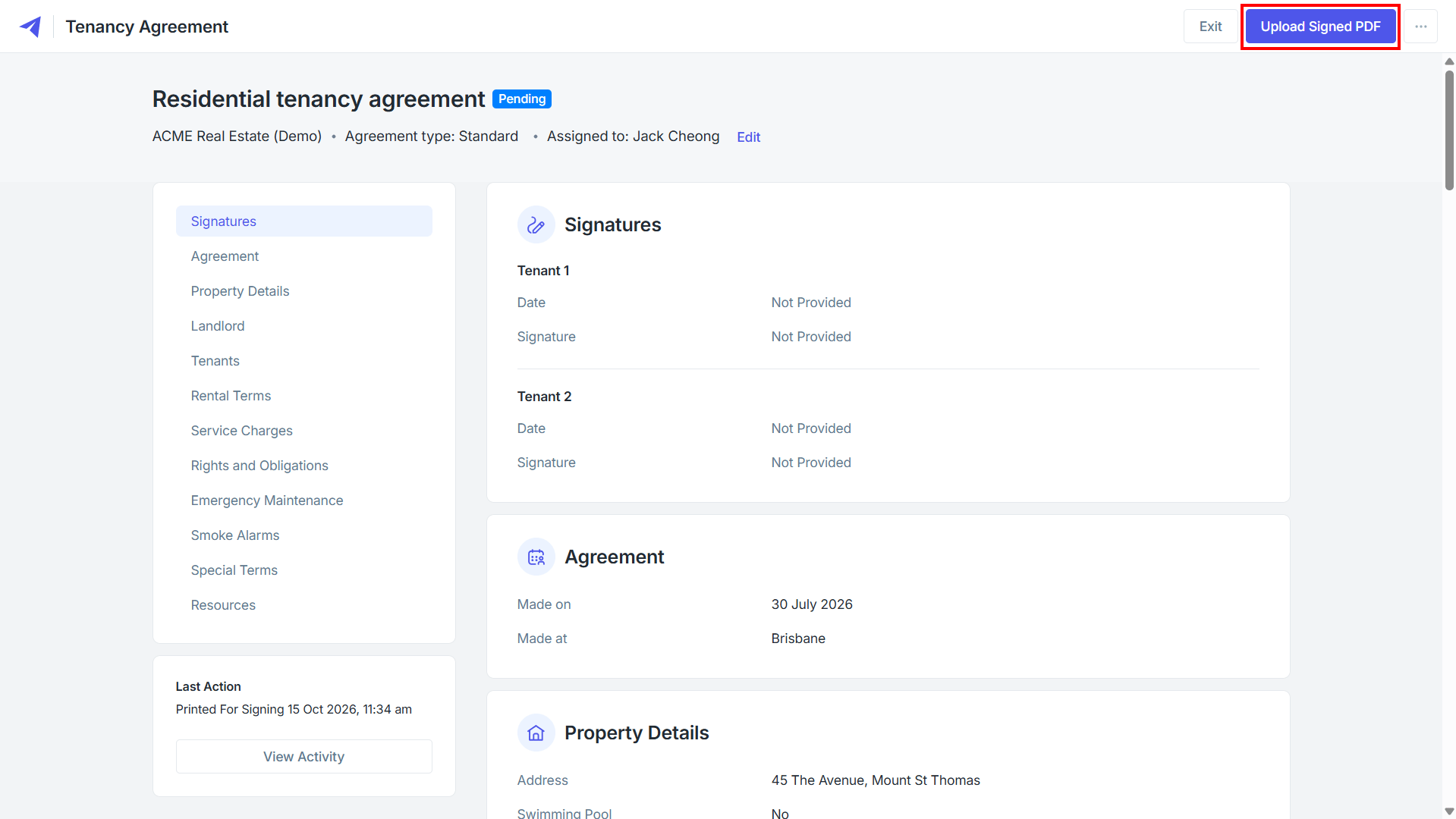
6. Click Upload Signed PDF.
7. Drag and drop the uploaded agreement onto the page or click to browse and locate the agreement. Once added, click Upload.
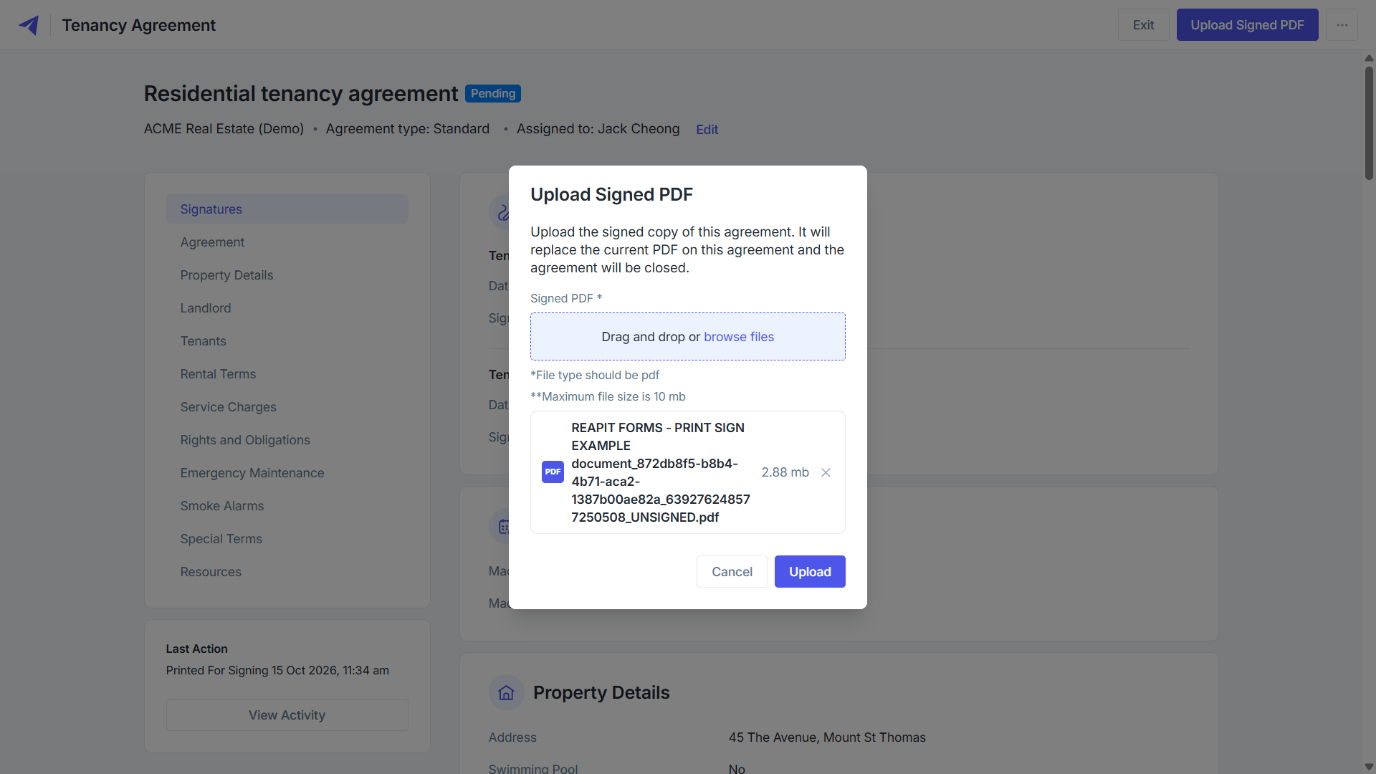
8. Once uploaded, the agreement will be marked as completed, and the document will be stored within Reapit PM under the tenancy. No email communication will be sent to agents or tenants, and no redacted versions can be made.