
Reapit Forms Overview
This article is a guide covering the dashboard screen of Reapit Forms and the views and actions available.
1. Navigate to https://app.forms.reapit.com.au/
2. Once signed in, the Agreements dashboard will appear.
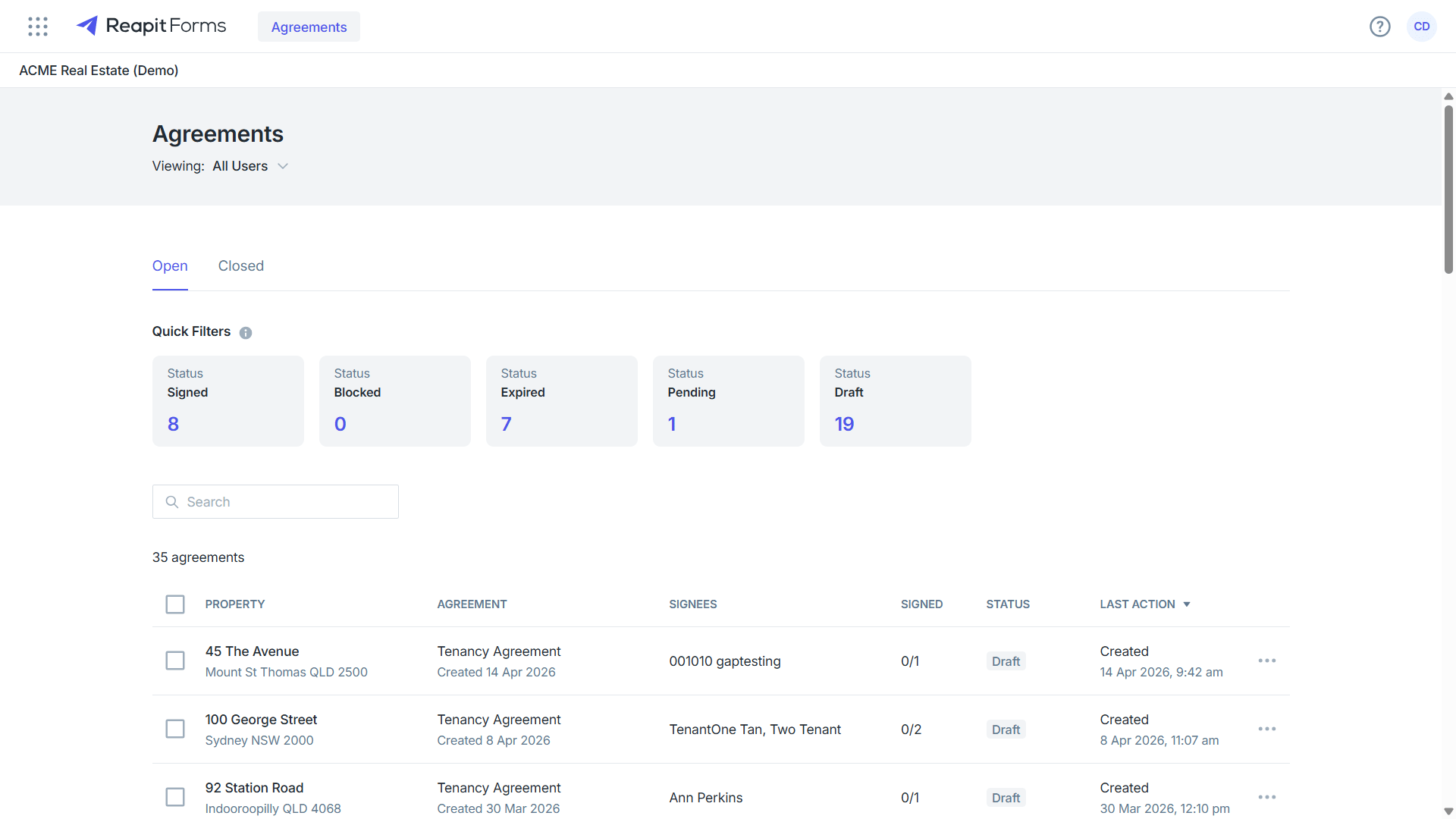
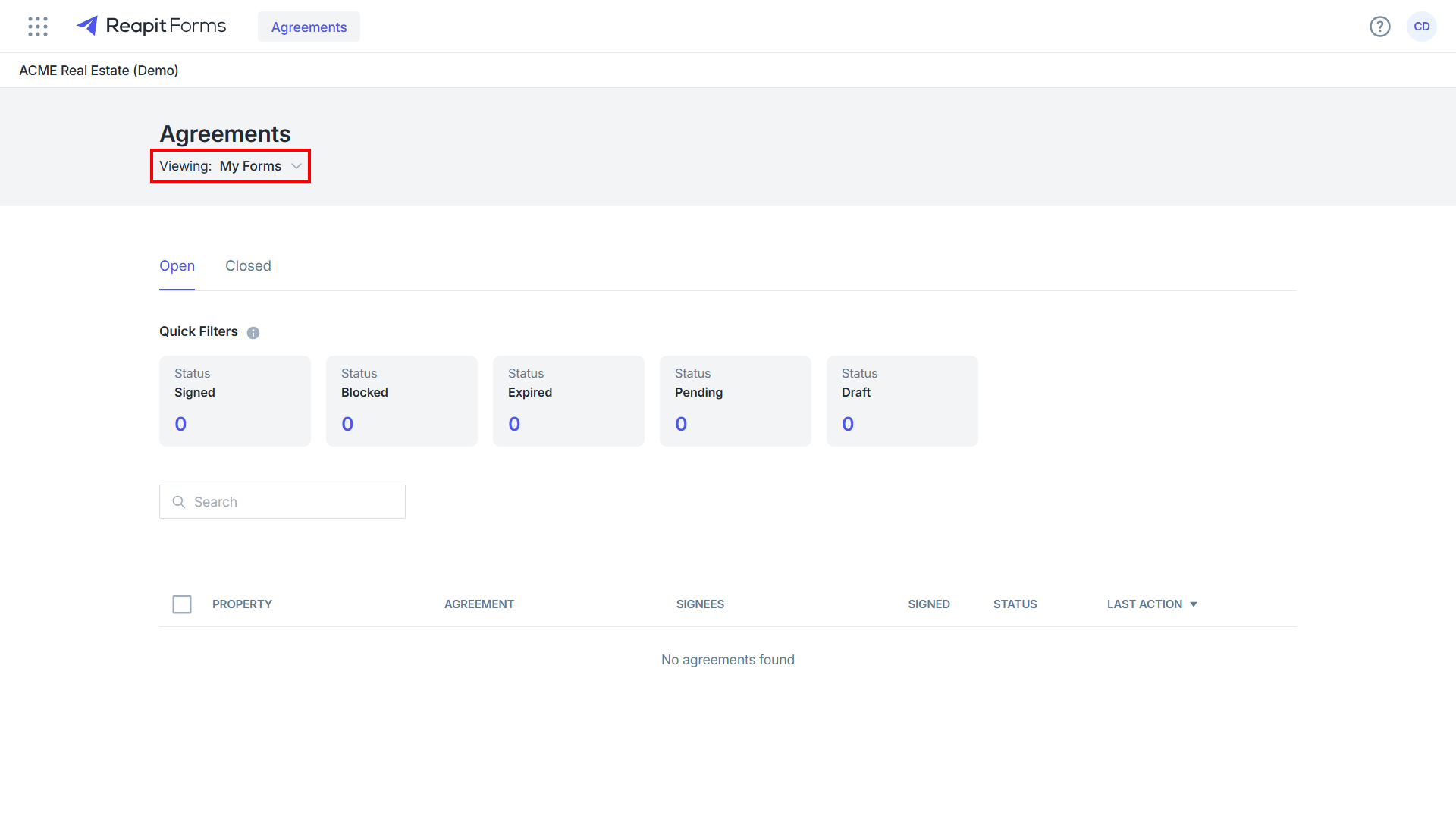
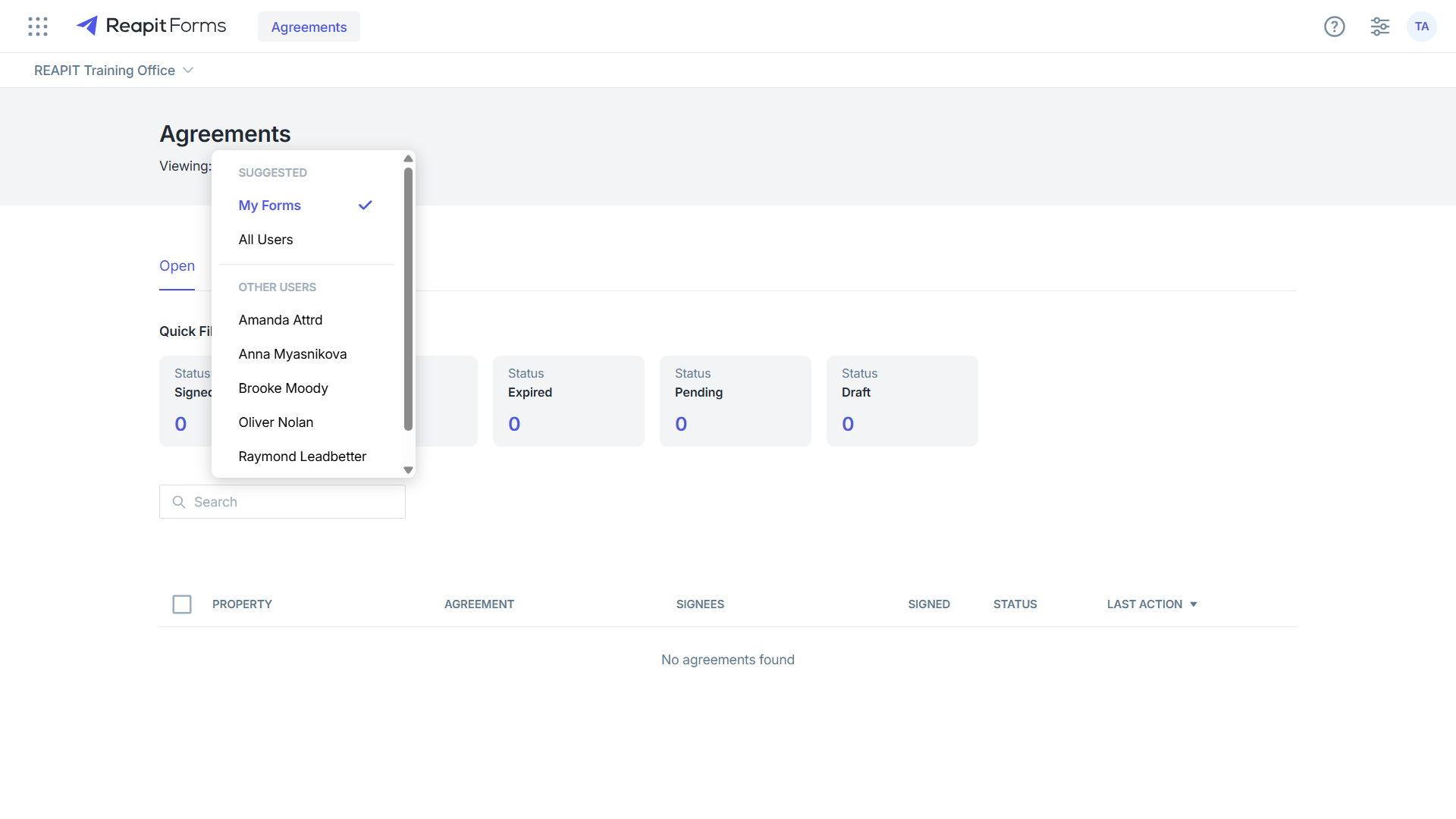
3. Clicking on the Viewing drop-down will allow you to select between My Forms (the default view), All Users,or Specific users. All Users will display forms assigned to other team members with access to Reapit Forms.
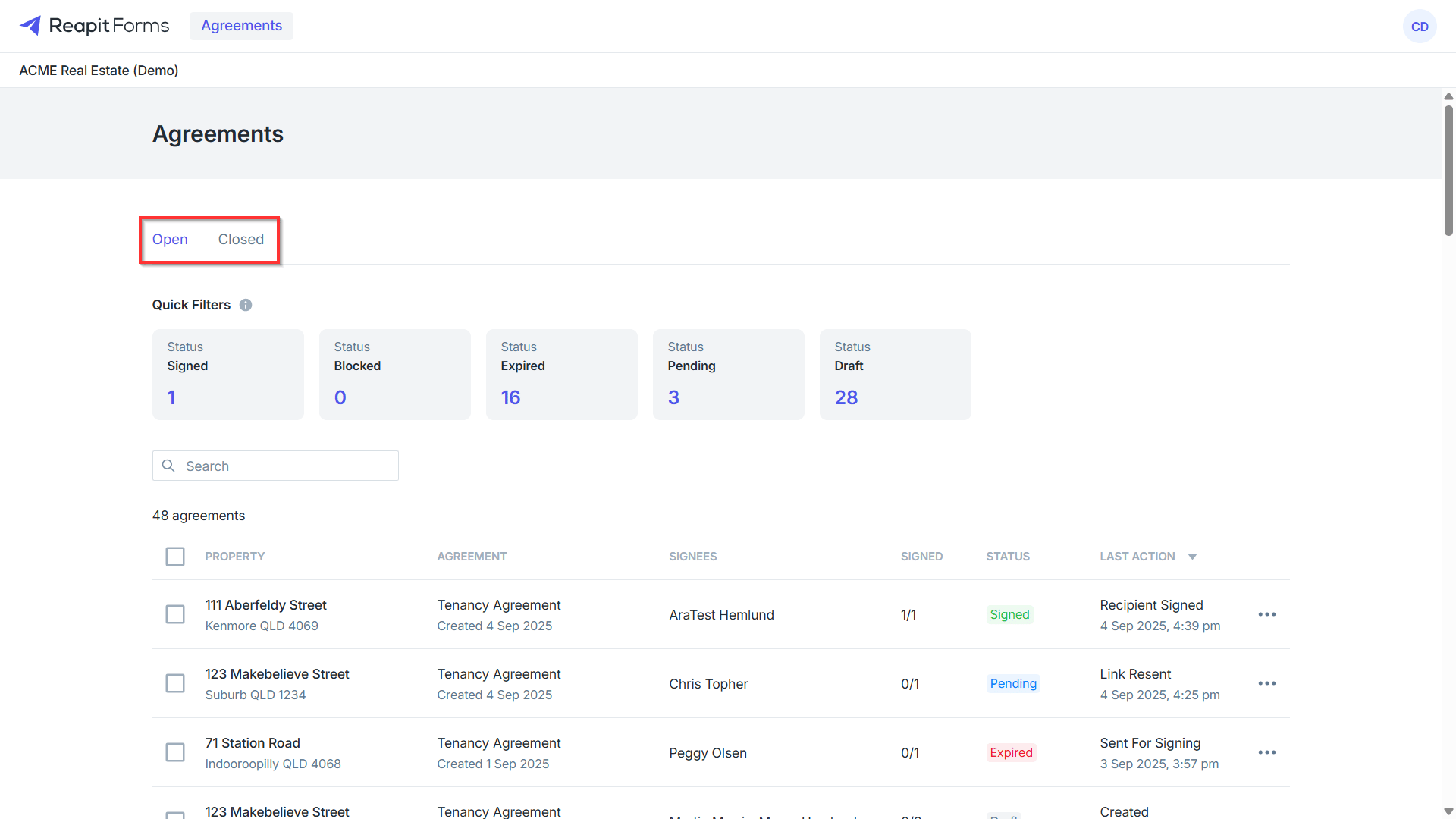
4. Clicking on Open or Closed will display agreements in the open or closed statuses.
5. Clicking on any of the tiles in Quick Filters will show you all open agreements that are currently in that status.
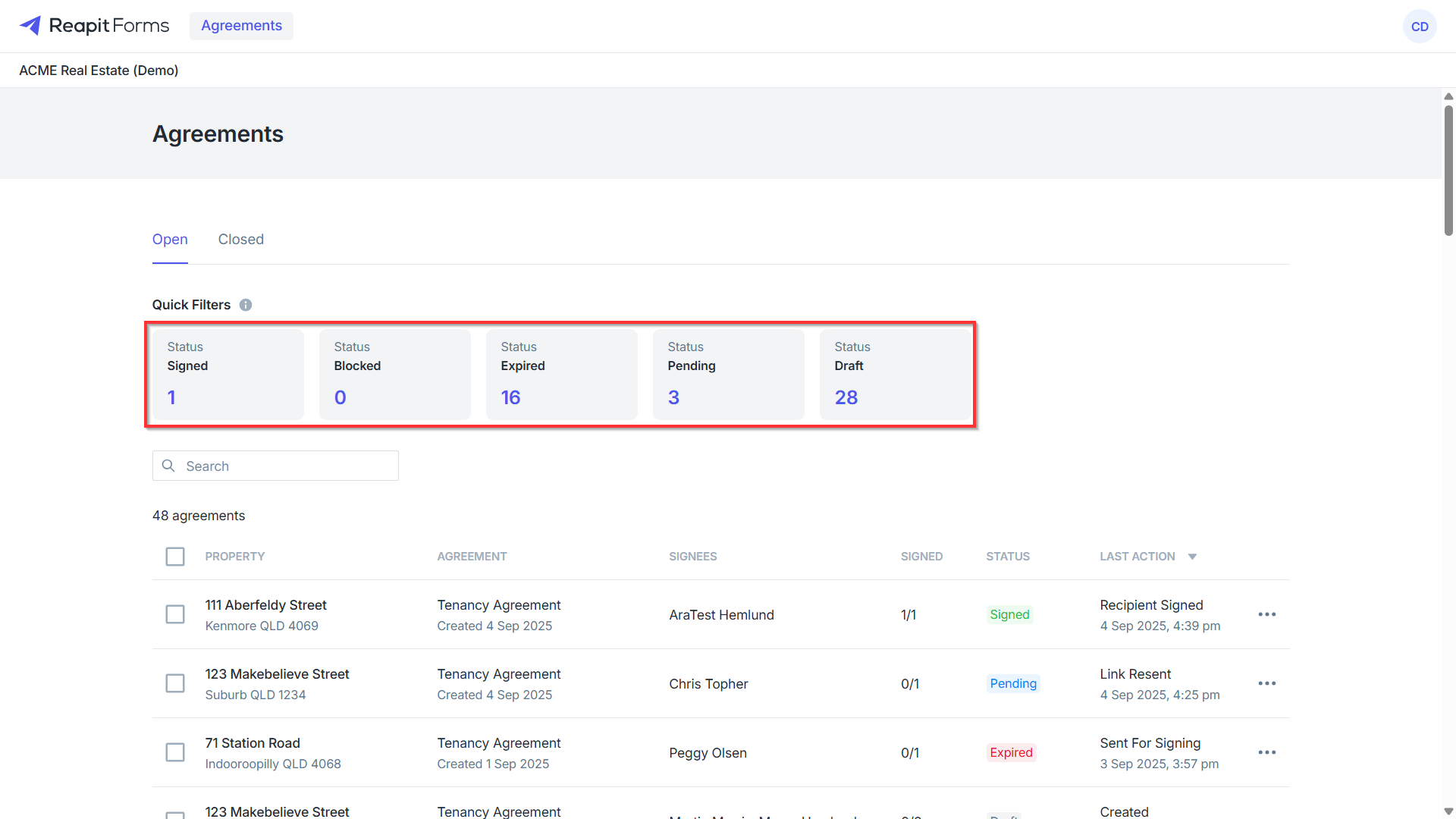
Below is a list of the status types and how they will function:
- Signed — Signed will display any agreements that have been signed by the signee
- Blocked — Blocked will display agreements that have been returned by the signee with change requests before being signed
- Expired — Expired will display any agreements that have gone over the signing expiry duration
- Pending — Pending will display agreements that have been sent out waiting to be signed
- Draft — Draft will display agreements still in draft status to be sent, withdrawn, or deleted
Note: You can only delete an agreement when it is in the Draft status. Agreements in any other status can only be withdrawn.
6. Clicking on the selected tile again will remove any filters, allowing you to view all open agreements.
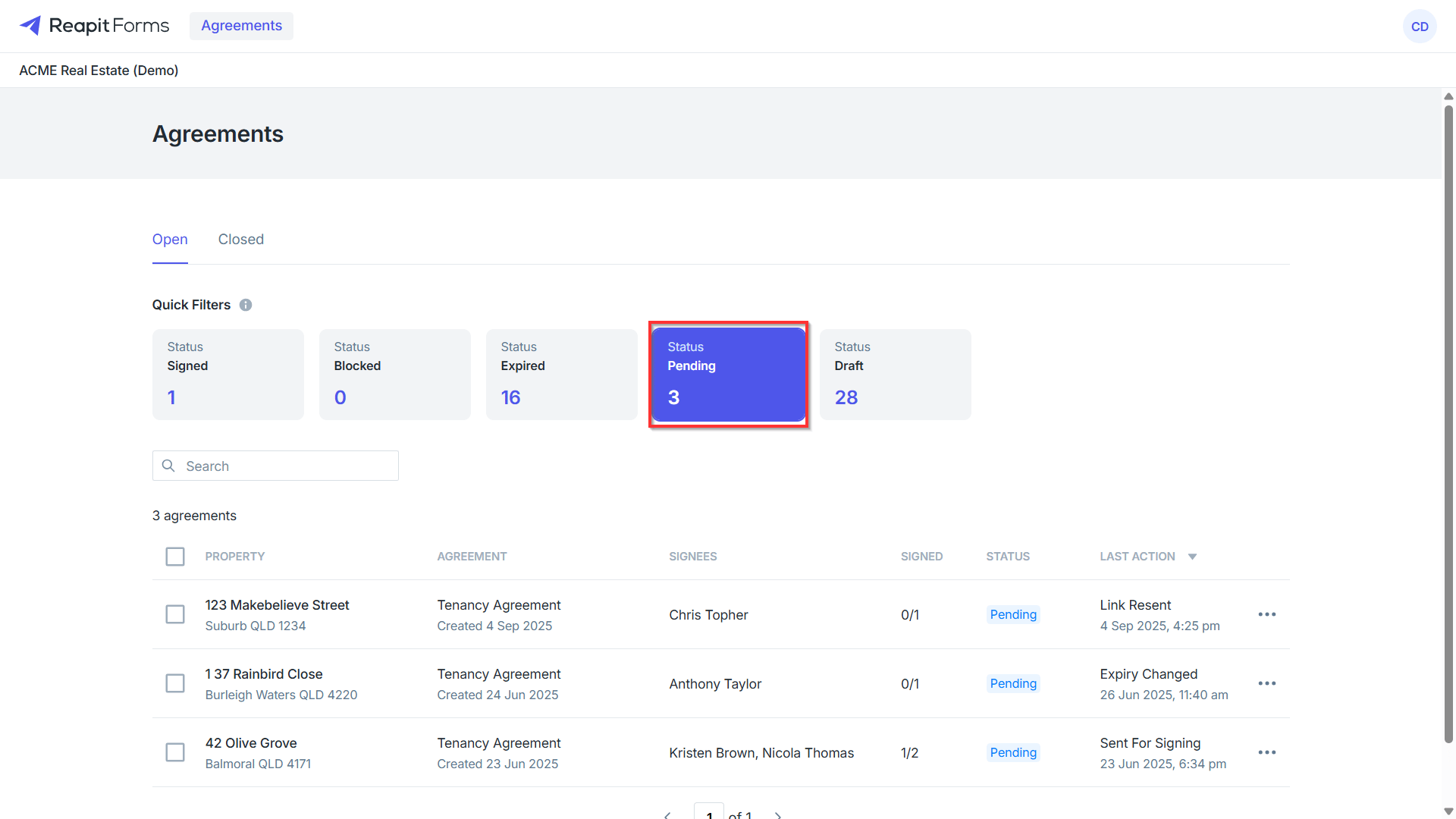
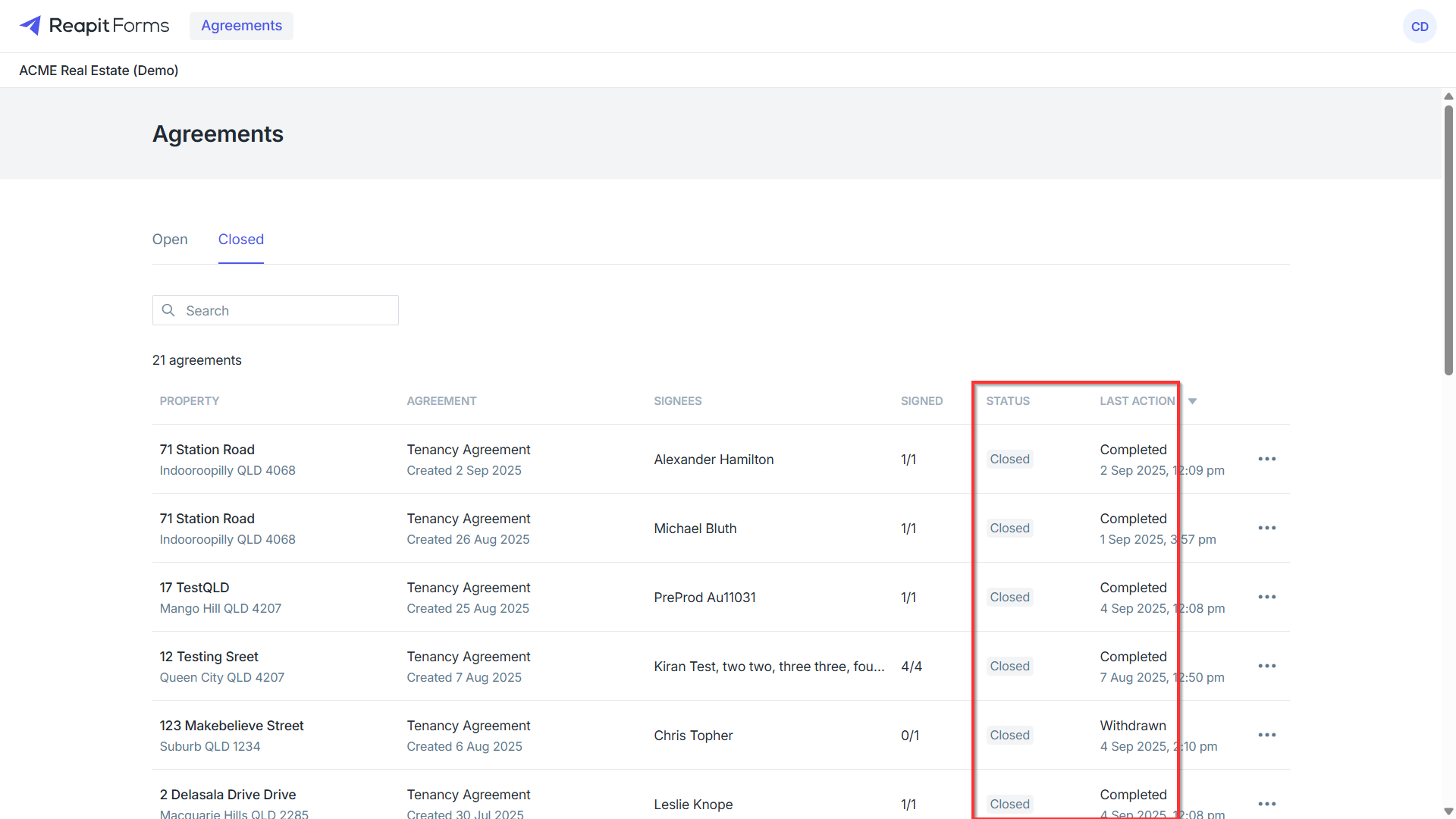
7. Closed will display agreements that have been completed, closed, or withdrawn.
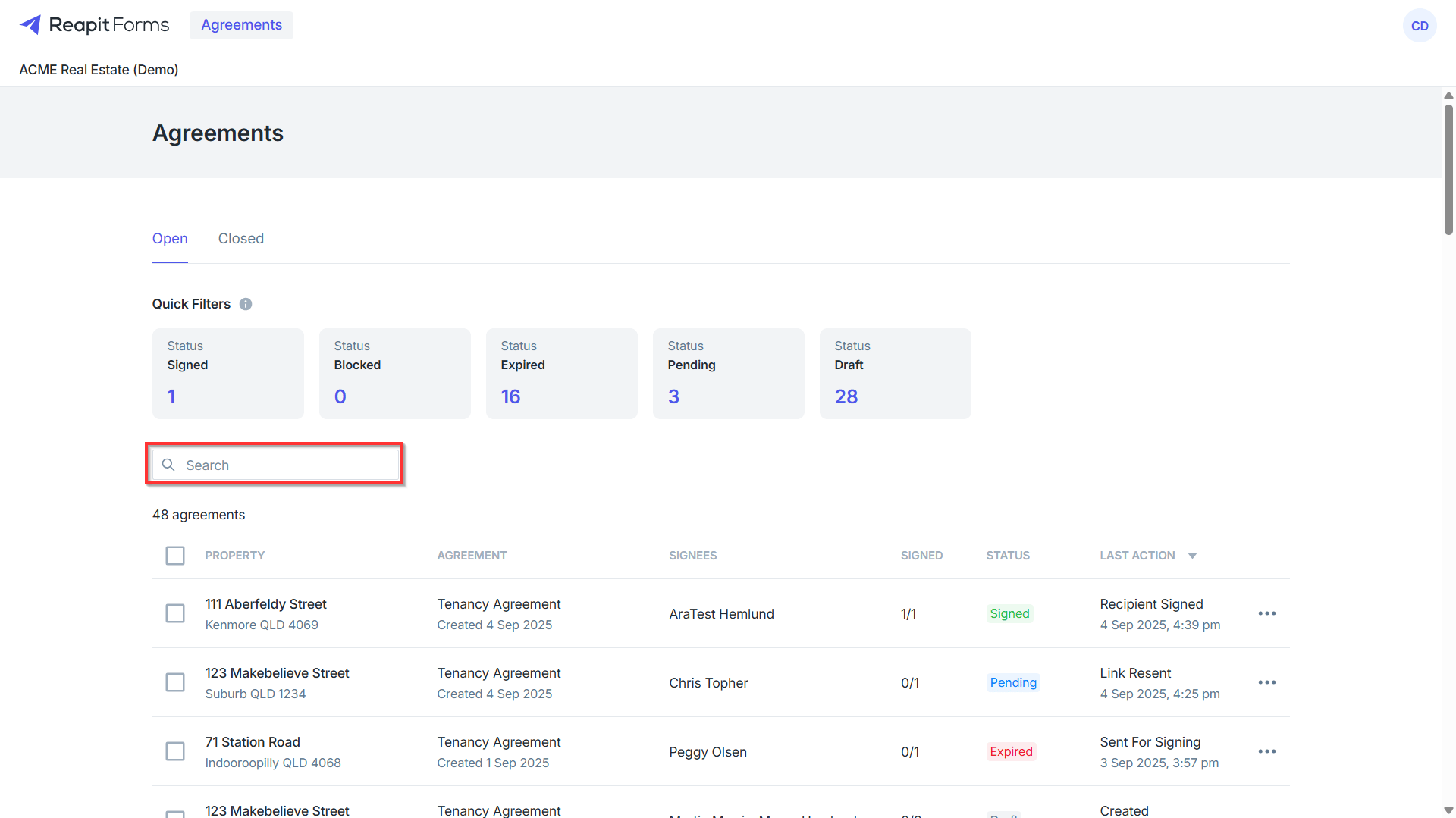
8. Click on the search bar to search by property address or by signee name.
9. You can perform bulk actions by selecting multiple agreements individually or clicking the checkbox below the search bar to select all agreements within your current search filter.
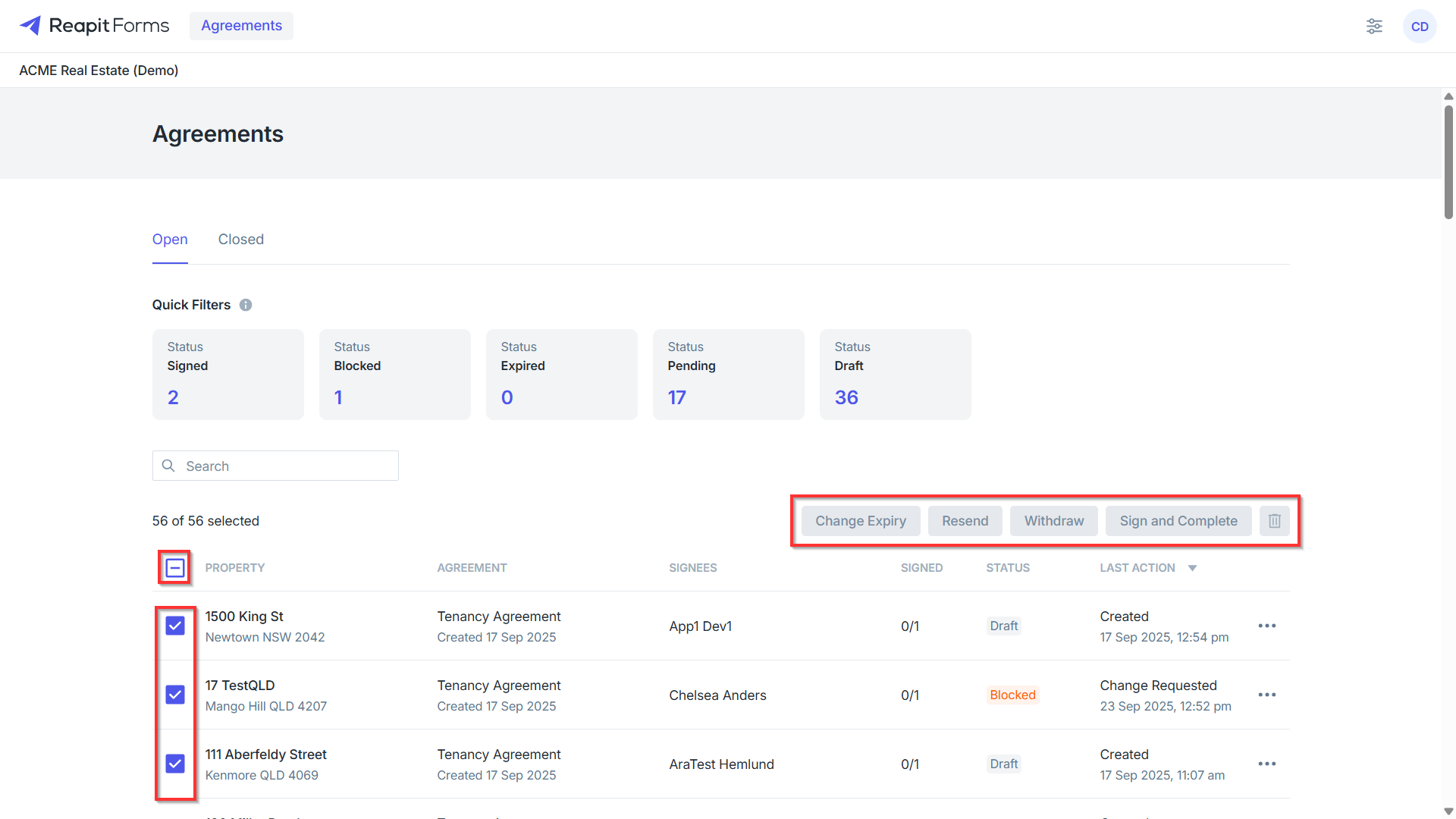
Available bulk actions can include:
- Bulk Expiry Change
- Resending Agreements
- Withdrawing Agreements
- Sign and complete returned agreements from signees
- Delete draft agreements (only available for agreements in Draft status)
10. The columns above the agreements will cover the following:
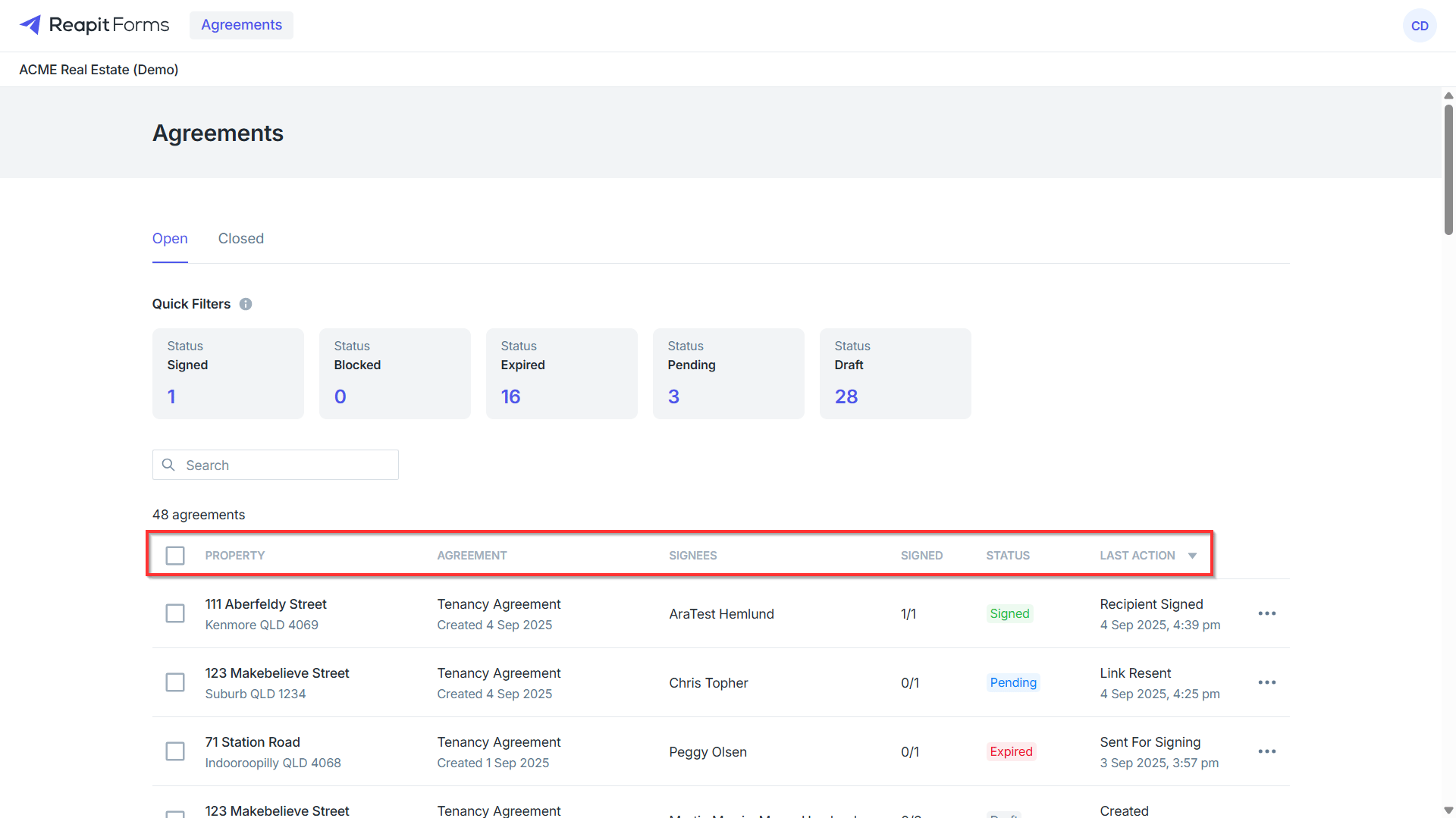
- Property Address - Property Address assigned to the agreement
- Agreement - the type of agreement / form being used
- Signees - The name of the participants against the agreement
- Signed - The number of signees against the agreement that have signed
- Status - The status of the agreement
- Last Action - Timestamp and last action recorded against the agreement
11. Selecting the three dots to the right of an agreement displays options that vary depending on the agreement's current status.
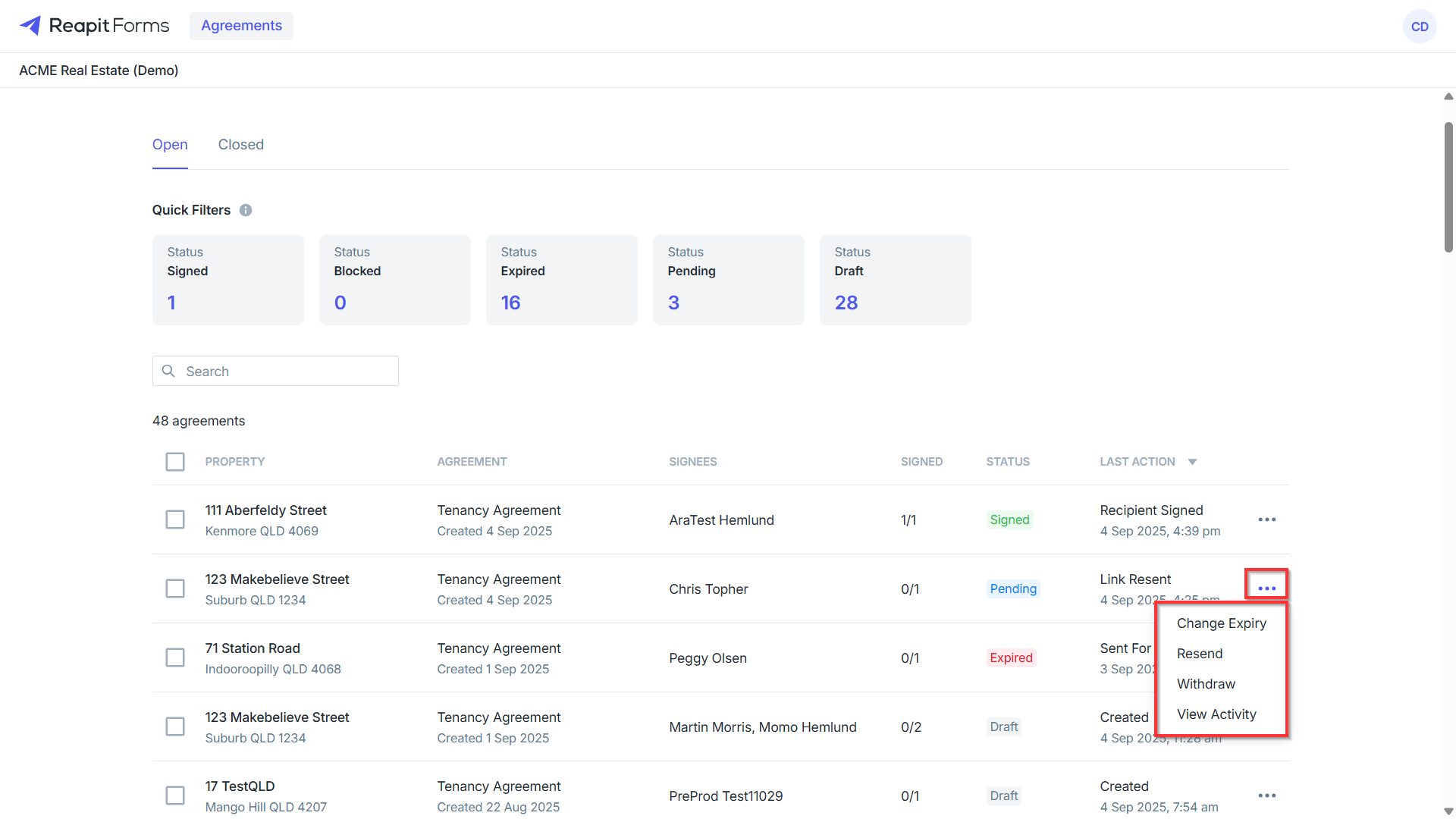
- Change Expiry - Update the expiry window on the agreement (Statuses: Pending, Expired, Blocked)
- Resend - Resend a copy of the agreement (Statuses: Pending, Blocked)
- Withdraw - Withdraw the agreement (Statuses: Pending, Expired, Blocked)
- View Activity - Display the timeline and actions on the agreement (Statuses: Pending, Expired, Blocked, Signed, Completed, Closed)
- Delete - Delete the agreement (Draft status)
- Download - Download a copy of the agreement (Completed status)
- Close - This will close an agreement that has been withdrawn after being sent to the signee (Withdrawn status)