'%3e%3cpath%20fill='%23ECF3FF'%20d='M0%208a8%208%200%200%201%208-8h24a8%208%200%200%201%208%208v24a8%208%200%200%201-8%208H8a8%208%200%200%201-8-8V8Z'/%3e%3cpath%20fill='%234E56EA'%20d='M20%207.769c7.183%200%2013%205.694%2013%2012.692%200%205.122-3.115%209.702-7.946%2011.706-.159.032-.254.064-.381.064a.821.821%200%200%201-.795-.541c-.19-.445.032-.923.477-1.113%204.195-1.718%206.897-5.694%206.897-10.116%200-5.885-4.743-10.697-10.703-10.992l-.581-.013c-6.23%200-11.283%204.962-11.283%2011.005%200%203.881%202.13%207.508%205.562%209.48l.223.096c.381.19.826.286%201.303.286%201.623%200%202.933-1.227%203.317-2.952a5.515%205.515%200%200%201-1.251-.324%206.644%206.644%200%200%201-4.164-4.326c-.254-.89.414-1.813%201.4-1.813h10.107c.985%200%201.652.922%201.398%201.813-.75%202.495-2.978%204.392-5.716%204.674-.442%202.672-2.5%204.613-5.06%204.613-.73%200-1.43-.159-2.034-.445l-.318-.127C9.48%2029.177%207%2024.946%207%2020.461%207%2013.463%2012.816%207.77%2020%207.77Zm-2.701%206.774c.35%200%20.635.286.636.635v4.2h-2.512v-4.2c0-.35.286-.635.636-.636h1.24Zm6.96%200c.35%200%20.636.286.636.635v4.2h-2.51v-4.2c0-.35.286-.636.635-.636h1.24Z'/%3e%3c/g%3e%3cdefs%3e%3cclipPath%20id='a'%3e%3cpath%20fill='%23fff'%20d='M0%200h40v40H0z'/%3e%3c/clipPath%3e%3c/defs%3e%3c/svg%3e)
Creating & managing a current RCTI
This article will run through how to create a new RCTI agreement, update agency details, and remove a stakeholder for the payment section within your Move Me In account. The processes in this article include: Creating a New RCTI Updating Agency Details Removing a Payment Stakeholder
This article will run through how to create a new RCTI agreement, update agency details, and remove a stakeholder for the payment section within your Move Me In account.
The processes in this article include:
- Creating a New RCTI
- Updating Agency Details
- Removing a Payment Stakeholder
Creating a New RCTI
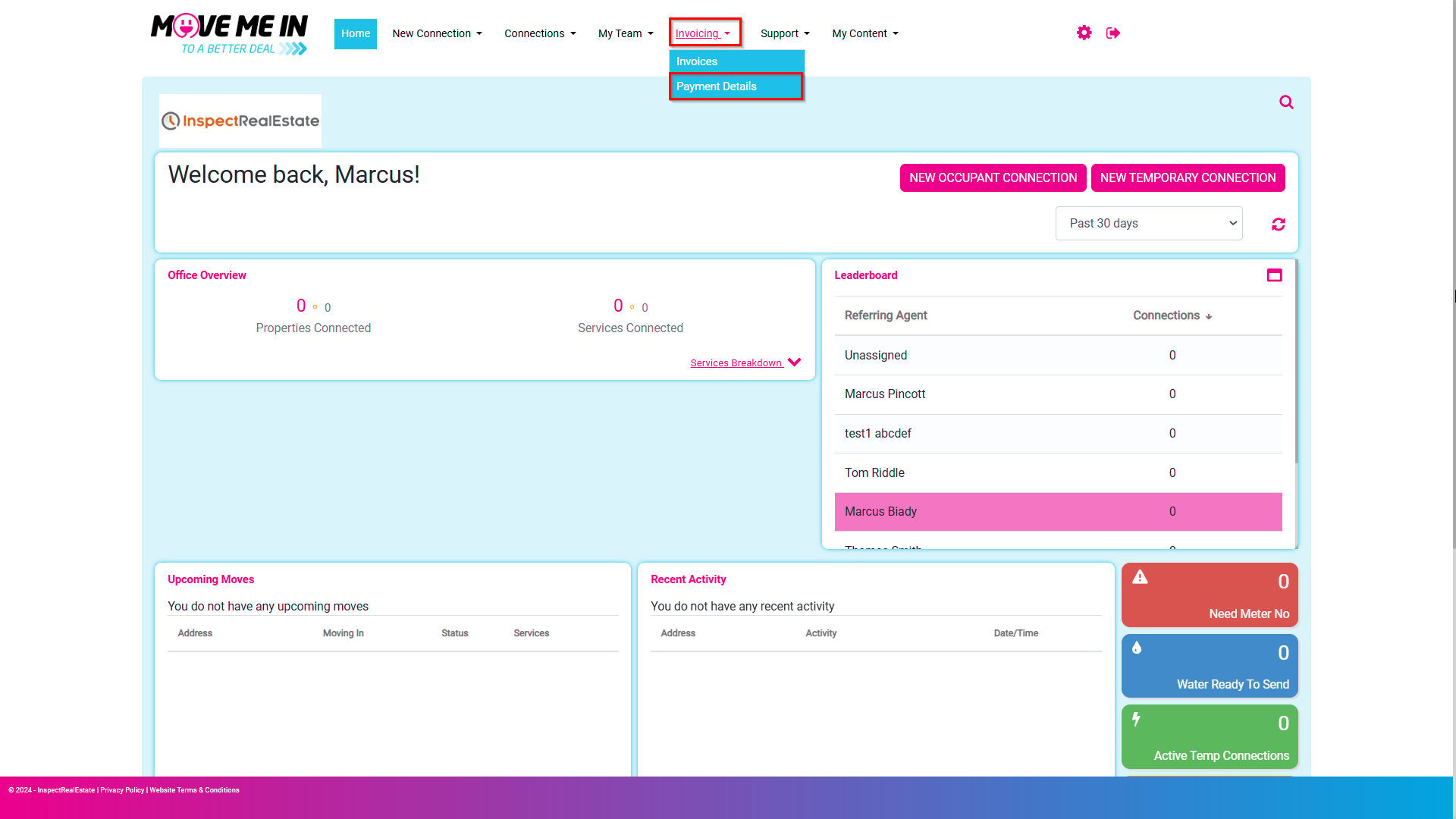
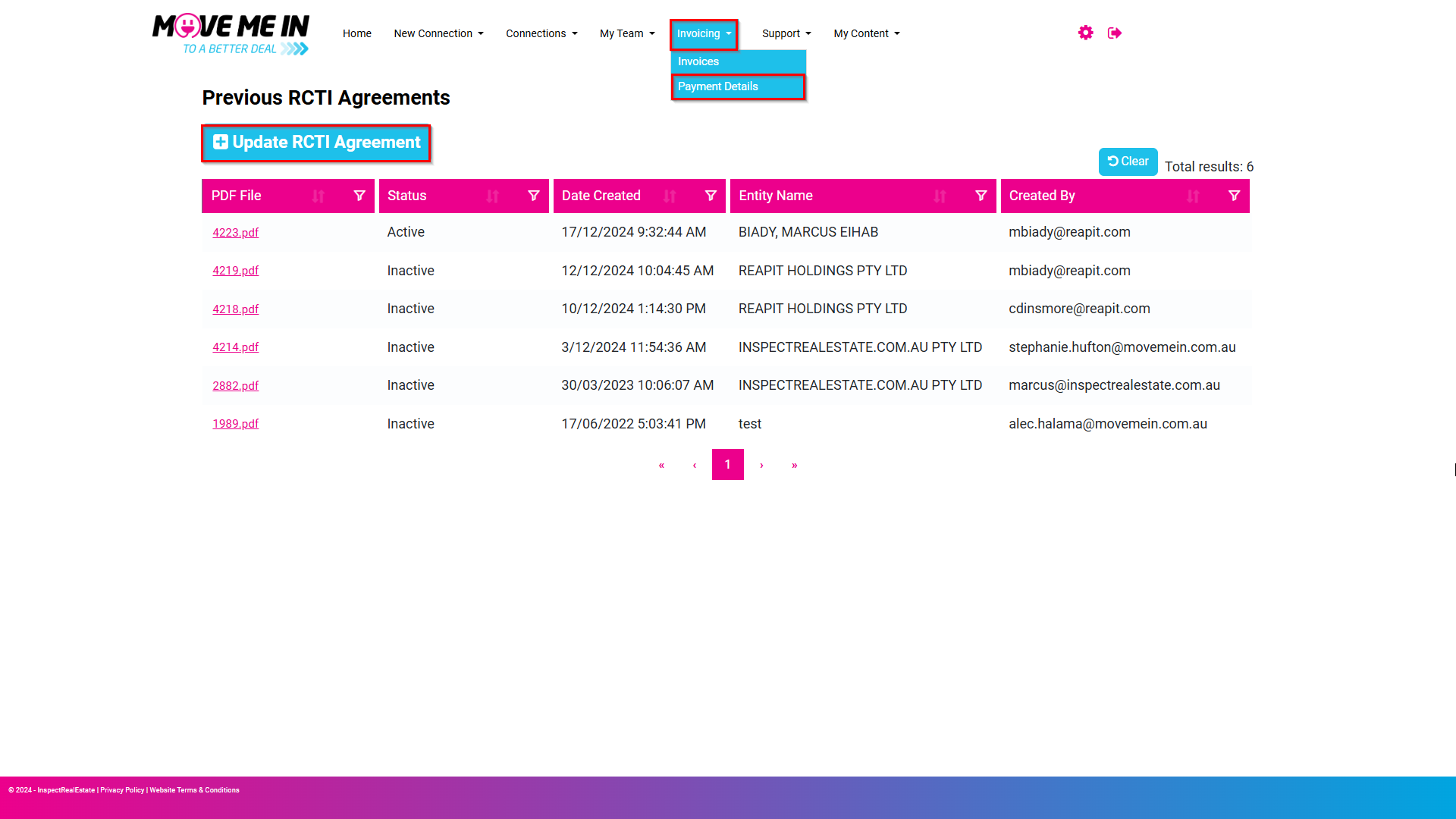
1. Navigate to Invoicing and select Payment Details.
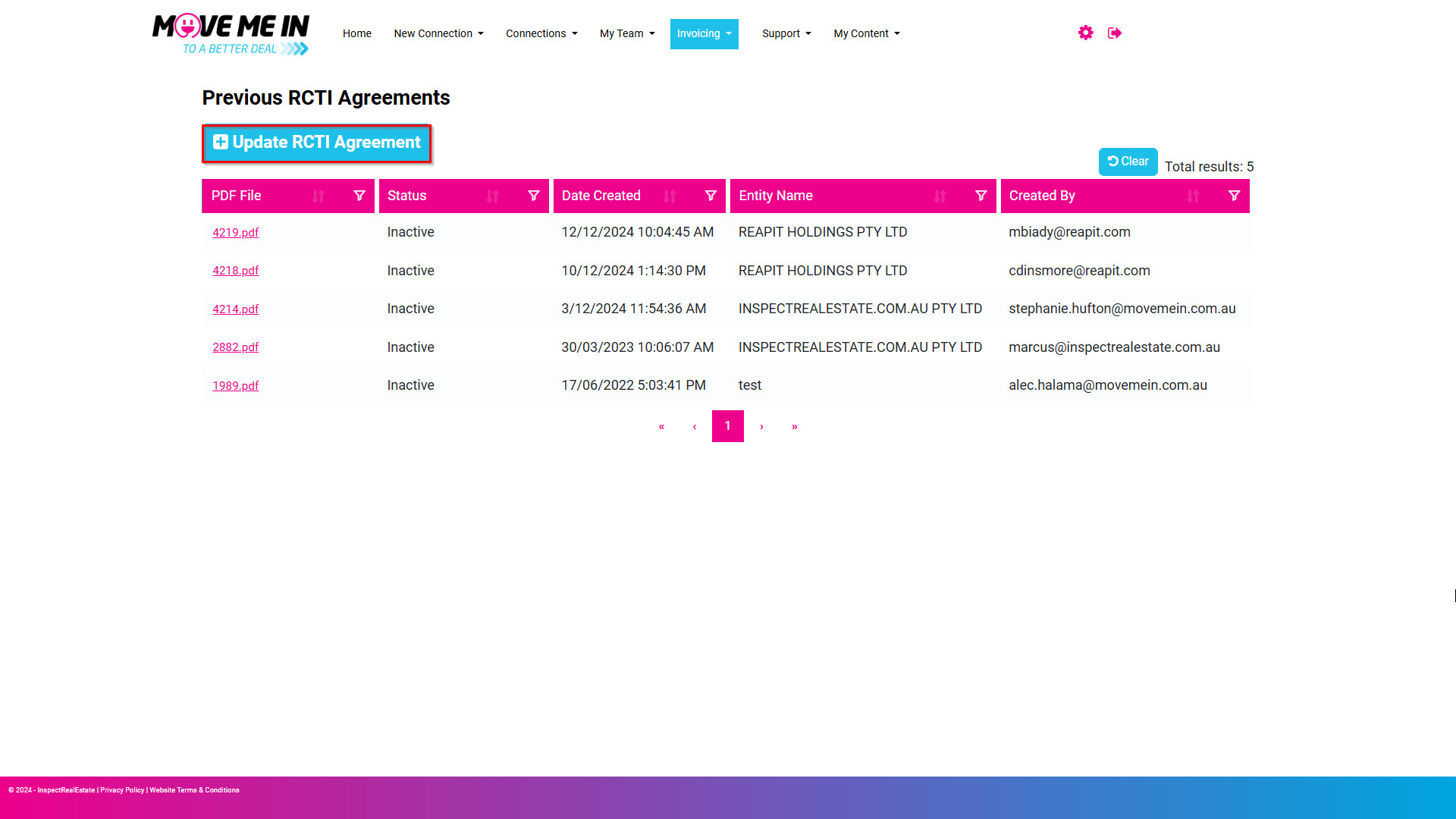
2. Click Update RCTI Agreement.
3. Click Start Fresh RCTI.
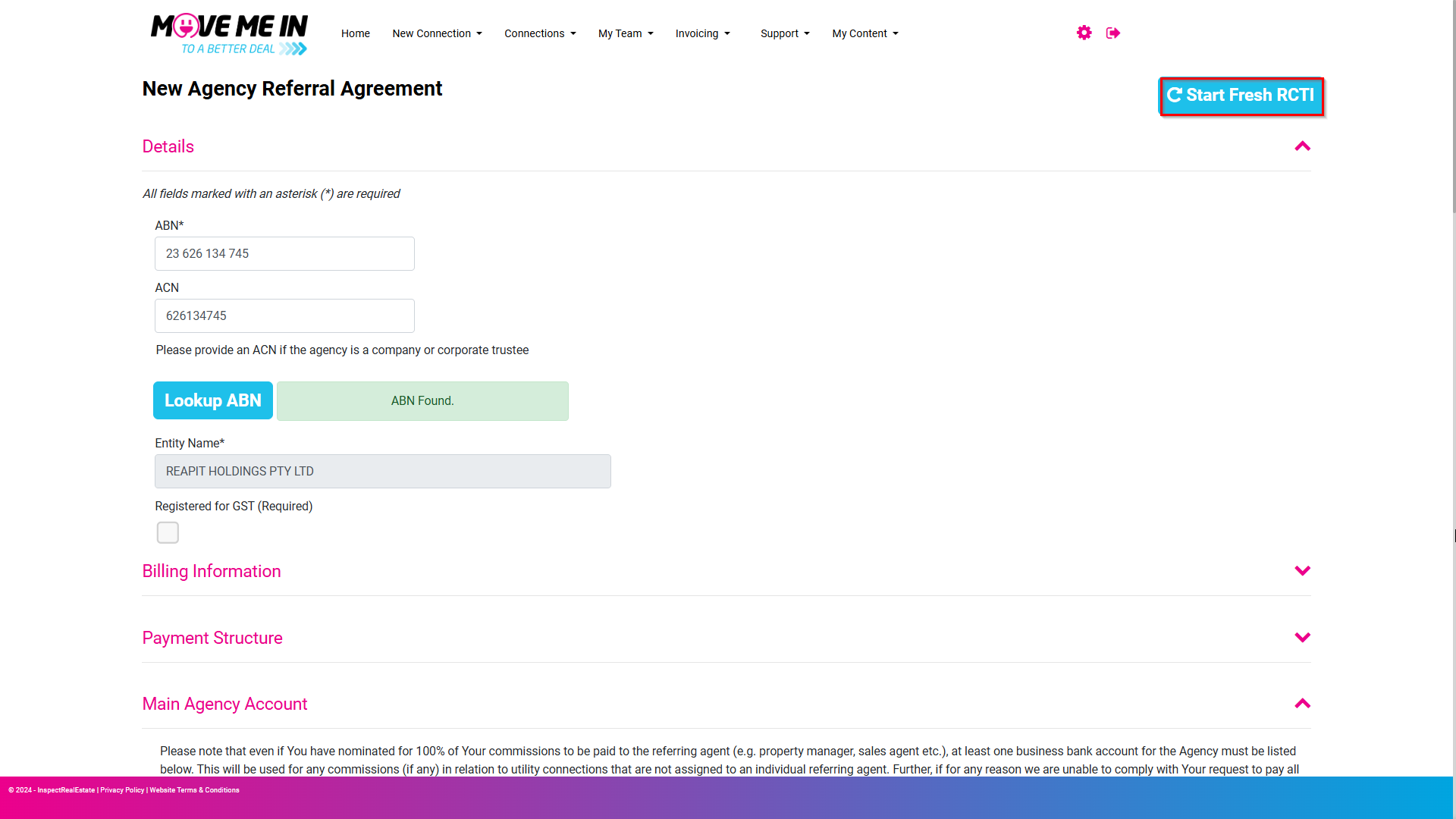
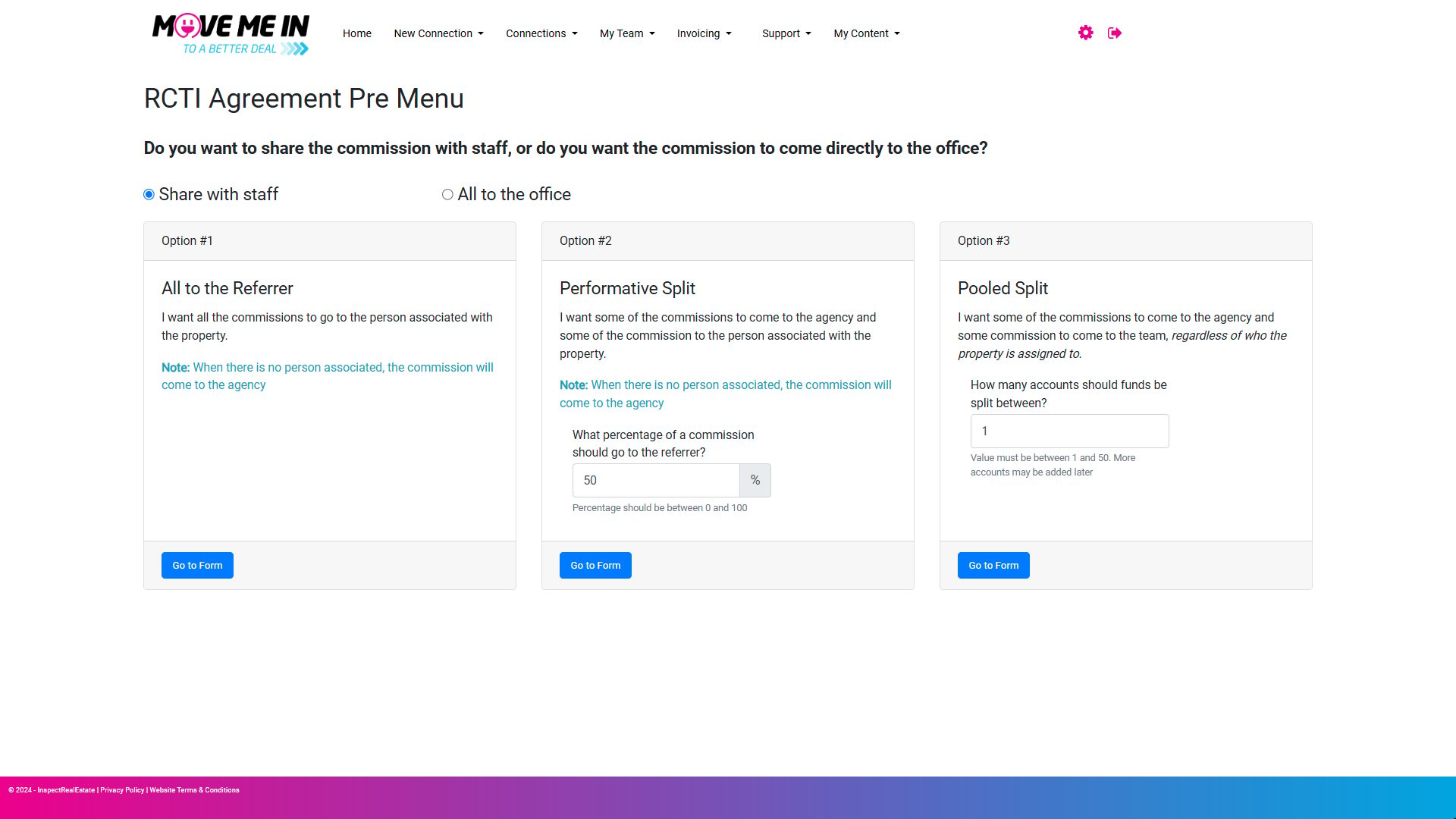
4. Select whether you want to Share with staff or send the commission All to the office.
Option 1: Share with Staff
You can choose between:
- All to the Referrer: All commissions go to the person associated with the property.
- Performative Split: Specify a percentage of commissions for the referrer and the rest to the agency.
- Pooled Split: Split funds across multiple accounts (between 1 and 50).
Option 2: All to the Office
- Choose All to the Agency: All commissions go directly to the main agency account for all properties.
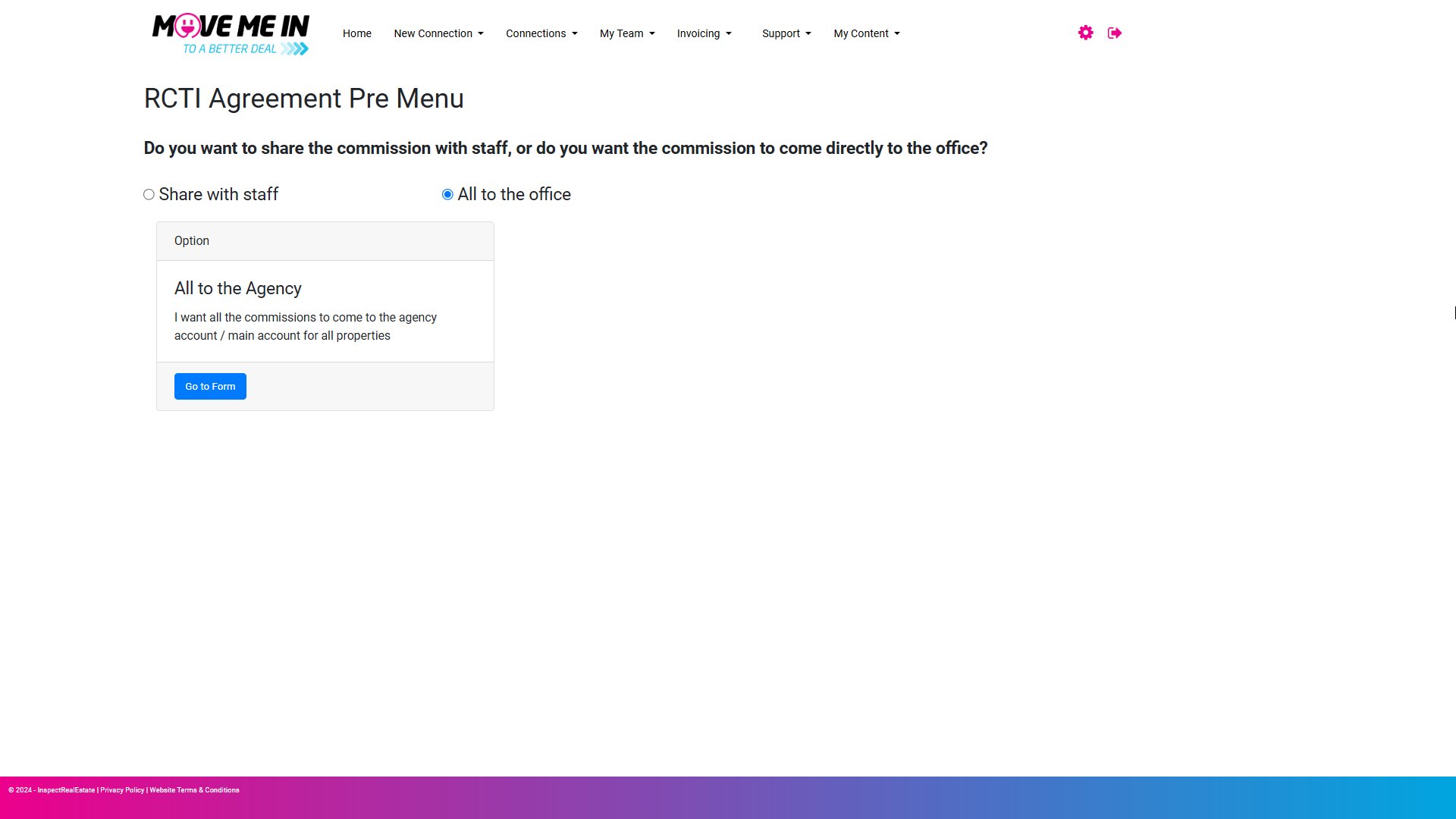
Click Go to Form under your preferred option to continue the RCTI setup.
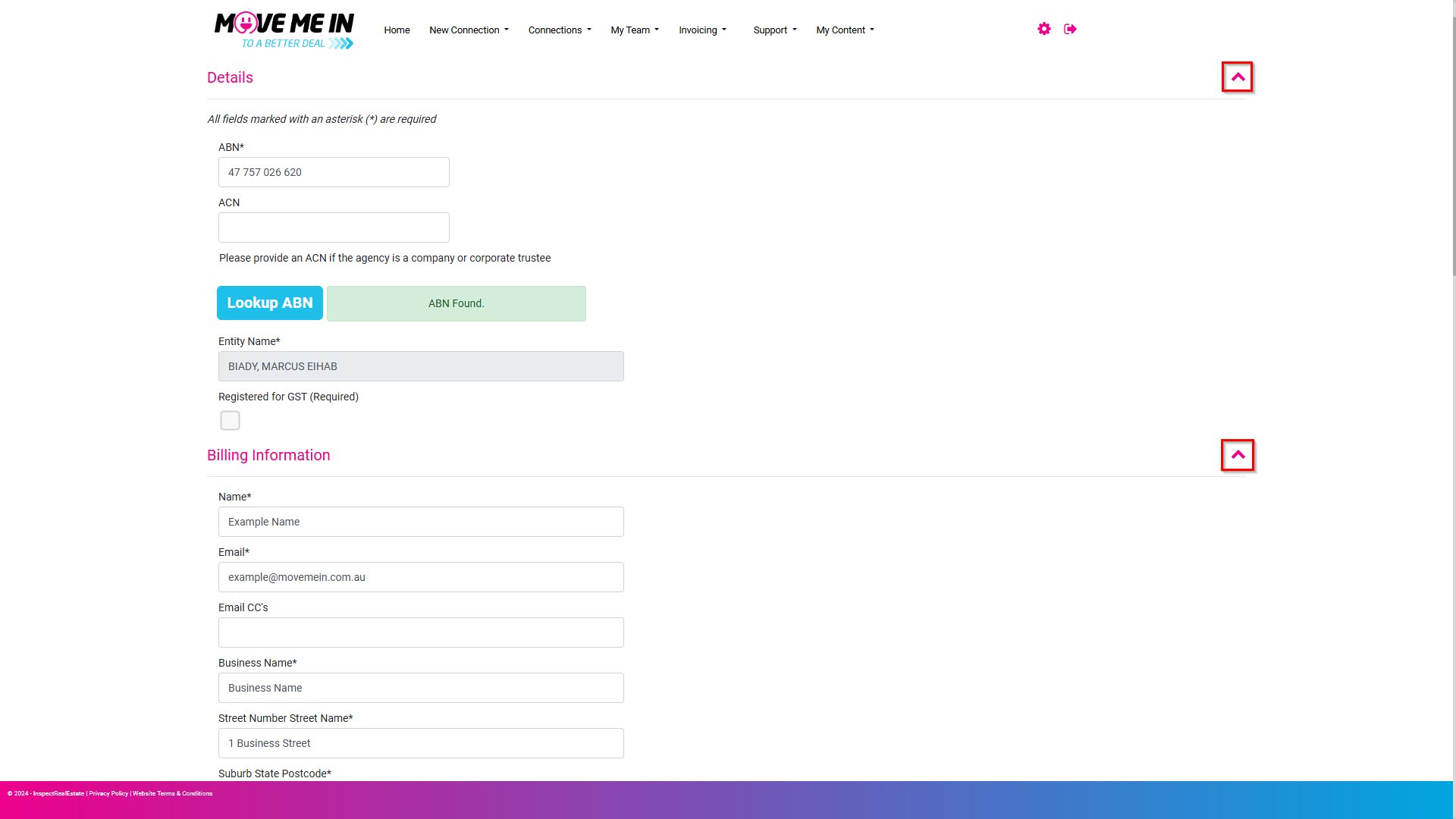
5. Enter your business ABN where designated. Following this action, the Entity Name will auto-populate.
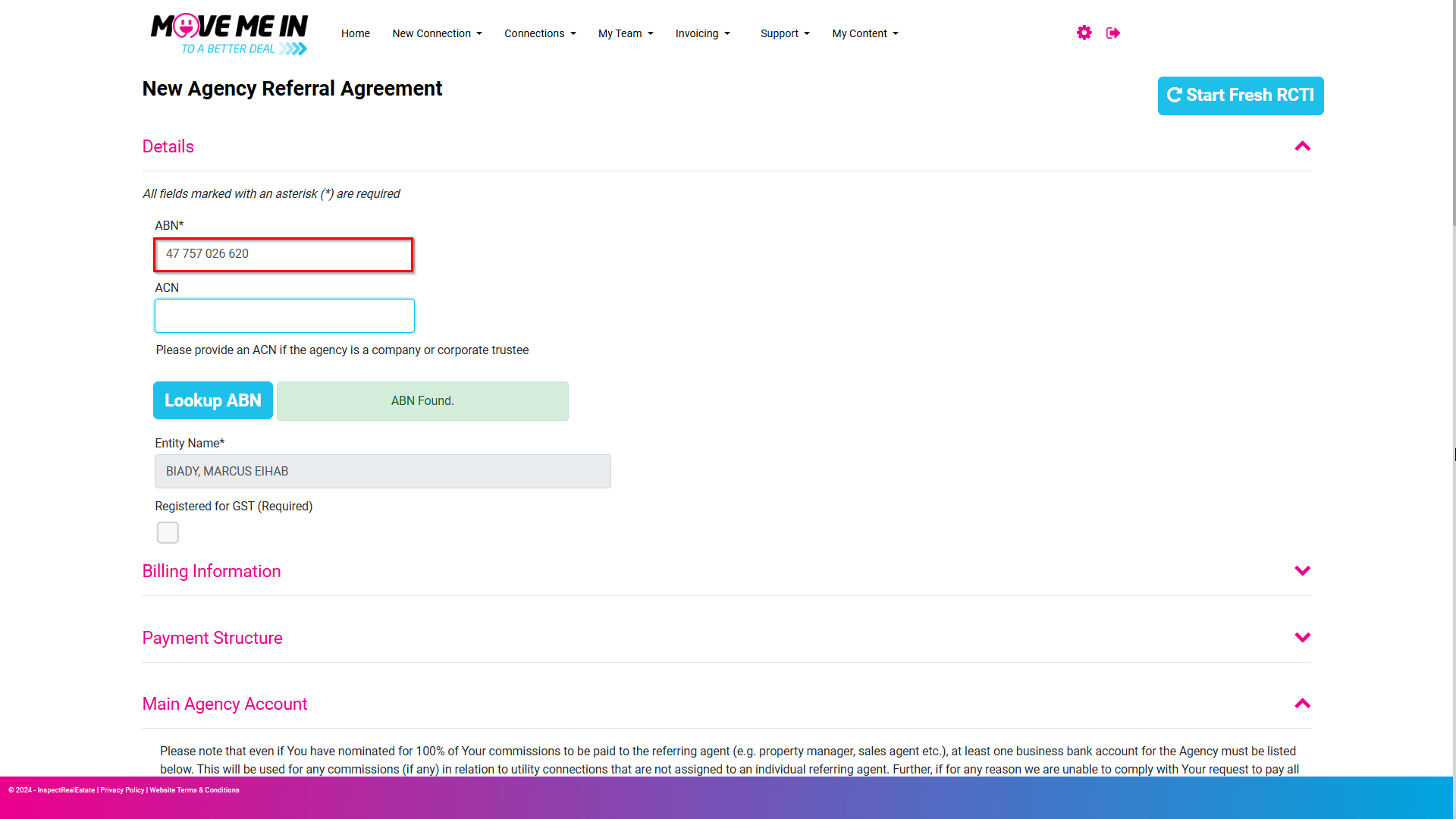
6. Click the dropdown adjacent to the Billing Information section.
- Enter the name, email, business name and address in the designated fields.
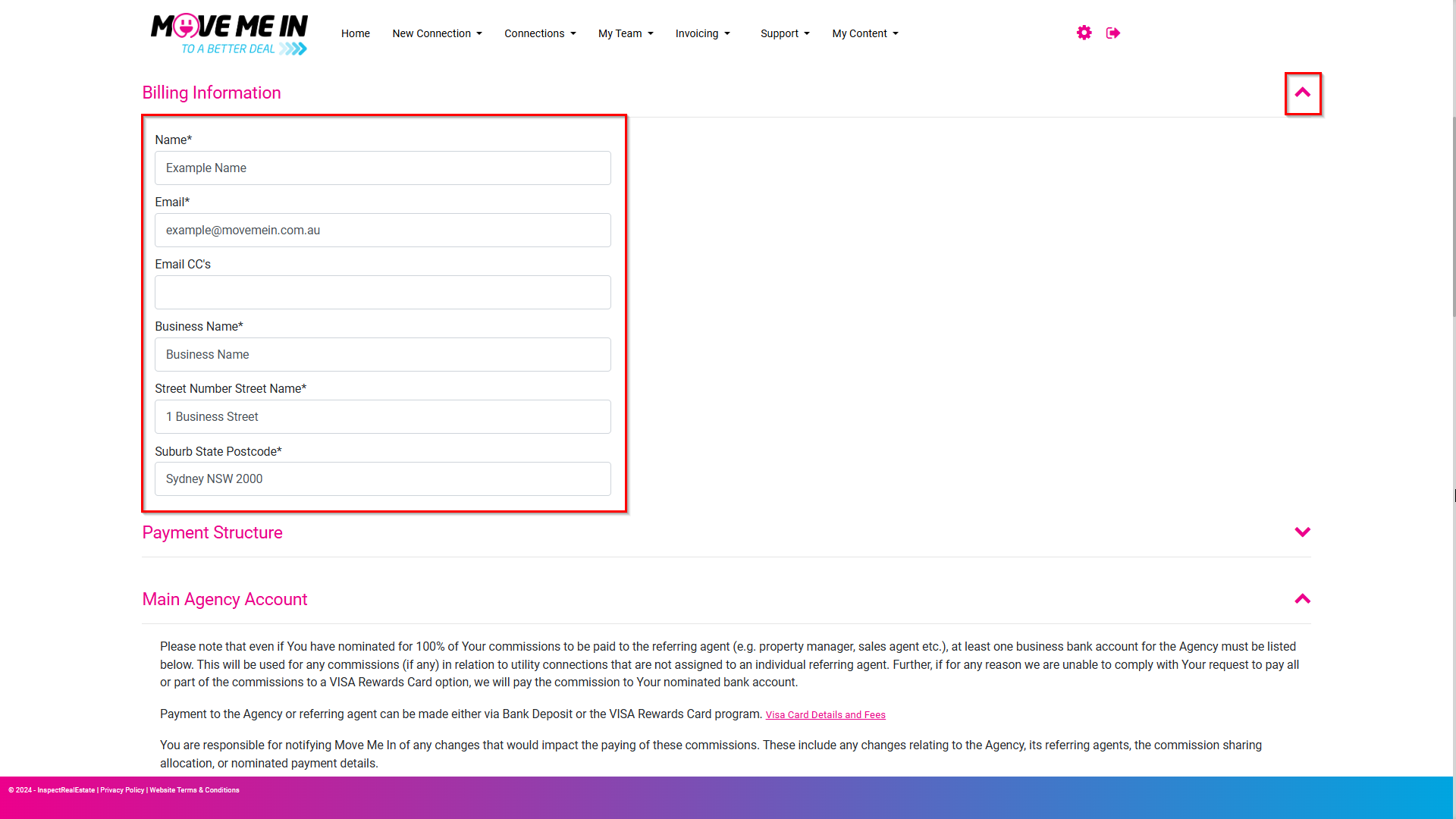
7. Click the dropdown adjacent to the Payment Structure section.
- Select Yes or No from the dropdown menu.
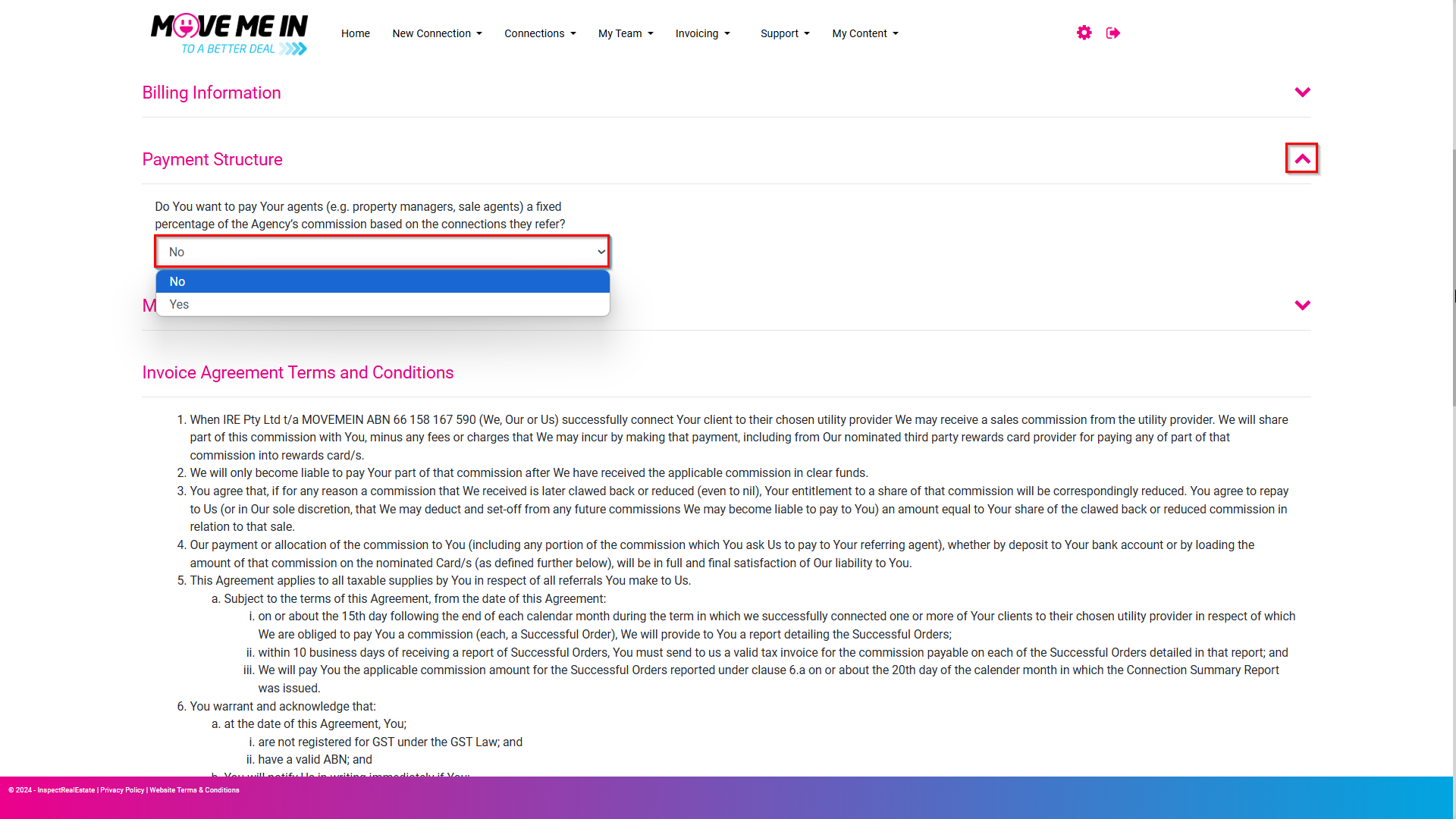
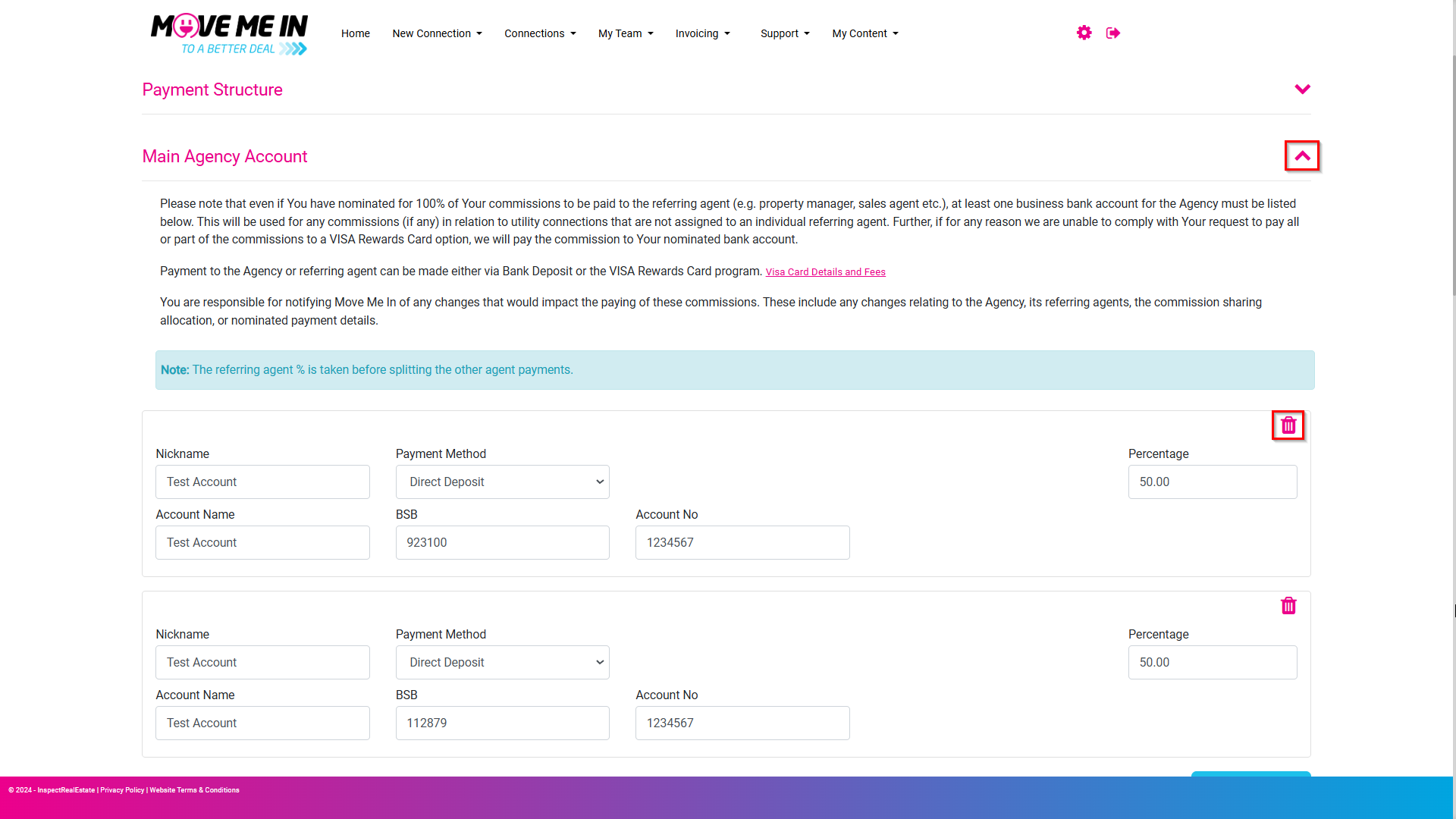
8. Click the dropdown adjacent to the Main Agency Account section.
- Enter the required payment account details where designated.
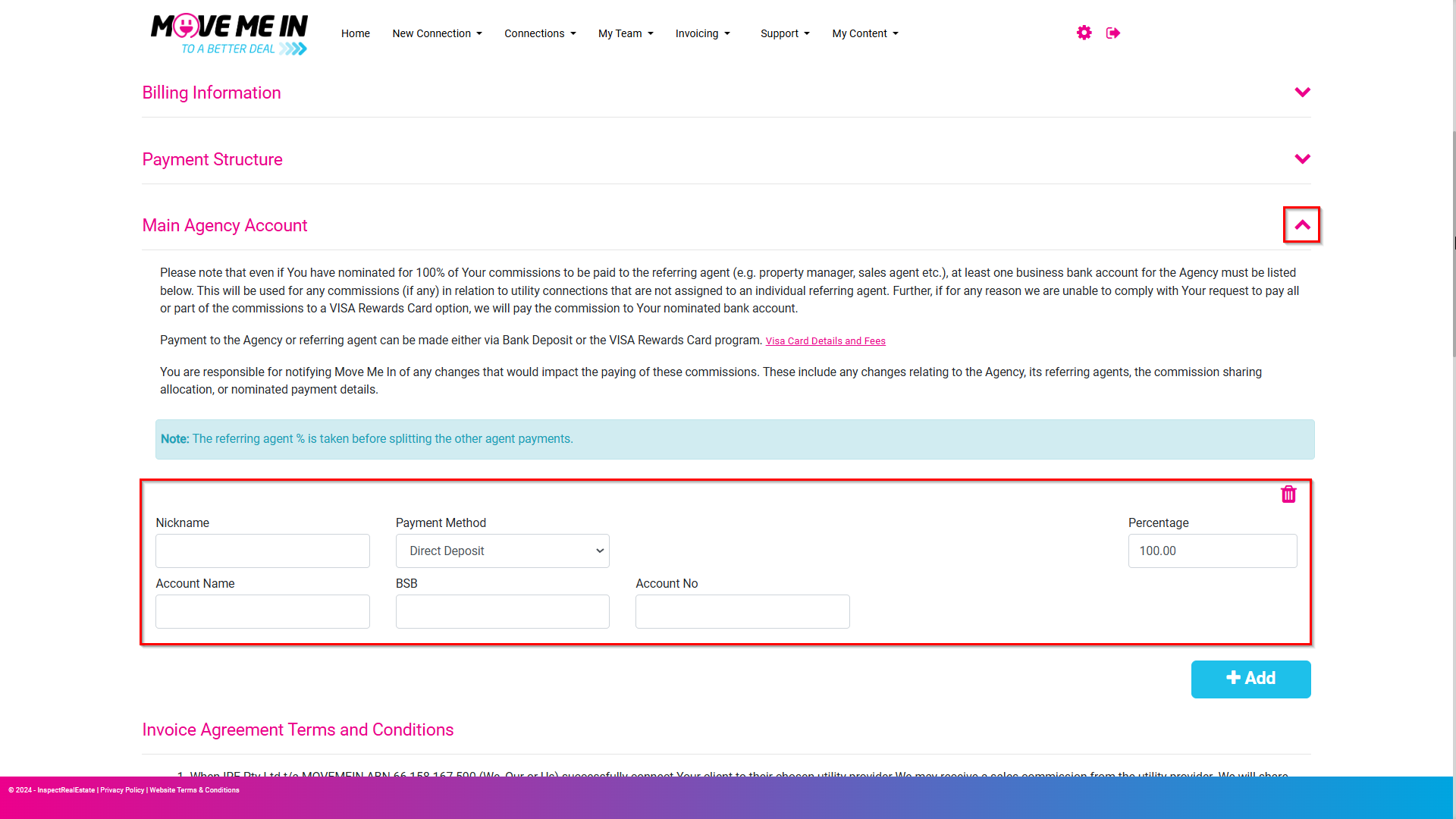
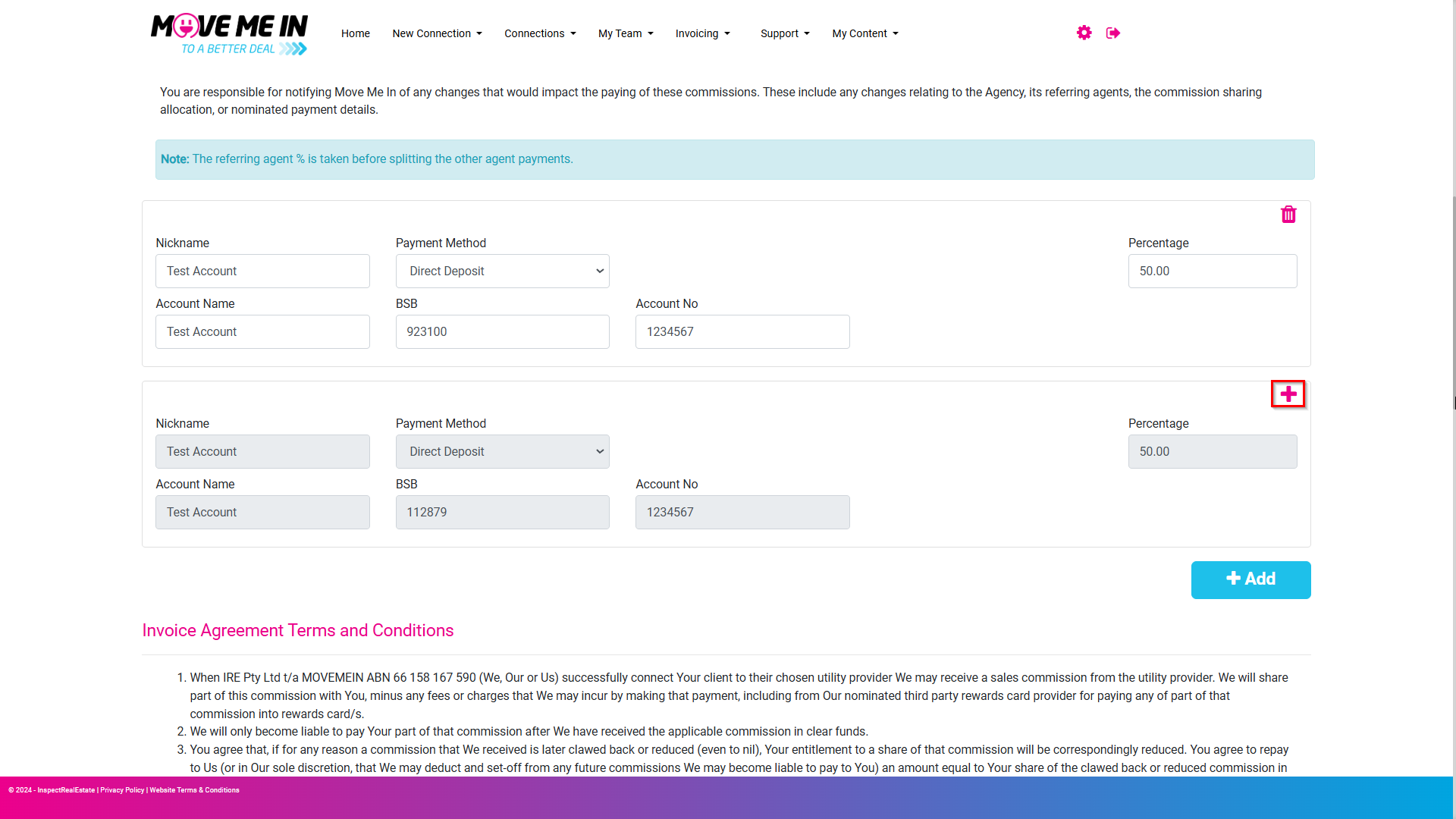
9. If you wish to include additional accounts, click +Add.
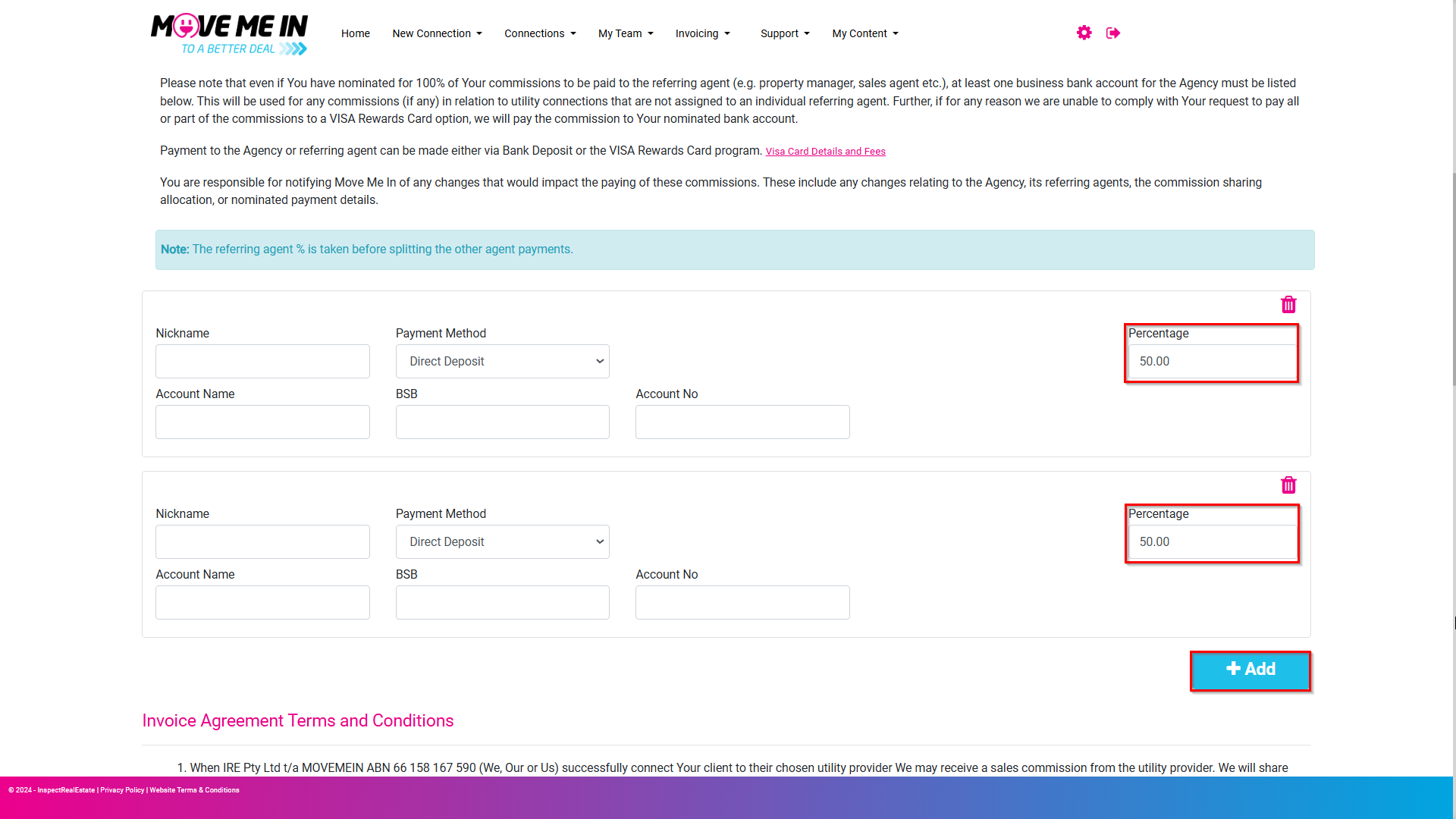
Note: The total percentage across all accounts must equal exactly 100%.
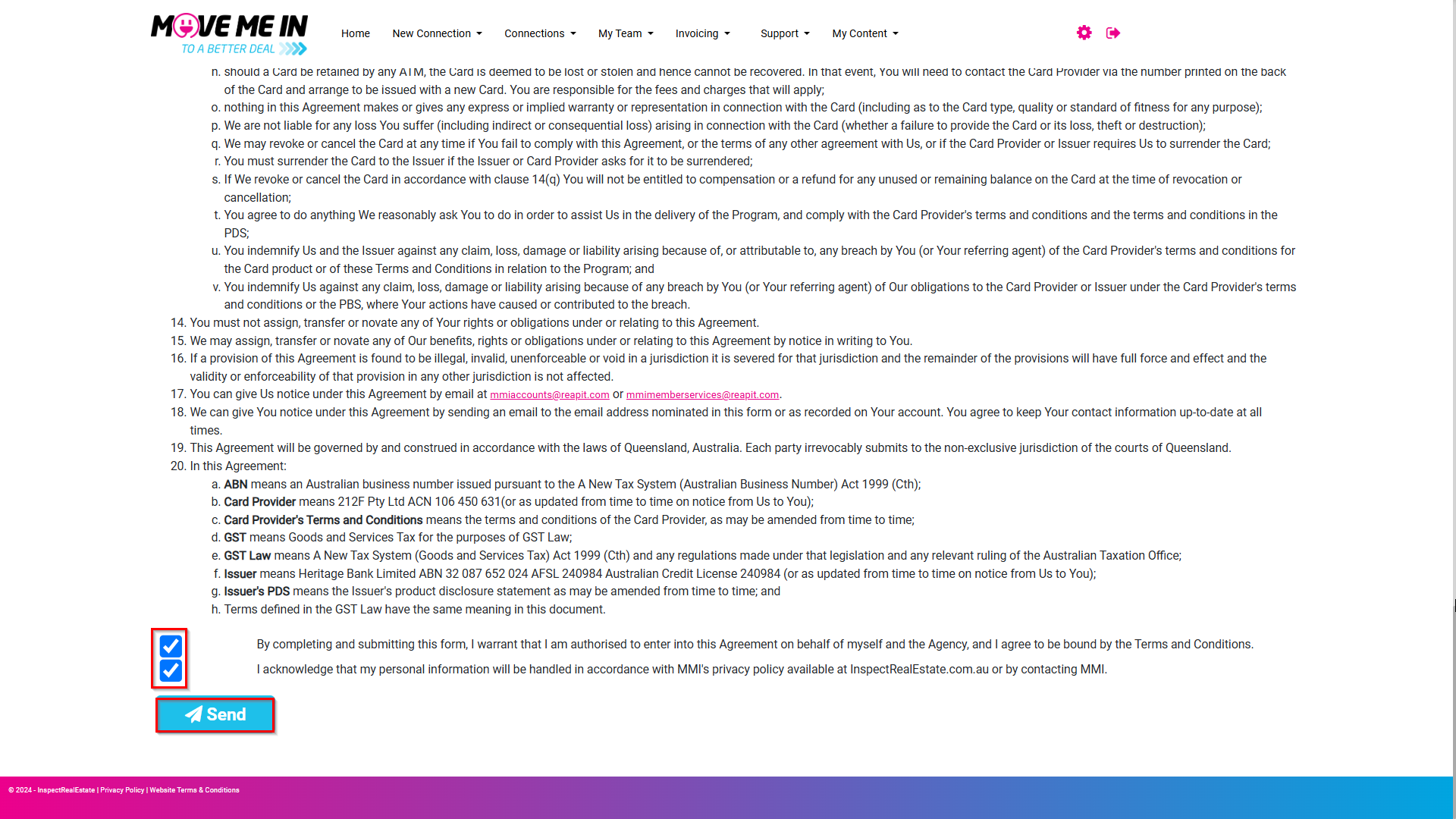
10. After reading and understanding the Terms & Conditions, select both checkboxes before clicking Send.
Updating Agency Details
1. From the Dashboard, navigate to Invoicing > Payment Details, and select Update RCTI Agreement.
2. After updating the required information, review the Terms & Conditions, select both checkboxes to confirm your understanding, and click Send.
Removing a Payment Stakeholder
1. From the Dashboard, navigate to Invoicing > Payment Details, and select Update RCTI Agreement.
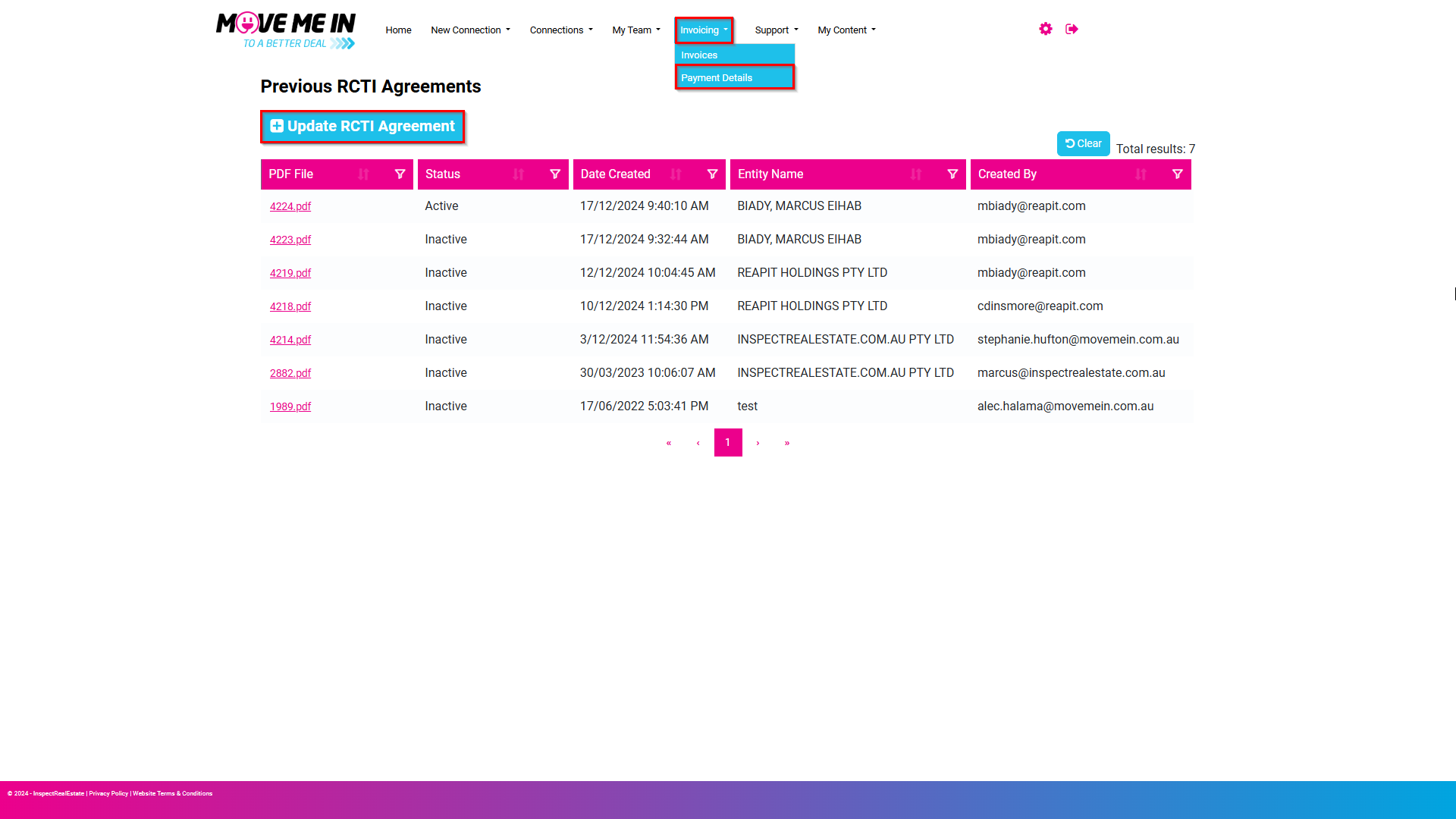
2. Click the Trash Icon and the previous payment details will no longer be active.
- After reviewing the Terms & Conditions, select both checkboxes to confirm your understanding, and click Send.