Branding Settings
This article will run through how to set up the branding elements of the Autoresponder from Content+.
Autoresponder Branding Settings
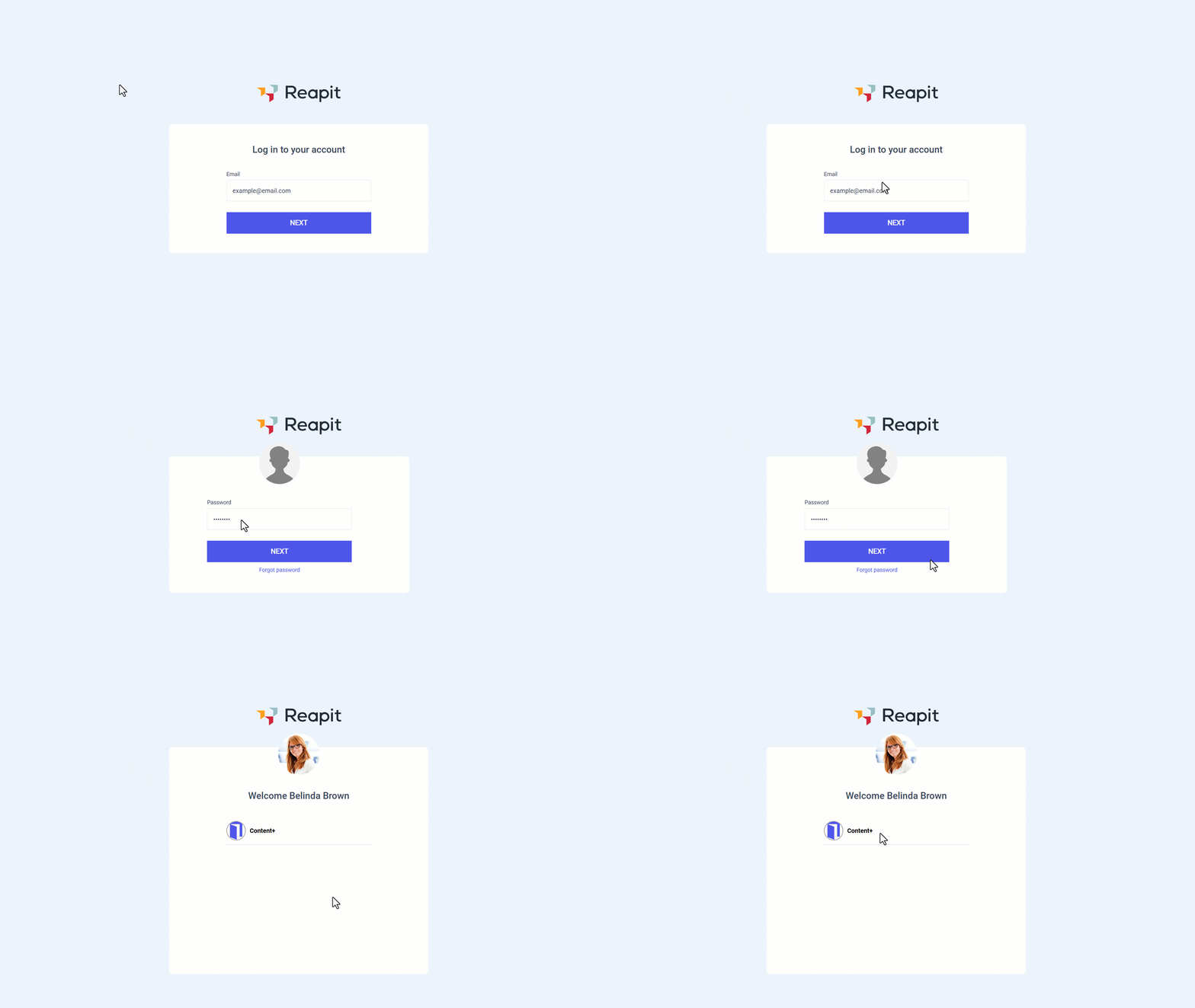
- Enter your email address. Click Next.
- Enter your password.Click Next.
- Click Content +.
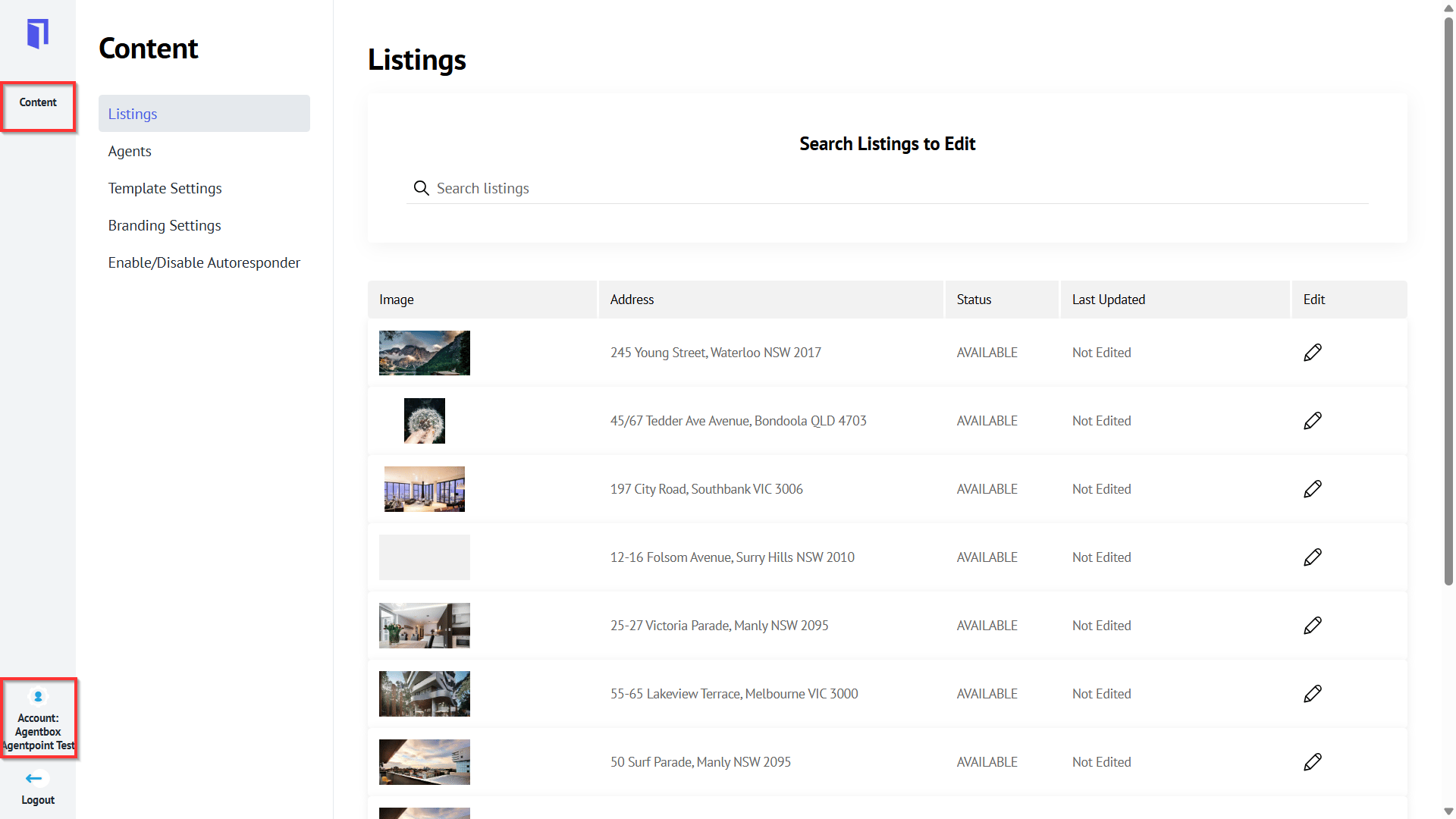
- Navigate to your office by clicking the Account tab.
- Click Content.
- Click Brand Settings, and you can update the following:
- The agency logo can be uploaded.
Note: The aspect ratio doesn't matter, as long as the width does not exceed 10000px and the height does not exceed 5000px.
- File format can be either PNG or JPEG.
- File size should not exceed 2 MB.
If the above criteria are not met, clients often face issues (logo not loaded/not applied in AR/continuous loading in Branding Settings page) when uploading the logo.
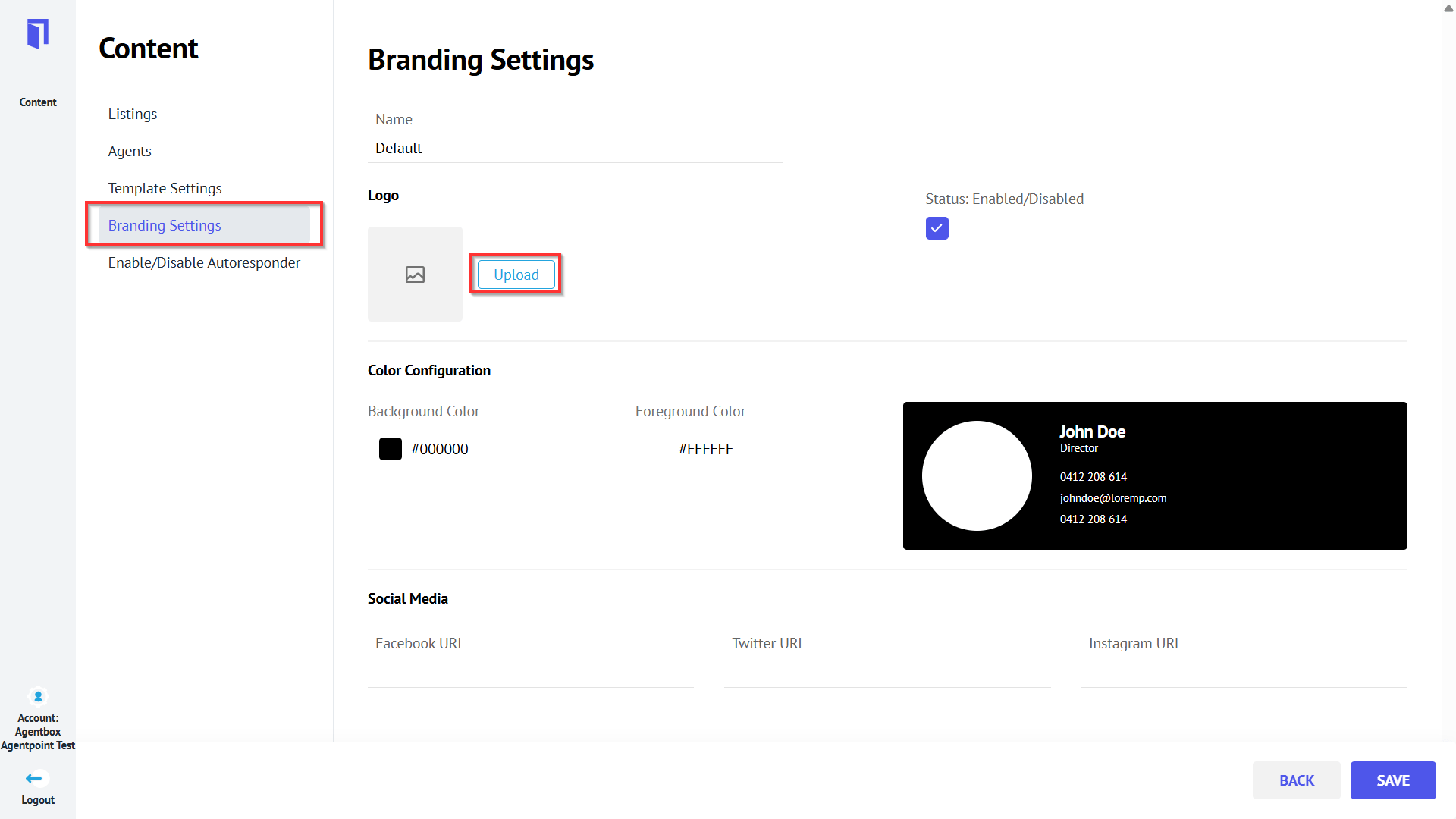
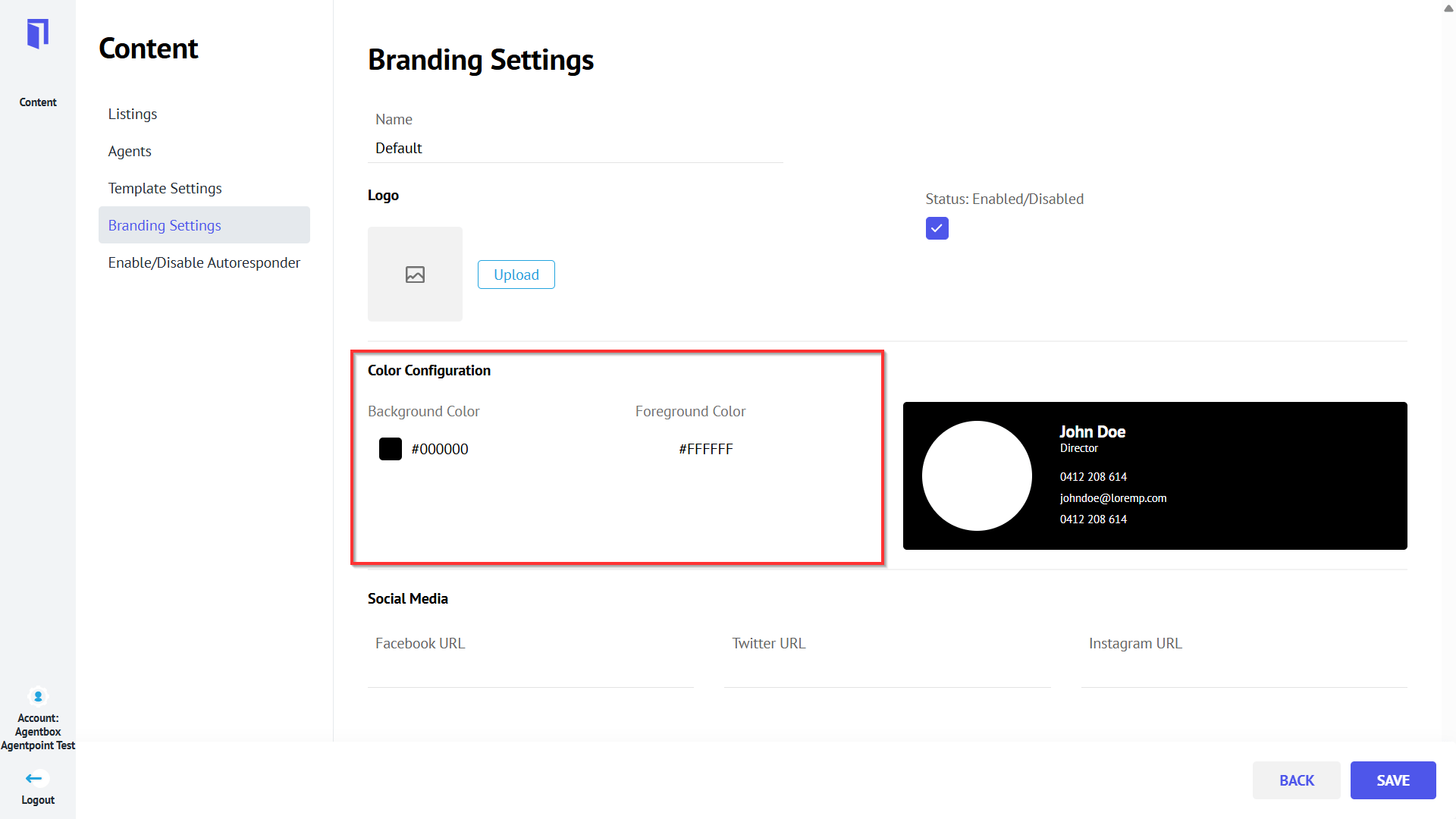
- Colour configuration allows you to set the background colour and the foreground colour. A previewer is also available to see the changes instantly.
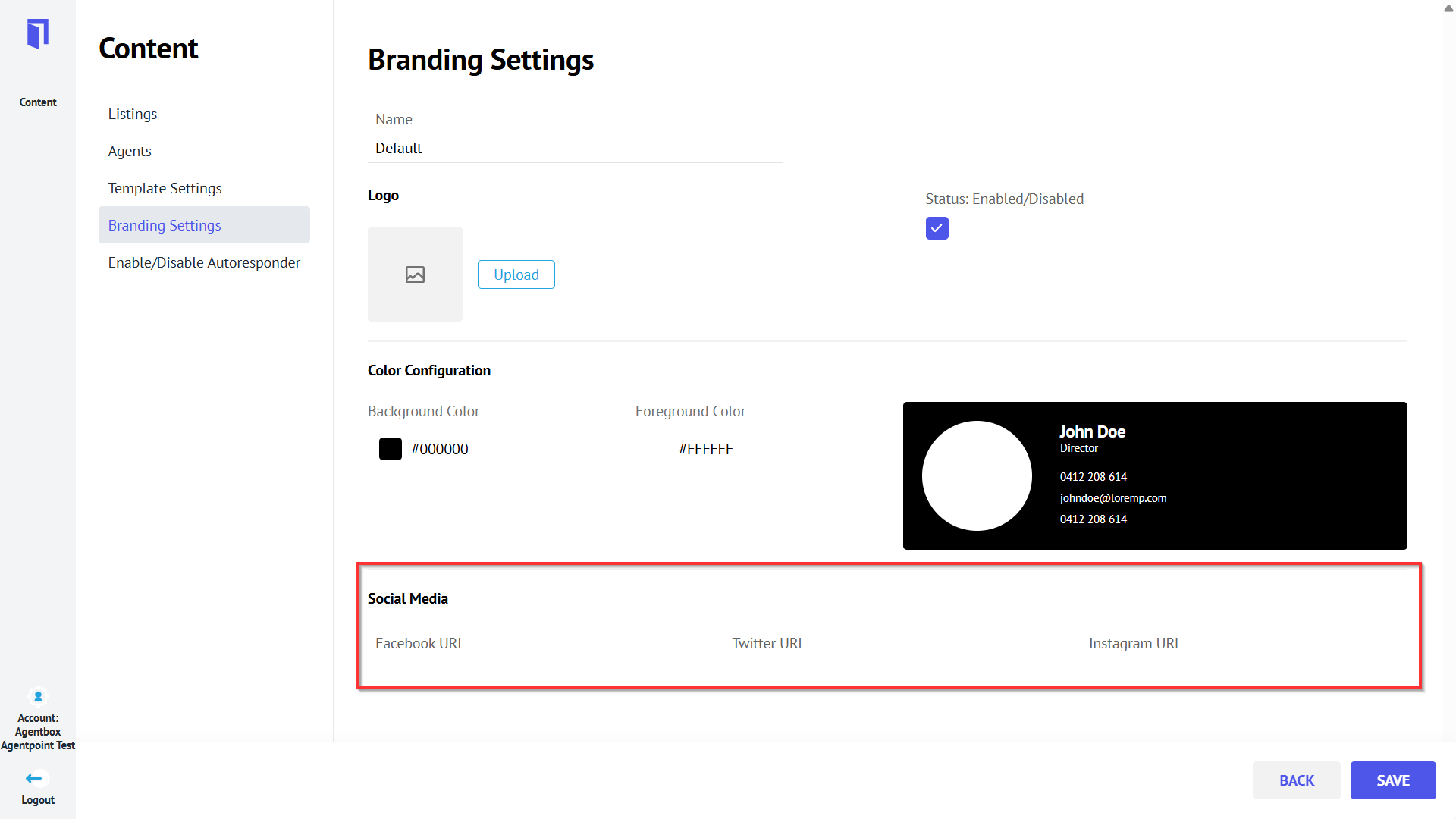
- Social Media links (needs to be valid URLs) of the real estate agency within the designated fields
- Once branding aspects have been set, click on Save.
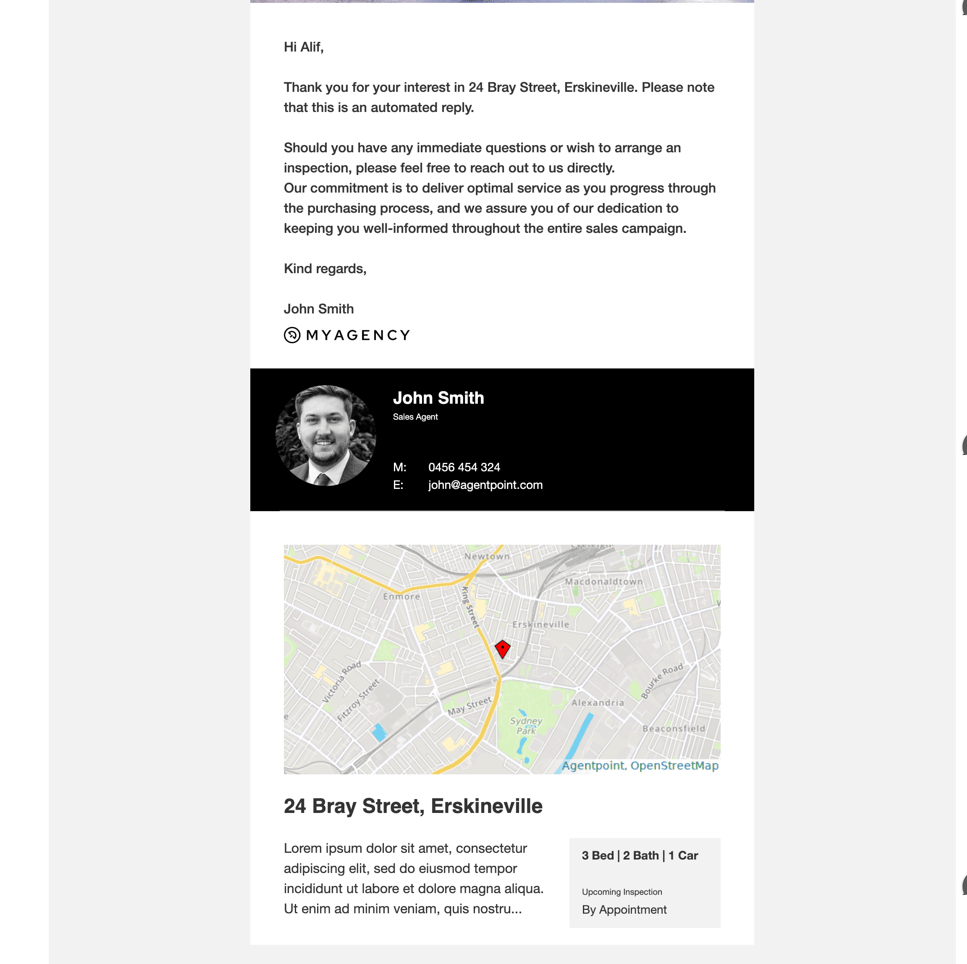
Examples of how these changes are applied:
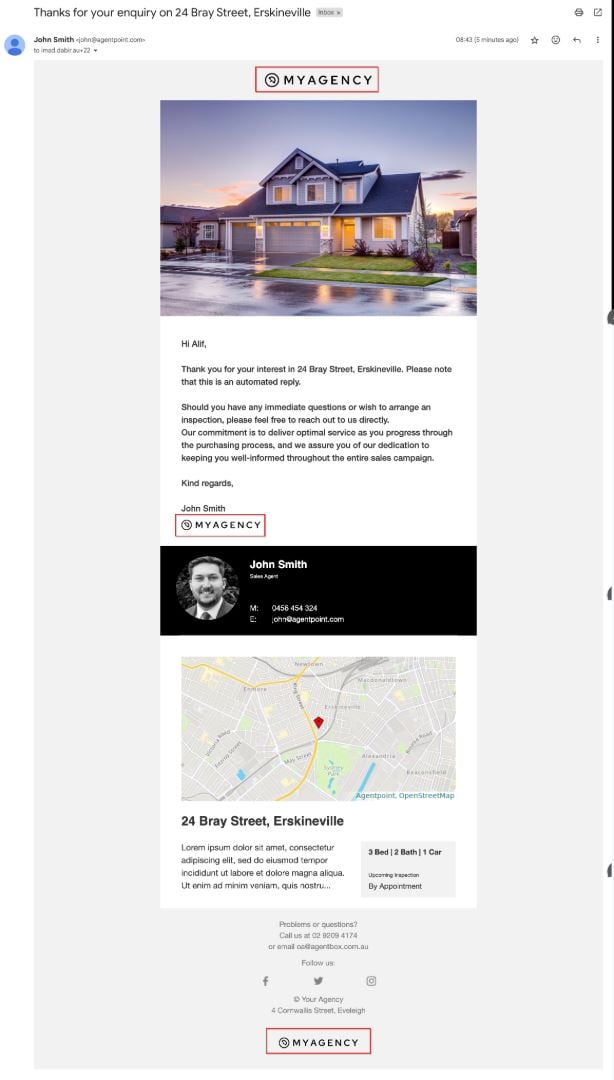
The background colour is reflected in the following areas of the Autoresponder (agent contact section and button colour):