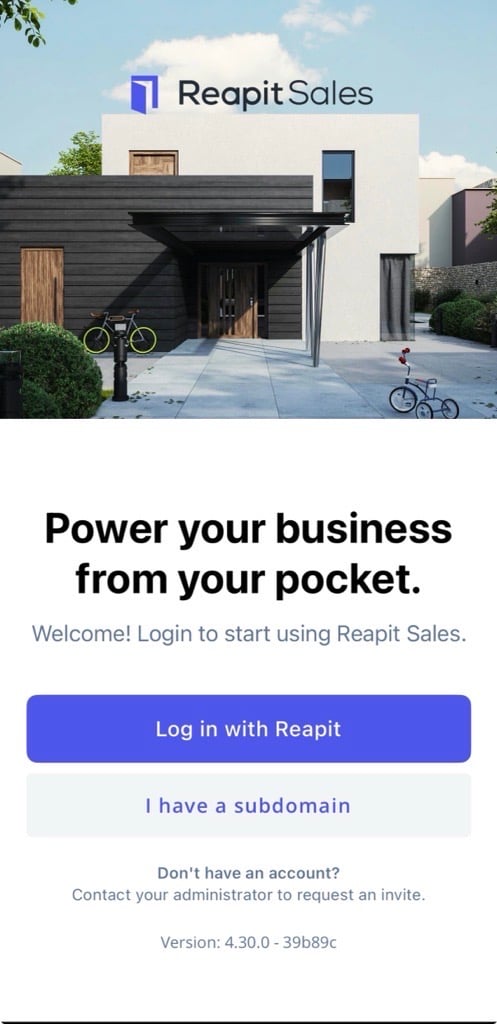
Reapit Sales App Login - First Time Login using Reapit Connect.
This article demonstrates how to log in to the Reapit Sales App on Mobile Devices while setting up MFA.
1. Tap Log in with Reapit.
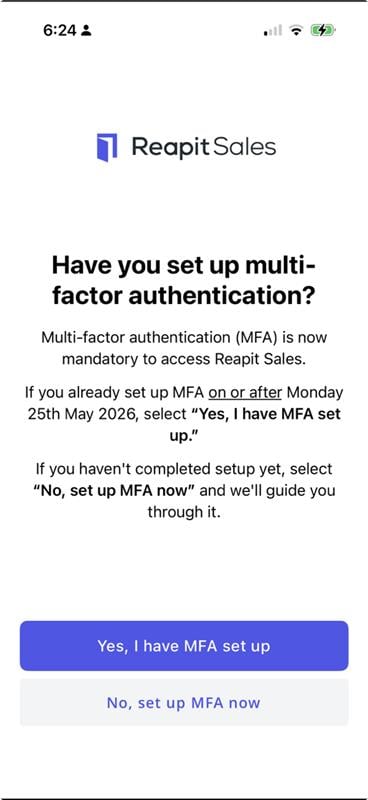
2. Tap No, set up MFA now.
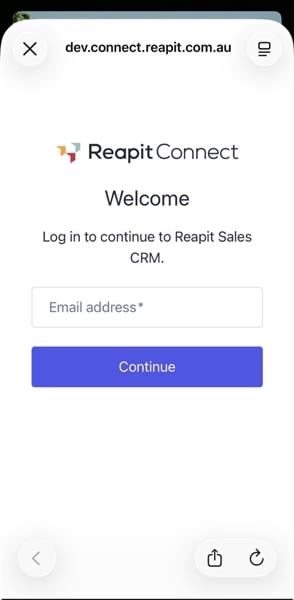
3. Enter your email address and tap Continue.
4. Enter your current password. Tap Continue.
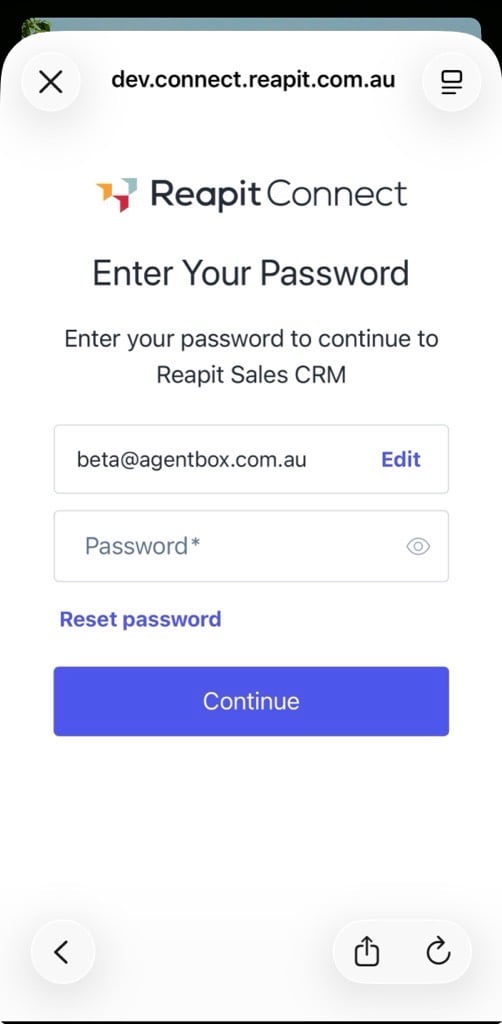
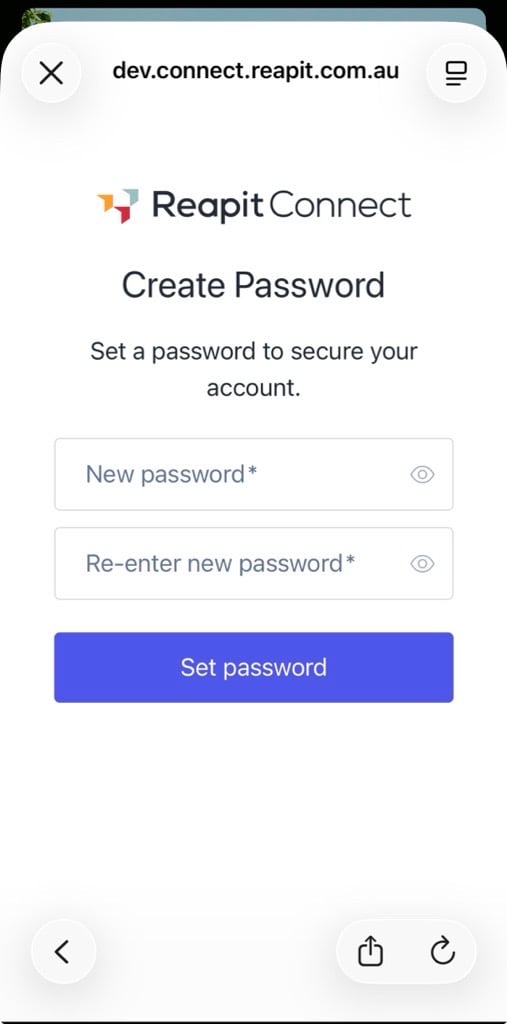
5. If your existing password does not meet the updated parameters, please create a new password following the prompts on screen.
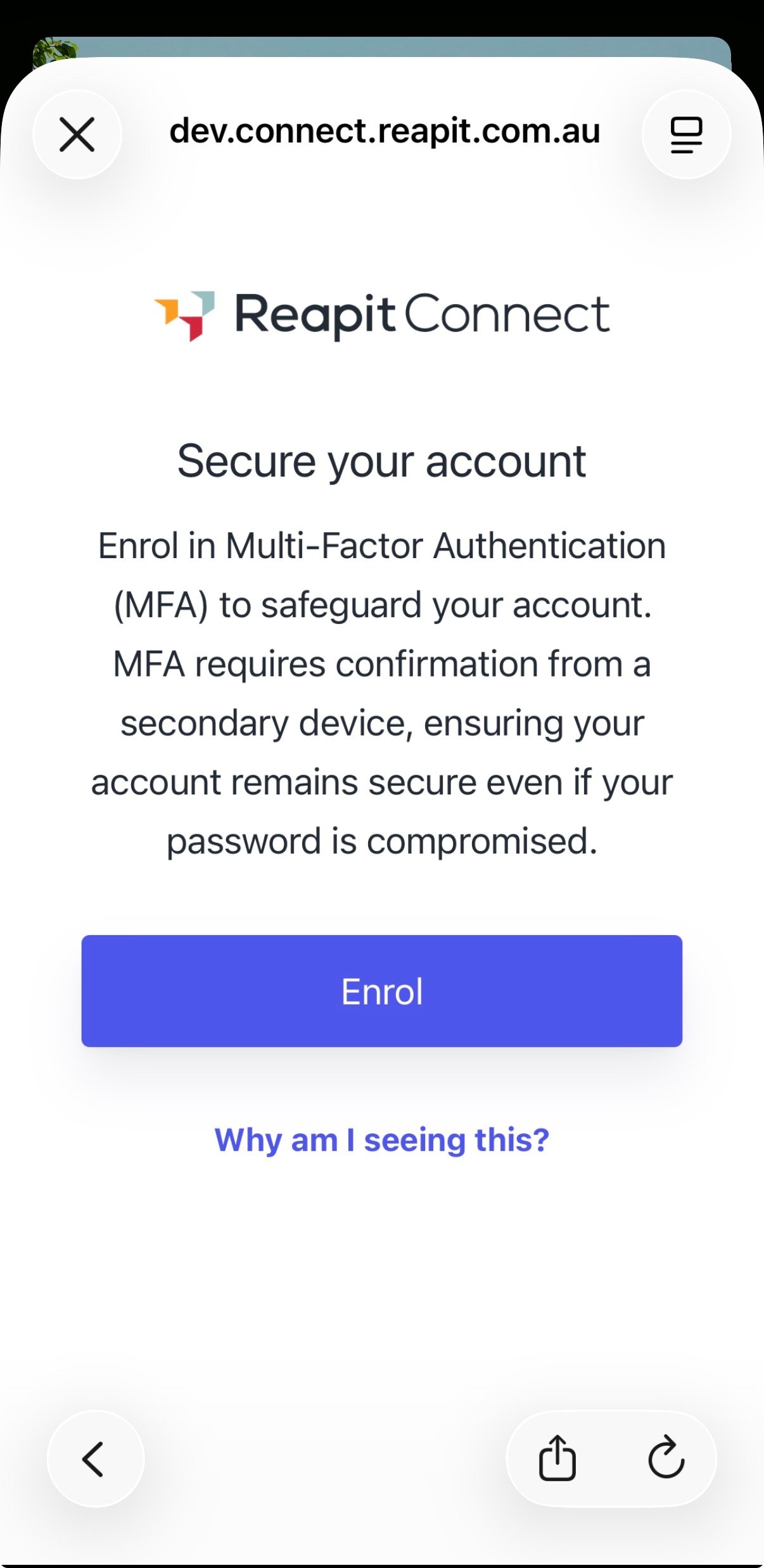
6. Tap on Enrol.
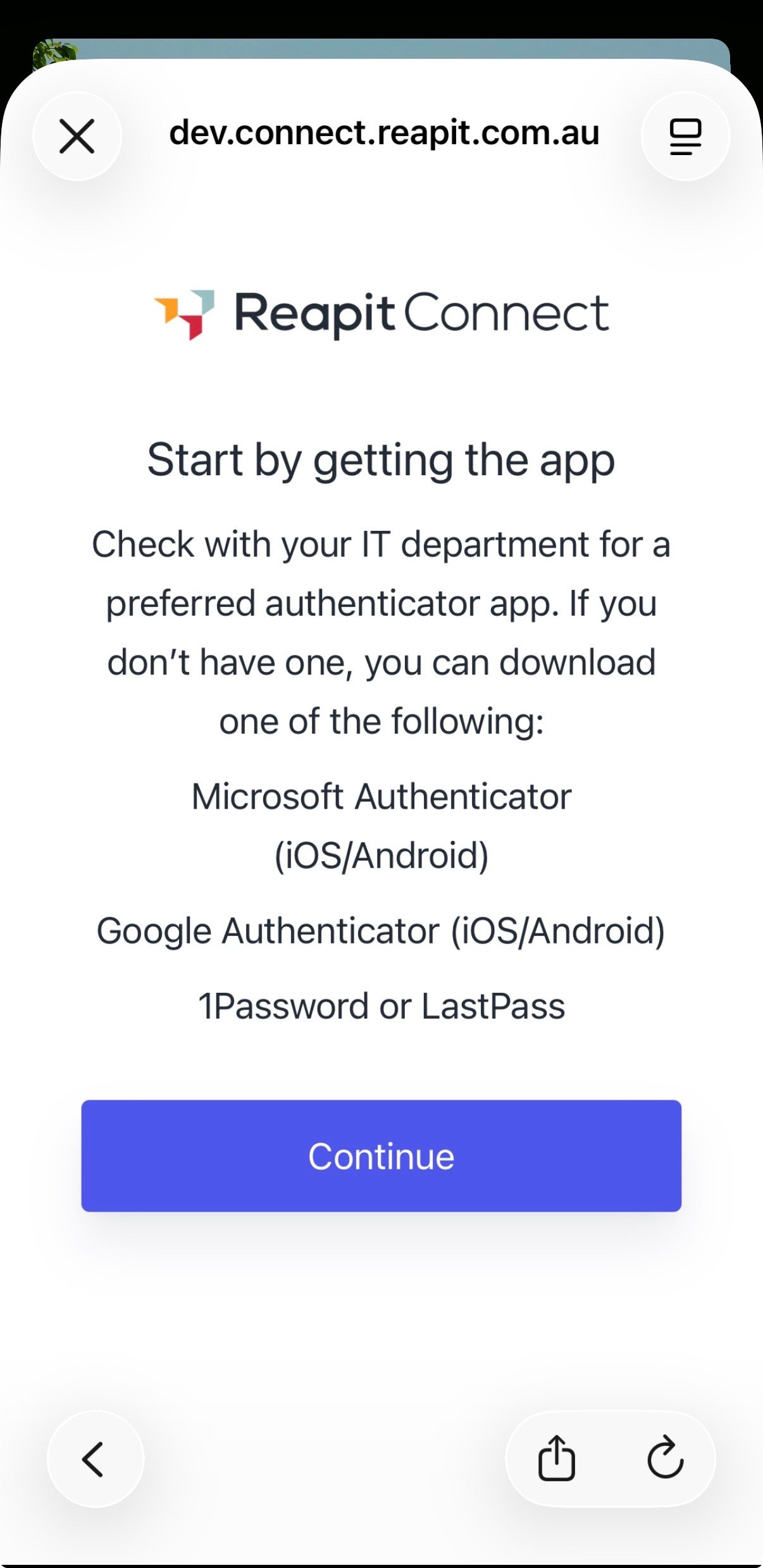
7. Multi-Factor Authentication (MFA) will be required on your account. Check with your IT department for their preferred authenticator app or select one from the suggestion list.
Download the authenticator from the App Store then Tap on Continue.
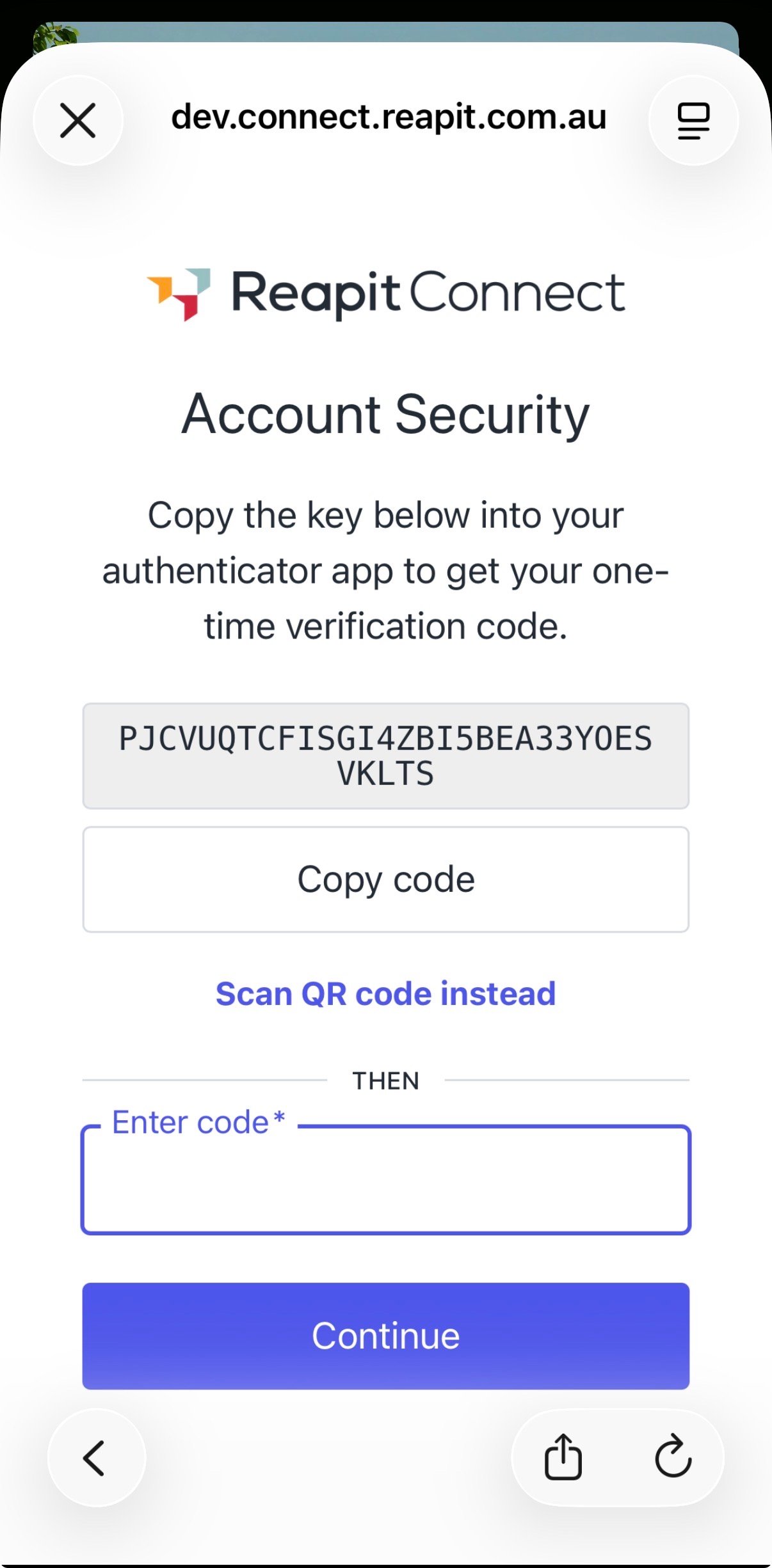
8. Tap Copy Code then paste it into your chosen authenticator app setup feature. Once your authenticator app is setup, enter the time limited code for Reapit Connect in to the Enter code field and tap on Continue.