Reapit Connect in Reapit Sales
This user manual article describes how you can set up your Reapit Connect single sign-on identity to log into Reapit Sales.
Reapit Connect
Click Hereto view the article for Logging into the Mobile App with Reapit Connect.
Enablement of Reapit Connect: This is a behind-the-scenes process that our development team will run. Once it is enabled, you will receive a welcome email.
Welcome Email
1. Once Reapit Connect is enabled in an office, all active users will automatically receive a “Welcome to Reapit Connect” email. If you are a member of that office, you should receive an email similar to the one below:
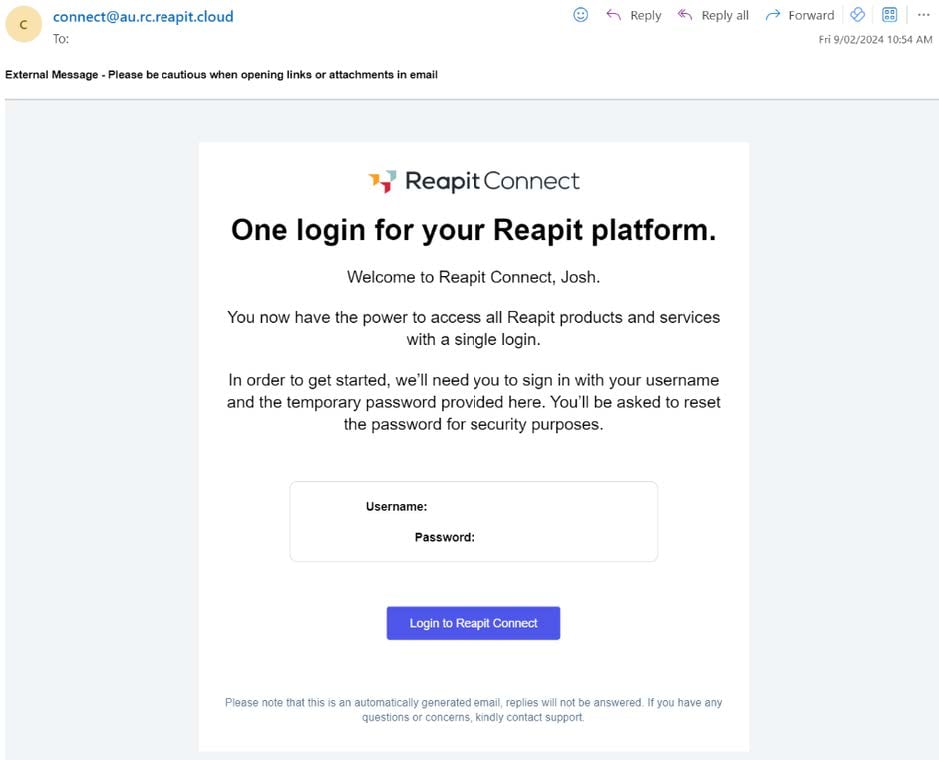
2. Click Login to Reapit Connect.
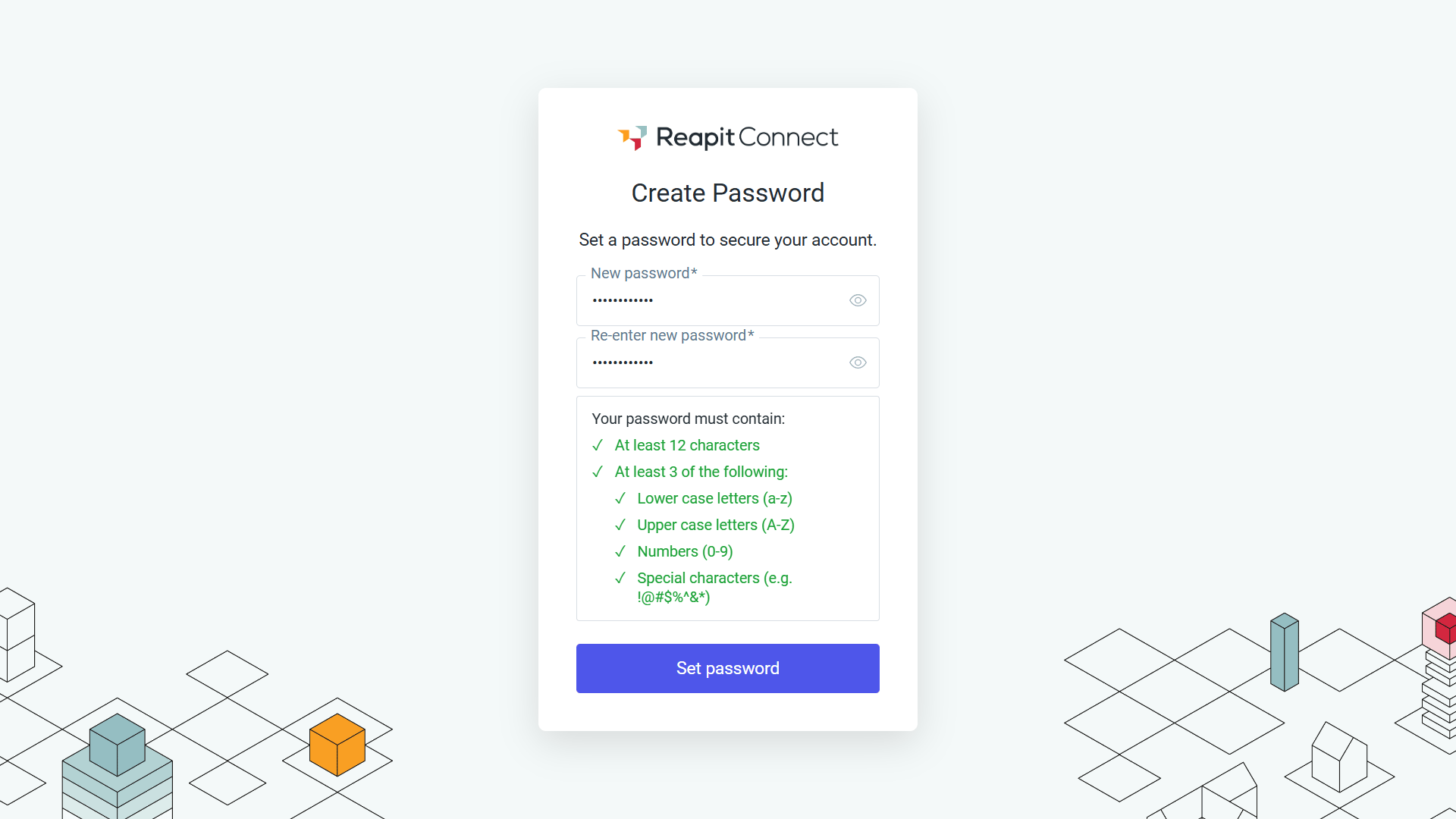
3. You will be prompted to create a password. Your password must meet the requirements otherwise, you will not be able to proceed. Click Send to complete the process.
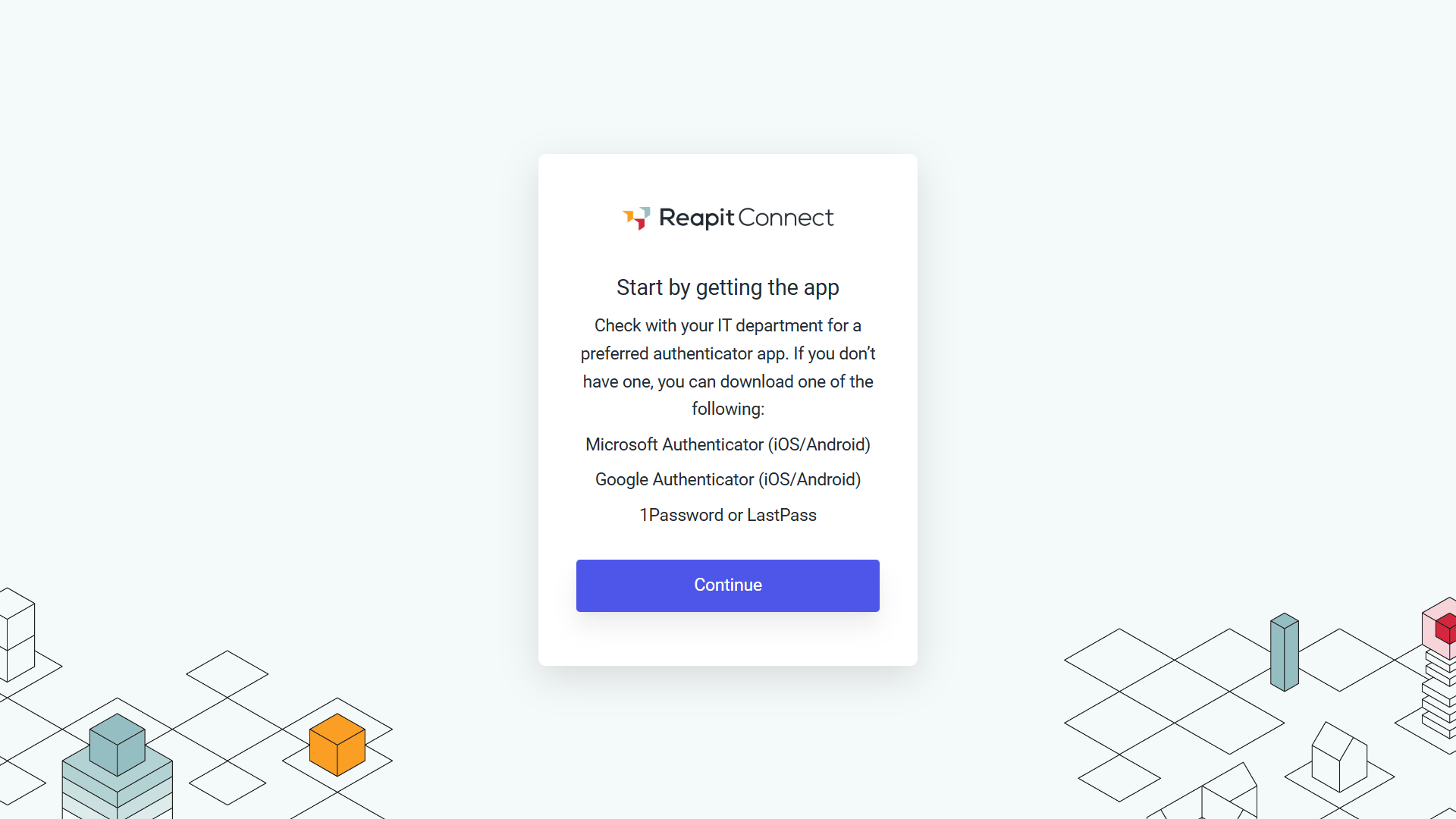
4. Multi-Factor Authentication (MFA) will be required on your account. Check with your IT department for their preferred authenticator app or select one from the suggestion list. Download the authenticator from the App Store and continue by scanning the QR Code.
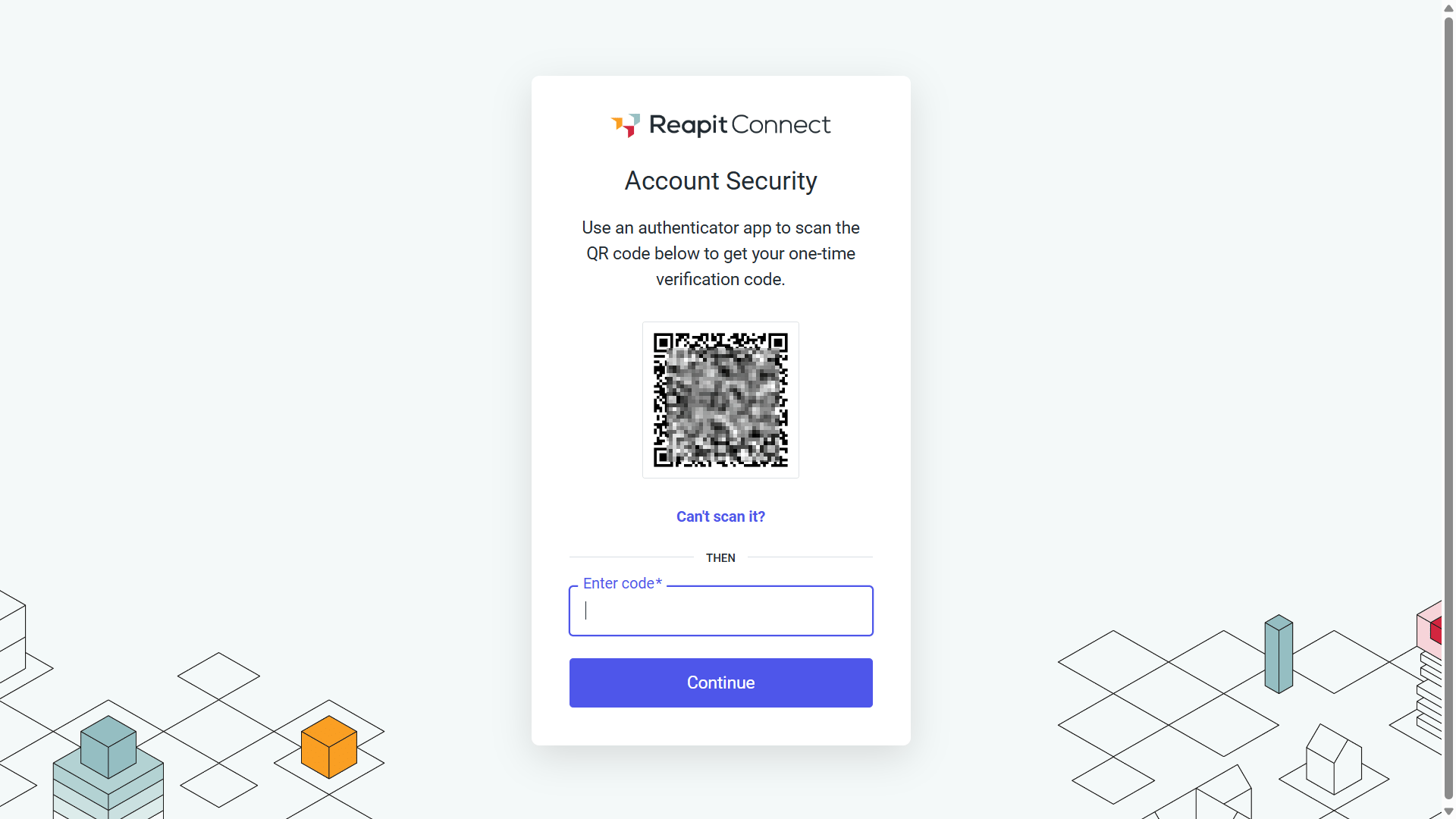
5. Scan the QR code and enter the code displayed on the authenticator app, then click Continue.
Note: If you have access to multiple Reapit Sales accounts, you will be able to select from the list.
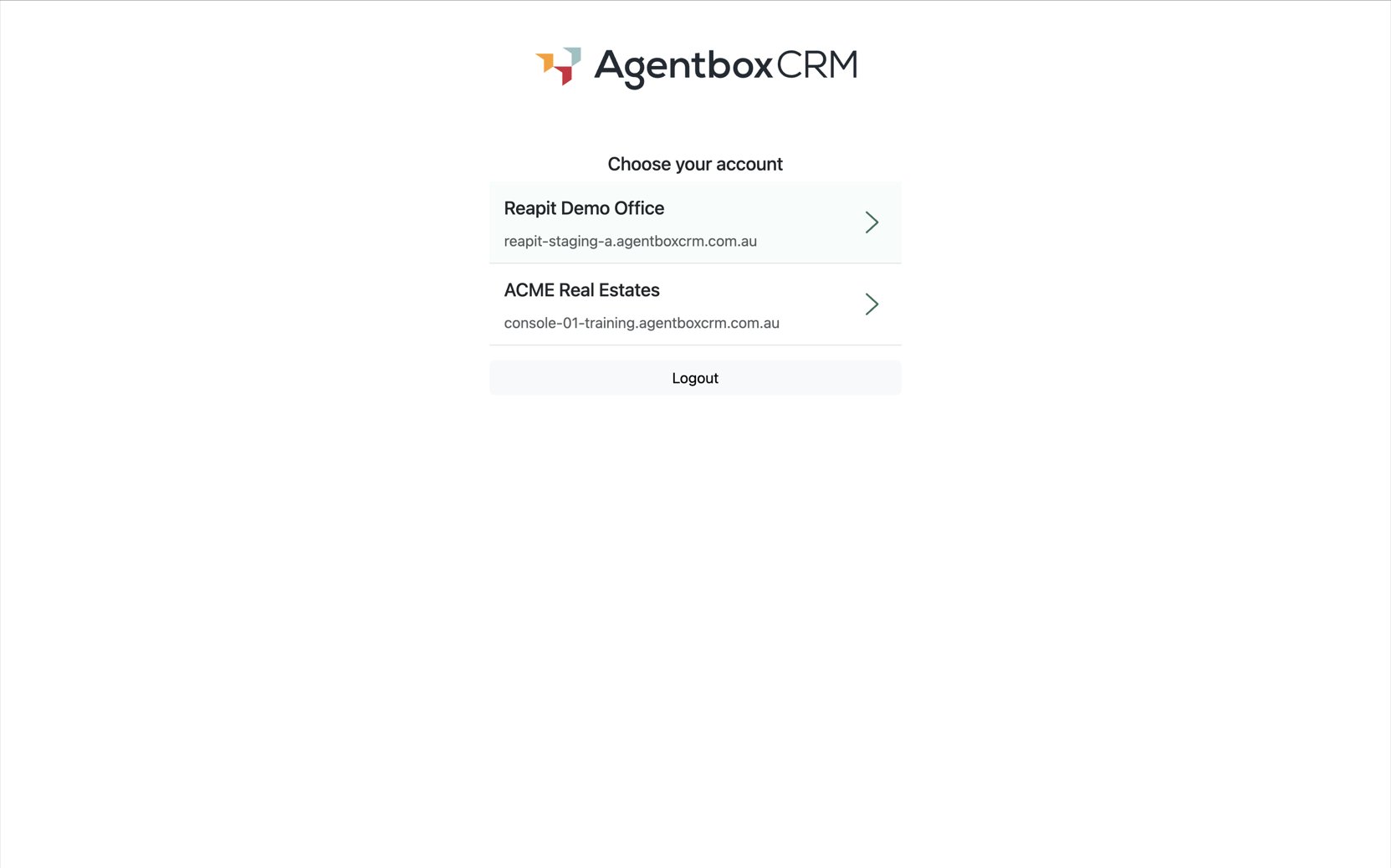
6. You will then be taken to your Reapit Sales dashboard.
Changing your password
1. To change your password, you will need to click on Forgot your password from the main login page.
https://app.sales.reapit.com.au/
2. You will be asked to enter your email address, where an email will be sent with a link to reset your password.
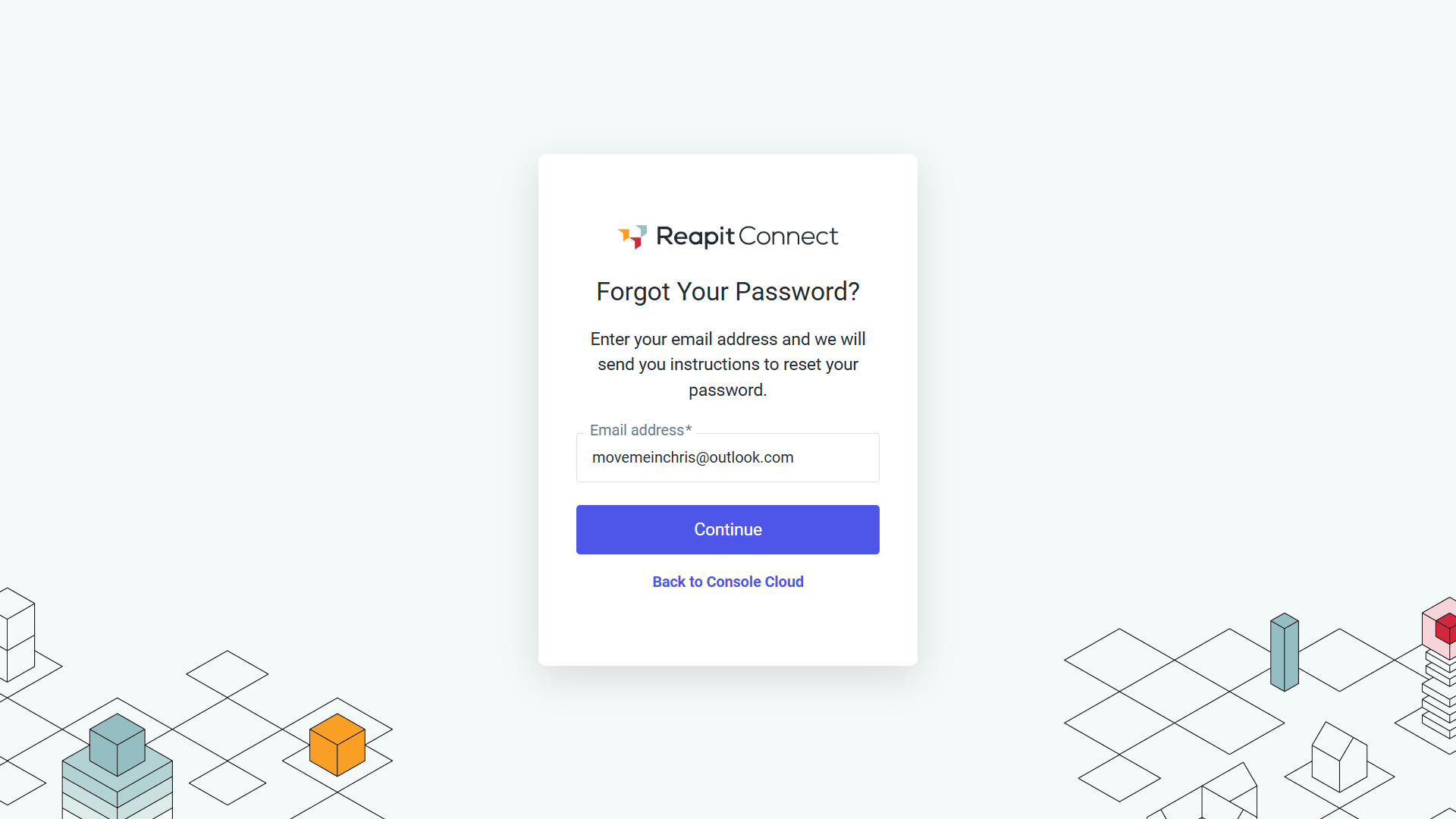
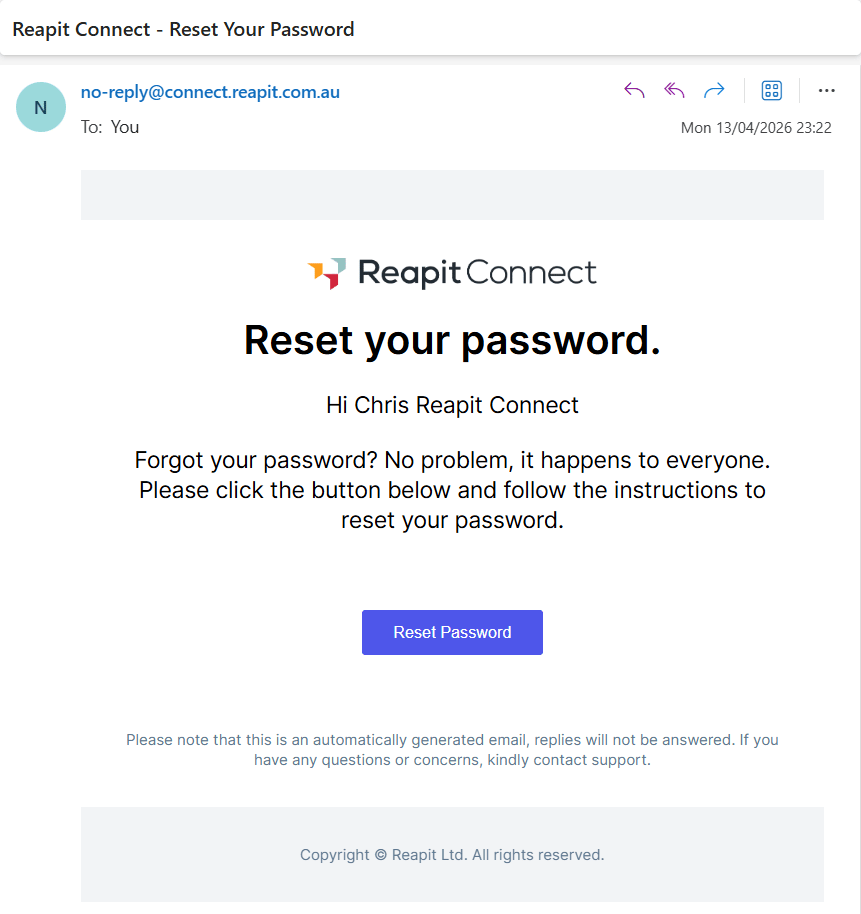
3. After a few minutes, an email similar to the one below should show up in your Inbox (check your Spam / Junk folders if it doesn’t).
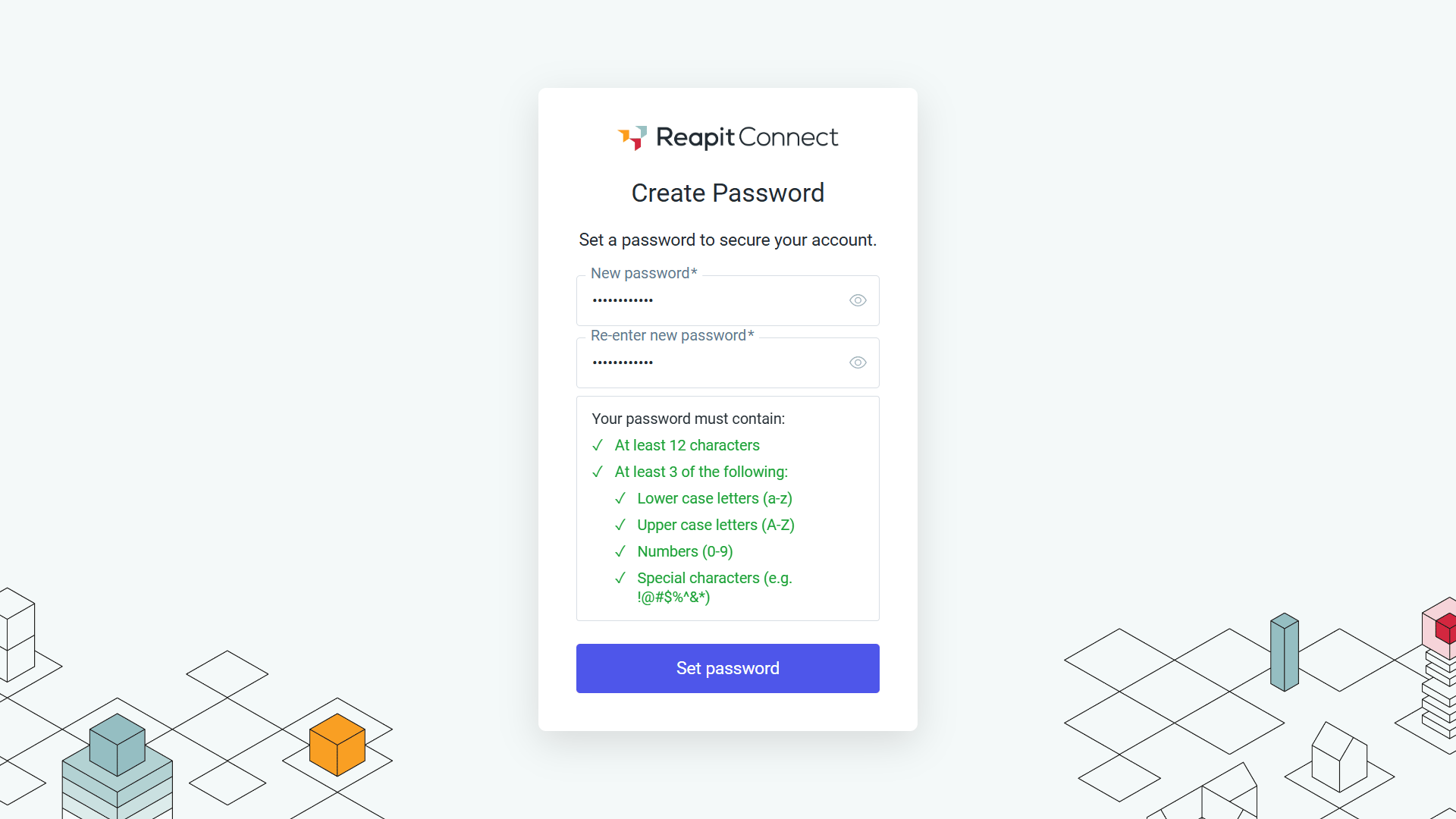
4. You will be prompted to create a password. Your password must meet the requirements; otherwise, you will not be able to proceed. Click Set password to complete the process.
5. Once your new password is set, you will be able to log in to Reapit Sales as usual.
MFA Administration (for Master users and users with Manage Staff Member permissions)
1. As Master or user with Manage Staff Member Permissions, you have the ability to access the Admin section of the Configure MFA Authenticator page:
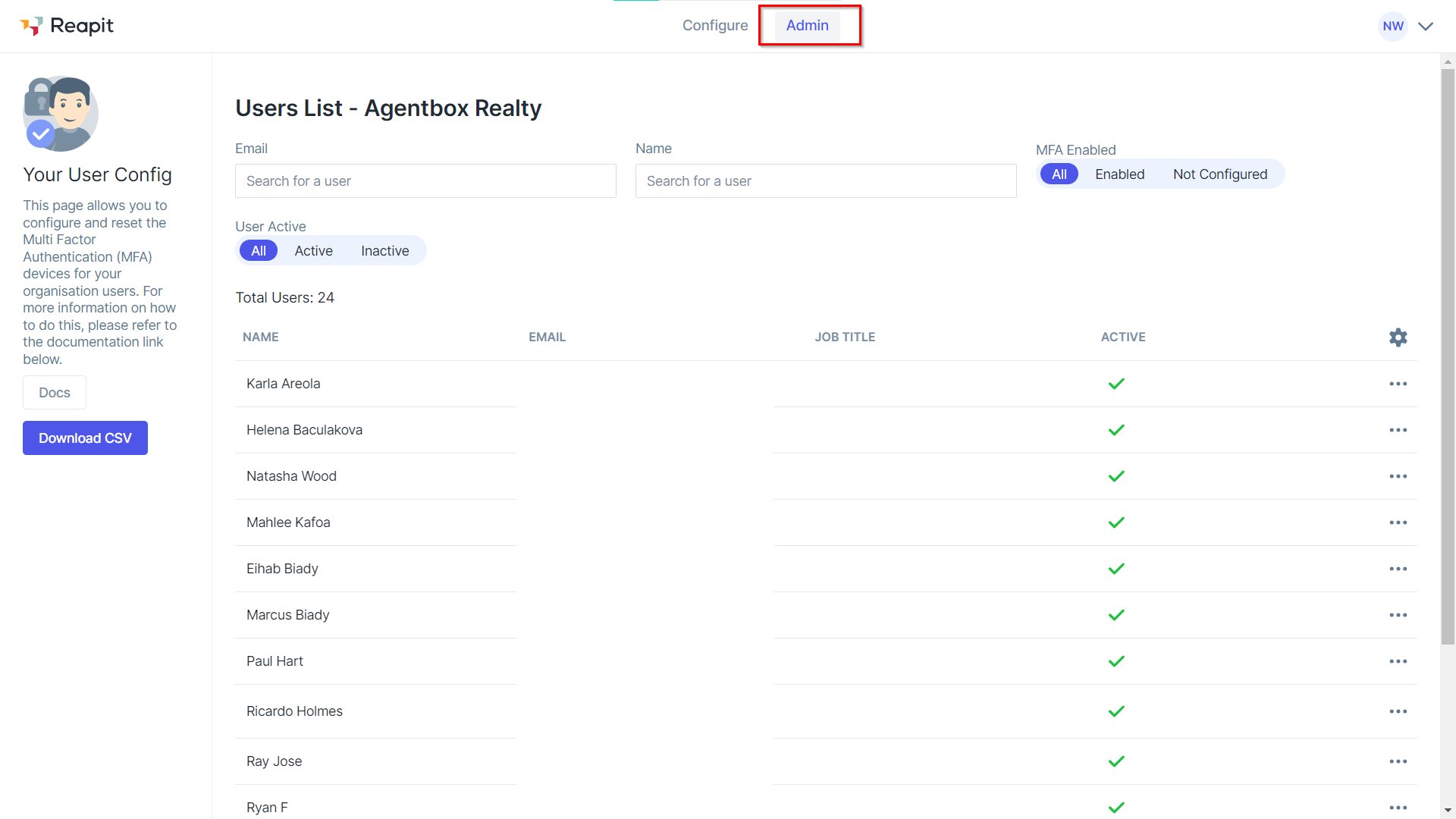
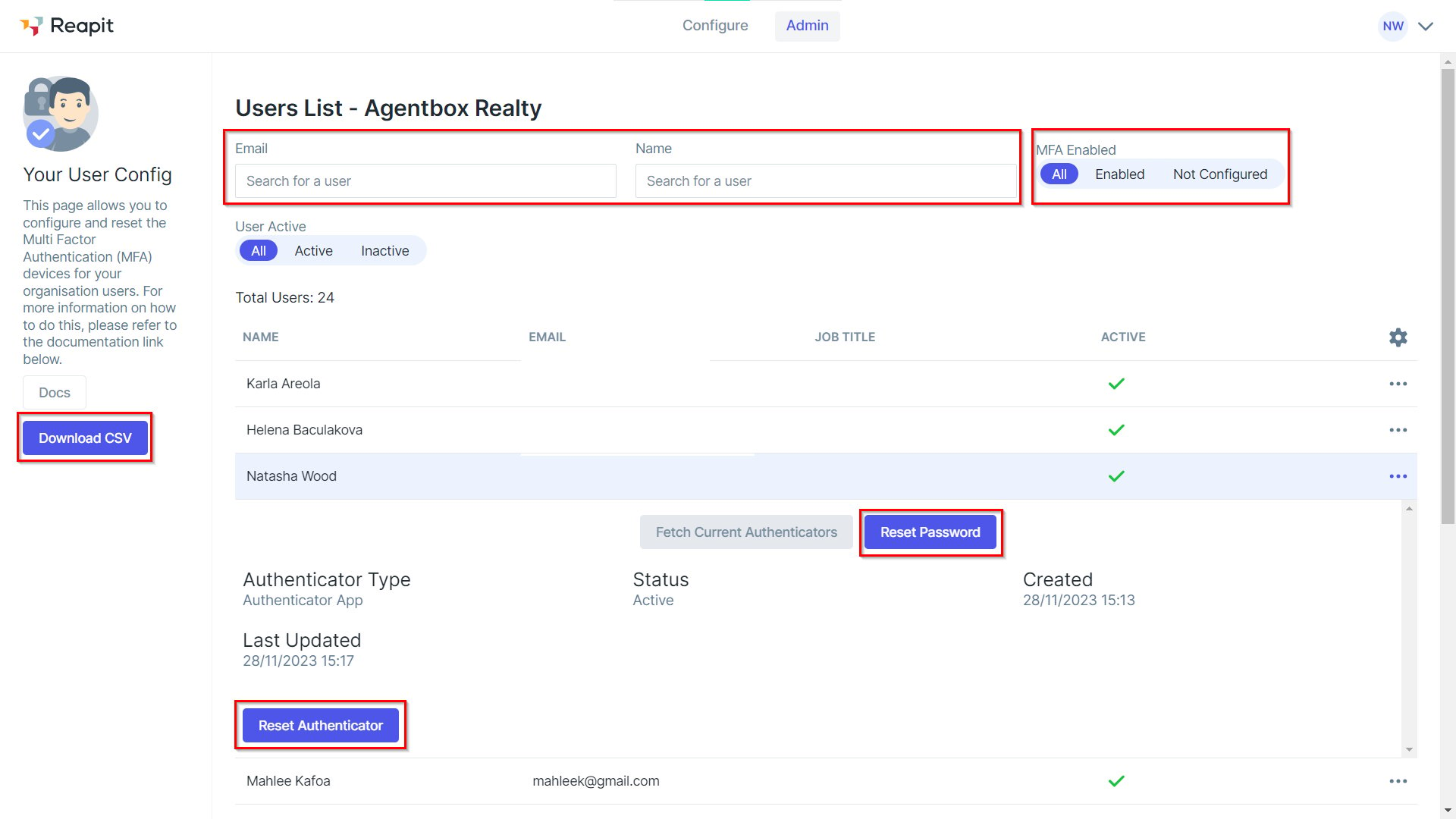
2. Here you can:
- See all users that are registered in your office
- Search for users by their name or email
- Filter the list to show users have have MFA Enabled or Not Configured
- Administer an individual user to Reset their Password or MFA
- Export the displayed list to CSV by clicking “Download CSV”
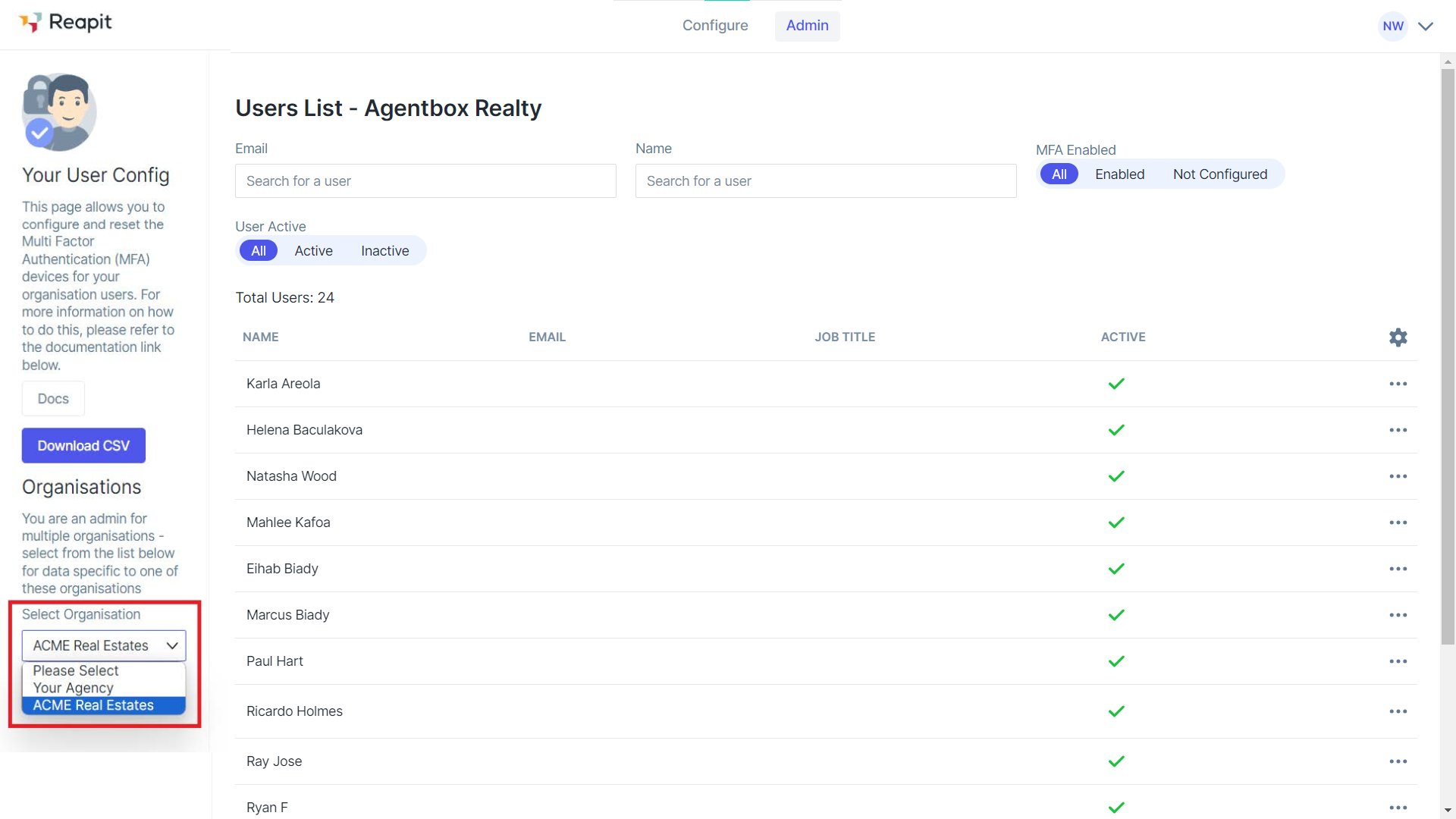
3. Additionally, if you have access to multiple Reapit Sales accounts, you will also be able to choose which account to administer by clicking on “ Select Organisation” as shown below:
Resetting a user's Password
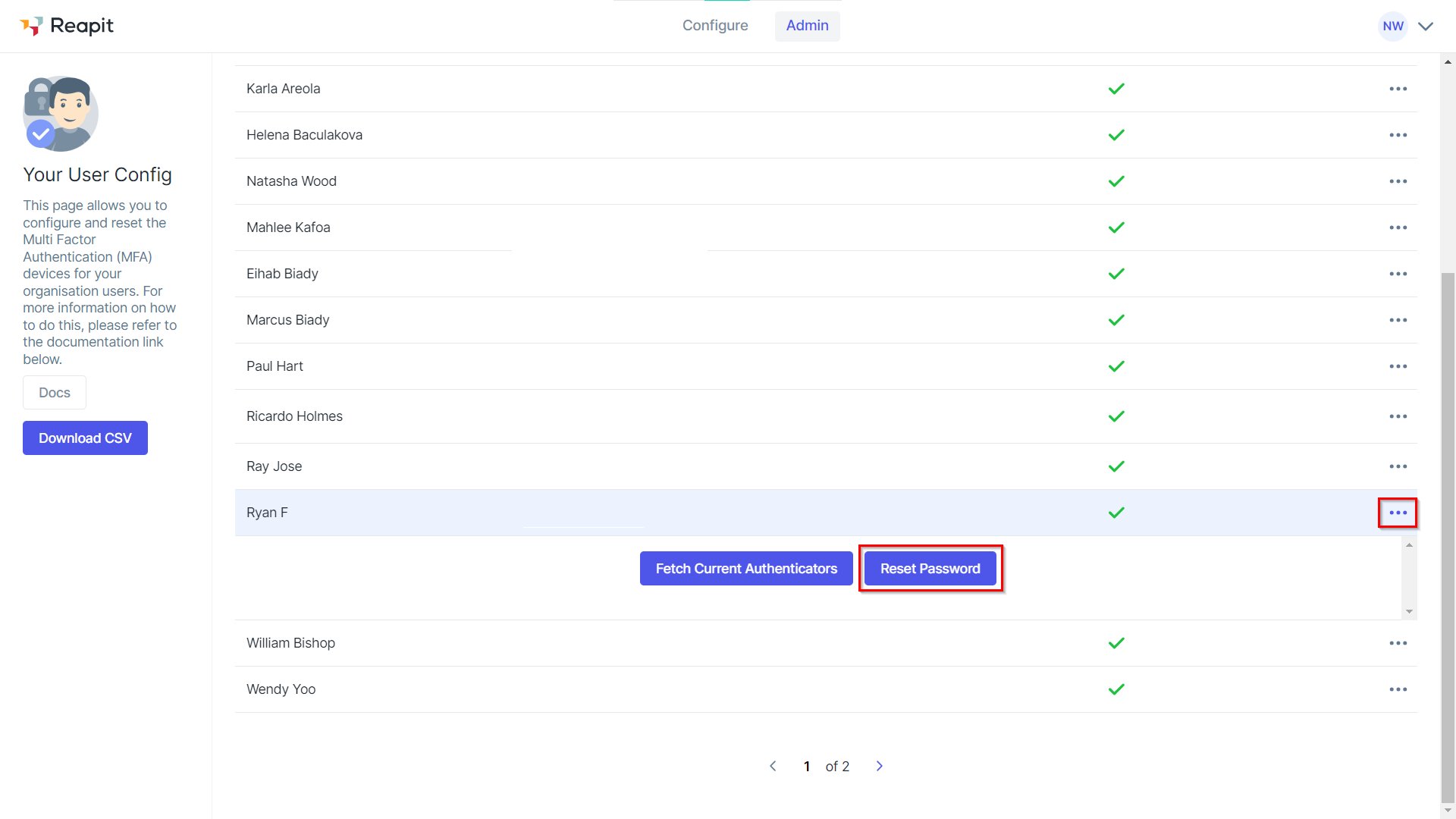
1. To reset a user’s password if they are unable to login (e.g. their temporary password has expired), click on the three dots (…) at the right end of the user’s record to expand the view and click “Reset Password”:
Resetting a user's MFA Authentication Device
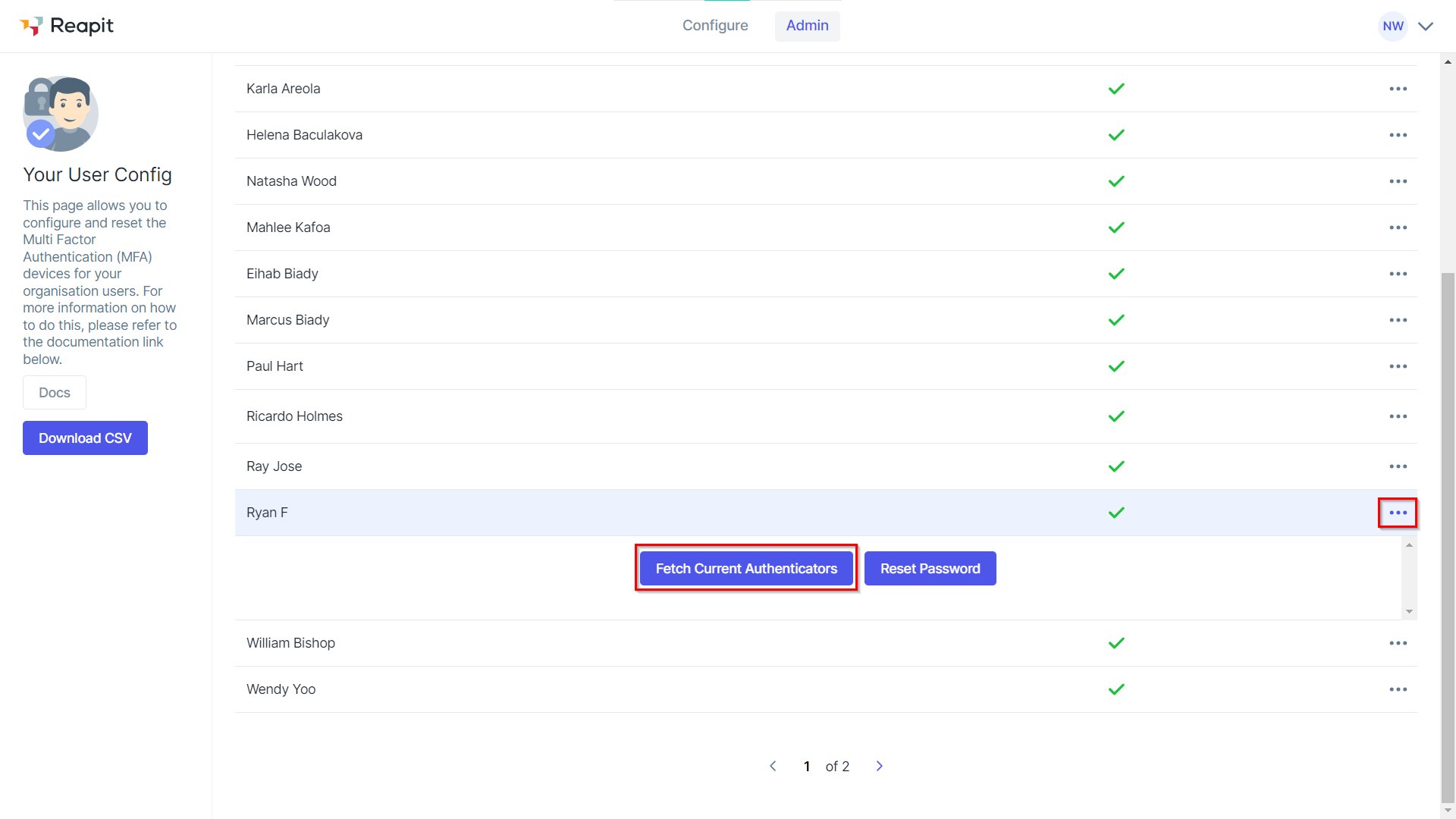
1. To reset a user’s MFA authentication device click on the three dots (…) at the right end of the user’s record to expand the view and click “Fetch Current Authenticator”.
2. After a few seconds, the screen will update to show the authenticator details that have been setup for that user. To remove MFA, click “Reset Authenticator”:
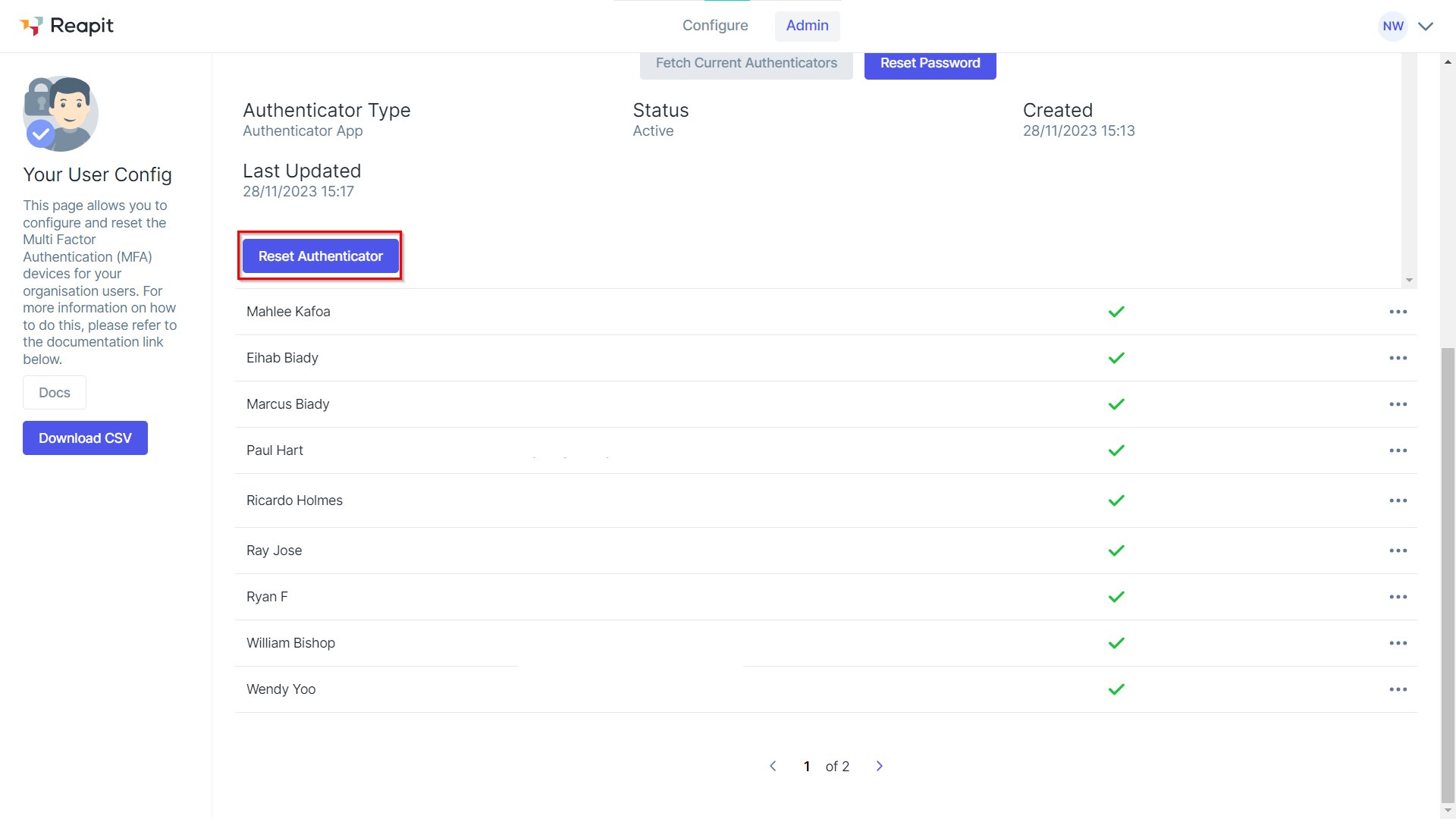
3. The next time the user logs in, they will not be asked to enter their verification code.